1. บทนำ
This manual provides essential information for setting up, operating, and maintaining your Microsoft Bluetooth Mouse - Forest Camo. Designed for precise scrolling and navigation, this compact and modern mouse offers wireless convenience for various computing platforms.
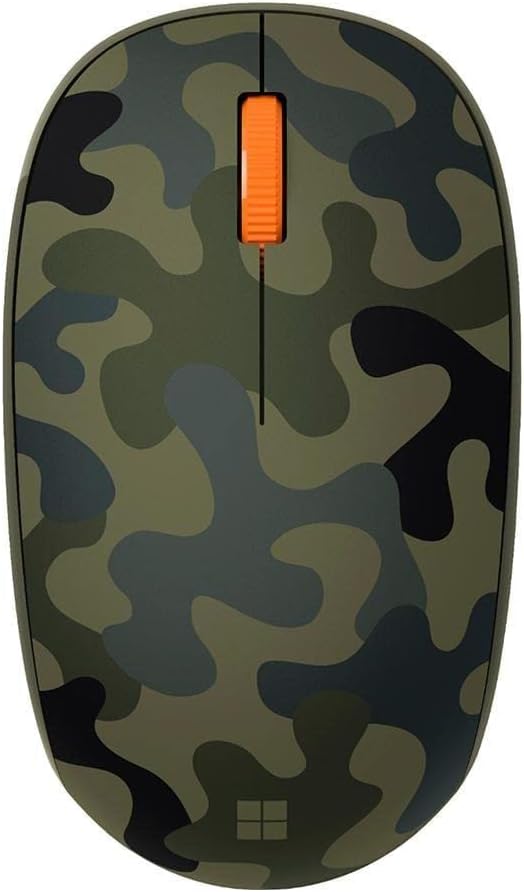
Figure 1: Microsoft Bluetooth Mouse - Forest Camo
2. เนื้อหาบรรจุภัณฑ์
- Microsoft Bluetooth Mouse - Forest Camo
- 1 AA Alkaline Battery (pre-installed)
3. การตั้งค่าและการจับคู่
3.1. การติดตั้งแบตเตอรี่
The mouse comes with a pre-installed AA battery. To activate the mouse, locate the battery compartment on the underside of the mouse. Remove any protective pull-tab if present. Ensure the battery is correctly seated according to the polarity indicators.

Figure 2: Underside of the mouse with battery compartment
3.2. การจับคู่บลูทู ธ
- Turn on the mouse by sliding the power switch (usually located on the underside) to the 'On' position. A small LED indicator may light up.
- On your computer (PC or Mac), open your Bluetooth settings.
- Select 'Add Bluetooth or other device' (Windows) or 'Bluetooth Preferences' (Mac).
- The computer should detect 'Microsoft Bluetooth Mouse'. Select it from the list of available devices.
- Follow any on-screen prompts to complete the pairing process. The LED on the mouse may change from flashing to solid to indicate a successful connection.
The mouse is compatible with Windows 10, Windows 8.1, and Mac operating systems.
4. คู่มือการใช้งาน
The Microsoft Bluetooth Mouse features a standard three-button design with a scroll wheel for intuitive navigation.
- ปุ่มคลิกซ้าย: ใช้สำหรับเลือกสิ่งของ เปิด files และการเปิดใช้งานฟังก์ชั่น
- ปุ่มคลิกขวา: ใช้สำหรับเข้าถึงเมนูบริบทและตัวเลือกเพิ่มเติม
- ล้อเลื่อน: เลื่อนขึ้นหรือลงเพื่อเลื่อนดูเอกสารต่างๆ และ web pages. The scroll wheel can also be pressed down for a middle-click function, depending on your software settings.
เพื่อประหยัดแบตเตอรี่ ควรปิดเมาส์เมื่อไม่ได้ใช้งานเป็นเวลานาน
5. คุณสมบัติ
- Compact and modern design for comfortable use.
- Wireless Bluetooth connectivity, eliminating the need for a USB dongle.
- Fast tracking sensor for precise navigation.
- ใช้งานได้นานสูงสุด 12 เดือนด้วยแบตเตอรี่ AA เพียงก้อนเดียว
- Designed for both right and left-hand use.
6. ข้อมูลจำเพาะ
| คุณสมบัติ | รายละเอียด |
|---|---|
| หมายเลขรุ่น | 8KX-00003 |
| ยี่ห้อ | ไมโครซอฟต์ |
| สี | Forest Camo |
| เทคโนโลยีการเชื่อมต่อ | บลูทูธ |
| การตรวจจับการเคลื่อนไหว | ออฟติคอล |
| แพลตฟอร์มฮาร์ดแวร์ | แล็ปท็อปพีซี |
| ระบบปฏิบัติการ | 10 ของ Windows, Windows 8.1 |
| น้ำหนักสินค้า | 3.84 ออนซ์ |
| ขนาดสินค้า (กxยxส) | 3.11 x 5.83 x 2.01 นิ้ว |
| อายุการใช้งานแบตเตอรี่โดยเฉลี่ย | 12 เดือน |
| แบตเตอรี่ที่จำเป็น | 1 AA (รวม) |

Figure 3: Mouse dimensions
7 การแก้ไขปัญหา
7.1. Mouse Not Connecting
- Ensure the mouse is turned on and the battery is correctly installed.
- Check your computer's Bluetooth settings to confirm Bluetooth is enabled.
- Try re-pairing the mouse by removing it from your device list and adding it again.
- Ensure the mouse is within range of your computer (typically up to 10 meters).
7.2 การเชื่อมต่อไม่ต่อเนื่องหรือความล่าช้า
- เปลี่ยนแบตเตอรี่ AA ด้วยแบตเตอรี่ใหม่
- ลดการรบกวนจากอุปกรณ์ไร้สายอื่นๆ ที่ใช้งานในความถี่เดียวกันให้เหลือน้อยที่สุด
- Ensure your computer's Bluetooth drivers are up to date.
8. การบำรุงรักษา
8.1. การทำความสะอาด
ในการทำความสะอาดเมาส์ ให้ใช้ผ้านุ่มที่ไม่เป็นขุยเช็ดเบาๆampened with water or a mild cleaning solution. Avoid harsh chemicals or abrasive materials. Do not allow moisture to enter any openings.
8.2. การเปลี่ยนแบตเตอรี่
When the mouse's performance degrades or the LED indicator suggests low battery, replace the AA battery. Open the battery compartment on the underside, remove the old battery, and insert a new AA battery, observing correct polarity.
9. การรับประกันและการสนับสนุน
For warranty information, technical support, or further assistance, please refer to the official Microsoft support webเยี่ยมชมเว็บไซต์หรือติดต่อฝ่ายบริการลูกค้าของ Microsoft เก็บหลักฐานการซื้อไว้เพื่อใช้ในการเคลมประกัน
เยี่ยมชม ร้านค้าไมโครซอฟท์ สำหรับข้อมูลผลิตภัณฑ์และทรัพยากรเพิ่มเติม


