การแนะนำ
This manual provides essential information for setting up, operating, maintaining, and troubleshooting your Microsoft Surface Pro 3. The Surface Pro 3 is a versatile device designed to function as both a tablet and a laptop, powered by the Windows 10 operating system.
It features a 12-inch high-resolution screen, ample internal storage, dual HD cameras, and robust connectivity options, including a full-size USB 3.0 port. Its integrated kickstand allows for comfortable viewing in various positions, and the magnesium frame ensures a lightweight and durable design.
ข้อมูลด้านความปลอดภัย
- อย่าให้เครื่องสัมผัสกับอุณหภูมิที่สูงหรือต่ำเกินไป แสงแดดโดยตรง หรือความชื้นสูง
- หลีกเลี่ยงการทำเครื่องตกหรือได้รับแรงกระแทกรุนแรง
- Use only Microsoft-approved power adapters and accessories.
- Keep the device away from liquids. In case of liquid contact, power off immediately and seek professional assistance.
- ห้ามถอดประกอบหรือซ่อมแซมอุปกรณ์ด้วยตนเอง การกระทำดังกล่าวอาจทำให้การรับประกันเป็นโมฆะและก่อให้เกิดความเสียหายได้
- ควรจัดให้มีการระบายอากาศที่เหมาะสมขณะใช้งานอุปกรณ์เพื่อป้องกันความร้อนสูงเกินไป
การตั้งค่า
1. การแกะกล่องและการตรวจสอบเบื้องต้น
Carefully remove the Surface Pro 3 and all accessories from the packaging. Inspect the device for any visible damage. Retain the packaging for future transport or service needs.
2. การเปิดเครื่องและการตั้งค่าเริ่มต้น
- Connect the power supply to the Surface Pro 3 and a power outlet.
- กดปุ่มเปิด/ปิดที่อยู่บริเวณขอบด้านบนของอุปกรณ์
- ทำตามคำแนะนำบนหน้าจอเพื่อดำเนินการตั้งค่าเริ่มต้นของ Windows 10 ให้เสร็จสมบูรณ์ รวมถึงการเลือกภาษา การเชื่อมต่อเครือข่าย และการสร้างบัญชีผู้ใช้
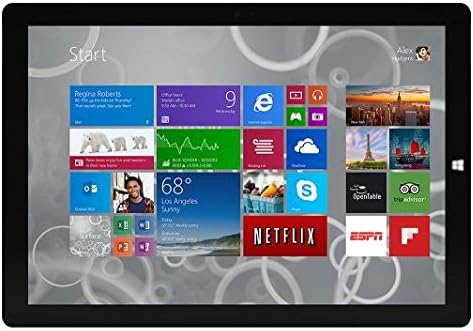
Figure 1: Windows 10 Start Screen during initial setup.
This image shows the Microsoft Surface Pro 3 screen displaying the Windows 10 Start menu, characterized by a grid of live tiles representing various applications and services. This is typically seen during the initial setup or when navigating the operating system.
3. Attaching Accessories (Sold Separately)
The Surface Pro 3 is compatible with various accessories, such as the Surface Type Cover keyboard and the Surface Pen, which are sold separately.
- ฝาครอบประเภทพื้นผิว: Align the magnetic connector of the Type Cover with the bottom edge of the Surface Pro 3 until it clicks into place.
- ปากกา Surface: The Surface Pen can be magnetically attached to the side of the Surface Pro 3 for storage. For initial pairing, follow the instructions provided with the pen.
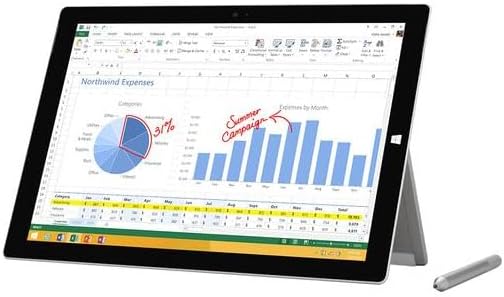
Figure 2: Surface Pro 3 with optional Surface Pen.
This image illustrates the Microsoft Surface Pro 3 in use, displaying an Excel spreadsheet on its screen. A Surface Pen is positioned next to the device, highlighting its compatibility for precise input and navigation.
4. Expanding Storage with a MicroSD Card
You can expand the internal storage of your Surface Pro 3 using a microSD card (sold separately).
- Locate the microSD card slot on the side of the Surface Pro 3, typically behind the kickstand.
- Insert the microSD card into the slot until it clicks into place.
- The device will automatically detect the card. You may need to format it if it's a new card or if prompted by the system.

Figure 3: MicroSD card slot.
This close-up image shows the microSD card slot on the side of the Microsoft Surface Pro 3, with a microSD card partially inserted, demonstrating how to expand the device's storage.
คำแนะนำการใช้งาน
1. Navigating Windows 10
- เมนูเริ่มต้น: Click the Windows icon in the bottom-left corner to access applications, settings, and power options.
- หน้าจอสัมผัส: Use gestures for navigation, zooming, and scrolling.
- Edge Browser: Utilize the pre-installed Edge browser for web browsing, which includes features for marking up web หน้า

Figure 4: Using the Surface Pro 3 for productivity.
This image depicts the Microsoft Surface Pro 3 in an active use scenario, showcasing a note-taking application open on its screen. The display features handwritten notes, diagrams, and sketches, illustrating the device's capability for creative and productive tasks.
2. การใช้งานขาตั้งในตัว
The multi-position kickstand allows you to adjust the viewing angle for optimal comfort, whether you are typing, watching videos, or drawing.
- Gently pull the kickstand out from the back of the device.
- Adjust it to your desired angle. The kickstand offers a wide range of positions for versatility.
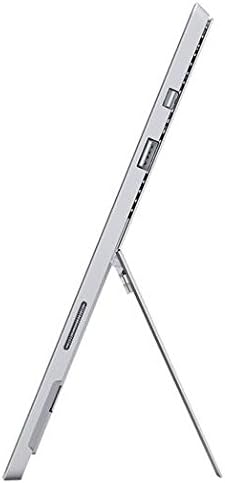
Figure 5: Adjustable kickstand.
ภาพนี้แสดงด้านข้าง view of the Microsoft Surface Pro 3, clearly showing its integrated kickstand extended to support the device at an angle, demonstrating its versatile viewความสามารถในการพัฒนา
3. ฟังก์ชันการทำงานของกล้อง
The Surface Pro 3 is equipped with 5.0MP front and rear cameras.
- Open the Camera application from the Start Menu.
- Switch between front and rear cameras as needed for photos or video calls.

Figure 6: Front camera.
This close-up image focuses on the front-facing camera and associated sensors located at the top edge of the Microsoft Surface Pro 3 screen.
4. การเชื่อมต่อ
The full-size USB 3.0 port allows for connecting various peripherals and transferring data.
- Insert USB devices (e.g., flash drives, external hard drives, printers) into the USB 3.0 port.
- The device also supports Wi-Fi (802.11a/b/g/n/ac) for wireless internet connectivity.
การซ่อมบำรุง
1. Cleaning Your Surface Pro 3
- ใช้ผ้านุ่มไม่เป็นขุย งampล้างออกด้วยน้ำหรือน้ำยาทำความสะอาดหน้าจอที่ออกแบบมาสำหรับอุปกรณ์อิเล็กทรอนิกส์โดยเฉพาะ
- หลีกเลี่ยงการใช้สารเคมีที่รุนแรง น้ำยาทำความสะอาดที่มีฤทธิ์กัดกร่อน หรือสเปรย์แอโรซอล
- เช็ดหน้าจอและพื้นผิวด้านนอกเบาๆ
2. การอัปเดตซอฟต์แวร์
ตรวจสอบและติดตั้งการอัปเดต Windows เป็นประจำ เพื่อให้แน่ใจว่าอุปกรณ์ของคุณมีแพทช์ความปลอดภัยล่าสุดและการปรับปรุงประสิทธิภาพ
- ไปที่ การตั้งค่า > การอัปเดตและการรักษาความปลอดภัย > การอัปเดต Windows.
- คลิก "ตรวจสอบการอัปเดต" และติดตั้งการอัปเดตที่มีอยู่ทั้งหมด
3. การจัดการการจัดเก็บข้อมูล
To maintain optimal performance, manage your device's storage space.
- ลบสิ่งที่ไม่จำเป็นออกเป็นประจำ fileและแอปพลิเคชั่น
- Utilize cloud storage services or external drives for large files.
- Consider using the Disk Cleanup tool in Windows to remove temporary files.
การแก้ไขปัญหา
This section addresses common issues you might encounter with your Surface Pro 3.
อุปกรณ์ไม่เปิดเครื่อง
- ตรวจสอบให้แน่ใจว่าได้เสียบสายไฟเข้ากับอุปกรณ์และเต้ารับไฟฟ้าที่ใช้งานได้สนิทแล้ว
- ลองใช้เต้ารับไฟอื่น
- กดปุ่มเปิด/ปิดค้างไว้ 10-15 วินาทีเพื่อปิดเครื่องแบบบังคับ จากนั้นกดอีกครั้งเพื่อเปิดเครื่องใหม่
ปัญหาการเชื่อมต่อ Wi-Fi
- ตรวจสอบว่า Wi-Fi เปิดใช้งานอยู่ในการตั้งค่า Windows หรือไม่
- รีสตาร์ทเราเตอร์ Wi-Fi ของคุณ
- ลืมเครือข่ายและเชื่อมต่อใหม่โดยกรอกรหัสผ่านอีกครั้ง
- เรียกใช้ตัวแก้ไขปัญหาเครือข่าย Windows
ประสิทธิภาพการทำงานช้า
- ปิดแอปพลิเคชันที่ไม่จำเป็นซึ่งทำงานอยู่เบื้องหลัง
- ตรวจสอบและติดตั้งการอัปเดต Windows ที่รอดำเนินการอยู่
- ตรวจสอบให้แน่ใจว่าคุณมีพื้นที่จัดเก็บว่างเพียงพอ
- รันการสแกนไวรัส
For more detailed troubleshooting or issues not covered here, please refer to the official Microsoft Support webเว็บไซต์หรือติดต่อฝ่ายบริการลูกค้า
ข้อมูลจำเพาะ
| คุณสมบัติ | รายละเอียด |
|---|---|
| แบบอย่าง | Microsoft Surface 1631 Pro 3 |
| ระบบปฏิบัติการ | วินโดวส์ 10 |
| ขนาดหน้าจอ | 12 นิ้ว |
| ความละเอียดหน้าจอ | 2160 x 1440 |
| โปรเซสเซอร์ | อินเทล คอร์ ไอ3 1.5 กิกะเฮิรตซ์ |
| แรม | 4GB |
| การจัดเก็บข้อมูลภายใน | หน่วยความจำแฟลช 128 GB |
| โคโปรเซสเซอร์กราฟิก | กราฟิก Intel HD |
| กล้องถ่ายรูป | 5.0MP Front and Rear |
| ประเภทไร้สาย | 802.11b, 802.11a, 802.11g |
| พอร์ต | Full-size USB 3.0 |
| น้ำหนักสินค้า | 1.8 ปอนด์ |
| ขนาดสินค้า | 11.5 x 0.36 x 7.93 นิ้ว |
| สี | เงิน |
การรับประกันและการสนับสนุน
Your Microsoft Surface Pro 3 comes with a standard manufacturer's warranty. For detailed warranty terms and conditions, please refer to the documentation included with your purchase or visit the official Microsoft support webเว็บไซต์.
For technical assistance, troubleshooting guides, driver downloads, and service requests, please visit the Microsoft Surface Support หน้าหนังสือ.


