1. บทนำ
Thank you for choosing the BitFenix AL118 ATX Mid Tower PC Case. This manual provides essential information for the proper installation, operation, and maintenance of your new PC case. Please read this manual thoroughly before beginning installation to ensure correct setup and to prevent any damage to the product or its components. Keep this manual for future reference.
ข้อมูลด้านความปลอดภัย
- ควรตัดการเชื่อมต่อแหล่งจ่ายไฟออกจากเต้ารับที่ผนังทุกครั้งก่อนติดตั้งหรือถอดส่วนประกอบใดๆ
- Handle components with care to avoid electrostatic discharge (ESD) damage. Consider using an anti-static wrist strap.
- ตรวจสอบให้แน่ใจว่าสายเคเบิลทั้งหมดได้รับการเดินและยึดอย่างถูกต้องเพื่อป้องกันการรบกวนพัดลมหรือชิ้นส่วนที่เคลื่อนไหวอื่นๆ
- Do not open the power supply unit (PSU) as it contains high voltagส่วนประกอบอี
- ควรเก็บกล่องให้ห่างจากแสงแดดโดยตรง อุณหภูมิสูง และความชื้น
2. สินค้าหมดview และคุณสมบัติ
The BitFenix AL118 is a high-performance ATX Mid Tower PC case designed for enthusiasts. It features a tempered glass side panel, integrated ARGB lighting, and comes equipped with a 1000W 80+ Gold Gen5 ATX 3.0 power supply unit. The case offers extensive compatibility for various motherboard sizes, GPUs, and cooling solutions.
คุณสมบัติหลัก:
- ฟอร์มแฟกเตอร์: ATX มิดทาวเวอร์
- แหล่งจ่ายไฟ: Integrated 1000W 80+ Gold Gen5 ATX 3.0 PSU
- แผงด้านข้าง: กระจกนิรภัย
- แสงสว่าง: Addressable RGB (ARGB) elements
- รองรับเมนบอร์ด: MicroATX, Mini-ITX (ATX implied by case type)
- ด้านหน้า I / O: 1 x USB 3.2 Type-C, 2 x USB 3.0
- ช่องเก็บของ: 2 x 2.5" internal, 1 x 3.5" internal
- การกวาดล้าง GPU: สูงถึง 400มม.
- รองรับการระบายความร้อน:
- Top Radiator: 240mm, 280mm, 360mm
- Rear Radiator: 1 x 120mm
- Rear Fan: 1 x 120mm (pre-installed ARGB)
- Top Fan: 3 x 120mm or 3 x 140mm (support)
- Side Fan: 3 x 120mm (pre-installed ARGB)
3. คู่มือการติดตั้ง
Follow these steps to properly set up your BitFenix AL118 PC case and install your components.
3.1 การแกะกล่องและการตรวจสอบเบื้องต้น
- ถอดเคสออกจากบรรจุภัณฑ์อย่างระมัดระวัง
- Inspect the case for any signs of damage during transit. If damaged, contact your retailer immediately.
- ถอดแผงกระจกนิรภัยด้านข้างออกโดยคลายสกรูหัวแม่มือ (ถ้ามี) หรือปลดล็อคasing the latch mechanism. Place it on a soft, flat surface to prevent scratches.
- หาช่องเก็บอุปกรณ์เสริมภายในเคส ซึ่งจะมีสกรู เคเบิลไทร์ และอุปกรณ์ติดตั้งอื่นๆ อยู่ภายใน
3.2 การติดตั้งเมนบอร์ด
- Ensure the correct standoffs are installed for your motherboard form factor (MicroATX, Mini-ITX). Additional standoffs may be in the accessory box.
- ติดตั้งแผงป้องกัน I/O ลงในช่องเปิดด้านหลังของเคส
- วางเมนบอร์ดของคุณลงบนสแตนด์ออฟอย่างระมัดระวัง โดยจัดรูสกรูให้ตรงกัน
- ยึดเมนบอร์ดด้วยสกรูที่ให้มา อย่าขันแน่นเกินไป

รูปที่ 3.2.1: ภายใน view of the case, highlighting the motherboard tray and various mounting points for fans and components.
3.3 การติดตั้งการ์ดจอ (GPU)
- Remove the necessary expansion slot covers from the rear of the case, corresponding to your GPU's size.
- Insert your GPU into the appropriate PCIe slot on the motherboard until it clicks into place.
- Secure the GPU to the case with screws.
- Connect the required PCIe power cables from the PSU to the GPU.
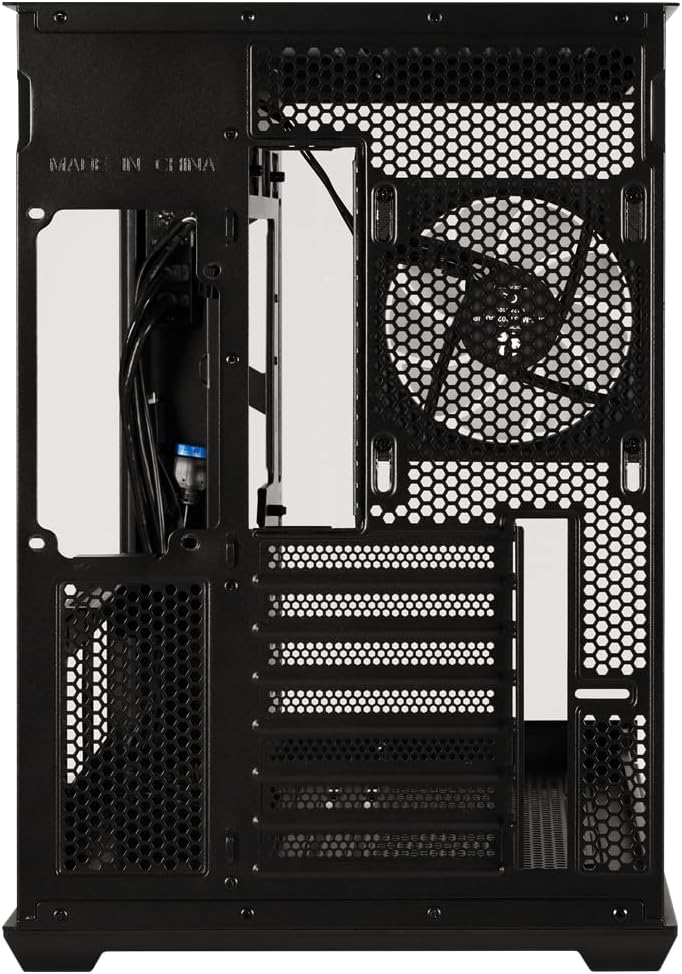
รูปที่ 3.3.1: ด้านหลัง view of the case, showing the expansion slots where graphics cards are mounted and the pre-installed rear fan.
3.4 Storage Drive Installation (2.5" SSD/HDD, 3.5" HDD)
- Locate the 2.5" drive mounts (2 available) and 3.5" drive bay (1 available). These are typically found behind the motherboard tray or in a dedicated drive cage.
- For 2.5" drives, secure them to the mounting brackets with screws.
- For 3.5" drives, slide them into the drive cage and secure with screws or tool-less clips if available.
- Connect SATA data cables to the motherboard and SATA power cables from the PSU to each drive.
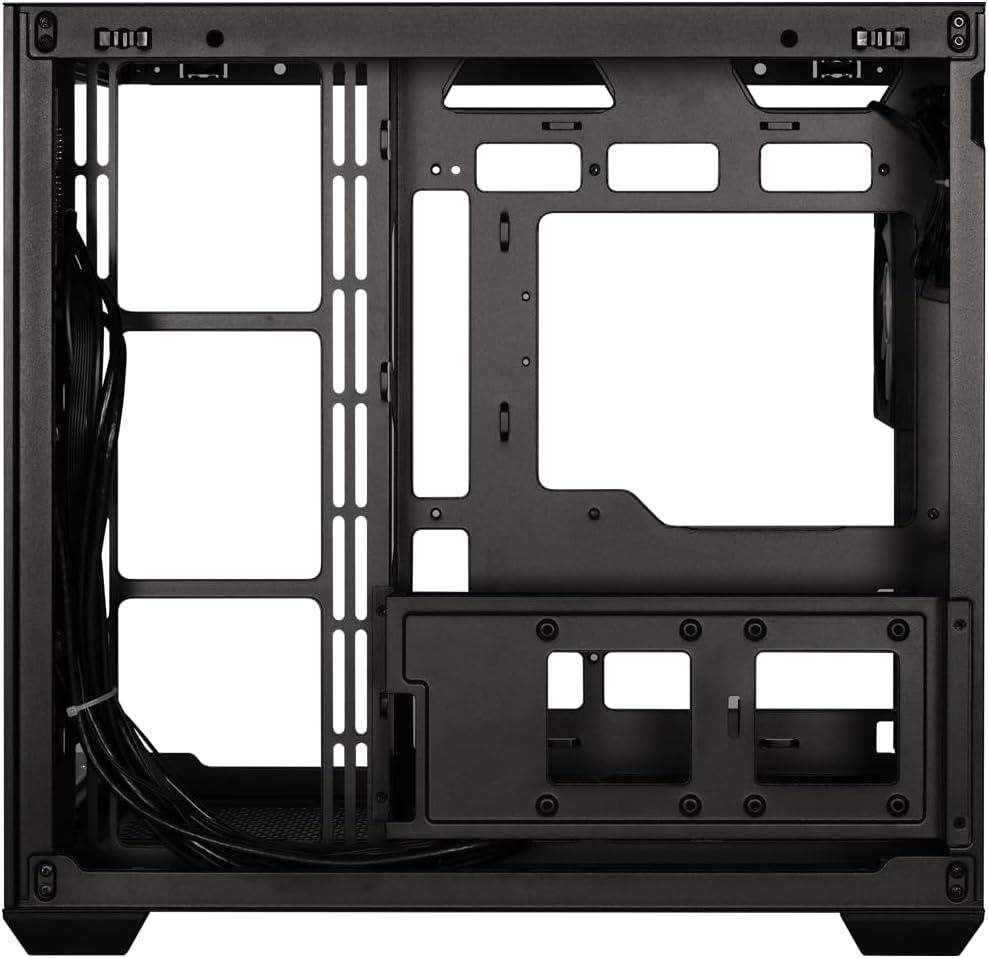
รูปที่ 3.4.1: View behind the motherboard tray, illustrating the cable management channels and mounting locations for 2.5-inch and 3.5-inch storage drives.
3.5 Power Supply Unit (PSU) Connections
Your BitFenix AL118 case comes with a pre-installed 1000W 80+ Gold Gen5 ATX 3.0 PSU. Ensure all necessary power cables are connected:
- ขั้วต่อไฟ ATX 24 พิน: Connect to the motherboard.
- 8-pin (4+4) EPS/CPU Power: Connect to the motherboard CPU power header.
- พลัง PCIe: เชื่อมต่อกับการ์ดกราฟิกของคุณตามความจำเป็น
- กำลังไฟ SATA: Connect to your storage drives.
- Peripheral/Molex Power: Connect to any other components requiring this type of power.
3.6 การเชื่อมต่อแผงด้านหน้า
Connect the front panel cables to the corresponding headers on your motherboard:
- ยูเอสบี 3.2 ประเภท-C: Connect the internal USB-C header cable to your motherboard's USB 3.2 Gen2 Type-C header.
- ยูเอสบี 3.0: Connect the internal USB 3.0 header cable to your motherboard's USB 3.0 header.
- เสียง HD: Connect to your motherboard's audio header.
- สวิตช์เปิด/ปิด, สวิตช์รีเซ็ต, ไฟ LED แสดงสถานะฮาร์ดดิสก์, ไฟ LED แสดงสถานะการทำงาน: Connect these small connectors to the front panel header pins on your motherboard according to your motherboard manual.

รูปที่ 3.6.1: ภายใน view showing the pre-installed ARGB fans and the routing of front panel I/O cables, including USB 3.2 Type-C and USB 3.0 connections.
3.7 การจัดการสายเคเบิล
Utilize the cable routing cutouts and tie-down points behind the motherboard tray to manage cables. Proper cable management improves airflow and aesthetics.
- Route main power cables (24-pin, EPS) through the largest cutouts.
- Use cable ties or Velcro straps (included in accessory box) to bundle and secure cables.
- Ensure no cables obstruct fan blades or airflow paths.
4. คู่มือการใช้งาน
4.1 การเปิดระบบของคุณ
- Once all components are installed and cables connected, replace the tempered glass side panel.
- เชื่อมต่อสายไฟ AC เข้ากับแหล่งจ่ายไฟ (PSU) จากนั้นเสียบเข้ากับเต้ารับที่ผนัง
- พลิกสวิตช์เปิด/ปิดด้านหลังของแหล่งจ่ายไฟไปที่ตำแหน่ง 'เปิด'
- Press the power button on the front panel of your case.
4.2 การควบคุมแสง ARGB
The BitFenix AL118 features Addressable RGB (ARGB) lighting. The control method depends on how the ARGB components are connected:
- การซิงค์เมนบอร์ด: If the ARGB cables are connected to a compatible 3-pin 5V ARGB header on your motherboard, you can control the lighting effects using your motherboard's RGB software (e.g., ASUS Aura Sync, MSI Mystic Light, Gigabyte RGB Fusion, ASRock Polychrome Sync).
- Integrated Controller: If the case includes a built-in ARGB controller (often connected to a reset button or dedicated ARGB button), you can cycle through pre-programmed lighting modes by pressing that button. Refer to the specific controller's instructions if applicable.
5. การบำรุงรักษา
การบำรุงรักษาตามปกติจะช่วยให้มั่นใจได้ถึงประสิทธิภาพสูงสุดและอายุการใช้งานที่ยาวนานของส่วนประกอบพีซีของคุณ
- ตัวกรองฝุ่น: The case is equipped with dust filters (e.g., top, front, bottom). Regularly remove and clean these filters with water and mild soap, or by vacuuming/brushing them. Ensure they are completely dry before re-installing.
- การทำความสะอาดภายใน: Periodically use compressed air to blow dust out of the case interior, especially from fan blades, heatsinks, and vents. Ensure the system is powered off and unplugged before cleaning.
- กระจกนิรภัย: Clean the tempered glass panel with a microfiber cloth and a non-abrasive glass cleaner. Avoid harsh chemicals.
6 การแก้ไขปัญหา
If you encounter issues with your PC build, refer to the following common troubleshooting steps:
- ไม่มีไฟ / ระบบไม่เริ่มทำงาน:
- Ensure the PSU power switch is in the 'ON' position.
- Check that the AC power cord is securely connected to both the PSU and the wall outlet.
- Verify all PSU cables (24-pin, EPS, PCIe) are firmly connected to the motherboard and components.
- ตรวจสอบว่าสายสวิตช์ไฟแผงด้านหน้าเชื่อมต่อกับหัวเมนบอร์ดอย่างถูกต้อง
- ไม่มีการแสดงผล:
- Ensure your monitor is connected to the graphics card (GPU) output, not the motherboard's integrated graphics output (unless you are using integrated graphics).
- ใส่การ์ดกราฟิกกลับเข้าไปในสล็อต PCIe
- Check that the GPU's power cables are securely connected.
- Fans Not Spinning / ARGB Not Working:
- Verify that all fan power cables are connected to the motherboard fan headers or a fan controller.
- Check ARGB cables are connected to a compatible 3-pin 5V ARGB header on the motherboard or an ARGB controller.
- หากใช้ซอฟต์แวร์เมนบอร์ด โปรดตรวจสอบให้แน่ใจว่าได้ติดตั้งและกำหนดค่าอย่างถูกต้องแล้ว
- ความร้อนสูงเกินไป:
- Ensure all case fans are spinning and oriented correctly for optimal airflow (intake/exhaust).
- Clean dust filters and case interior as described in the Maintenance section.
- Verify CPU cooler and GPU cooler are properly installed and functioning.
7. ข้อมูลจำเพาะ
| คุณสมบัติ | ข้อมูลจำเพาะ |
|---|---|
| ชื่อรุ่น | BitFenix AL118 1000W 80+Gold Gen5 ATX 3.0 TemperedGlass ARGB ATX MidTower SiyahKasa BFC-ALB100KKGSK-4A |
| หมายเลขชิ้นส่วน | BFC-ALB100KKGSK-4A |
| ประเภทเคส | ATX มิดทาวเวอร์ |
| ความเข้ากันได้ของเมนบอร์ด | MicroATX, Mini-ITX (ATX implied by case type) |
| หน่วยจ่ายไฟ (PSU) | 1000W 80+ Gold Gen5 ATX 3.0 (Pre-installed) |
| ที่ตั้ง ม.อ | ด้านล่าง |
| แผงด้านข้าง | กระจกนิรภัย |
| พอร์ต I / O ด้านหน้า | 1 x USB 3.2 Type-C, 2 x USB 3.0 |
| ช่องใส่ไดรฟ์ภายในขนาด 2.5 นิ้ว | 2 |
| ช่องใส่ไดรฟ์ภายในขนาด 3.5 นิ้ว | 1 |
| ความยาวสูงสุดของ GPU | 400มม. |
| การสนับสนุนหม้อน้ำด้านบน | 240มม., 280มม., 360มม. |
| ส่วนรองรับหม้อน้ำด้านหลัง | 1 x 120มม. |
| Front Panel Fan Support | None (Side fans are present) |
| Rear Panel Fan Support | 1 x 120มม. |
| Top Panel Fan Support | 3 x 120 มม., 3 x 140 มม |
| Pre-installed Fans (Side) | 3 x 120mm ARGB |
| Pre-installed Fans (Rear) | 1 x 120mm ARGB |
| ขนาดสินค้า | 48 x 45.5 x 34.5 ซม. |
| น้ำหนักผลิตภัณฑ์ | 8 กิโลกรัม |
8. การรับประกันและการสนับสนุน
BitFenix products are manufactured to the highest quality standards. For specific warranty terms and conditions, please refer to the warranty card included with your product or visit the official BitFenix website. If you encounter any issues that cannot be resolved using this manual, please contact BitFenix customer support or your retailer for assistance.
Official BitFenix Webเว็บไซต์: www.bitfenix.com


