1. บทนำ
This manual provides essential information for setting up, operating, and maintaining your XGIMI HORIZON 20 4K RGB Triple Laser Home Projector. Please read it thoroughly to ensure optimal performance and longevity of your device.

Figure 1: The XGIMI HORIZON 20 4K RGB Triple Laser Home Projector with included 3D glasses.
2. คุณสมบัติหลัก
- ชุดเลเซอร์ RGB สามดวง: Delivers 3200 ISO lumens and a 100,000:1 contrast ratio for vivid and accurate colors.
- Cinematic Certified: Supports IMAX Enhanced, Dolby Vision, HDR10+, and Filmmaker Mode for high-quality visuals.
- ระบบบูรณาการ: Features powerful Harman Kardon speakers, built-in Google TV, and an integrated stand.
- Lossless Optics: Flexible lens shift and optical zoom for setup versatility without clarity loss.
- Pro-Level Gaming: Offers 1ms response time, 240Hz refresh rate, VRR, and ALLM for a smooth gaming experience.
- จอแสดงผลขนาดใหญ่: Capable of projecting visuals up to 300 inches.
- Licensed Netflix: Official Netflix support integrated.
3. การตั้งค่า
3.1 แกะกล่อง
The XGIMI HORIZON 20 comes in premium packaging. Carefully remove the projector and its accessories from the box. A portable box is included for convenient transport and outdoor use.
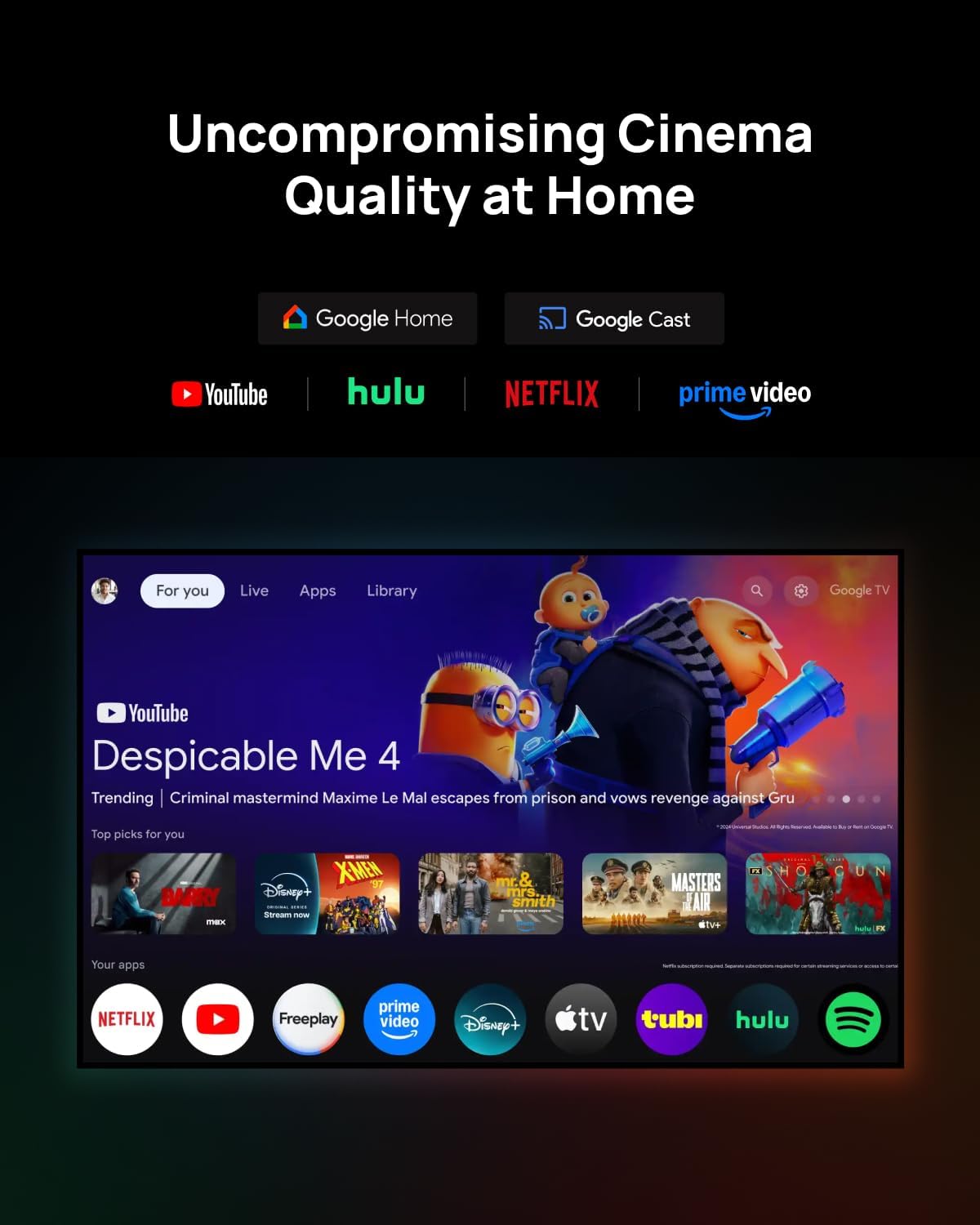
Figure 2: The XGIMI HORIZON 20 projector being unboxed from its protective, portable packaging.
3.2 การจัดวาง
The projector can be placed on a flat surface or mounted to the ceiling. Ensure the projector is stable and has adequate ventilation. For ceiling mounting, use a compatible mount (sold separately).

Figure 3: The XGIMI HORIZON 20 projector showcasing its flexible installation options, including dynamic lens shift for optimal image placement.
3.3 การเชื่อมต่อ
The rear panel of the projector features various ports for connectivity:
- พอร์ต HDMI: Two HDMI ports, one supporting eARC for enhanced audio return.
- พอร์ต USB: One USB 3.0 port and one USB 2.0 port for media playback and external devices.
- เอาต์พุตเสียง: Digital audio out and an analog audio output (3.5mm jack).
- กำลังไฟเข้า: Connect the power adapter to this port.

รูปที่ 4: ด้านหลัง view of the XGIMI HORIZON 20, highlighting its various connectivity ports for external devices.
4. การดำเนินการ
4.1 การเปิด/ปิดเครื่อง
กดปุ่มเปิด/ปิดบนโปรเจ็กเตอร์หรือรีโมทคอนโทรลเพื่อเปิดหรือปิดเครื่อง
4.2 Navigation (Google TV)
The projector runs on Google TV OS, providing a user-friendly interface for accessing apps, streaming services, and settings. Navigate using the provided remote control.

Figure 5: The Google TV interface on the XGIMI HORIZON 20, showing access to popular streaming applications like Netflix, YouTube, and Prime Video.
4.3 การตั้งค่าภาพ
Access the picture settings menu to adjust various display parameters:
- โหมดภาพ: Select from predefined modes (e.g., Standard, Filmmaker).
- ความสว่าง: Adjust the overall luminance of the image.
- ตัดกัน: ควบคุมความแตกต่างระหว่างบริเวณที่สว่างที่สุดและมืดที่สุด
- ความอิ่มตัว: Modify the intensity of colors.
- ความคมชัด: Enhance or soften image edges.
- การตั้งค่าขั้นสูง: Includes options for 11-Point White Balance Correction, 2-Point White Balance Correction, Color Temperature, Dynamic Black Level Enhancer, Gamma, Color Space, and Color Tuner for precise calibration.
4.4 การตั้งค่าเสียง
The projector features an integrated Harman Kardon sound system. Adjust audio settings via the menu:
- สไตล์เสียง: เลือกจากอุปกรณ์เสียงระดับมืออาชีพหลากหลายแบบfiles (e.g., Standard, Game).
- การตั้งค่าพื้นฐาน: Adjust Balance, Bass, Treble, enable Surround Sound, and fine-tune Equalizer Detail.
- ดีทีเอส ดีอาร์ซี: Digital Theater System Dynamic Range Control.
- วิทยากร: Toggle internal speakers on/off.
- ความล่าช้าของลำโพง: Adjust delay for audio synchronization.
- eARC: Enhanced Audio Return Channel settings.
- โหมดดาวน์มิกซ์: Select stereo or other downmix options.
- Dialog Enhancer: Improve clarity of spoken dialogue.
4.5 คุณสมบัติอัจฉริยะ
The HORIZON 20 includes several smart features for ease of use:
- โฟกัสอัตโนมัติ: Automatically adjusts the image for optimal clarity.
- แก้ไขภาพบิดเบี้ยวอัตโนมัติ: Corrects image distortion when the projector is not perfectly aligned with the screen.
- Wall Color Adaption: ปรับสีตามพื้นผิวผนัง
- การหมุนหน้าจอ: Automatically adjusts image orientation.
- โหมดป้องกันดวงตา: Reduces blue light emission for eye comfort.
4.6 Lens Shift and Optical Zoom
The projector offers advanced optical adjustments:
- การเปลี่ยนเลนส์: Allows you to move the projected image vertically (up to ±120%) and horizontally (up to ±45%) without moving the projector. This feature maintains image quality without digital scaling or distortion. Note that enabling Lens Shift may disable some automatic smart features like Auto Focus and Auto Keystone Correction.
- ซูมออปติคอล: Provides framing flexibility by adjusting the image size optically, avoiding digital scaling and preserving image quality.
โหมดการเล่นเกม 4.7
For an enhanced gaming experience, the projector offers a dedicated gaming mode with 1ms response time, 240Hz fluidity, VRR (Variable Refresh Rate), and ALLM (Auto Low Latency Mode). When gaming mode is enabled, Keystone correction may be disabled, but Lens Shift and Optical Zoom can be used to maintain image geometry.
Figure 6: The XGIMI HORIZON 20 delivering a high-performance gaming experience with minimal input lag.
4.8 3D Video Support
The HORIZON 20 supports 3D video playback. Compatible 3D glasses (such as XGIMI Active 3D Glasses) are required for viewการสร้างเนื้อหาแบบ 3 มิติ

Figure 7: XGIMI Active 3D Glasses, designed for a brighter and clearer 3D viewing experience with long battery life.
5. การบำรุงรักษา
5.1 การทำความสะอาด
Regularly clean the projector's lens with a soft, lint-free cloth specifically designed for optical surfaces. Use a soft brush or compressed air to remove dust from the vents. Do not use abrasive cleaners or solvents.
5.2 พื้นที่จัดเก็บ
เมื่อไม่ได้ใช้งานเป็นเวลานาน ควรเก็บโปรเจคเตอร์ไว้ในที่แห้งและเย็น โดยควรเก็บไว้ในบรรจุภัณฑ์เดิมหรือกล่องป้องกัน เพื่อป้องกันฝุ่นละอองสะสมและความเสียหาย
6 การแก้ไขปัญหา
If you encounter any issues with your XGIMI HORIZON 20, please refer to the following general troubleshooting steps:
- ไม่มีไฟฟ้า: ตรวจสอบให้แน่ใจว่าสายไฟเชื่อมต่อแน่นหนาและปลั๊กไฟใช้งานได้ปกติ
- ไม่มีรูป: Check HDMI or other input connections. Verify the correct input source is selected.
- ภาพเบลอ: Adjust focus manually or use the auto-focus feature. Ensure the lens is clean.
- ภาพบิดเบี้ยว: Use keystone correction or lens shift to adjust the image geometry.
- ไม่มีเสียง: Check audio settings, volume levels, and external audio connections.
For more detailed troubleshooting or persistent issues, please contact XGIMI customer support.
7. ข้อมูลจำเพาะ
| คุณสมบัติ | ข้อมูลจำเพาะ |
|---|---|
| แบบอย่าง | ฮอไรซอน 20 |
| เทคโนโลยีการแสดงผล | 4K RGB Triple Laser |
| ความสว่าง | 3200 ลูเมน ISO |
| อัตราส่วนคอนทราสต์ | 100,000:1 น. |
| Max Display Size | 300 นิ้ว |
| ระบบปฏิบัติการ | กูเกิลทีวี |
| โปรเซสเซอร์ | MediaTek MT9679 SoC |
| แรม | 4GB |
| พื้นที่จัดเก็บ | 128GB |
| Input Lag (Gaming Mode) | 1มิลลิวินาที |
| Refresh Rate (Gaming Mode) | 240เฮิรตซ์ |
| รองรับ HDR | HDR10+, Dolby Vision |
| เสียง | Harman Kardon Integrated System |
| การเชื่อมต่อ | 2x HDMI (1x eARC), 1x USB 3.0, 1x USB 2.0, Digital Audio Out, Analog Audio Out (3.5mm), Wi-Fi, Bluetooth |
| คุณสมบัติพิเศษ | Lens Shift, Optical Zoom, Auto Focus, Auto Keystone, Wall Color Adaption, Screen Rotation, Eye Protection Mode, VRR, ALLM, 3D Video Support, Licensed Netflix |
8. การรับประกันและการสนับสนุน
สำหรับข้อมูลการรับประกันและการสนับสนุนทางเทคนิค โปรดดูที่ XGIMI อย่างเป็นทางการ webคุณสามารถดูข้อมูลเพิ่มเติมได้จากเว็บไซต์หรือเอกสารประกอบที่มาพร้อมกับผลิตภัณฑ์ของคุณ นอกจากนี้ คุณยังสามารถเยี่ยมชม... XGIMI Store on Amazon สำหรับทรัพยากรเพิ่มเติม


