1. บทนำ
This manual provides essential information for the setup, operation, maintenance, and troubleshooting of your FIREBAT MN56 Mini PC. Please read this manual thoroughly before using the device to ensure proper functionality and longevity.
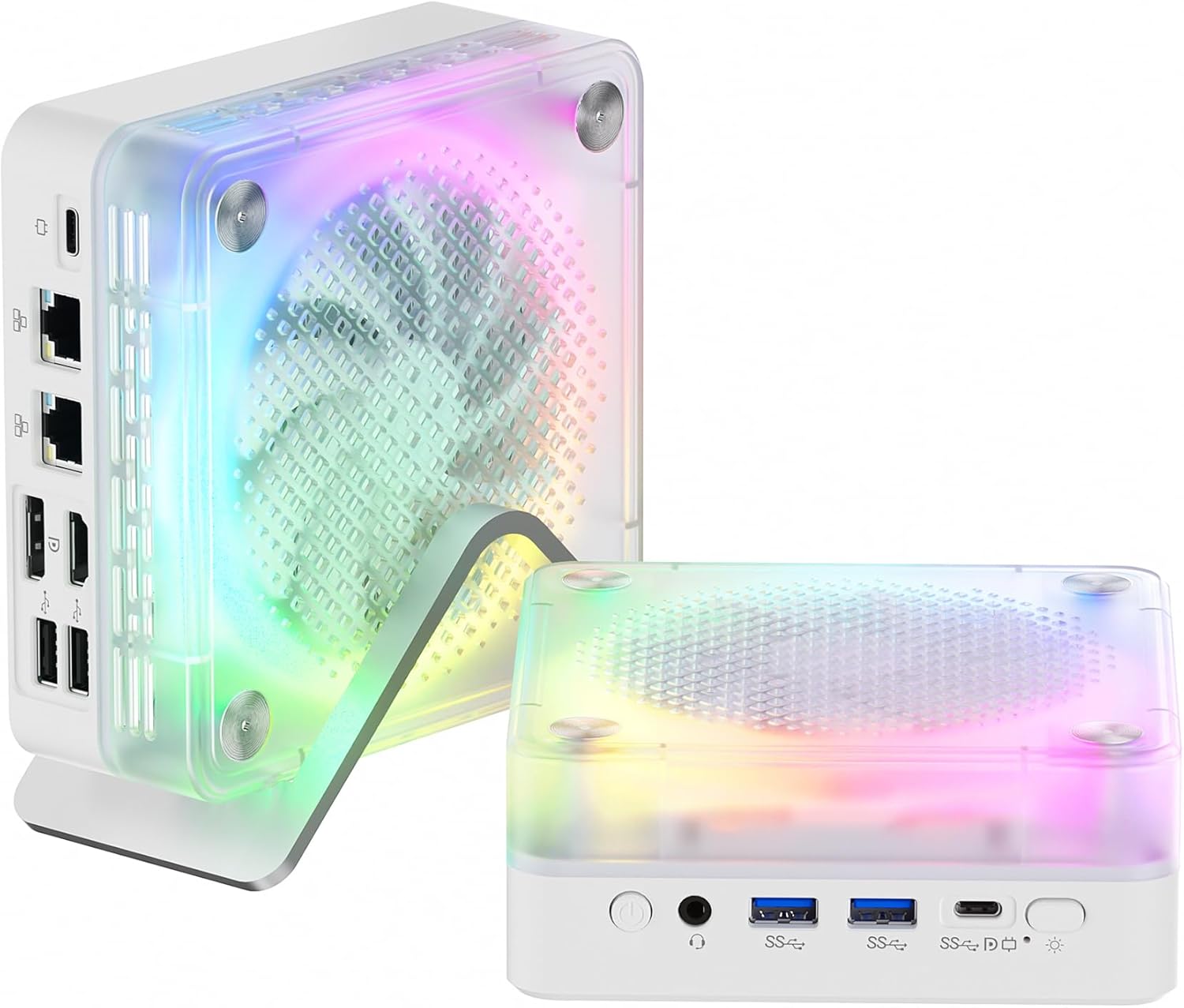
Figure 1: FIREBAT MN56 Mini PC with its vertical stand and RGB lighting.
2. เนื้อหาบรรจุภัณฑ์
ตรวจสอบว่ารายการทั้งหมดที่ระบุไว้ด้านล่างนี้รวมอยู่ในแพ็คเกจของคุณ:
- 1 x FIREBAT MN56 AMD Ryzen 7 8745HS Mini PC
- 1 x 19V/6.32A 120W DC US Adapter
- 1 x ยืนแนวตั้ง
- สาย HDMI 1 เส้น
- 1 x คู่มือผู้ใช้

Figure 2: Contents of the FIREBAT MN56 Mini PC retail package.
3. สินค้าหมดview
3.1 พอร์ตด้านหน้าและด้านหลัง
The FIREBAT MN56 Mini PC offers a comprehensive selection of ports for versatile connectivity:
- พอร์ตด้านหน้า: Power Button, 3.5mm Audio Jack (HP&MIC), 2 x USB 3.2 Type-A, 1 x USB-C (PD/DP/DATA, Up to 40Gbps), 1 x USB-C (for charging only), RGB Control Button.
- พอร์ตด้านหลัง: 2 x 2.5Gbps RJ45 LAN, 1 x DP 1.4, 1 x HDMI 2.1 (supports 4K@120Hz, 8K@60Hz), 2 x USB 2.0 Type-A.

Figure 3: Front and rear interface layout of the Mini PC, highlighting various connectivity options.
3.2 แสง RGB
The Mini PC features RGB gradient breathing lights. These lights can be controlled via a dedicated button on the front panel, offering modes such as full-color flashing, monochrome, or off.
3.3 ขนาดและน้ำหนัก
The compact design of the MN56 Mini PC makes it suitable for various environments. It measures approximately 5 x 5 x 2 inches (13 x 13 x 5.4 cm) and weighs about 1.2 pounds (0.53 kg).

Figure 4: The compact size of the Mini PC, ideal for space-saving setups.
4. การตั้งค่า
4.1 การเชื่อมต่ออุปกรณ์ต่อพ่วง
- Connect your monitor(s) to the HDMI 2.1 and/or DP 1.4 ports using the provided HDMI cable or a compatible DisplayPort cable. The Mini PC supports triple screen display.
- Connect your keyboard and mouse to the available USB Type-A ports.
- For wired network access, connect an Ethernet cable to one of the 2.5Gbps RJ45 LAN ports.
- Plug the DC power adapter into the Mini PC's power input and then into a wall outlet.
4.2 การเปิดเครื่อง
Press the power button located on the front panel of the Mini PC. The system will initiate the boot process.
4.3 การตั้งค่าระบบปฏิบัติการเบื้องต้น
Upon first boot, the Mini PC will guide you through the Windows 11 setup process. Follow the on-screen instructions to configure language, region, network, and user accounts. This process may take some time.
วิดีโอ 1: จบแล้วview of the FIREBAT MN56 Mini PC, including unboxing, port demonstration, RGB lighting, and a brief demonstration of its fast startup and gaming capabilities.
5. คู่มือการใช้งาน
5.1 โหมดพลังงาน
The Mini PC supports adjustable power consumption modes to optimize performance and energy efficiency. These modes can typically be adjusted via system settings or a dedicated button, if available, to switch between balanced, performance, or power-saving profiles.

Figure 5: Visual representation of the Mini PC's power mode selection, allowing users to choose between various performance and efficiency settings.
5.2 การควบคุมแสง RGB
Use the RGB control button on the front panel to cycle through different lighting effects and colors, or to turn the RGB lighting off.

Figure 6: The RGB control button on the front of the Mini PC for managing lighting effects.
5.3 การเชื่อมต่อเครือข่ายและไร้สาย
The Mini PC supports advanced connectivity options:
- ไวไฟ 6: Provides robust and stable wireless internet connection.
- Bluetooth 5.2: สำหรับเชื่อมต่ออุปกรณ์ต่อพ่วงไร้สาย เช่น คีย์บอร์ด เมาส์ และหูฟัง
- 2.5Gbps RJ45 LAN: Dual ports for high-speed wired network connections, suitable for demanding network tasks.
5.4 การตั้งค่าจอแสดงผลหลายจอ
The Mini PC supports connecting up to three displays simultaneously via its HDMI 2.1 and DP 1.4 ports, along with the USB-C port (which supports DP Alt Mode). This allows for an expanded workspace or immersive viewการสร้างประสบการณ์
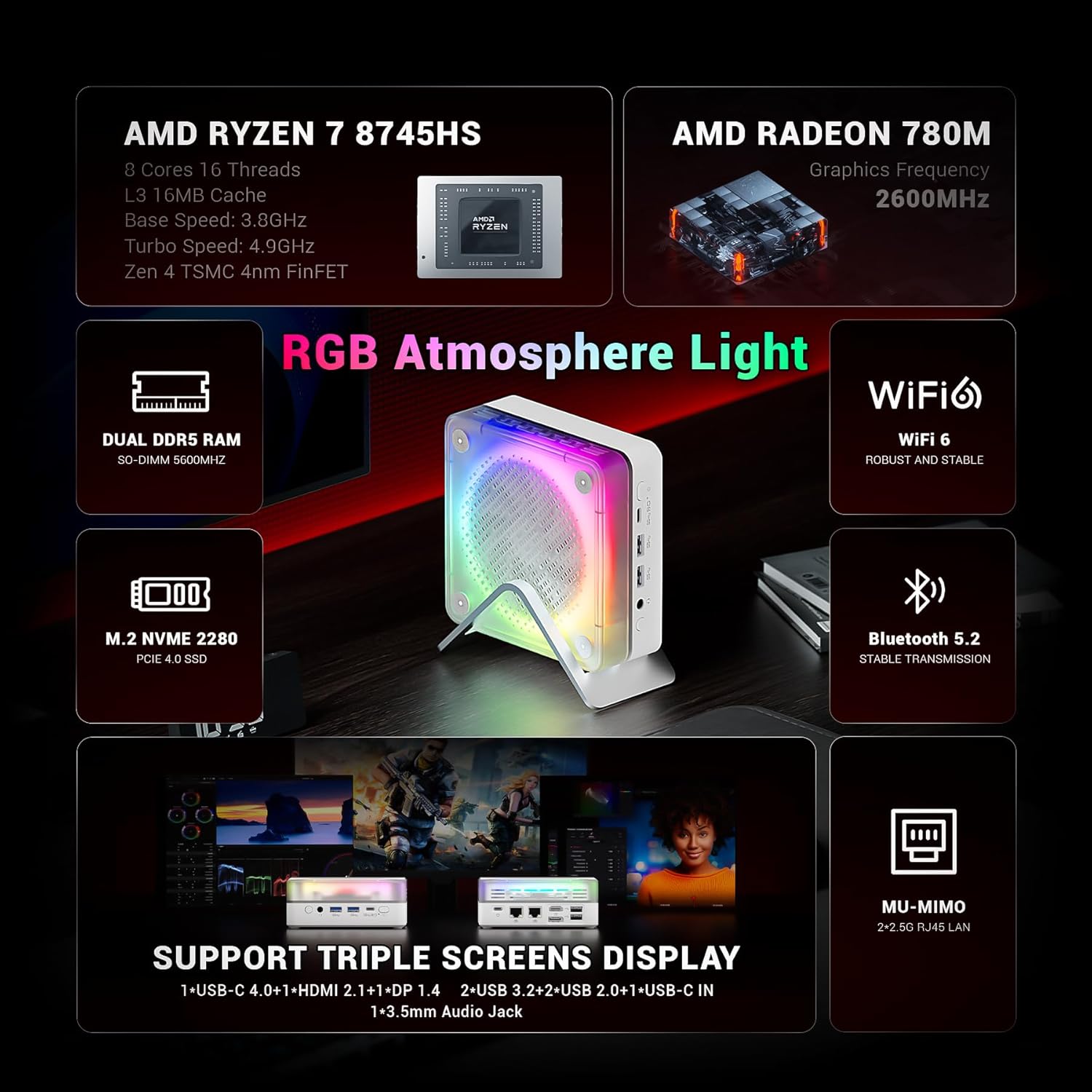
Figure 7: The Mini PC's capability to support a triple screen display setup.
6. Performance & Specifications
The FIREBAT MN56 Mini PC is engineered for high performance in a compact form factor:
- โปรเซสเซอร์: AMD Ryzen 7 8745HS (8 Cores/16 Threads, Zen 4 Architecture, 3.8-4.9GHz, 16MB L3 Cache).
- กราฟิก: การ์ดจอออนบอร์ด AMD Radeon 780M
- หน่วยความจำ: 32GB DDR5 5600MHz SO-DIMM (2x16GB, expandable up to 96GB with 2x48GB modules).
- พื้นที่จัดเก็บ: 1TB PCIe 4.0 M.2 2280 SSD.
- ระบบปฏิบัติการ: Windows 11 Home (Default).
- ขนาด (กxยxส) : ขนาดโดยประมาณ 5 x 5 x 2 นิ้ว (13 x 13 x 5.4 เซนติเมตร)
- น้ำหนัก: Approximately 1.2 pounds (0.53 kg).
7. การบำรุงรักษา
7.1 การระบายความร้อนอย่างมีประสิทธิภาพ
The Mini PC incorporates an efficient cooling system to maintain optimal operating temperatures. This includes a system fan for overall machine cooling and a dedicated CPU fan, utilizing high-efficiency thermal grease. The vertical stand also aids in airflow.

รูปที่ 8: ภายใน view of the dual-fan cooling system designed for efficient heat dissipation.
7.2 การทำความสะอาดทั่วไป
To ensure proper airflow and prevent dust buildup, regularly clean the exterior of the Mini PC and its ventilation grilles with a soft, dry cloth. Avoid using liquid cleaners directly on the device.
7.3 การขยายพื้นที่จัดเก็บข้อมูลและหน่วยความจำ
The Mini PC is designed for easy upgrades:
- หน่วยความจำ: The 32GB DDR5 5600MHz RAM is installed in two SO-DIMM slots (2x16GB). It can be expanded up to a maximum of 96GB (2x48GB modules).
- พื้นที่จัดเก็บ: It includes a 1TB PCIe 4.0 M.2 2280 SSD. An additional M.2 2280 slot is available for further storage expansion.
For detailed instructions on upgrading RAM or SSD, refer to the full user manual or contact customer support.

Figure 9: The internal layout highlighting the expandable DDR5 RAM and PCIe 4.0 M.2 SSD slots.
8 การแก้ไขปัญหา
If you encounter issues with your FIREBAT MN56 Mini PC, refer to the following common troubleshooting steps:
- ไม่มีไฟฟ้า: ตรวจสอบให้แน่ใจว่าอะแดปเตอร์แปลงไฟเชื่อมต่อกับมินิพีซีและเต้ารับไฟฟ้าที่ใช้งานได้สนิทดีแล้ว ทดสอบเต้ารับด้วยอุปกรณ์อื่นก่อน
- ไม่มีจอแสดงผล: Verify that your monitor(s) are correctly connected to the Mini PC's video output ports (HDMI, DP, USB-C) and that the monitor input source is selected correctly. Try a different cable or monitor if possible.
- ประสิทธิภาพการทำงานช้า: Check for background applications consuming resources. Ensure Windows is up-to-date and drivers are installed correctly. Monitor system temperatures to rule out thermal throttling.
- ปัญหาการเชื่อมต่อเครือข่าย: สำหรับ Wi-Fi โปรดตรวจสอบให้แน่ใจว่าได้เปิดใช้งานอะแดปเตอร์ Wi-Fi แล้ว และเชื่อมต่อกับเครือข่ายที่ถูกต้อง สำหรับการเชื่อมต่อแบบใช้สาย โปรดตรวจสอบสายอีเธอร์เน็ตและสถานะของเราเตอร์
- ไม่ตรวจพบอุปกรณ์ต่อพ่วง: Try connecting the peripheral to a different USB port. Ensure drivers for the peripheral are installed.
For persistent issues, consult the full user manual or contact FIREBAT customer support.
9. การรับประกันและการสนับสนุน
FIREBAT is committed to providing quality products and support. For any inquiries or assistance, please contact us:
- ผู้ผลิต: Shenzhen Qingfen Tingxiu Information Technology Co., Ltd.
- การสนับสนุนทางอีเมล์: ฝ่ายสนับสนุน@firebatpc.com
- Webเว็บไซต์: www.firebatpc.com
Please retain your proof of purchase for warranty claims. Specific warranty terms and conditions are detailed on the official FIREBAT webเว็บไซต์.


