1. สินค้าหมดview
The ZTE G5 Ultra MC8512 is an advanced 5G-A and Wi-Fi 7 router designed to provide high-speed internet connectivity. It features MLO multifrequency aggregation technology for peak rates up to 19000 Mbps, supporting seamless high-resolution video conferencing and data transmissions. The device includes independent high-performance antennas with a maximum gain of 13 dBi and 2.5G dual network ports with intelligent WAN/LAN adjustment.
Equipped with a 4-core 4nm 5G high-speed chip operating at 2.2GHz, the router ensures stable operation and high-speed functions. It supports NFC one-touch network connection for easy Wi-Fi access without a password and can connect up to 384 devices simultaneously. The router offers flexible internet access with support for both SIM cards and wired broadband, including seamless switching and backup functions.
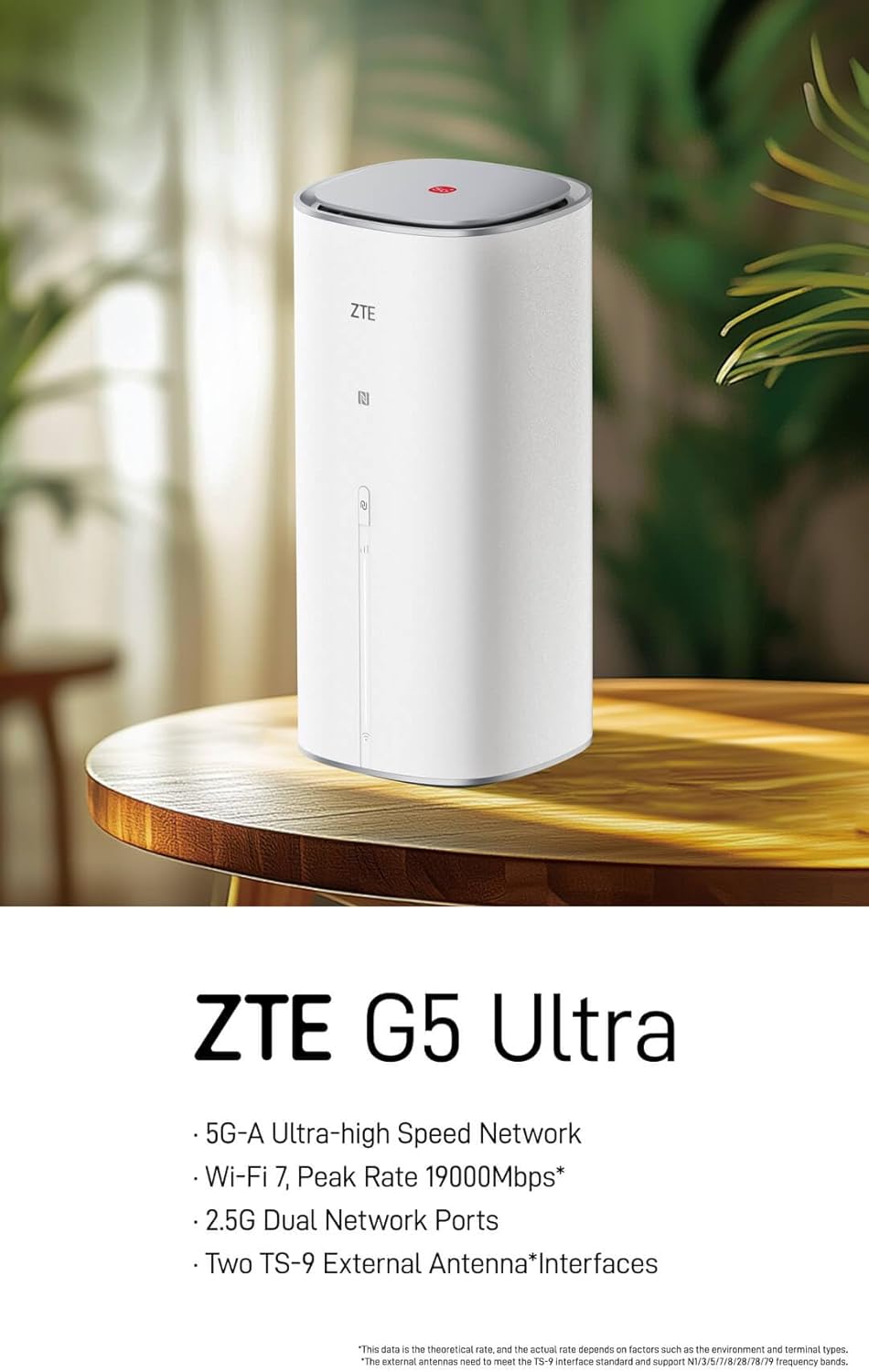
Figure 1: ZTE G5 Ultra MC8512 5G-A WiFi 7 Router, front view. This image shows the ZTE G5 Ultra MC8512 router, a cylindrical white device with the ZTE logo and indicator lights on the front. It highlights its 5G-A, Wi-Fi 7, 2.5G Dual Network Ports, and TS-9 External Antenna Interfaces capabilities.
2. เนื้อหาบรรจุภัณฑ์
ก่อนดำเนินการติดตั้ง โปรดตรวจสอบว่าบรรจุภัณฑ์มีรายการทั้งหมดหรือไม่:
- ZTE G5 Ultra MC8512 Router
- อะแดปเตอร์พาวเวอร์ซัพพลาย
- คู่มือเริ่มต้นอย่างรวดเร็ว
Note: External TS-9 antennas may be sold separately or included depending on the specific product variant.
3. คำแนะนำในการตั้งค่า
3.1. โครงสร้างอุปกรณ์และพอร์ต

Figure 2: Rear panel of ZTE G5 Ultra MC8512 router. This image displays the rear panel of the ZTE G5 Ultra MC8512 router, detailing the various ports including USB, Phone, LAN, and WAN/LAN connections.
Familiarize yourself with the ports on the rear of the device:
- พอร์ตไฟ: เชื่อมต่อกับอะแดปเตอร์ไฟ
- ช่องใส่ซิมการ์ด: For inserting a 5G SIM card.
- WAN/LAN Ports (2.5G): For connecting to wired broadband or local network devices. These ports intelligently adjust between WAN and LAN functions.
- TS-9 Antenna Interfaces: Two ports for connecting optional external TS-9 antennas to enhance signal reception.
- พอร์ต USB: For future use or specific functionalities.
- พอร์ตโทรศัพท์: For voice services if supported by your SIM card and service provider.
3.2. การติดตั้งเบื้องต้น
- ใส่ซิมการ์ด: Locate the SIM card slot. Gently insert your 5G SIM card into the slot until it clicks into place. Ensure the SIM card is oriented correctly as indicated on the device.
- เชื่อมต่อพลังงาน: Connect the provided power adapter to the router's power port and then plug the adapter into a power outlet. The router will power on automatically.
- ตัวเลือกเสริม: เชื่อมต่อเสาอากาศภายนอก: If using external TS-9 antennas, connect them to the two TS-9 interfaces on the router.
- Optional: Wired Broadband Connection: If using wired broadband, connect an Ethernet cable from your modem or wall jack to one of the WAN/LAN ports on the router.
- การจัดวาง: Place the router in a central location, away from obstructions and other electronic devices that may cause interference, to ensure optimal Wi-Fi signal coverage.
3.3. การกำหนดค่าเริ่มต้น
- เชื่อมต่อกับ Wi-Fi: On your computer or mobile device, search for the Wi-Fi network name (SSID) printed on the label at the bottom of the router. Connect to this network using the default Wi-Fi password (also on the label).
- เข้าถึง Web อินเทอร์เฟซ: เปิด web เบราว์เซอร์และป้อนที่อยู่ IP เริ่มต้น (เช่น
192.168.1.1or192.168.0.1) into the address bar. The exact IP address can be found on the router's label or in the Quick Start Manual. - เข้าสู่ระบบ: ป้อนชื่อผู้ใช้และรหัสผ่านเริ่มต้น (โดยทั่วไป)
adminfor both, or as specified on the label). It is highly recommended to change the default login credentials for security purposes during the first login. - ทำตามตัวช่วยการตั้งค่า: ของเราเตอร์ web interface may guide you through an initial setup wizard to configure basic settings such as internet connection type (5G or wired), Wi-Fi name, and password.
4. การใช้งานเราเตอร์
4.1. ไฟ LED
The router features LED indicators on its front panel to display its status:
- กำลังไฟ LED: Indicates power status. (e.g., Solid White: On; Off: No power)
- 5G/Internet LED: Indicates internet connection status. (e.g., Solid Blue: Connected to 5G network; Solid Green: Connected to wired broadband; Blinking: Connecting; Red: No service/Error)
- LED Wi-Fi: Indicates Wi-Fi status. (e.g., Solid White: Wi-Fi active; Blinking: Data transfer; Off: Wi-Fi disabled)
4.2. อุปกรณ์เชื่อมต่อ
- การเชื่อมต่อ Wi-Fi: ค้นหา your Wi-Fi network (SSID) on your device and enter the password. The router supports Wi-Fi 7 for high-speed wireless connections.
- การเชื่อมต่อ NFC แบบสัมผัสเดียว: For NFC-enabled devices, gently touch the device to the NFC touch area on the router to automatically connect to the Wi-Fi network without entering a password.
- การเชื่อมต่ออีเทอร์เน็ต: Connect devices like computers, gaming consoles, or smart TVs to the router's LAN ports using Ethernet cables for a stable wired connection.
4.3. การจัดการเครือข่าย
เข้าถึงเราเตอร์ web interface (as described in Section 3.3) to manage advanced settings:
- การตั้งค่า Wi-Fi: Change SSID, password, security type, and enable/disable guest networks.
- การตั้งค่าอินเทอร์เน็ต: Configure 5G APN settings, manage wired broadband connection, and set up failover between 5G and wired broadband.
- การจัดการอุปกรณ์: View เชื่อมต่ออุปกรณ์ ตั้งค่าการควบคุมโดยผู้ปกครอง และจัดการแบนด์วิดท์
- การตั้งค่าระบบ: Update firmware, change login password, and view บันทึกของระบบ
5. การบำรุงรักษา
- อัพเดตเฟิร์มแวร์: ตรวจสอบและติดตั้งการอัพเดตเฟิร์มแวร์ผ่านเราเตอร์เป็นประจำ web อินเทอร์เฟซ การอัปเดตเฟิร์มแวร์สามารถปรับปรุงประสิทธิภาพ เพิ่มคุณสมบัติใหม่ และเสริมสร้างความปลอดภัยได้
- การทำความสะอาด: Keep the router clean and free from dust. Use a soft, dry cloth to wipe the exterior. Do not use liquid cleaners or aerosols. Ensure ventilation openings are not blocked.
- ตำแหน่งที่เหมาะสมที่สุด: Ensure the router is placed in an open area, away from walls, large metal objects, and other devices that emit radio frequencies (e.g., microwaves, cordless phones) to minimize interference and maximize Wi-Fi coverage.
- การเริ่มต้นใหม่: หากคุณประสบปัญหาเกี่ยวกับเครือข่าย ให้ลองรีสตาร์ทเราเตอร์โดยถอดอะแดปเตอร์ไฟออก รอ 10 วินาที แล้วเสียบปลั๊กกลับเข้าไปอีกครั้ง
6 การแก้ไขปัญหา
| ปัญหา | สาเหตุที่เป็นไปได้ | สารละลาย |
|---|---|---|
| ไม่มีการเชื่อมต่ออินเตอร์เน็ต |
|
|
| ความเร็วอินเตอร์เน็ตช้า |
|
|
| การตัดการเชื่อมต่อ Wi-Fi |
|
|
| NFC One-Touch Not Working |
|
|
| Router Requires Login After Power Cut |
|
|
7. ข้อมูลจำเพาะทางเทคนิค
| คุณสมบัติ | ข้อมูลจำเพาะ |
|---|---|
| ยี่ห้อ | แซดทีอี |
| ชื่อรุ่น | MC8512 |
| เทคโนโลยีเครือข่าย | 5G-เอ |
| ไร้มาตรฐาน | ไวไฟ 7 (802.11be) |
| ความเร็วในการดาวน์โหลดสูงสุด | 4.29 Gbps (5G-A) |
| Max Wi-Fi Rate | 19000 Mbps (MLO) |
| โปรเซสเซอร์ | 4-core 4nm, 2.2GHz main frequency |
| พอร์ตเครือข่าย | 2 x 2.5G WAN/LAN intelligent adjustment ports |
| ประเภทเสาอากาศ | Independent high-performance (up to 13 dBi gain), 2 x TS-9 external antenna interfaces |
| การสนับสนุนอุปกรณ์ | รองรับอุปกรณ์พร้อมกันสูงสุด 384 เครื่อง |
| คุณสมบัติพิเศษ | NFC One-Touch, Dual SIM/Wired Broadband Support, Tri-Band Frequency |
| อุปกรณ์ที่รองรับ | WiFi Devices |
| ระบบปฏิบัติการ | ไซโนส |
| ขนาดแพ็คเกจ | 29 x 18 x 11.6 ซม. |
| น้ำหนักสินค้า | 1.46 กก. |
8. การรับประกันและการสนับสนุน
For detailed warranty information, please refer to the warranty card included with your product package. Warranty terms and conditions may vary by region and retailer.
If you encounter any issues that cannot be resolved using the troubleshooting guide, or require further assistance, please contact ZTE customer support. You can typically find support contact information on the official ZTE webไซต์หรือในเอกสารผลิตภัณฑ์ของคุณ
For the latest support resources, FAQs, and contact details, please visit the official ZTE webเว็บไซต์: www.zte.com.cn/global/


