การแนะนำ
This manual provides comprehensive instructions for the GOWENIC 4G LTE WiFi Modem, Model GOWENICdx9go2er35-12. This portable device allows you to establish a high-speed wireless internet connection using a 4G LTE SIM card, enabling multiple devices to connect simultaneously. Please read this manual thoroughly before using the product to ensure proper operation and to maximize its performance.
เนื้อหาแพ็คเกจ
- 1 x GOWENIC 4G LTE WiFi Modem (White)
- 1 x คู่มือผู้ใช้
สินค้าเกินview
The GOWENIC 4G LTE WiFi Modem is a compact, USB-powered device designed for portable internet access. It features a standard SIM card slot and indicator lights for network status.

รูปที่ 1 : ด้านหน้า view of the GOWENIC 4G LTE WiFi Modem, showing the "WIFI MODEM" label and indicator lights.

รูปที่ 2: มุม view of the GOWENIC 4G LTE WiFi Modem, highlighting the USB connector for power.
คุณสมบัติหลัก:
- การเชื่อมต่อ 4G LTE ความเร็วสูง: Supports network bands B1, B3, B7, B8, B20, B38, B40, B41 with speeds up to 150Mbps.
- รองรับหลายอุปกรณ์: Connects up to 8 devices simultaneously, including mobile phones, laptops, computers, and smart TVs.
- การเชื่อมต่อไร้สายที่ปลอดภัย: Utilizes WPA and WPA2 WiFi encryption for enhanced network security.
- ปลั๊กแอนด์เพลย์: Simple operation by inserting a SIM card and connecting to a USB power source.
คำแนะนำการตั้งค่า
Follow these steps to set up your GOWENIC 4G LTE WiFi Modem:
- ใส่ซิมการ์ด: Locate the standard SIM card slot on the modem. Carefully insert your activated 4G LTE standard SIM card into the slot until it clicks into place. Ensure the SIM card is inserted correctly according to the diagram or markings on the device.
- เชื่อมต่อกับพลังงาน: Plug the USB connector of the modem into a compatible USB power source. This can be a USB port on a laptop, a USB wall adapter, a power bank, or any other device providing 5V USB power.
- การเปิดเครื่องและการเริ่มต้น: The modem will automatically power on when connected to a power source. Allow a few moments for the device to initialize and connect to the 4G LTE network. The indicator lights on the modem will show its status (e.g., power, network signal).

Figure 3: The modem shown in operation, connecting to a tablet, smartphone, and security camera.
คำแนะนำการใช้งาน
Connecting Devices to WiFi:
- Identify Network Name (SSID): Once the modem is powered on and connected to the 4G network, it will broadcast a WiFi network. The default SSID (network name) is typically printed on the device itself or in the included user manual, often in the format "4G-xxxx".
- Find WiFi Password: The default WiFi key (password) is also usually printed on the device or in the manual, often "1234567890".
- เชื่อมต่ออุปกรณ์ของคุณ: On your mobile phone, laptop, or other WiFi-enabled device, go to the WiFi settings. Select the SSID of your GOWENIC modem from the list of available networks and enter the WiFi key when prompted.
- การเข้าถึงอินเทอร์เน็ต: Your device should now be connected to the internet through the GOWENIC 4G LTE WiFi Modem.
The modem supports up to 8 connected devices simultaneously, providing a stable and fast internet experience.
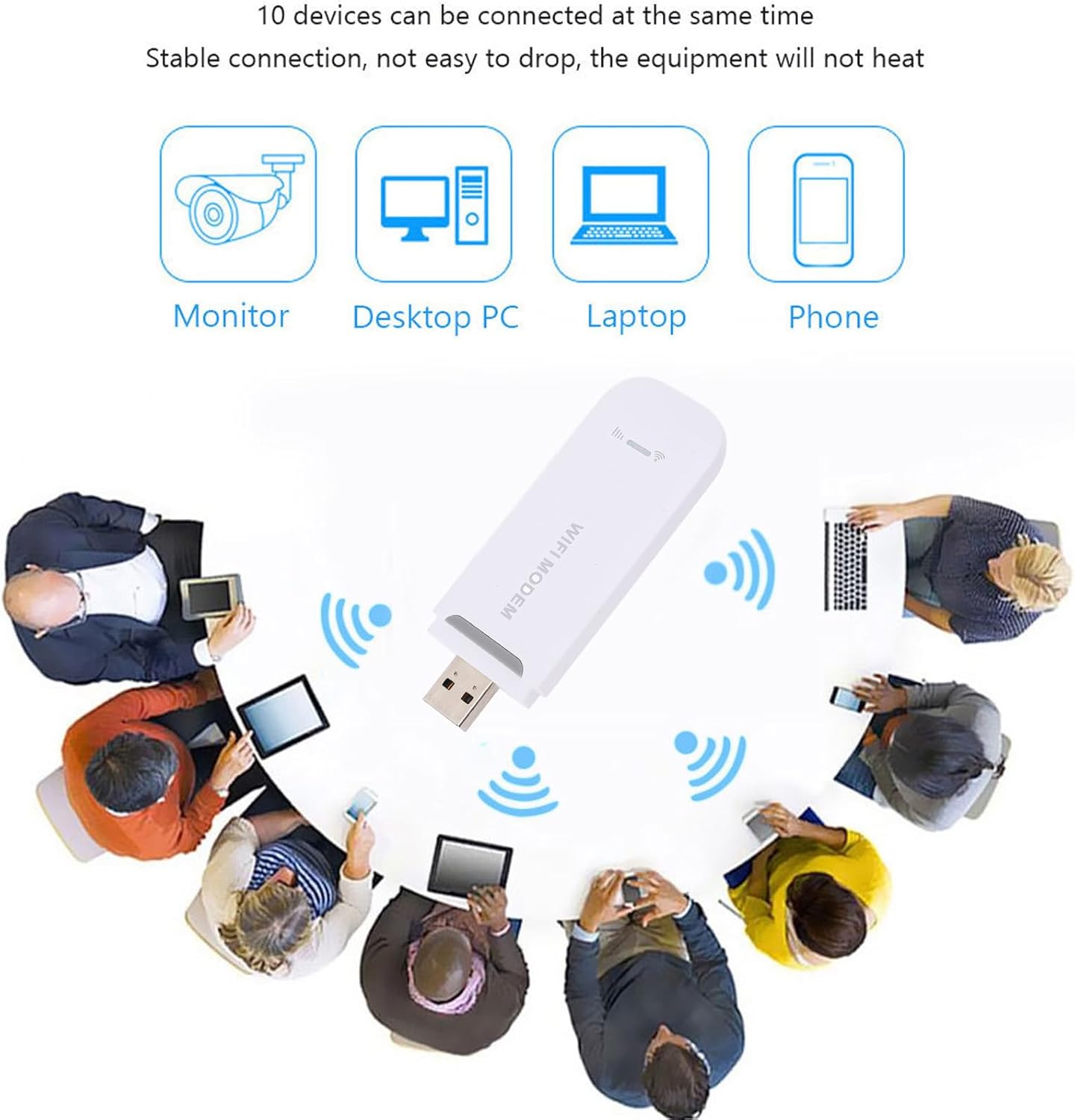
Figure 4: Illustration of the modem providing internet access to multiple devices like monitors, desktop PCs, laptops, and phones.
คุณสมบัติความปลอดภัย:
The GOWENIC modem employs WPA and WPA2 encryption protocols to secure your wireless network, protecting your data and preventing unauthorized access.

Figure 5: Graphic illustrating the high security level provided by WPA/WPA2 encryption, protecting against viruses and cracking attempts.
การซ่อมบำรุง
- การทำความสะอาด: Use a soft, dry cloth to clean the exterior of the modem. Avoid using liquid cleaners or aerosols.
- พื้นที่จัดเก็บ: เมื่อไม่ใช้งาน ควรเก็บโมเด็มไว้ในที่แห้งและเย็น หลีกเลี่ยงแสงแดดโดยตรงและอุณหภูมิที่สูงหรือต่ำเกินไป
- การจัดการ: ใช้งานอุปกรณ์ด้วยความระมัดระวัง หลีกเลี่ยงการทำตกหรือกระแทกแรงๆ
- ซิมการ์ด: Ensure the SIM card slot is free from dust and debris. Only insert standard-sized SIM cards.
การแก้ไขปัญหา
- ไม่มีการเชื่อมต่ออินเทอร์เน็ต:
- ตรวจสอบให้แน่ใจว่าได้ใส่ซิมการ์ดอย่างถูกต้องและเปิดใช้งานแพ็กเกจอินเทอร์เน็ตแล้ว
- Verify the modem is properly connected to a power source.
- Check the network indicator lights on the modem. If no signal, try moving to an area with better 4G coverage.
- Restart the modem by unplugging and re-plugging it from the power source.
- ไม่สามารถเชื่อมต่อ WiFi ได้:
- Ensure the modem is powered on and broadcasting its WiFi network (SSID).
- Double-check the WiFi password (key) you are entering. It is case-sensitive.
- Move your device closer to the modem to ensure a strong WiFi signal.
- If too many devices are connected, try disconnecting some to see if it resolves the issue. The modem supports up to 8 devices.
- ความเร็วอินเตอร์เน็ตช้า:
- Check your 4G signal strength. Weak signal can lead to slower speeds.
- Ensure your data plan has not been exhausted or throttled by your service provider.
- Reduce the number of connected devices or active internet usage.
- Try restarting the modem.
ข้อมูลจำเพาะ
| หมายเลขรุ่น | GOWENICdx9go2er35-12 |
| ยี่ห้อ | โกเวนิค |
| เทคโนโลยีการเชื่อมต่อ | 4G LTE, WiFi, USB |
| Supported Network Bands | B1 B3 B7 B8 B20 B38 B40 B41 |
| ความเร็วสูงสุด | สูงสุดถึง 150Mbps |
| อุปกรณ์เชื่อมต่อสูงสุด | 8 |
| การเข้ารหัส WiFi | ดับเบิลยูพีเอ, ดับเบิลยูพีเอ2 |
| แหล่งจ่ายไฟ | ขับเคลื่อนด้วย USB |
| ประเภทซิมการ์ด | Standard SIM card (not included) |
| ที่อยู่ IP เริ่มต้น | 192.168.100.1 |
| SSID เริ่มต้น | 4G-xxxx |
| Default WiFi Key | 1234567890 |
| ขนาด | 4.33 x 2.76 x 0.79 นิ้ว |
| น้ำหนักสินค้า | 1.52 ออนซ์ |
| สี | สีขาว |
การรับประกันและการสนับสนุน
For warranty information, please refer to the documentation included with your purchase or contact your retailer.
For technical support or further assistance, please visit the official GOWENIC webเว็บไซต์หรือติดต่อฝ่ายบริการลูกค้าของพวกเขา


