1. บทนำ
Welcome to the user manual for your new jumper J1 16-inch Convertible Laptop. This guide provides essential information for setting up, operating, maintaining, and troubleshooting your device. Please read this manual thoroughly to ensure optimal performance and longevity of your laptop.
The jumper J1 is a versatile 2-in-1 laptop featuring a 16-inch touchscreen display, a 360-degree hinge for multiple usage modes, a backlit keyboard, and a fingerprint reader for enhanced security. It comes equipped with Windows 11 Home and includes a 1-year subscription to Office 365.
2. อะไรอยู่ในกล่อง
โปรดตรวจสอบสิ่งของภายในบรรจุภัณฑ์ของคุณ หากมีสินค้าใดสูญหายหรือเสียหาย โปรดติดต่อฝ่ายสนับสนุนลูกค้า
- 1x jumper J1 16-inch Touchscreen Laptop
- 1x Power Charger
- 1x คู่มือผู้ใช้ (เอกสารนี้)
3. การตั้งค่าเริ่มต้น
3.1 การชาร์จแบตเตอรี่
Before first use, connect the laptop to the power adapter and charge it fully. The charging port is located on the side of the laptop. The battery indicator light will show the charging status.
3.2 การเปิดเครื่อง
Press and hold the power button located on the side of the laptop until the screen illuminates. The laptop will boot into the Windows 11 setup process.
3.3 การตั้งค่า Windows 11
Follow the on-screen instructions to complete the initial Windows 11 setup. This includes selecting your region, language, connecting to a Wi-Fi network, and creating a user account.
3.4 Office 365 Activation
Your laptop includes a 1-year subscription to Office 365. Follow the instructions provided with your laptop or on the Microsoft webเข้าไปที่เว็บไซต์เพื่อเปิดใช้งานการสมัครสมาชิกของคุณ
4. การใช้งานแล็ปท็อปของคุณ
4.1 โหมดแปลงร่าง 2-in-1
The jumper J1 features a 360-degree hinge, allowing it to transform into four distinct modes:
- โหมดแล็ปท็อป: การกำหนดค่าแล็ปท็อปแบบดั้งเดิมสำหรับการพิมพ์และการทำงาน
- โหมดสแตนด์บาย: Fold the keyboard back to prop up the screen, ideal for presentations or watching videos.
- โหมดเต็นท์: Position the laptop in an inverted 'V' shape, suitable for small spaces or touch-based interaction.
- โหมดแท็บเล็ต: Fold the keyboard completely behind the screen for a full tablet experience.

Image: The jumper J1 laptop demonstrating its four convertible modes: traditional laptop, stand mode, tent mode, and tablet mode, highlighting its 360-degree hinge flexibility.
4.2 ฟังก์ชันหน้าจอสัมผัส
The 16-inch IPS display supports ten-point touch input. Use gestures similar to a smartphone or tablet for navigation, zooming, and interaction with applications.

Image: A close-up of the jumper J1's 16-inch display, emphasizing its 1920x1200 resolution and touch screen capabilities for an immersive visual experience.
4.3 คีย์บอร์ดเรืองแสง
To activate or deactivate the keyboard backlight, press the Fn คีย์พร้อมกันกับ สเปซบาร์. This feature is useful for typing in low-light conditions.

ภาพ: รายละเอียด view of the jumper J1's keyboard, showing the backlit keys, the integrated fingerprint reader on the side, and the hideable camera above the screen.
เครื่องอ่านลายนิ้วมือ 4.4
The fingerprint reader is located on the side of the laptop. During Windows setup, you can configure your fingerprint for secure and fast login. To set up or manage fingerprints, navigate to Windows Settings > Accounts > Sign-in options.
4.5 Hideable Camera
The integrated camera features a physical toggle for privacy. Slide the switch to cover or uncover the camera lens as needed. This ensures your privacy when the camera is not in use.
4.6 พอร์ตการเชื่อมต่อ
Your laptop is equipped with various ports for external devices and connectivity:
- พอร์ต USB 3.0: For connecting USB devices such as external drives, mice, or keyboards.
- พอร์ต HDMI: สำหรับเชื่อมต่อกับจอแสดงผลภายนอกหรือโปรเจ็กเตอร์
- พอร์ต Type-C: A versatile port for data transfer, video output, and charging (check specific model for full functionality).
- ช่องเสียบการ์ด Micro SD: For expanding storage or transferring data from memory cards.
- แจ็คหูฟัง: สำหรับการเชื่อมต่อหูฟังหรือลำโพงภายนอก

Image: An illustration detailing the various input/output ports available on the jumper J1 laptop, including Micro SD, USB 3.0, DC power, headphone jack, HDMI, and Type-C.
4.7 การเชื่อมต่อแบบไร้สาย
The laptop supports Wi-Fi 6 (802.11ax) for fast and stable internet connections, and Bluetooth 5.2 for connecting wireless peripherals like headphones or speakers.
5. การบำรุงรักษา
5.1 การทำความสะอาด
- หน้าจอ: ใช้ผ้านุ่มไม่เป็นขุยที่ออกแบบมาสำหรับอุปกรณ์อิเล็กทรอนิกส์โดยเฉพาะampen the cloth slightly with water or a screen cleaner, then gently wipe the screen. Avoid harsh chemicals.
- ร่างกาย: เช็ดภายนอกด้วยผ้านุ่มๆamp cloth. Avoid getting moisture into ports.
- แป้นพิมพ์: ใช้ลมอัดเพื่อกำจัดฝุ่นละอองและเศษต่างๆ ออกจากระหว่างปุ่ม
5.2 การดูแลแบตเตอรี่
- หลีกเลี่ยงการปล่อยแบตเตอรี่จนหมดบ่อยครั้ง
- เก็บแล็ปท็อปไว้ในที่แห้งและเย็นหากไม่ได้ใช้งานเป็นเวลานาน
- Use only the original charger provided with the laptop.
5.3 ระบบทำความเย็น
The laptop includes a bottom fan for efficient cooling. Ensure the vents are not obstructed to prevent overheating, especially during intensive tasks. Operating the laptop on a hard, flat surface can improve airflow.
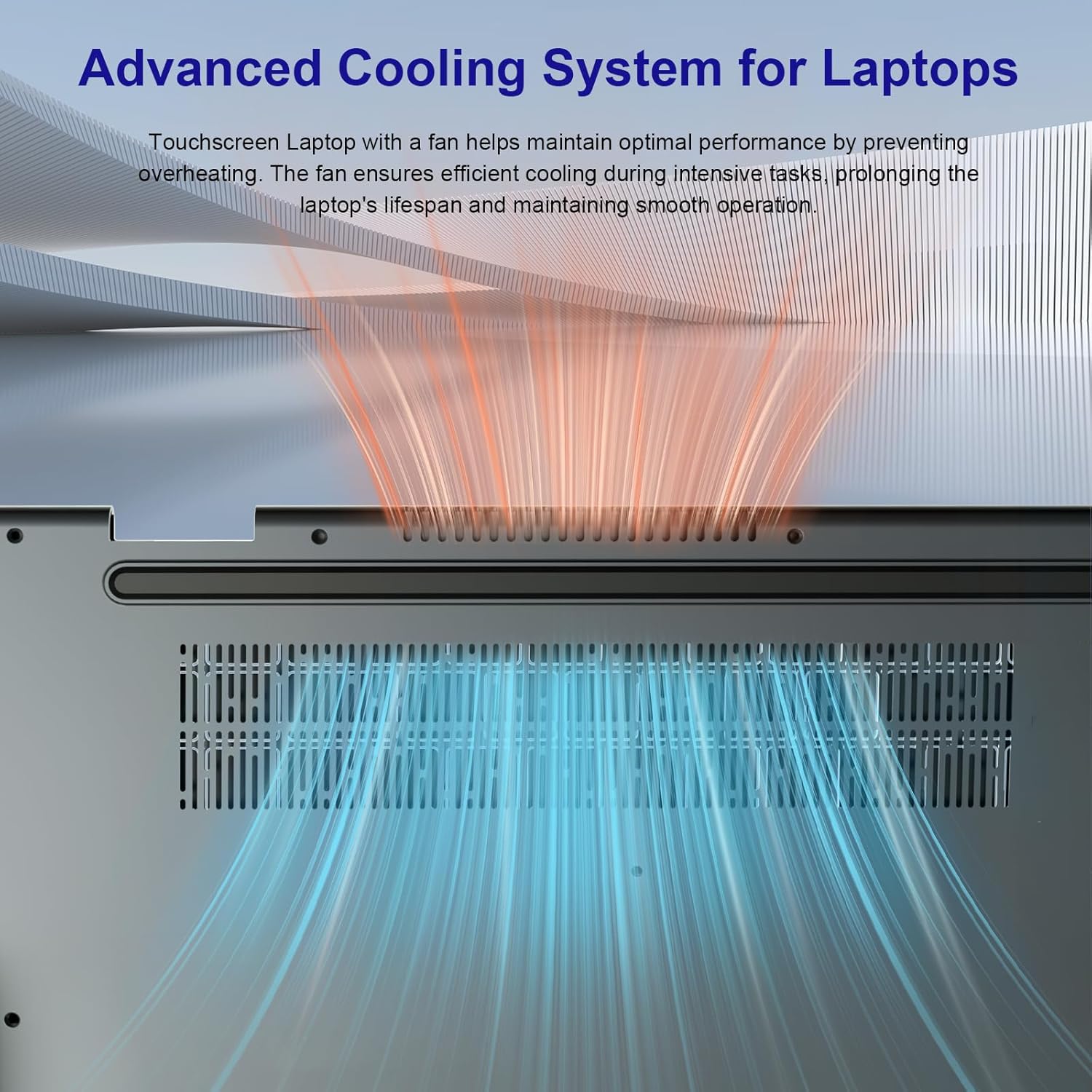
Image: An illustration demonstrating the advanced cooling system of the jumper J1 laptop, showing air intake and exhaust to maintain optimal operating temperatures.
5.4 การขยายพื้นที่เก็บข้อมูล
The laptop comes with 128GB eMMC storage and a 512GB SSD. The SSD can be upgraded up to 2TB. Note that SSD upgrade requires removal of the bottom cover, which should be performed by a qualified technician to avoid voiding the warranty.

Image: A visual breakdown of the jumper J1's memory and storage configuration, showing 16GB RAM, 128GB eMMC, and a 512GB SSD, with a note about SSD upgrade potential.
6 การแก้ไขปัญหา
This section addresses common issues you might encounter with your jumper J1 laptop.
| ปัญหา | วิธีแก้ปัญหาที่เป็นไปได้ |
|---|---|
| โน๊ตบุ๊คไม่สามารถเปิดเครื่องได้ | Ensure the charger is properly connected and the battery has sufficient charge. Try holding the power button for 10-15 seconds to force a restart. |
| หน้าจอว่างเปล่าหรือไม่ตอบสนอง | Check if the laptop is powered on. Try connecting an external monitor to see if there is display output. Restart the laptop. |
| ไฟแบ็คไลท์ของคีย์บอร์ดไม่ทำงาน | กด Fn + Spacebar to toggle the backlight on/off. Ensure keyboard drivers are up to date. |
| Fingerprint reader not recognized. | Ensure your finger is clean and dry. Re-register your fingerprint in Windows Settings > Accounts > Sign-in options. |
| ปัญหาการเชื่อมต่อ Wi-Fi | Restart your router and the laptop. Check Wi-Fi settings in Windows. Ensure Wi-Fi drivers are updated. |
| ประสิทธิภาพการทำงานช้า | ปิดแอปพลิเคชันที่ไม่จำเป็น ตรวจสอบกระบวนการทำงานเบื้องหลัง ตรวจสอบให้แน่ใจว่ามีพื้นที่จัดเก็บข้อมูลว่างเพียงพอ สแกนระบบเพื่อตรวจหามัลแวร์ |
7. ข้อมูลจำเพาะ
Below are the key technical specifications for the jumper J1 16-inch Convertible Laptop:
| คุณสมบัติ | รายละเอียด |
|---|---|
| ชื่อรุ่น | J1 |
| ขนาดหน้าจอ | 16 นิ้ว |
| ความละเอียดหน้าจอ | 1920 x 1200 พิกเซล |
| โปรเซสเซอร์ | Intel Celeron N (Quad Core, 1.7 GHz) |
| แรม | 16 GB DDR DRAM |
| พื้นที่จัดเก็บ | 640 GB SSD (128GB eMMC + 512GB SSD, expandable up to 2TB) |
| โคโปรเซสเซอร์กราฟิก | กราฟิก Intel UHD |
| ระบบปฏิบัติการ | วินโดวส์ 11 โฮม |
| ประเภทไร้สาย | 2.4 GHz Radio Frequency, 5 GHz Radio Frequency, 802.11ax (WiFi 6) |
| บลูทูธ | ใช่ (เวอร์ชัน 5.2) |
| พอร์ต USB | USB 3 3.0 ช่อง |
| พอร์ตอื่น ๆ | HDMI, Type-C, Micro SD, Headphone Port, DC-in |
| อายุการใช้งานแบตเตอรี่โดยเฉลี่ย | 8 Hours (53.2WH) |
| น้ำหนักสินค้า | 5.05 ปอนด์ |
| ขนาดสินค้า | 14.37 x 9.6 x 0.78 นิ้ว |
| คุณสมบัติพิเศษ | 360 Degree Flip, Backlit Keyboard, Fingerprint Reader, Hideable Camera, 1 Year Office 365 |
8. การรับประกันและการสนับสนุน
8.1 ข้อมูลการรับประกัน
The jumper J1 laptop comes with a 1-year limited warranty from the date of purchase. This warranty covers manufacturing defects and hardware malfunctions under normal use. It does not cover damage caused by misuse, accidents, unauthorized repairs, or normal wear and tear.
โปรดเก็บหลักฐานการซื้อของคุณไว้เพื่อเรียกร้องการรับประกัน
8.2 การสนับสนุนลูกค้า
For technical assistance, warranty claims, or any questions regarding your jumper J1 laptop, please refer to the contact information provided on the jumper official webเว็บไซต์หรือเอกสารการซื้อของคุณ
When contacting support, please have your model number (J1) and purchase details ready.


