การแนะนำ
This manual provides comprehensive instructions for the setup, operation, maintenance, and troubleshooting of your Nulea RT07 Wireless Ergonomic Trackball Keyboard. Designed for optimal comfort and efficiency, this keyboard features a split ergonomic layout, integrated trackball, and versatile dual-mode connectivity.
คู่มือการติดตั้ง
1. การแกะกล่องและการตรวจสอบเบื้องต้น
Carefully remove the keyboard from its packaging. Ensure all components, including the keyboard, USB-C charging cable, and 2.4G USB receiver, are present and undamaged.

Image: The Nulea RT07 Wireless Ergonomic Trackball Keyboard, showcasing its split design, integrated wrist rest, and red trackball.
2. การชาร์จคีย์บอร์ด
The keyboard is equipped with a built-in rechargeable battery. Connect the provided USB-C cable to the charging port located on the top edge of the keyboard. Plug the other end into a USB power source (e.g., computer USB port, wall adapter). A full charge typically takes approximately 2 hours and provides extended usage time.

Image: Close-up of the Nulea RT07 keyboard showing the USB-C charging port on its top edge, with a charging cable connected.
3. การเปิด/ปิดเครื่อง
Locate the power switch on the back of the keyboard. Slide the switch to the "ON" position to power on the device. Slide it to "OFF" when not in use to conserve battery life.
4. การเชื่อมต่อกับอุปกรณ์ของคุณ
The Nulea RT07 supports dual-mode connectivity: Bluetooth and 2.4G USB wireless.
- 2.4G USB Wireless Connection:
- Locate the 2.4G USB receiver stored magnetically in the back of the keyboard.
- เสียบตัวรับสัญญาณ USB เข้ากับพอร์ต USB ที่พร้อมใช้งานบนคอมพิวเตอร์ของคุณ
- กด fn+4 on the keyboard. The mode indicator light will illuminate, indicating the keyboard has switched to 2.4G wireless mode.
- แป้นพิมพ์ควรเชื่อมต่อกับอุปกรณ์ของคุณโดยอัตโนมัติ
- Bluetooth Connection (Up to 3 Devices):
- กด fn+1, fn+2, หรือ fn+3 เพื่อเลือกช่องสัญญาณบลูทูธ
- Press and hold the selected Fn + (1/2/3) key for 3 seconds to enter pairing mode. The Bluetooth indicator will flash green while searching for available Bluetooth devices.
- On your device (computer, laptop, tablet), go to Bluetooth settings and select "Nulea RT07" from the list of available devices to pair.
- เมื่อจับคู่แล้วไฟแสดงสถานะจะหยุดกะพริบ

Image: The Nulea RT07 keyboard wirelessly connected to multiple devices (laptop, desktop, tablet) via Bluetooth and 2.4G, illustrating its multi-device switching capability.
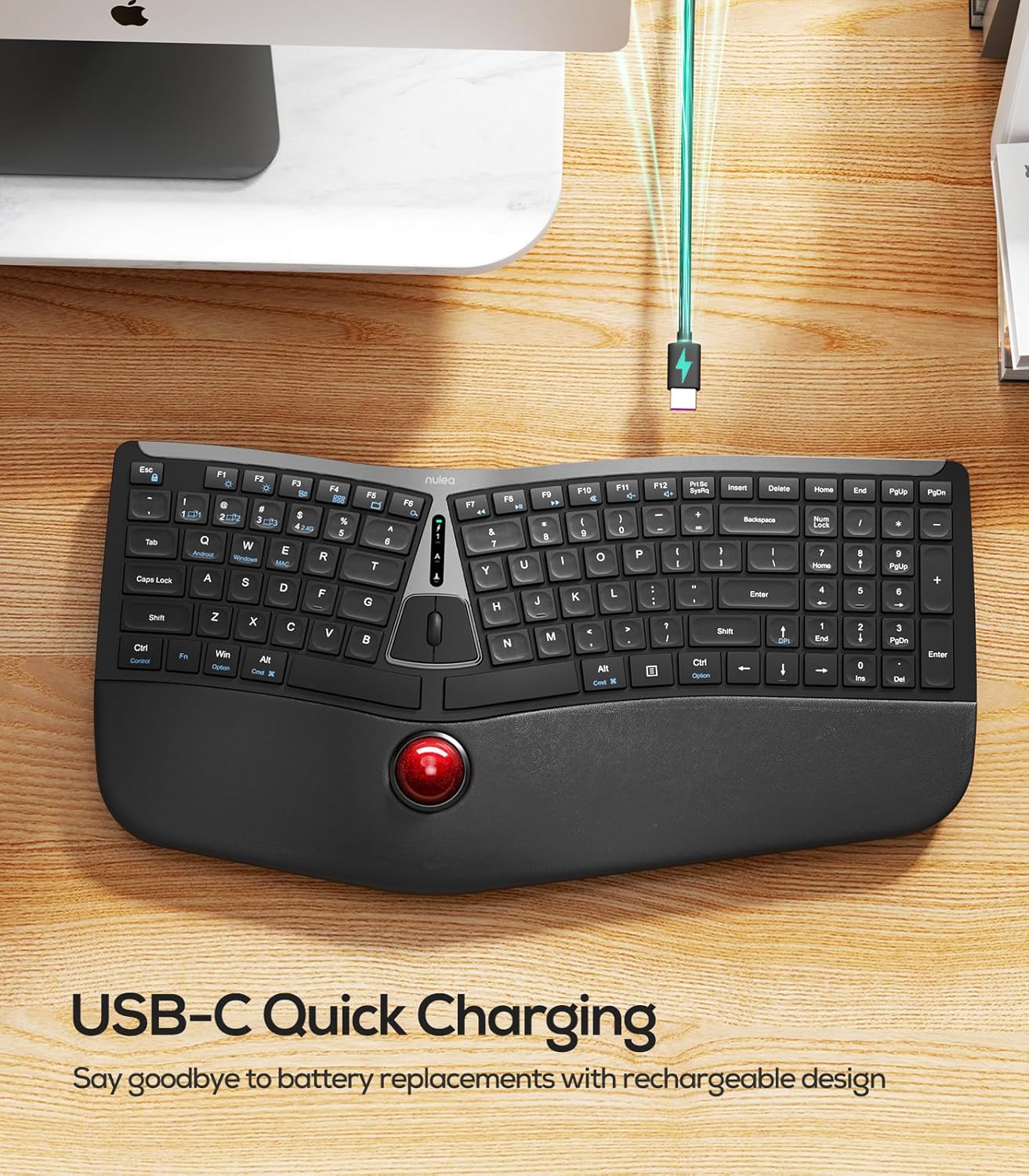
Image: A diagram illustrating the multiple connection options for the Nulea RT07 keyboard, including Bluetooth channels 1, 2, 3 and 2.4G wireless connection.
คำแนะนำการใช้งาน
1. Ergonomic Design and Typing Posture
The Nulea RT07 features an ergonomic split layout designed to reduce forearm muscle twisting and promote a natural typing posture. The integrated wrist rest provides support, keeping your wrists in a comfortable position during extended use.

Image: A person typing on the Nulea RT07 ergonomic keyboard, demonstrating the natural and comfortable typing posture facilitated by its split layout and wrist rest.
2. Trackball Functionality
The integrated trackball allows you to control the cursor without moving your hand from the wrist rest, reducing fatigue and boosting productivity. Use your thumb to control the trackball for precise navigation.
- แทร็กบอล: Control cursor movement with your thumb.
- Left/Right Mouse Buttons: Located above the trackball.
- Middle Mouse Button/Scroll Wheel: For scrolling through documents or web หน้า
- การปรับ DPI: กด Fn + ลูกศรขึ้น to cycle through DPI settings (200, 400, 800, 1200) for customized cursor speed.

Image: Close-up of the Nulea RT07 keyboard's trackball, showing the thumb controlling it, along with a diagram illustrating DPI adjustment settings.
3. Scissor-Switch Keys
The keyboard features scissor-switch keys, offering exceptional stability, rapid rebound, and even pressure for a smooth and responsive typing experience.
4. แบ็คไลท์
The keyboard includes LED backlighting for improved visibility in various lighting conditions. Use the dedicated backlight control keys to adjust brightness or turn the backlighting on/off.
5. ความเข้ากันได้ของระบบปฏิบัติการ
The Nulea RT07 is compatible with both Mac and Windows operating systems. Dedicated keys for "Win/Alt" and "Alt/Cmd" are provided for seamless switching between environments.
การซ่อมบำรุง
1. การทำความสะอาดคีย์บอร์ด
- ใช้ผ้านุ่มไม่เป็นขุยเช็ดเล็กน้อยampened with water or a mild cleaning solution to wipe down the keycaps and surfaces.
- Avoid excessive moisture and harsh chemicals.
- For the trackball, it can be popped out by pushing from the bottom for cleaning. Use a soft cloth to clean the trackball and its housing.
การแก้ไขปัญหา
1. แป้นพิมพ์ไม่ตอบสนอง
- ตรวจสอบให้แน่ใจว่าแป้นพิมพ์เปิดอยู่
- ตรวจสอบระดับแบตเตอรี่และชาร์จหากจำเป็น
- For 2.4G connection, ensure the USB receiver is securely plugged into your device and the keyboard is in 2.4G mode (fn+4).
- For Bluetooth connection, ensure the keyboard is in the correct Bluetooth channel (Fn + 1/2/3) and successfully paired with your device. Try re-pairing if necessary.
- Try connecting the keyboard to a different USB port or device to rule out port-specific issues.
2. ความล่าช้าหรือการตัดการเชื่อมต่อ
- Ensure the keyboard is within the effective range of your device (typically up to 10 meters for wireless connections).
- ลดการรบกวนจากอุปกรณ์ไร้สายอื่น ๆ
- ตรวจสอบให้แน่ใจว่าแป้นพิมพ์มีประจุไฟเต็มแล้ว
3. Trackball Not Functioning Correctly
- Clean the trackball and its housing as described in the Maintenance section.
- Adjust the DPI settings (Fn + ลูกศรขึ้น) to see if it resolves the issue.
ข้อมูลจำเพาะ
| ยี่ห้อ | นูเลีย |
| แบบอย่าง | RT07 |
| เทคโนโลยีการเชื่อมต่อ | 2.4จี, บลูทูธ |
| คำอธิบายแป้นพิมพ์ | Membrane, Ergonomic Split Design with Trackball |
| อุปกรณ์ที่รองรับ | Laptop, PC, Tablet (Mac/Windows compatible) |
| คุณสมบัติพิเศษ | Ergonomic, Integrated Trackball, USB-C Rechargeable, Backlit |
| น้ำหนักสินค้า | 2.79 ปอนด์ |
| ขนาดแพ็คเกจ | 17.91 x 9.8 x 2.05 นิ้ว |
| แบตเตอรี่ | ต้องใช้แบตเตอรี่ 9V จำนวน 1 ก้อน (มีให้ในชุด) |
การรับประกันและการสนับสนุน
For warranty information and customer support, please refer to the documentation included with your product or visit the official Nulea webไซต์นี้ โปรดเก็บใบเสร็จรับเงินที่ซื้อไว้เพื่อใช้เรียกร้องการรับประกัน
วิดีโอผลิตภัณฑ์อย่างเป็นทางการ
Nulea Wireless Ergonomic Trackball Keyboard Review
วิดีโอ: รายละเอียดview of the Nulea Wireless Ergonomic Trackball Keyboard, highlighting its features and benefits for users.
Review of Nulea Ergonomic Trackball Keyboard
วิดีโอ: จบแล้วview of the Nulea Ergonomic Trackball Keyboard, demonstrating its ergonomic design and integrated trackball for comfortable use.


