
1. บทนำ
This manual provides essential information for setting up, operating, maintaining, and troubleshooting your new jumper Ezbook P1 laptop. Please read this guide thoroughly to ensure optimal performance and longevity of your device. The jumper Ezbook P1 is designed for productivity and entertainment, featuring a large 17.6-inch display, a powerful Intel N95 processor, and Windows 11 operating system.

Image 1.1: The jumper Ezbook P1 laptop, showcasinด้วยจอแสดงผลขนาดใหญ่และการออกแบบที่เพรียวบาง
2. การเริ่มต้นใช้งาน (การตั้งค่า)
2.1 การแกะกล่องและการตรวจสอบเบื้องต้น
นำแล็ปท็อปและอุปกรณ์เสริมทั้งหมดออกจากบรรจุภัณฑ์อย่างระมัดระวัง ตรวจสอบว่าส่วนประกอบทั้งหมดครบถ้วน:
- jumper Ezbook P1 Laptop
- อะแดปเตอร์แปลงไฟ
- คู่มือการใช้งาน (เอกสารนี้)
Inspect the laptop for any physical damage. If any damage is found or components are missing, contact customer support immediately.
2.2 การเชื่อมต่ออะแดปเตอร์ไฟฟ้า
Before first use, ensure the laptop is fully charged. Connect the power adapter to the DC charging port on the laptop and then plug the adapter into a power outlet. The charging indicator light will illuminate.
2.3 การบูตครั้งแรกและการตั้งค่า Windows 11
Press the power button to turn on the laptop. The system will guide you through the initial Windows 11 setup process. Follow the on-screen instructions to configure language, region, network connection, and user account settings.
3. การใช้งานแล็ปท็อปของคุณ
3.1 คีย์บอร์ดและทัชแพด
The laptop features a full-sized keyboard with a numeric keypad for efficient data entry. The keyboard is backlit, allowing for comfortable typing in low-light conditions. To activate or adjust the backlight, press Fn+F5.
The integrated touchpad supports multi-touch gestures for navigation. Refer to Windows settings for customizing touchpad sensitivity and gestures.

Image 3.1: The laptop's backlit keyboard with a dedicated numeric keypad.
3.2 การแสดงผล
The Ezbook P1 is equipped with a 17.6-inch Full HD (1920x1200) IPS display, offering wide viewing angles and accurate color reproduction (100% sRGB). The screen also features anti-glare technology to reduce reflections and eye strain.
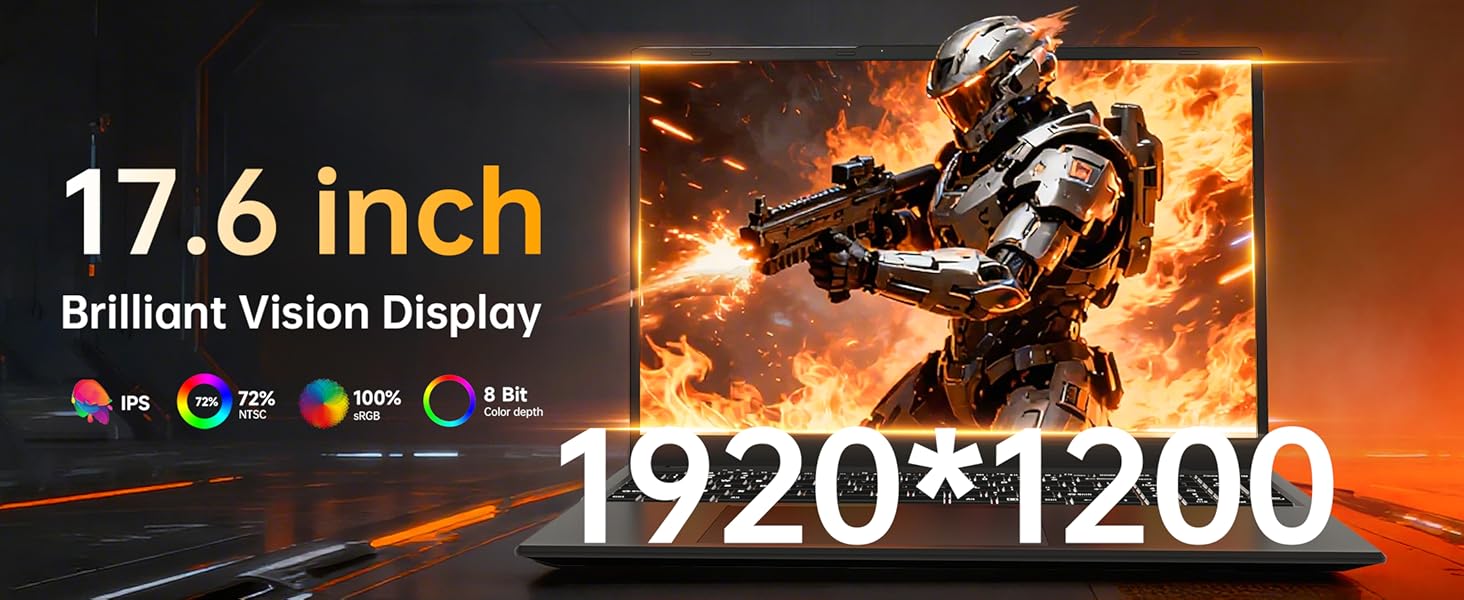
Image 3.2: Illustration of the anti-glare, eye-protection screen technology.
3.3 พอร์ตและการเชื่อมต่อ
The laptop provides various ports for connecting peripherals and external devices:
- พอร์ต USB 3.0 (x3): สำหรับเชื่อมต่ออุปกรณ์ USB เช่น เมาส์ คีย์บอร์ด และที่จัดเก็บข้อมูลภายนอก
- พอร์ต HDMI: สำหรับเชื่อมต่อกับจอภาพภายนอกหรือโปรเจ็กเตอร์
- พอร์ต Type-C: A full-featured port supporting data transfer, video output, and Power Delivery (PD) fast charging.
- แจ็คหูฟัง 3.5 มม.: สำหรับเอาท์พุตเสียงไปยังหูฟังหรือลำโพงภายนอก
- ช่องเสียบการ์ด TF: For expanding storage with a microSD card (up to 1TB).
- พอร์ตชาร์จ DC: Dedicated port for the included power adapter.

ภาพที่ 3.3: จบแล้วview of the laptop's various input/output ports.
3.4 การเชื่อมต่อแบบไร้สาย
- ไวไฟ 6: Provides faster and more reliable wireless internet connectivity.
- Bluetooth 5.2: สำหรับเชื่อมต่ออุปกรณ์ต่อพ่วงไร้สาย เช่น หูฟัง เมาส์ และคีย์บอร์ด
3.5 Webกล้องและระบบเสียง
การบูรณาการ webcam is suitable for video calls and online meetings. A physical webcam shield is included for privacy. Slide the cover to open or close the camera lens. The laptop also features stereo speakers and a digital microphone for clear audio communication.
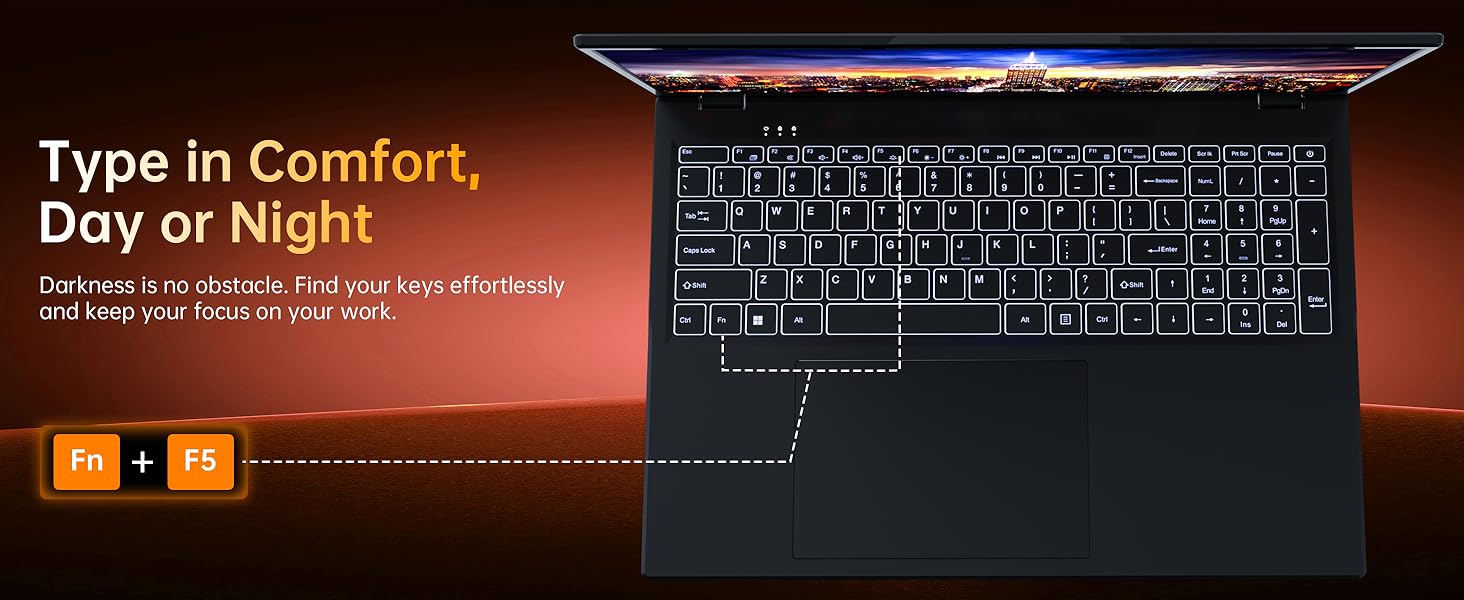
Image 3.4: The laptop's webcam with an integrated privacy switch.
4. การจัดการพลังงาน
The Ezbook P1 is equipped with a 7000mAh battery, providing extended usage time. It supports PD fast charging via the Type-C port in addition to the dedicated DC charging port.
- การชาร์จ: Connect the power adapter to either the DC port or the Type-C port (with a compatible PD charger, not included) to charge the battery.
- อายุการใช้งานแบตเตอรี่: Battery life varies based on usage. To optimize battery life, adjust screen brightness, close unused applications, and utilize power-saving modes in Windows settings.

Image 4.1: The laptop's 7000mAh battery and dual charging options.
5. การบำรุงรักษา
5.1 การทำความสะอาดแล็ปท็อปของคุณ
- หน้าจอ: ใช้ผ้านุ่มไม่เป็นขุยค่อยๆ งampล้างออกด้วยน้ำหรือน้ำยาทำความสะอาดหน้าจอ ห้ามฉีดน้ำยาลงบนหน้าจอโดยตรง
- แป้นพิมพ์และ Casing: ใช้ผ้านุ่มและแห้ง สำหรับคราบฝังแน่น ให้เช็ดเบาๆamp สามารถใช้ผ้าชุบน้ำสบู่ชนิดอ่อนๆ เช็ดได้ โดยให้แน่ใจว่าไม่มีของเหลวเข้าไปในอุปกรณ์
- ช่องระบายอากาศ: Periodically clean the ventilation openings with compressed air to prevent dust buildup, which can affect cooling performance.
5.2 การอัปเดตซอฟต์แวร์
ตรวจสอบและติดตั้งการอัปเดต Windows เป็นประจำ เพื่อให้แน่ใจว่าระบบของคุณมีแพทช์ความปลอดภัยล่าสุดและการปรับปรุงประสิทธิภาพ ไปที่ การตั้งค่า > Windows Update.
6 การแก้ไขปัญหา
| ปัญหา | วิธีแก้ปัญหาที่เป็นไปได้ |
|---|---|
| โน๊ตบุ๊คไม่สามารถเปิดเครื่องได้ | Ensure the power adapter is securely connected and the outlet is functional. The battery might be completely drained; allow it to charge for at least 30 minutes before attempting to power on again. |
| หน้าจอว่างเปล่าหรือเป็นสีดำ | Check if the laptop is powered on. Try adjusting the screen brightness. If an external monitor is connected, ensure the display output is correctly configured (Fn + F10 or Windows P key). |
| ปัญหาการเชื่อมต่อ Wi-Fi | Verify Wi-Fi is enabled in Windows settings. Restart your router and the laptop. Ensure you are within range of the Wi-Fi network and have the correct password. |
| แป้นพิมพ์หรือทัชแพดไม่ตอบสนอง | Restart the laptop. Check Windows settings for touchpad and keyboard drivers. Ensure no external devices are interfering. |
| ระบบช้าหรือไม่ตอบสนอง | Close unnecessary applications. Check Task Manager for processes consuming high CPU/RAM. Ensure sufficient free storage space. Run a system scan for malware. |
7. ข้อมูลจำเพาะ
| คุณสมบัติ | รายละเอียด |
|---|---|
| ชื่อรุ่น | Ezbook P1 |
| ขนาดจอแสดงผล | 17.6 นิ้ว |
| ความละเอียดหน้าจอ | 1920 x 1200 pixels (FHD IPS, 100% sRGB) |
| โปรเซสเซอร์ | อินเทล N95 (สูงสุด 3.4 GHz) |
| แรม | แรม 16GB DDR5 |
| พื้นที่จัดเก็บ | 640GB SSD (512GB SSD + 128GB eMMC), expandable via TF card |
| โคโปรเซสเซอร์กราฟิก | กราฟิก Intel UHD |
| ระบบปฏิบัติการ | วินโดวส์ 11 โฮม |
| การเชื่อมต่อแบบไร้สาย | Wi-Fi 6, บลูทูธ 5.2 |
| พอร์ต | 3x USB 3.0, 1x HDMI, 1x Full-featured Type-C, 1x 3.5mm Audio Jack, 1x TF Card Slot, 1x DC Charging Port |
| แบตเตอรี่ | 7000mAh |
| น้ำหนัก | 3.67 ปอนด์ (ประมาณ 1.66 กก.) |
| ขนาด (กxยxส) | 14.37 x 9.61 x 0.79 นิ้ว |
| คุณสมบัติพิเศษ | Backlit Keyboard, Webcam Privacy Shield, Office 365 (12-month subscription included) |
8. การรับประกันและการสนับสนุน
8.1 ข้อมูลการรับประกัน
jumper laptops come with a one-year warranty from the date of purchase. This warranty covers manufacturing defects. Please retain your proof of purchase for warranty claims.
8.2 การสนับสนุนลูกค้า
For any product-related issues, technical assistance, or warranty inquiries, please contact jumper customer support:
- อีเมล: service@jumper-customersupport.com
- ออนไลน์: Log in to your Amazon buyer account, find your order, and click "Get Product Support."
Our support team aims to assist you within 24 hours.

Image 8.1: Contact information for jumper customer support.


