การแนะนำ
This manual provides essential information for the setup, operation, maintenance, and troubleshooting of your AWOW Mini PC, Model BA7. Please read these instructions carefully before using the device.

ภาพ: เหนือview of the AWOW BA7 Mini PC, highlighting its compact design and key features.
เนื้อหาแพ็คเกจ
ตรวจสอบว่ามีรายการทั้งหมดอยู่ในแพ็คเกจ:
- AWOW BA7 Mini PC
- อะแดปเตอร์แปลงไฟ
- สกรูยึด
- ขายึด VESA
- สาย HDMI
- คู่มือการใช้งาน (เอกสารนี้)

Image: Illustration of the AWOW BA7 Mini PC and its included accessories: power adapter, screws, VESA mount, HDMI cable, and user manual.
คำแนะนำการตั้งค่า
- เชื่อมต่ออุปกรณ์ต่อพ่วง: Connect your keyboard, mouse, and monitor(s) to the appropriate ports on the Mini PC.
ภาพ: ด้านหน้า view of the Mini PC showing the Power Button, Type-C port, USB 3.2 ports, and 3.5mm Audio Jack.

ภาพ: ด้านหลัง view of the Mini PC showing the DC IN, DP1.2, HDMI2.0, USB 2.0 ports, and RJ45 LAN port.
- การเชื่อมต่อไฟฟ้า: ต่ออะแดปเตอร์แปลงไฟเข้ากับพอร์ต DC IN บนมินิพีซี จากนั้นเสียบอะแดปเตอร์เข้ากับเต้ารับไฟฟ้า
- เปิดเครื่อง: กดปุ่มเปิด/ปิดที่อยู่ด้านหน้าของมินิพีซี ระบบจะเริ่มทำงาน
- ตั้งค่าเริ่มต้น: ปฏิบัติตามคำแนะนำบนหน้าจอเพื่อดำเนินการตั้งค่าเริ่มต้นของ Windows 11 Pro ให้เสร็จสมบูรณ์ รวมถึงภาษา ภูมิภาค การเชื่อมต่อเครือข่าย และการสร้างบัญชีผู้ใช้
- การเชื่อมต่อเครือข่าย:
- มีสาย: Connect an Ethernet cable to the RJ45 LAN port for a stable wired connection.
- ไร้สาย: During Windows setup or via Windows settings, connect to your Wi-Fi network using the built-in WiFi 6.
คำแนะนำการใช้งาน
การทำงานพื้นฐาน
- เปิด/ปิดเครื่อง: Press the power button to turn on the PC. To shut down, use the Windows Start menu options (Shut down, Restart, Sleep). A short press on the power button can put the PC to sleep. A long press (approx. 5 seconds) will force a shutdown.
- การแสดงผลเอาท์พุต: The Mini PC supports up to three 4K displays simultaneously via DP, HDMI, and USB-C. Connect your monitors and configure display settings in Windows.

Image: A user working with a triple monitor setup, demonstrating the Mini PC's multi-display capability.
- การเชื่อมต่อ USB: Utilize the USB 2.0 and USB 3.0 ports for connecting external devices such as external hard drives, USB flash drives, printers, and other peripherals. The Type-C port also supports data transfer and display output.
- เสียง: เชื่อมต่อหูฟังหรือลำโพงเข้ากับแจ็คเสียงขนาด 3.5 มม.
การใช้งานขั้นสูง
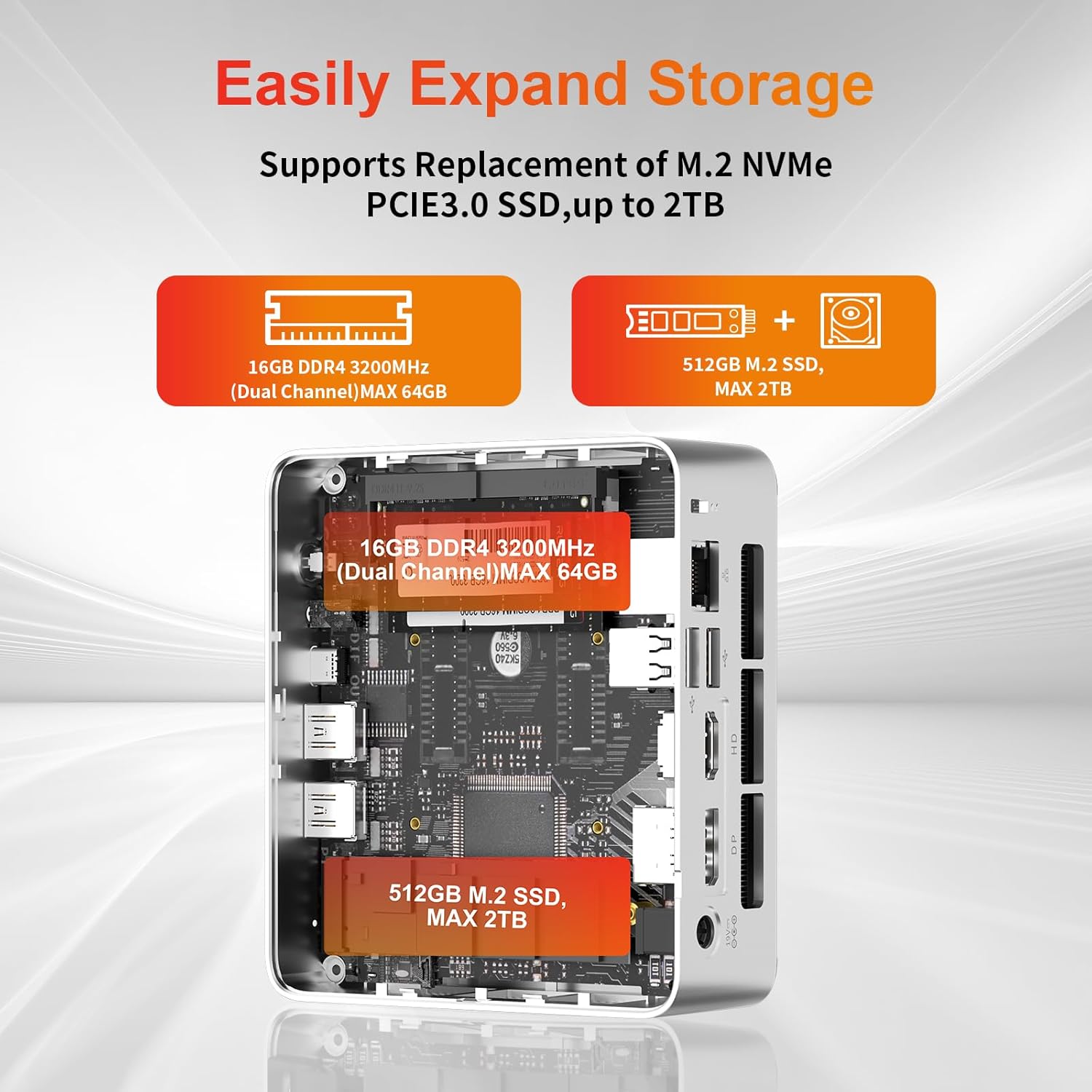
- การขยายพื้นที่เก็บข้อมูล: The Mini PC supports replacement of the M.2 NVMe PCIe 3.0 SSD up to 2TB. It also supports memory expansion up to 64GB DDR4.

Image: Diagram illustrating the internal components and options for expanding storage (M.2 SSD up to 2TB) and RAM (DDR4 up to 64GB).
- การติดตั้ง VESA: Use the included VESA mount bracket to attach the Mini PC to the back of a compatible monitor or to a wall mount, saving desk space.
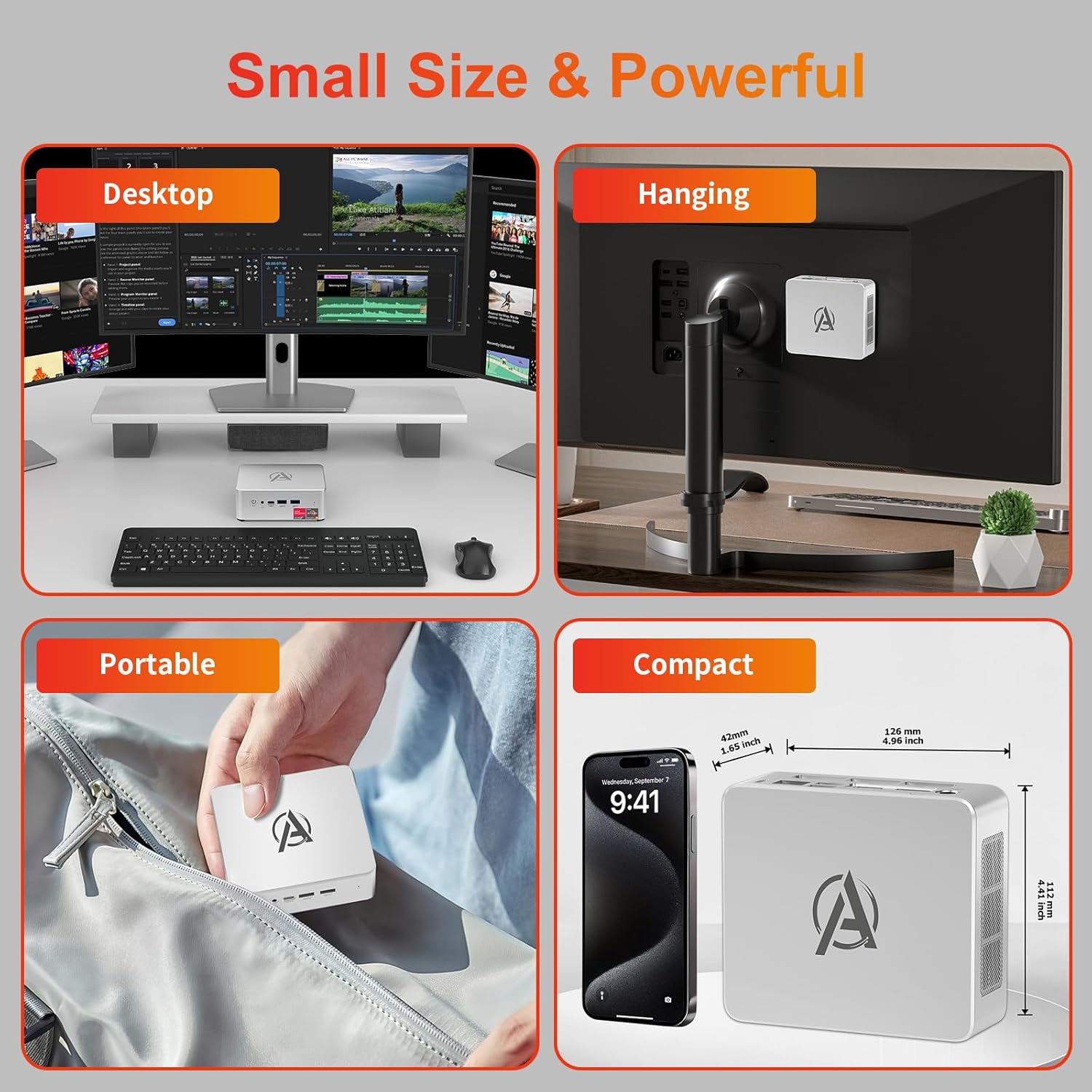
Image: Various usage scenarios for the Mini PC, including desktop, VESA-mounted behind a monitor, portable, and compact size comparison.
การซ่อมบำรุง
- การทำความสะอาด: Use a soft, dry cloth to clean the exterior of the Mini PC. Do not use liquid cleaners or aerosols. Ensure ventilation openings are free from dust.
- การอัปเดตซอฟต์แวร์: Regularly check for and install Windows updates and driver updates to ensure optimal performance and security.
- การจัดการความร้อน: Ensure the Mini PC is placed in a well-ventilated area. Avoid blocking the air vents. The intelligent cooling system is designed for low noise and efficient heat dissipation.

Image: Diagram illustrating the internal cooling fan and heat sink, showing airflow for efficient heat dissipation.
- การจัดการพื้นที่เก็บข้อมูล: ทำความสะอาดสิ่งที่ไม่จำเป็นเป็นระยะๆ files and applications to maintain system performance.
การแก้ไขปัญหา
- ไม่มีไฟฟ้า:
- ตรวจสอบว่าอะแดปเตอร์แปลงไฟเสียบเข้ากับมินิพีซีและเต้ารับไฟฟ้าอย่างแน่นหนาแล้ว
- ตรวจสอบให้แน่ใจว่าเต้ารับไฟฟ้าทำงานได้
- ลองใช้เต้ารับไฟอื่น
- ไม่มีจอแสดงผล:
- Verify that the HDMI/DP/USB-C cable is securely connected to both the Mini PC and the monitor.
- ตรวจสอบให้แน่ใจว่าจอภาพเปิดอยู่และตั้งค่าแหล่งอินพุตที่ถูกต้อง
- ลองใช้สายจอภาพหรือจอภาพอื่นหากมี
- ประสิทธิภาพการทำงานช้า:
- ปิดแอปพลิเคชันที่ไม่จำเป็นซึ่งทำงานอยู่เบื้องหลัง
- ตรวจสอบและติดตั้งการอัปเดต Windows หรือการอัปเดตไดรเวอร์ที่รอดำเนินการอยู่
- ตรวจสอบให้แน่ใจว่ามีพื้นที่ว่างเพียงพอบน SSD
- ตรวจสอบการใช้งาน CPU และ RAM ใน Task Manager เพื่อระบุโปรแกรมที่ใช้ทรัพยากรมาก
- ปัญหาการเชื่อมต่อเครือข่าย:
- For wired connections, ensure the Ethernet cable is properly connected and the router is working.
- For Wi-Fi, check if the Wi-Fi adapter is enabled and connected to the correct network. Restart your router/modem.
- ระบบค้าง/ล่ม:
- รีสตาร์ทมินิพีซี
- Ensure the system is not overheating (check ventilation).
- Run a system diagnostic or check Windows Event Viewer for error messages.
ข้อมูลจำเพาะ
| แบบอย่าง | AWOW BA7 Mini PC |
| โปรเซสเซอร์ | AMD Ryzen 5 7430U (6 คอร์, 12 เธรด, สูงสุด 4.3 GHz) |
| กราฟฟิก | กราฟิก AMD Radeon แบบบูรณาการ |
| แรม | 16GB DDR4 (ขยายได้สูงสุด 64GB) |
| พื้นที่จัดเก็บ | 512GB PCIe 3.0 M.2 SSD (Expandable up to 2TB) |
| ระบบปฏิบัติการ | วินโดวส์ 11 โปร |
| เอาท์พุตวิดีโอ | DP1.2 (4K@60Hz), HDMI2.0 (4K@60Hz), USB-C (4K@60Hz) - Supports Triple Display |
| การเชื่อมต่อ | WiFi 6, Bluetooth 5.2, 1000Mbps RJ45 LAN |
| พอร์ต | 2x USB 3.2, 2x USB 2.0, 1x Type-C (Full Function), 1x DP1.2, 1x HDMI2.0, 1x RJ45 LAN, 1x 3.5mm Audio Jack, 1x DC IN |
| ขนาด | 126 มม. x 112 มม. x 42 มม. (ประมาณ 4.96 x 4.41 x 1.65 นิ้ว) |
| น้ำหนัก | 398 ก. (เฉพาะอุปกรณ์) Image: The Mini PC with its dimensions (126mm x 112mm x 42mm) and weight (398g) labeled. |
การรับประกันและการสนับสนุน
AWOW provides comprehensive support for its products.
- การรับประกัน: This product includes a 12-month service period from the date of purchase, covering manufacturing defects.
- การสนับสนุนด้านเทคนิค: Lifetime technical support is available for all AWOW products.
- ติดต่อ: For technical assistance, warranty claims, or any product-related inquiries, please visit the official AWOW webเว็บไซต์หรือติดต่อฝ่ายบริการลูกค้าของพวกเขา

Image: AWOW brand message emphasizing fulfillment, lifetime technical support, and 12-month service.


