1. บทนำ
Welcome to the user manual for your NIMO N152S 15.6-inch Laptop. This guide provides essential information on setting up, operating, maintaining, and troubleshooting your new device. Please read this manual thoroughly to ensure optimal performance and longevity of your laptop.
2. สินค้าหมดview
2.1 คุณสมบัติหลัก
- ประสิทธิภาพอันทรงพลัง: Equipped with an AMD Ryzen 5 3500U processor and integrated Radeon graphics for smooth multitasking and efficient performance.
- จอแสดงผล Full HD ที่สมจริง: A 15.6-inch Full HD (1920x1080) IPS display with a 180° wide hinge for vibrant visuals and wide viewมุมการเอียง
- การออกแบบบางและน้ำหนักเบา: Crafted with a sleek metal top cover, weighing under 3.7 lbs and measuring just 19.2 mm thin.
- การเชื่อมต่อที่ได้รับการปรับปรุง: Features 2 USB-A, 2 USB-C (full function PD/DP/Data), HDMI, MicroSD, and a 3.5mm audio jack.
- หน่วยความจำและพื้นที่เก็บข้อมูลที่ขยายได้: Supports up to 32GB DDR4 RAM and M.2 PCIe 3.0 x4 SSD for future-proof upgrades.
- Smart Security & Comfort: Includes a fingerprint reader on the touchpad, a backlit keyboard for low-light use, and dual microphones.
2.2 การระบุส่วนประกอบ
Familiarize yourself with the various components of your NIMO N152S laptop as illustrated below.

รูปที่ 2.1 : ด้านหน้า view of the NIMO N152S laptop, showcasing its sleek design and key features like Windows 11, 32GB RAM, 1TB SSD, Full HD display, AMD Ryzen 5, Type-C PD Charger, Backlit Keyboard, and Fingerprint Reader.

Figure 2.2: Illustration of the AMD Ryzen 5 processor, detailing its specifications including 4 Cores, 8 Threads, 15W Power Consumption, and 3.7 GHz Turbo Boost, indicating its capability for daily tasks and light gaming.

Figure 2.3: The NIMO laptop screen showcasing a vivid Full HD (1920x1080) IPS display, highlighting features like bright view and eye protection, with an 85% screen-to-body ratio.

รูปที่ 2.4: รายละเอียด view of the NIMO laptop's expanded connectivity options, labeling ports such as Type-C (Charge Only), USB 3.0, HDMI, Type-C (Full Function), Charge LED, Micro SD Reader, USB 2.0, USB 3.0, Headphone Combo, and Kensington Lock.
3. การตั้งค่าเริ่มต้น
3.1 Charging the Laptop
Before first use, fully charge your NIMO laptop. Connect the provided 65W Type-C PD charger to the USB-C charging port on the laptop and then to a power outlet. The charge LED indicator will illuminate to confirm charging.

Figure 3.1: The 65W Type-C PD Charger, designed for universal compatibility with laptops, tablets, and smartphones, simplifying your charging needs compared to multiple chargers.
3.2 การเปิดเครื่องครั้งแรก
- เปิดฝาแล็ปท็อป
- กดปุ่มเปิด/ปิดที่อยู่บนแป้นพิมพ์
- ปฏิบัติตามคำแนะนำบนหน้าจอเพื่อดำเนินการตั้งค่าเริ่มต้นของ Windows 11 ให้เสร็จสมบูรณ์ รวมถึงการเลือกภาษา การเชื่อมต่อเครือข่าย และการสร้างบัญชีผู้ใช้
4. Operating Your NIMO Laptop
4.1 การเปิด/ปิดเครื่องและโหมดสลีป
- เปิดเครื่อง: กดปุ่มเปิด/ปิด
- ปิดระบบ: คลิกปุ่มเริ่ม จากนั้นคลิกเปิด/ปิดเครื่อง > ปิดเครื่อง
- โหมดสลีป: ปิดฝาหรือคลิกปุ่มเริ่ม จากนั้นคลิกเปิด/ปิดเครื่อง > เข้าสู่โหมดสลีป
4.2 การใช้แป้นพิมพ์และทัชแพด
Your NIMO laptop features a full-sized keyboard with a numeric keypad and a responsive touchpad.
- แป้นพิมพ์พร้อมไฟแบ็คไลท์: กด Fn+F10 (or the key with the backlight icon) to toggle the keyboard backlight on/off or adjust brightness levels.
- ทัชแพด: รองรับการใช้งานท่าทางสัมผัสหลายนิ้วสำหรับการนำทาง โปรดดูการตั้งค่าของ Windows สำหรับการปรับแต่งเพิ่มเติม
- ปุ่มกดตัวเลข: ใช้แป้นพิมพ์ตัวเลขเฉพาะเพื่อการป้อนข้อมูลที่มีประสิทธิภาพ

Figure 4.1: The NIMO laptop keyboard, emphasizing its backlit keys, integrated touchpad, fingerprint reader, and numeric keypad, designed for comfortable typing in various lighting conditions.
เครื่องอ่านลายนิ้วมือ 4.3
The integrated fingerprint reader on the touchpad provides quick and secure access to your laptop.
- ไปที่การตั้งค่า Windows > บัญชี > ตัวเลือกการลงชื่อเข้าใช้
- ตั้งค่าระบบสแกนลายนิ้วมือ Windows Hello
- ทำตามคำแนะนำบนหน้าจอเพื่อลงทะเบียนลายนิ้วมือของคุณ
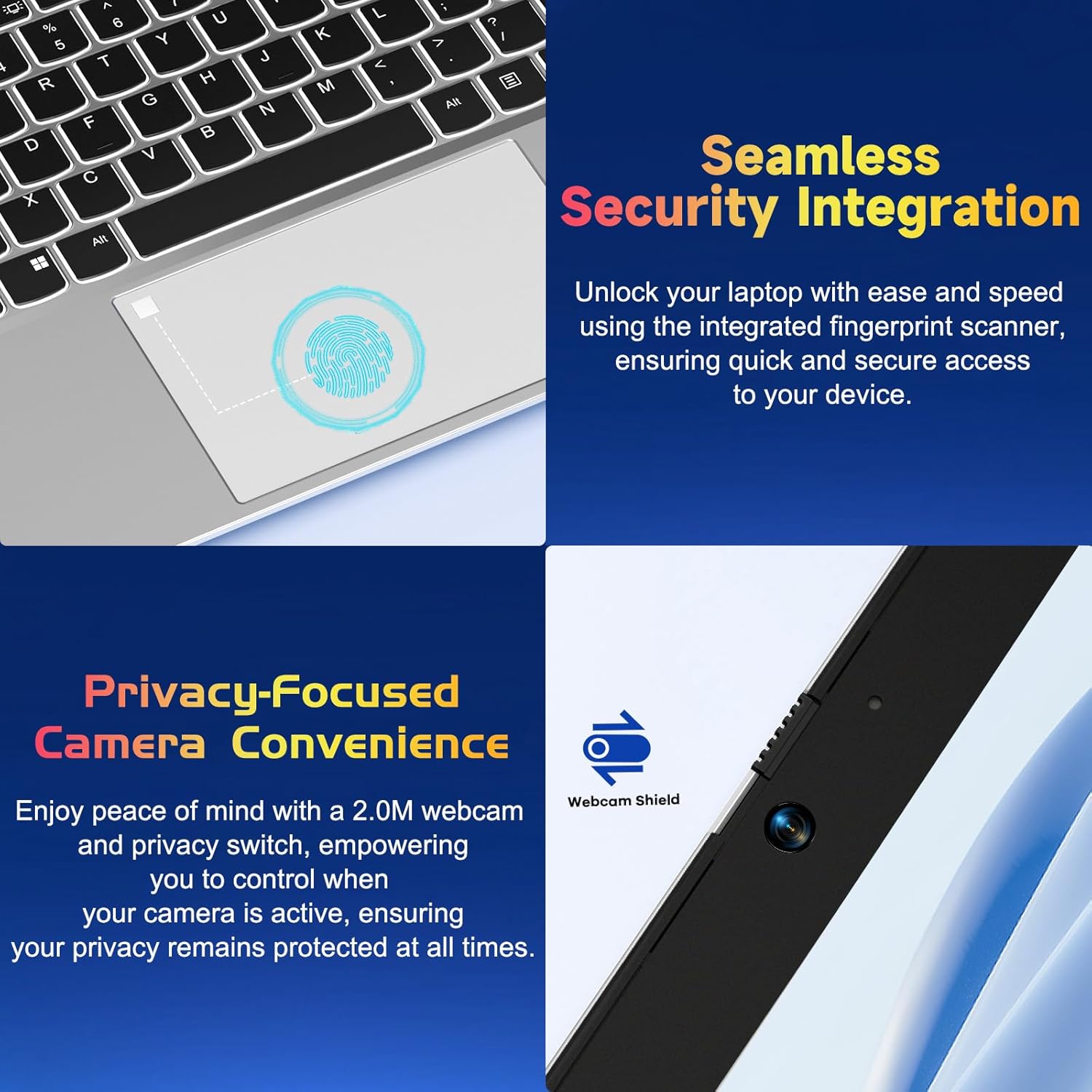
รูปที่ 4.2: ระยะใกล้ view of the NIMO laptop's touchpad, highlighting the integrated fingerprint scanner for seamless security integration, alongside the privacy-focused webcam with a physical shield.
4.4 การเชื่อมต่ออุปกรณ์ต่อพ่วง
แล็ปท็อปของคุณมีพอร์ตต่างๆ สำหรับเชื่อมต่ออุปกรณ์ภายนอก:
- พอร์ต USB-A: สำหรับเชื่อมต่ออุปกรณ์ USB มาตรฐาน เช่น เมาส์ คีย์บอร์ด หรือฮาร์ดไดรฟ์ภายนอก
- พอร์ต USB-C: Two full-function USB-C ports support Power Delivery (PD), DisplayPort (DP), and data transfer. One is dedicated for charging.
- พอร์ต HDMI: เชื่อมต่อกับจอภาพภายนอกหรือโปรเจ็กเตอร์
- เครื่องอ่านการ์ด MicroSD: Insert a MicroSD card for additional storage or data transfer.
- แจ็คเสียงขนาด 3.5 มม.: สำหรับหูฟังหรือลำโพงภายนอก
4.5 Webcam Privacy
The laptop includes a 2.0MP webcam with a physical privacy shield. Slide the shield to cover the camera lens when not in use to ensure your privacy.
5. การบำรุงรักษาและการดูแล
- การทำความสะอาด: ใช้ผ้านุ่มไม่เป็นขุยเช็ดเล็กน้อยampล้างออกด้วยน้ำหรือน้ำยาทำความสะอาดหน้าจอเพื่อทำความสะอาดหน้าจอและภายนอก หลีกเลี่ยงสารเคมีรุนแรง
- การอัปเดตซอฟต์แวร์: อัปเดตระบบปฏิบัติการและไดรเวอร์ Windows ของคุณเป็นประจำเพื่อให้มั่นใจถึงประสิทธิภาพและความปลอดภัยที่เหมาะสมที่สุด
- การดูแลแบตเตอรี่ เพื่อยืดอายุการใช้งานแบตเตอรี่ หลีกเลี่ยงอุณหภูมิที่รุนแรง และพยายามรักษาระดับประจุแบตเตอรี่ไว้ที่ 20% ถึง 80% เมื่อเป็นไปได้
- พื้นที่จัดเก็บ: เก็บแล็ปท็อปไว้ในที่แห้งและเย็น หลีกเลี่ยงแสงแดดโดยตรงและอุณหภูมิที่สูงหรือต่ำเกินไป
6 การแก้ไขปัญหา
ส่วนนี้จะกล่าวถึงปัญหาทั่วไปที่คุณอาจพบเจอขณะใช้งานแล็ปท็อป NIMO ของคุณ
| ปัญหา | วิธีแก้ปัญหาที่เป็นไปได้ |
|---|---|
| โน๊ตบุ๊คไม่สามารถเปิดเครื่องได้ | Ensure the laptop is charged. Connect the charger and wait a few minutes before attempting to power on again. If unresponsive, perform a hard reset by holding the power button for 15 seconds. |
| หน้าจอว่างเปล่าหรือกะพริบ | Try adjusting the screen brightness (Fn + F5/F6). If connected to an external monitor, ensure the cable is secure. Restart the laptop. |
| ไฟแบ็คไลท์ของคีย์บอร์ดไม่ทำงาน | Press Fn + F10 (or the key with the backlight icon) to cycle through backlight settings. Ensure the function keys are enabled. |
| Fingerprint reader not recognized. | โปรดตรวจสอบให้แน่ใจว่านิ้วของคุณสะอาดและแห้ง หากปัญหายังคงอยู่ ให้ลงทะเบียนลายนิ้วมือของคุณอีกครั้งในการตั้งค่า Windows Hello |
| ปัญหาการเชื่อมต่อ Wi-Fi | Check if Wi-Fi is enabled (Fn + F12 or Windows settings). Restart your router and laptop. Update Wi-Fi drivers if necessary. |
| โน๊ตบุ๊คทำงานช้า | Close unnecessary applications. Check Task Manager for resource-intensive processes. Ensure Windows and drivers are up to date. Consider running a disk cleanup. |
7. ข้อมูลจำเพาะทางเทคนิค
| คุณสมบัติ | ข้อมูลจำเพาะ |
|---|---|
| ยี่ห้อ | นีโม |
| ชื่อรุ่น | NIMO N152S |
| หมายเลขรุ่นสินค้า | นิโม N152 |
| ขนาดหน้าจอ | 15.6 นิ้ว |
| ความละเอียดหน้าจอสูงสุด | 1920 x 1080 พิกเซล (ฟูลเอชดี) |
| โปรเซสเซอร์ | เอเอ็มดี Ryzen 5 3500U (3.7 กิกะเฮิรตซ์) |
| แรม | 32GB DDR4 (3200 เมกะเฮิรตซ์) |
| ฮาร์ดไดรฟ์ | SSD 1024 GB (โซลิดสเตต) |
| โคโปรเซสเซอร์กราฟิก | AMD Integrated graphics |
| ระบบปฏิบัติการ | วินโดวส์ 11 |
| ประเภทไร้สาย | 802.11abg |
| จำนวนพอร์ต USB 2.0 | 1 |
| อายุการใช้งานแบตเตอรี่โดยเฉลี่ย | 5 ชั่วโมง |
| น้ำหนักสินค้า | 3.8 ปอนด์ |
| ขนาดสินค้า | 14.07 x 8.98 x 0.76 นิ้ว |
| สี | เงินคลาสสิค |
| หลัง Webความละเอียดของกล้อง | 2 MP |
| แหล่งพลังงาน | ใช้พลังงานจากแบตเตอรี่ |
| แบตเตอรี่ | ต้องใช้แบตเตอรี่ลิเธียมโพลิเมอร์ 1 ก้อน (รวมอยู่ด้วย) |
8. การรับประกันและการสนับสนุนลูกค้า
8.1 ข้อมูลการรับประกัน
Your NIMO N152S laptop comes with a comprehensive warranty:
- นโยบายการคืนสินค้าฟรีภายใน 90 วัน: You may return your NIMO laptop for any reason within 90 days of purchase.
- รับประกัน 2 ปี: All NIMO products are covered by a 2-year warranty for after-sales support.

Figure 8.1: NIMO's commitment to customer satisfaction, featuring a 90-day free return policy and a 2-year warranty for reliable support.
8.2 การสนับสนุนลูกค้า
For any product-related questions, technical assistance, or warranty claims, please contact our U.S.-based support team:
- เยี่ยมชมเว็บไซต์อย่างเป็นทางการของ NIMO webไซต์สำหรับทรัพยากรการสนับสนุนและตัวเลือกการติดต่อ
- Refer to your purchase documentation for specific contact details.
Our team is dedicated to providing professional and high-quality customer service to resolve any issues you may encounter.


