1. บทนำและเรื่องอื่นๆview
This manual provides detailed instructions for the operation and maintenance of your Vandlion 64GB Digital Voice Recorder, Model V11B. This device is designed for high-fidelity audio capture in various environments, including lectures, meetings, and interviews. It features advanced AI noise reduction, 1536Kbps crystal audio recording, password protection for your files, and a voice activation function.

Figure 1: Vandlion V11B Digital Voice Recorder
2. อะไรอยู่ในกล่อง
Upon unboxing your Vandlion V11B Digital Voice Recorder, please ensure all the following items are present:
- 1 x Digital Voice Recorder (Model V11B)
- สายเคเบิลข้อมูล USB-C 1 เส้น
- 1 x หูฟัง
- 1 x คู่มือผู้ใช้

รูปที่ 2: สิ่งของในบรรจุภัณฑ์
3. คุณสมบัติของผลิตภัณฑ์
- ระบบตัดเสียงรบกวนด้วย AI: The advanced AI chip identifies and eliminates over 95% of distracting sounds, focusing purely on human speech for clear audio.
- Big Storage & Ultra-Portable: Stores up to 900 hours of recordings with its 64GB memory. Crafted from lightweight yet durable zinc alloy, it offers portability and a solid feel. A 1.5-hour charge provides up to 20 hours of continuous recording.
- การบันทึกด้วยปุ่มเดียว: Simple slide switch operation to initiate recording (slide to "REC") and save (slide to "SAVE").
- ฟังก์ชั่นการเปิดใช้งานด้วยเสียง: When manually turned on, this feature allows the recorder to intelligently skip silent pauses and focus solely on active dialogues, providing condensed recordings. (Refer to the manual for activation steps).
- การป้องกันด้วยรหัสผ่าน: Supports setting a 4-digit password to protect your recording files from unauthorized access.

Figure 3: AI Noise Cancellation Feature

รูปที่ 4: การออกแบบแบบพกพา

Figure 5: One-Button Recording

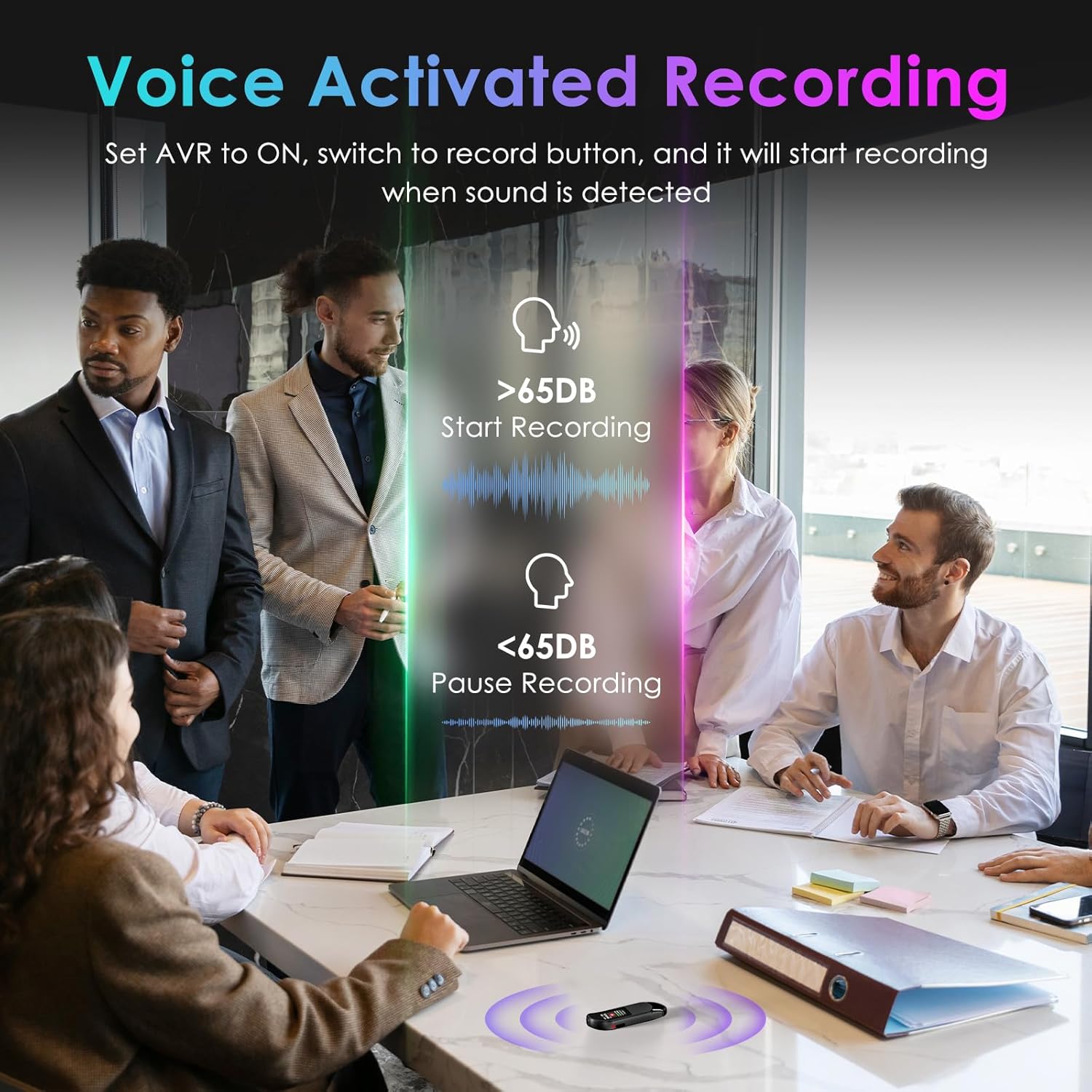
Figure 6: Voice Activated Recording
รูปที่ 7: คุณสมบัติการป้องกันด้วยรหัสผ่าน
4. การติดตั้งและการใช้งานเบื้องต้น
4.1 การตั้งค่าเริ่มต้น
Before first use, fully charge the device using the provided USB-C cable. Connect the cable to the recorder and a power source (e.g., computer USB port or USB wall adapter). The device will indicate charging status on its screen.
4.2 การบันทึกด้วยปุ่มเดียว
- To start recording, slide the 'REC' button upwards. The screen will display recording in progress.
- To save the recording, slide the 'SAVE' button downwards. The recording will be saved automatically.
4.3 การเล่นซ้ำ
The Vandlion V11B does not have a built-in speaker. To listen to recordings, you must connect the included headphones or transfer files to a computer or Android phone.
- Connect the remote control to the USB-C port of the recorder.
- Plug the headphones into the remote control.
- Use the buttons on the remote control to navigate through recordings, adjust volume, and play/pause.

Figure 8: Playback Setup
4.4 ระบบบันทึกเสียงอัตโนมัติ (VOR)
To enable Voice Activated Recording:
- Connect the recorder to the remote control and headphones.
- Access the device menu (long press the 'M' button on the remote).
- Navigate to 'REC Setting' and then 'AVR Setting'.
- Change 'Set: OFF' to 'Set: ON' and adjust the AVR level as needed.
- Once enabled, slide the 'REC' button upwards. The recorder will automatically start recording when sound is detected (above 65dB) and pause during silence (below 65dB).
Video 1: How to Use the Digital Voice Recorder (Vandlion Official)
This video demonstrates the basic functions and settings of the Vandlion Digital Voice Recorder, including recording, playback, and menu navigation.
5. การโอนข้อมูล
To transfer your recorded files to a computer or Android phone:
- Connect the recorder to your computer or Android phone using the provided USB-C cable.
- For Android phones, ensure the OTG function is enabled in your phone's settings.
- The device will appear as a removable drive. You can then access and transfer your MP3 or WAV recording files.
Note: Do not format the voice recorder on a computer, as this may change the memory format and cause recording failure.

Figure 9: Charging and File โอนย้าย
6. การป้องกันรหัสผ่าน
To set up password protection for your recordings:
- Connect the recorder to the remote control and headphones.
- Access the device menu (long press the 'M' button on the remote).
- Navigate to 'Password Setting' and follow the on-screen prompts to set a 4-digit password.
- Once set, the password will be required to access your recording files.
7. ข้อมูลจำเพาะ
| คุณสมบัติ | รายละเอียด |
|---|---|
| ขนาดสินค้า | 0.39 x 0.86 x 2.99 นิ้ว |
| น้ำหนักสินค้า | 1.41 ออนซ์ (40 กรัม) |
| หมายเลขรุ่นสินค้า | V11B |
| แบตเตอรี่ | ต้องใช้แบตเตอรี่ AA 1 ก้อน (รวมอยู่ด้วย) |
| ผู้ผลิต | แวนด์ไลออน |
| อุปกรณ์ที่รองรับ | คอมพิวเตอร์ส่วนบุคคล สมาร์ทโฟน |
| ฮาร์ดแวร์อินเตอร์เฟซ | USB ประเภท C |
| ปัจจัยรูปแบบไมโครโฟน | บิวท์อิน |
| รูปแบบ | ไฟล์เสียง MP3, WAV |
| แจ็คหูฟัง | 3.5 มิลลิเมตร |
| ความจุของหน่วยความจำ | 64GB |
8. การบำรุงรักษา
To ensure the longevity and optimal performance of your Vandlion V11B Digital Voice Recorder, please follow these maintenance guidelines:
- เก็บอุปกรณ์ให้แห้งและห่างจากอุณหภูมิที่สูงหรือต่ำเกินไป
- ทำความสะอาดอุปกรณ์ด้วยผ้าแห้งเนื้อนุ่ม หลีกเลี่ยงการใช้สารเคมีที่รุนแรงหรือวัสดุที่มีฤทธิ์กัดกร่อน
- เก็บอุปกรณ์ไว้ในสถานที่ปลอดภัยเพื่อป้องกันความเสียหายทางกายภาพ
- Regularly back up your recordings to prevent data loss.
9 การแก้ไขปัญหา
If you encounter any issues with your device, please refer to the following common troubleshooting tips:
- อุปกรณ์ไม่เปิด: Ensure the device is fully charged. If the issue persists, try performing a reset using the 'RESET' button.
- ไม่สามารถโอนได้ files: Verify that the USB-C cable is securely connected to both the recorder and your computer/phone. For Android, ensure OTG is enabled. Try using the original cable provided.
- คุณภาพการบันทึกไม่ดี: Ensure the microphone is not obstructed. Check the recording settings (e.g., AI noise reduction, bitrate) and adjust as necessary.
- ไม่มีเสียงระหว่างการเล่น: Confirm that headphones are properly connected to the remote control and the remote control is connected to the recorder. Check the volume level.
Video 2: Presentation about Digital Voice Recorder (Vandlion Official)
วิดีโอนี้มีเนื้อหาเกี่ยวกับview of the digital voice recorder's features and potential applications, which may help in understanding its functionality.
10. การรับประกันและการสนับสนุน
Your Vandlion V11B Digital Voice Recorder comes with a manufacturer's warranty. Please refer to the warranty card included in your package for specific terms and conditions. For technical support, product inquiries, or warranty claims, please contact Vandlion customer service through the contact information provided in the warranty documentation or on the official Vandlion webเว็บไซต์.


