1. สินค้าหมดview
The Keychron M6 Silent Wireless Gaming Mouse is designed for optimal comfort and performance across various tasks, from gaming to productivity. It features a lightweight, ergonomic design, versatile connectivity options, and a high-precision optical sensor. This manual provides detailed instructions for setup, operation, and maintenance.

Image: Keychron M6 Silent Wireless Gaming Mouse, showcasing its ergonomic shape and main buttons.
2. คุณสมบัติหลัก
- Ultra-Ergonomic & Lightweight Design: The M6 mouse combines a compact, ergonomic shape with a lightweight 86g body for extended comfort. It includes over ten customizable buttons and an infinite metal scroll wheel.
- Stable Wireless with Ultra-Low Latency: Experience reliable 2.4GHz wireless performance with a 1000Hz polling rate. The M6 also supports Bluetooth 5.3 for multi-device use and flexible switching.
- เซ็นเซอร์ PixArt 3395 ความแม่นยำสูง: Equipped with the advanced PixArt 3395 optical sensor, the M6 provides up to 26,000 DPI, 650 IPS tracking speed, and pinpoint accuracy.
- Infinite Scroll & Premium Metal Wheel: Features dual scrolling modes: smooth, infinite scroll for fast navigation and tactile mode for precision. The solid metal wheel offers a quiet, premium feel.
- Fully Programmable via Keychron Engine Software: Customize every button with Keychron Engine software on macOS and Windows. Create shortcuts, set macros, adjust DPI, polling rate, and LOD.
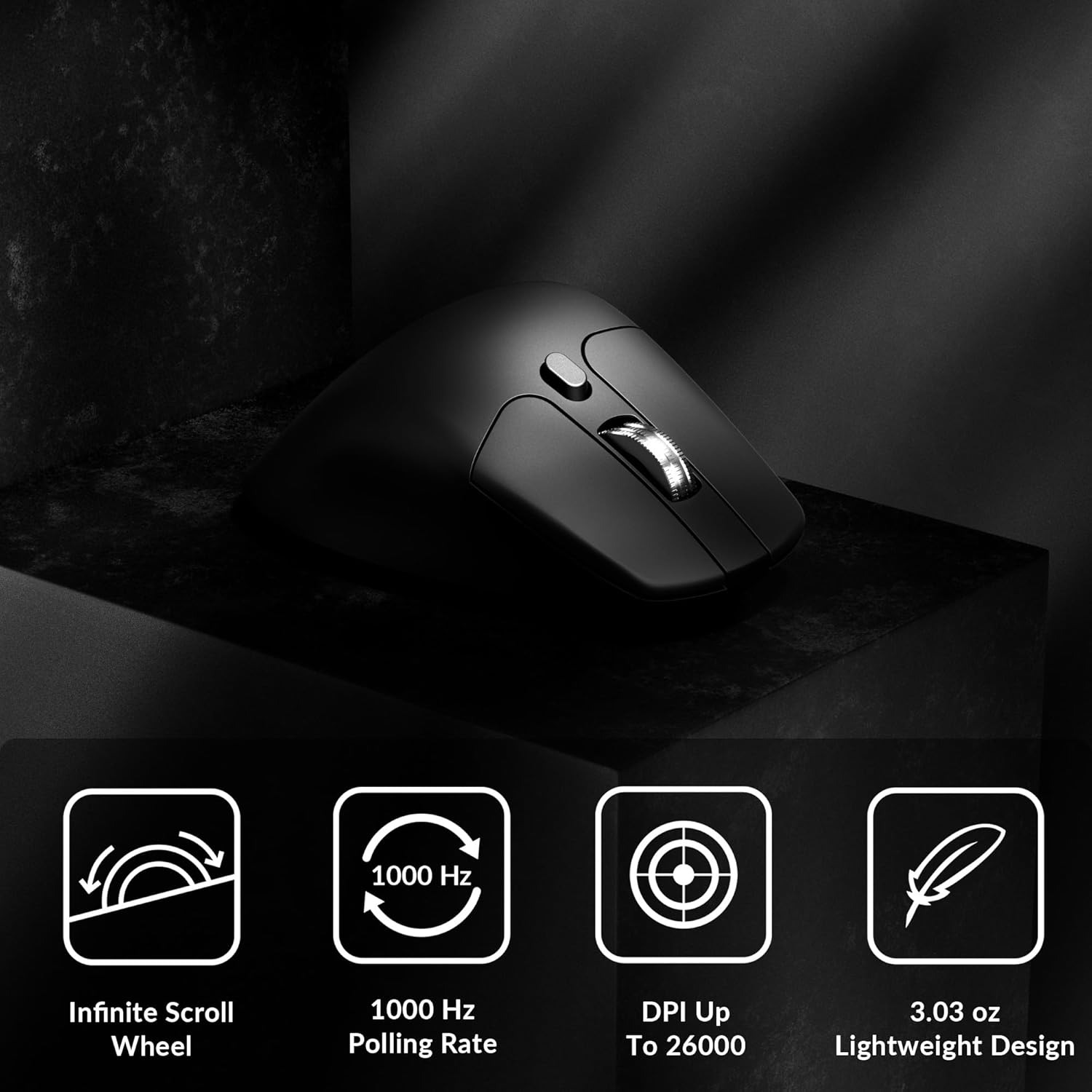
Image: Icons illustrating key features: Infinite Scroll Wheel, 1000 Hz Polling Rate, DPI Up To 26000, and Lightweight Design.
3. การตั้งค่า
3.1 เนื้อหาบรรจุภัณฑ์
ตรวจสอบว่ามีรายการทั้งหมดอยู่ในแพ็คเกจ:
- 1x Keychron M6 Mouse
- สายเคเบิล Type-C ถึง Type-C 1 เส้น
- 1x อะแดปเตอร์ Type-A ถึง Type-C
- 1x อะแดปเตอร์ขยายสำหรับตัวรับสัญญาณ
- 1x Type-C 2.4 GHz Receiver
- 1x ตัวรับ Type-A 2.4 GHz
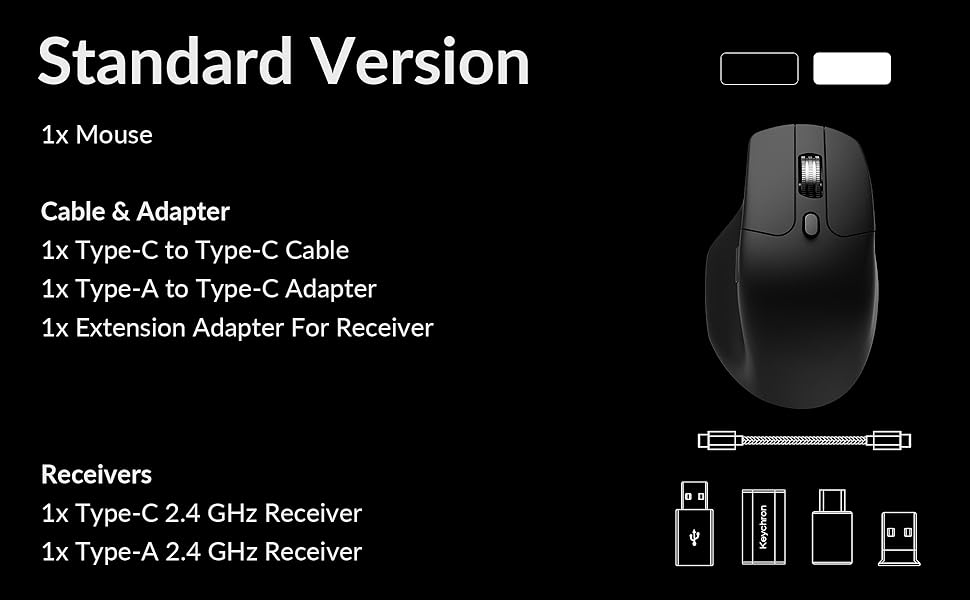
Image: Diagram showing the contents of the Keychron M6 mouse package.
3.2 การชาร์จเริ่มต้น
Before first use, it is recommended to fully charge the mouse. Connect the mouse to your computer using the provided Type-C cable. The LED indicator will show charging status.
3.3 การเชื่อมต่อเมาส์
The Keychron M6 supports three connection modes: 2.4GHz wireless, Bluetooth 5.3, and wired.
- ไร้สาย 2.4GHz: Insert the 2.4GHz receiver (Type-A or Type-C) into your computer's USB port. Switch the mode switch on the bottom of the mouse to 'G' (Gaming) mode. The mouse should connect automatically.
- Bluetooth 5.3: Switch the mode switch on the bottom of the mouse to 'B' (Bluetooth) mode. On your computer, search for Bluetooth devices and select 'Keychron M6' to pair.
- มีสาย: Connect the mouse directly to your computer using the provided Type-C cable. The mouse will function in wired mode and charge simultaneously.

Image: Keychron M6 mouse connected to a laptop via 2.4GHz receiver, with Bluetooth 5.3 icon.
4. คู่มือการใช้งาน
4.1 ฟังก์ชั่นพื้นฐาน
- คลิกซ้าย/ขวา: ฟังก์ชันปุ่มเมาส์มาตรฐาน
- ล้อเลื่อน: ใช้สำหรับการเลื่อนแนวตั้ง
- ปุ่มด้านข้าง: Default to Forward/Backward navigation. Customizable via software.
- ล้อนิ้วหัวแม่มือ: Located on the side, used for horizontal scrolling.
4.2 การปรับ DPI
The DPI (Dots Per Inch) button on the bottom of the mouse allows you to cycle through preset sensitivity levels. Each level is indicated by a specific LED color. You can customize these DPI levels using the Keychron Engine software.
4.3 การปรับอัตราการโพล
The polling rate button on the bottom of the mouse allows you to switch between different polling rates (125Hz, 500Hz, 1000Hz). A higher polling rate provides more responsive tracking, ideal for gaming. The LED indicator will change color to reflect the current polling rate.

Image: Close-up of the polling rate switch and indicator light on the mouse's underside.
4.4 Infinite Scroll Mode
The M6 features a button near the main scroll wheel to toggle between infinite scroll mode and tactile (notched) scroll mode. Infinite scroll allows for rapid navigation through long documents or web หน้า

Image: Diagram showing the infinite scroll button and the horizontal scrolling function of the thumb wheel.
5. Customization with Keychron Engine Software
The Keychron Engine software allows for comprehensive customization of your M6 mouse. It is compatible with macOS and Windows and can be accessed online, eliminating the need for a download.
- การกำหนดปุ่ม: Remap any of the mouse buttons to perform different functions, including keyboard shortcuts, multimedia keys, or macros.
- การสร้างมาโคร: บันทึกและกำหนดลำดับคำสั่งที่ซับซ้อนให้กับปุ่มเดียว
- DPI/Polling Rate/LOD Adjustment: Fine-tune sensor settings to match your preferences.
เยี่ยมชม Keychron อย่างเป็นทางการ website to access the Keychron Engine software.

Image: Screenshot of the Keychron Engine software interface, showing button customization options for the M6 mouse.
6. โหมดการเชื่อมต่อ
The M6 mouse offers flexible connectivity to suit various setups:
- ไร้สาย 2.4GHz: Provides a stable, low-latency connection with a 1000Hz polling rate, ideal for gaming and demanding tasks. Uses a dedicated USB receiver.
- Bluetooth 5.3: Offers seamless connection to multiple devices, allowing for quick switching between systems. Suitable for general use and productivity.
- แบบมีสาย (USB-C): Connects directly via the USB-C cable, providing a reliable connection and simultaneously charging the mouse.
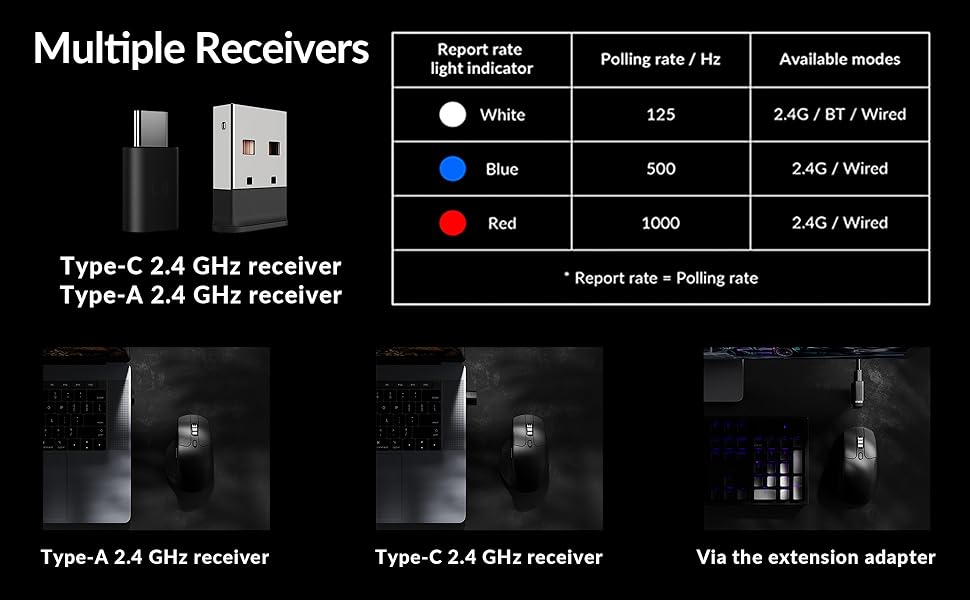
Image: Illustration of the Type-C and Type-A 2.4 GHz receivers, along with a table detailing polling rates and available modes.
7. ข้อมูลจำเพาะ
| หมายเลขรุ่น | เอ็ม6เอส |
| เซ็นเซอร์ | ออปติคัลเซนเซอร์ PixArt 3395 |
| ดีพีไอ | สูงถึง 26,000 |
| ความเร็วในการติดตาม IPS | 650 |
| อัตราการสำรวจความคิดเห็น | 1000Hz (2.4GHz/Wired), 125Hz (Bluetooth) |
| การเชื่อมต่อ | 2.4GHz ไร้สาย, บลูทูธ 5.3, USB-C แบบมีสาย |
| น้ำหนัก | 86 กรัม (3.03 ออนซ์) |
| แบตเตอรี่ | 800 mAh (ใช้งานได้นานสูงสุด 80 ชั่วโมง) |
| สวิตซ์ | Huano 20M Silent Micro Switch |
| ความเข้ากันได้ | วินโดวส์, แมคโอเอส, ลินุกซ์ |
| ขนาด | 4.82 x 2.97 x 1.97 นิ้ว (122.5 x 75.4 x 50 มม.) |
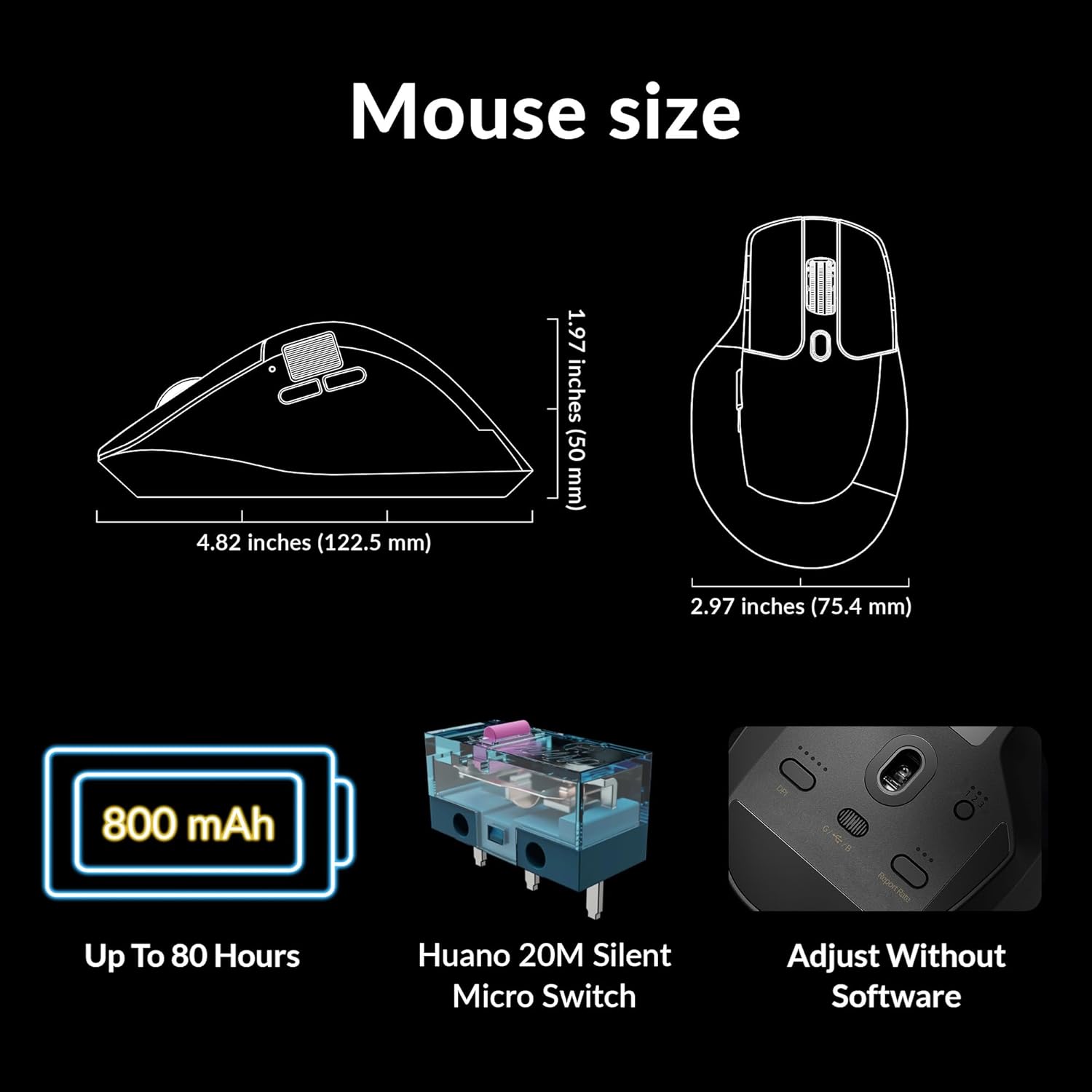
Image: Diagram showing the dimensions of the Keychron M6 mouse, its 800 mAh battery, and Huano 20M Silent Micro Switches.
8. การบำรุงรักษา
เพื่อให้เมาส์ Keychron M6 ของคุณใช้งานได้ยาวนานและมีประสิทธิภาพสูงสุด โปรดปฏิบัติตามคำแนะนำในการบำรุงรักษาเหล่านี้:
- การทำความสะอาด: ใช้ผ้านุ่มและแห้งเช็ดพื้นผิวของเมาส์ สำหรับคราบสกปรกฝังแน่น ให้เช็ดเบาๆampชุบผ้าด้วยน้ำหรือน้ำยาทำความสะอาดอ่อนๆ หลีกเลี่ยงสารเคมีรุนแรง
- การดูแลเซ็นเซอร์: รักษาเซ็นเซอร์ออปติคัลที่ด้านล่างของเมาส์ให้สะอาดและปราศจากฝุ่นหรือเศษต่างๆ เพื่อให้การติดตามแม่นยำ
- การดูแลแบตเตอรี่ Avoid fully discharging the battery frequently. For long-term storage, charge the mouse to about 50% and store it in a cool, dry place.
- พื้นที่จัดเก็บ: When not in use, store the mouse in a safe place to prevent physical damage.
9 การแก้ไขปัญหา
If you encounter issues with your Keychron M6 mouse, refer to the following common solutions:
- เมาส์ไม่ตอบสนอง:
- ตรวจสอบให้แน่ใจว่าเมาส์ได้รับการชาร์จแล้ว
- Check the connection mode switch (2.4GHz, Bluetooth, Wired) is set correctly.
- For 2.4GHz, ensure the receiver is properly inserted and try a different USB port.
- For Bluetooth, re-pair the device in your computer's Bluetooth settings.
- ลองเชื่อมต่อผ่านสาย USB-C เพื่อตัดปัญหาเรื่องไร้สาย
- การติดตามที่ไม่สอดคล้องกัน:
- ทำความสะอาดเซ็นเซอร์ออปติคอลที่ด้านล่างของเมาส์
- ตรวจสอบให้แน่ใจว่าคุณใช้เมาส์บนพื้นผิวที่เหมาะสม (เช่น แผ่นรองเมาส์)
- ปรับการตั้งค่า DPI ให้เหมาะสมกับระดับที่ใช้งานได้ถนัดมือ
- ปุ่มไม่ทำงาน:
- Check Keychron Engine software for custom button assignments that might be interfering.
- ตรวจสอบให้แน่ใจว่าเฟิร์มแวร์ของเมาส์เป็นเวอร์ชันล่าสุด
- ปัญหาเกี่ยวกับล้อเลื่อนเมาส์:
- Toggle the infinite scroll button to ensure it's in the desired mode.
- Clean any debris around the scroll wheel.
10. วิดีโอผลิตภัณฑ์อย่างเป็นทางการ
วิดีโอ: เจ้าหน้าที่ผ่านview of the Keychron M6 Silent Wireless Optical Gaming Mouse, highlighting its features and design.
11. การรับประกันและการสนับสนุน
Keychron products come with a limited warranty. For detailed warranty information, technical support, and frequently asked questions, please visit the official Keychron webหรือติดต่อฝ่ายบริการลูกค้า เก็บหลักฐานการซื้อไว้เพื่อใช้ในการเคลมประกัน


