1. บทนำ
This manual provides detailed instructions for the setup, operation, and maintenance of your Dexnor Keyboard Case for the Samsung Galaxy Tab A9+ Plus. Please read this manual thoroughly before using the product to ensure proper functionality and longevity.
2. ความเข้ากันได้
This keyboard case is specifically designed for the 11-inch Samsung Galaxy Tab A9+ Plus (2023) with model numbers SM-X210, SM-X215, SM-X216, and SM-X218. It is not compatible with Samsung Galaxy Tab A9, S9+ Plus, S9 FE+ Plus, S9 Ultra, S9, or S9 FE models. Please verify your tablet's model number before use.
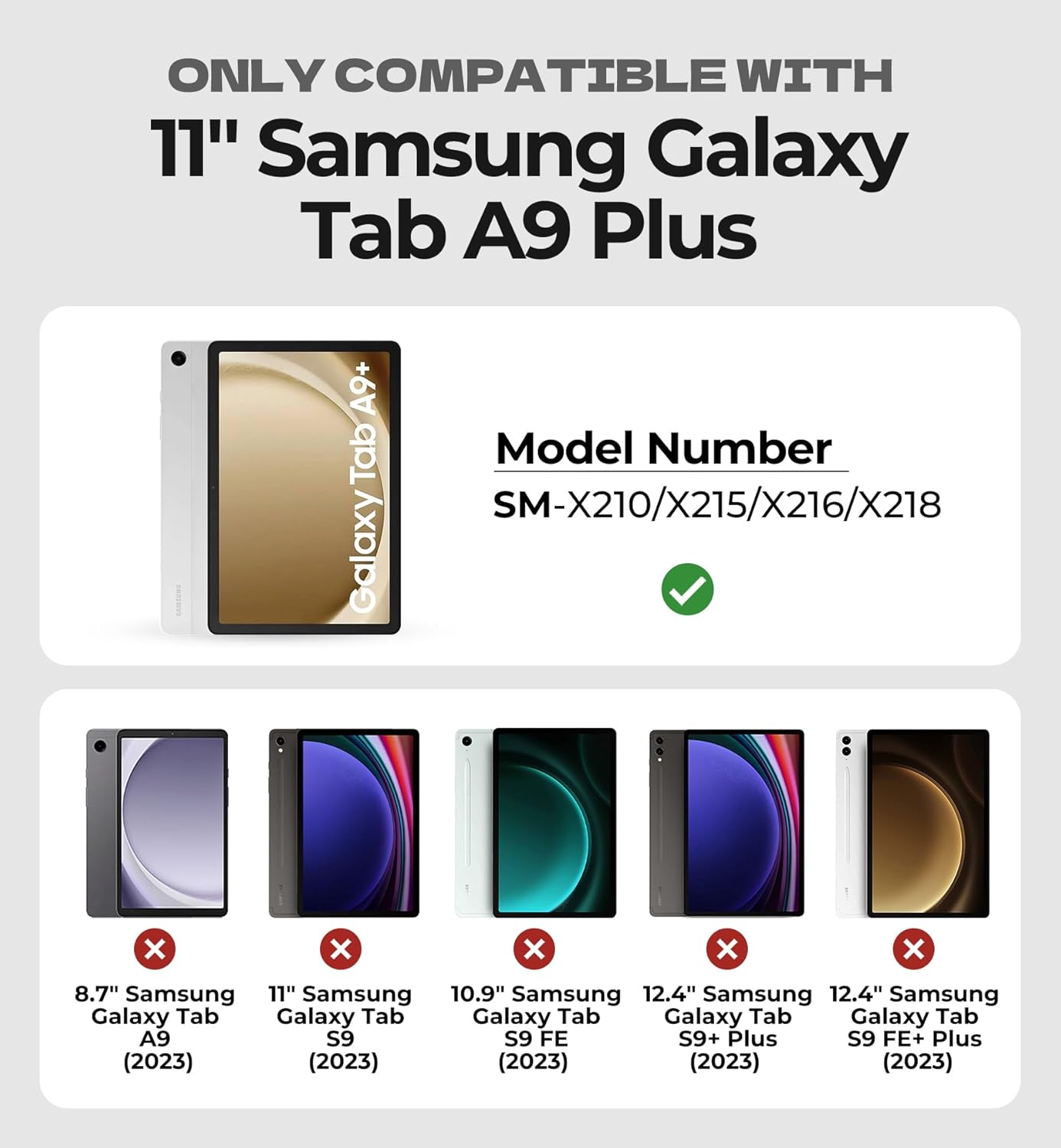
Image: Compatibility chart for Dexnor Keyboard Case, highlighting supported and unsupported Samsung Galaxy Tab models.
3. เนื้อหาบรรจุภัณฑ์
- 1 x Dexnor Keyboard Case for Samsung Galaxy Tab A9+ Plus
- สายชาร์จ 1 x USB-C
- 1 x Quick-start Guide
- 1 x คู่มือผู้ใช้ (เอกสารนี้)
4. คุณสมบัติของผลิตภัณฑ์
- Ultra-Stable Magnetic Support: Strong magnets securely attach the tablet to the keyboard case, providing a stable viewing and typing experience. The ergonomic design allows for a 120-degree viewมุมอิง
- แทร็กแพดมัลติทัช: Features a built-in trackpad that supports multi-finger gestures for precise navigation, file การจัดการ, web browsing, and app switching. The trackpad can be disabled by pressing Fn + Spacebar.
- แป้นพิมพ์พร้อมไฟแบ็คไลท์: Single-color backlight with three adjustable brightness levels for comfortable typing in low-light conditions.
- แบตเตอรี่แบบชาร์จไฟได้: Equipped with a 650mAh lithium polymer battery, offering up to 720 hours of standby time, 200 hours of use without backlight, and 10 hours of continuous use with the brightest backlight. A full charge takes approximately 3 hours.
- All-around Protection: The case provides protection against drops, scratches, and daily wear. It includes a built-in stylus holder (stylus not included).
- Laptop-like Typing: Features perfectly spaced, responsive scissor-switch keys and a full row of shortcut keys for quick access to media functions, screen brightness, and volume.
- Upgraded Power-saving Design: The keyboard automatically powers on when the case is opened and wakes the tablet. Closing the case turns off the keyboard and puts the tablet to sleep. The keyboard enters sleep mode after 30 minutes of inactivity, and the backlight sleeps after 45 seconds of inactivity.

Image: Dexnor Keyboard Case with Samsung Galaxy Tab A9+ Plus in use.
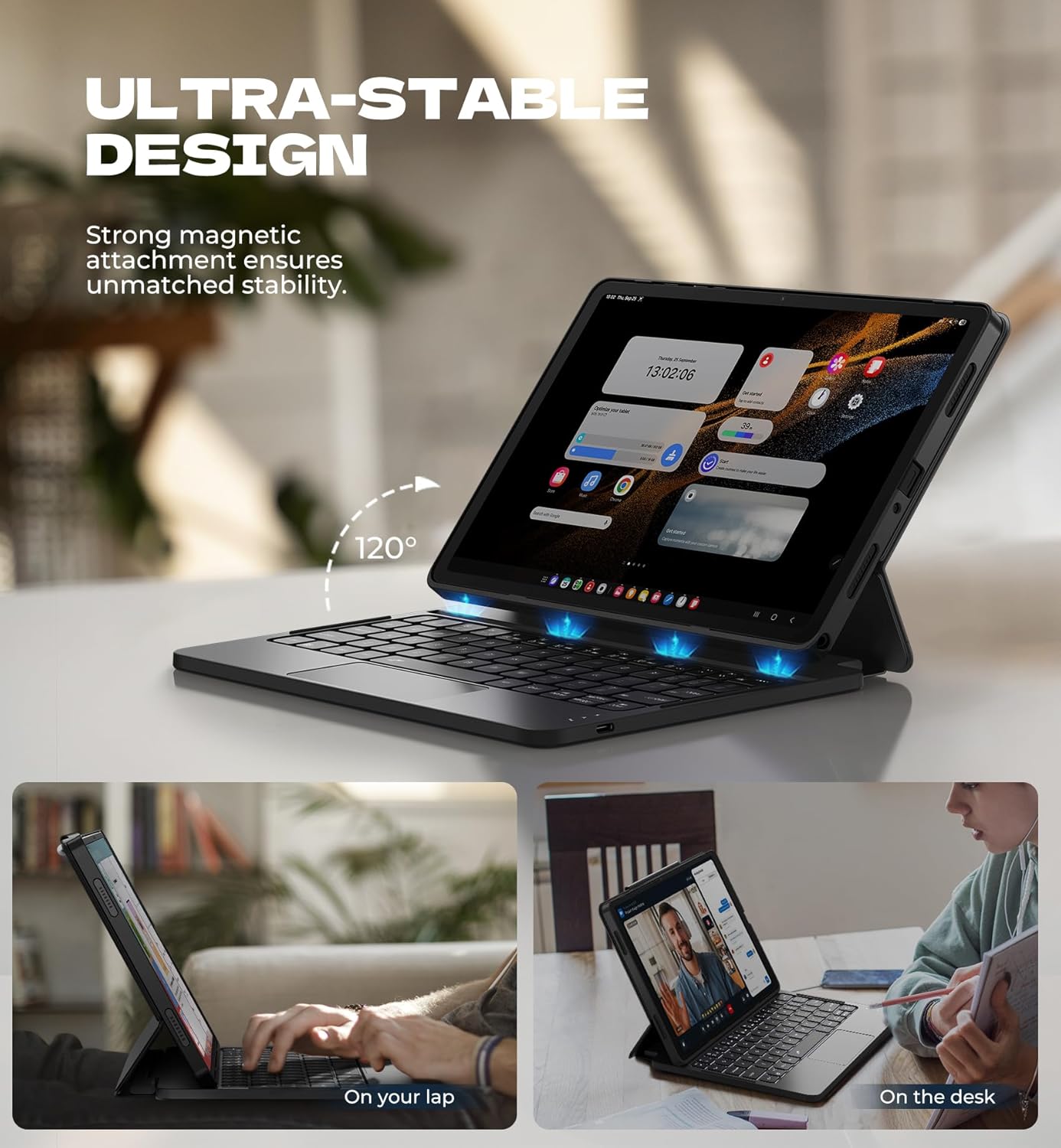
Image: Ultra-stable design of the keyboard case.

Image: Multi-touch trackpad features.
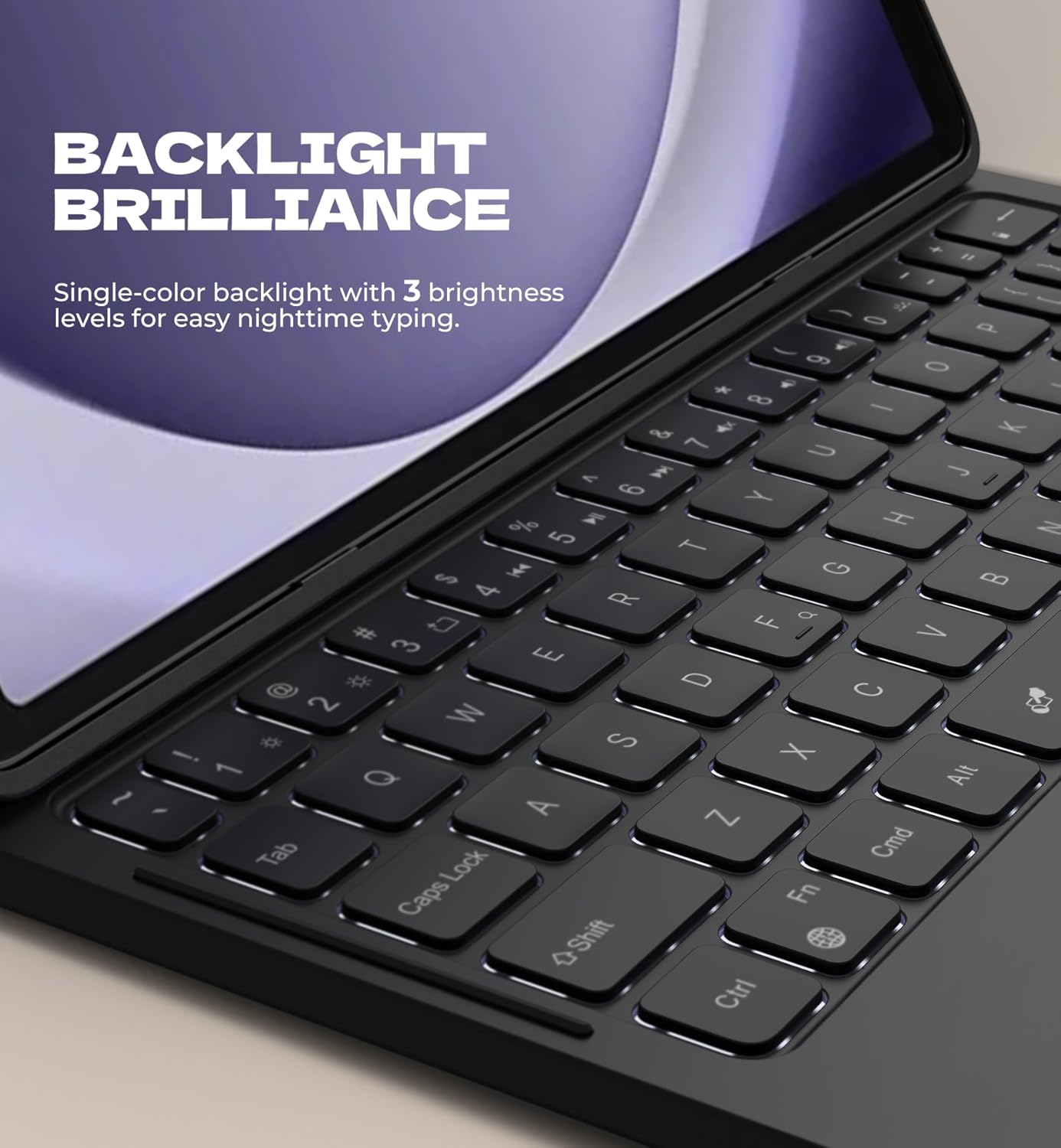
Image: Backlit keyboard for low-light typing.
Video: Demonstrates the ease of use and portability of the Dexnor Keyboard Case, showing a user attaching the tablet, typing, and carrying the device.
5. คำแนะนำในการตั้งค่า
- ใส่แท็บเล็ต: Gently place your Samsung Galaxy Tab A9+ Plus into the protective PC case. Ensure all ports and buttons align correctly. The strong magnets in the case will secure the tablet.
- เปิดคีย์บอร์ด: Open the keyboard case. The keyboard will automatically power on.
- จับคู่ผ่านบลูทู ธ :
- On your Samsung Galaxy Tab A9+ Plus, go to Settings > Connected devices > Bluetooth.
- เปิดบลูทูธ
- บนแป้นพิมพ์ กดปุ่ม Fn กุญแจและ C key simultaneously to enter pairing mode. The Bluetooth indicator light on the keyboard will flash.
- On your tablet, select "Dexnor Keyboard" (or similar name) from the list of available devices.
- Follow any on-screen prompts to complete the pairing process. The Bluetooth indicator light on the keyboard will turn off once successfully paired.
6. คู่มือการใช้งาน
6.1. Using the Trackpad
- แตะนิ้วเดียว: คลิกซ้าย.
- แตะด้วยสองนิ้ว: คลิกขวา.
- การเลื่อนด้วยสองนิ้ว: เลื่อนขึ้น/ลง หรือ ซ้าย/ขวา
- บีบเข้า/บีบออก: ซูมเข้า/ออก
- ปัดนิ้วสามนิ้วขึ้น: View เปิดแอปพลิเคชัน
- ปัดนิ้วสามนิ้วไปทางซ้าย/ขวา: สลับระหว่างแอปพลิเคชันที่เปิดอยู่
- Disable Trackpad: กด Fn + Spacebar to toggle the trackpad on/off.
6.2. การปรับแสงไฟหลังจอ
- กดปุ่ม light bulb icon key (usually near the top right of the keyboard) to cycle through backlight brightness levels (Low, Medium, High, Off).
6.3. Using Shortcut Keys
The top row of keys provides quick access to various functions. Refer to the icons on the keys for specific functions such as media control, volume adjustment, and screen brightness.
- To activate a shortcut, press the desired shortcut key.
- To use the traditional F1-F12 functions, press Fn and the corresponding shortcut key.
6.4. DeX Mode
The keyboard supports Samsung DeX mode. To activate DeX mode, press Fn + ป้อน.
7. การชาร์จคีย์บอร์ด
When the battery is low, the power indicator light on the keyboard will flash. To charge the keyboard:
- Connect the included USB-C charging cable to the charging port on the keyboard.
- เชื่อมต่อปลายสายอีกด้านหนึ่งเข้ากับอะแดปเตอร์ไฟ USB (ไม่รวมอยู่ด้วย) หรือพอร์ต USB ของคอมพิวเตอร์
- ไฟแสดงสถานะการชาร์จจะสว่างขึ้นขณะชาร์จและจะดับลงเมื่อชาร์จเต็มแล้ว
การชาร์จเต็มจะใช้เวลาประมาณ 3 ชั่วโมง
8. คุณสมบัติประหยัดพลังงาน
- เปิด/ปิดอัตโนมัติ: Opening the case automatically powers on the keyboard and wakes your tablet. Closing the case powers off the keyboard and puts your tablet to sleep.
- โหมดพักแป้นพิมพ์: The keyboard will enter sleep mode after 30 minutes of inactivity to conserve power. Press any key to wake it up.
- Backlight Sleep Mode: The backlight will turn off after 45 seconds of inactivity. Press any key to reactivate it.
9. การบำรุงรักษา
- Keep the keyboard case away from liquids and extreme temperatures.
- Clean the surface of the case and keyboard with a soft, damp ผ้า. หลีกเลี่ยงการใช้สารเคมีที่รุนแรง
- Do not attempt to disassemble the keyboard or case.
10 การแก้ไขปัญหา
- แป้นพิมพ์ไม่เชื่อมต่อผ่านบลูทูธ:
- ตรวจสอบให้แน่ใจว่าแป้นพิมพ์มีประจุไฟแล้ว
- โปรดตรวจสอบให้แน่ใจว่าได้เปิดใช้งานบลูทูธบนแท็บเล็ตของคุณแล้ว
- Re-enter pairing mode on the keyboard (Fn + C).
- Forget the device on your tablet's Bluetooth settings and attempt to pair again.
- โปรดรีสตาร์ททั้งแท็บเล็ตและคีย์บอร์ด
- คีย์ไม่ตอบสนอง:
- Check if the keyboard is powered on and connected via Bluetooth.
- ตรวจสอบให้แน่ใจว่าแบตเตอรี่ของคีย์บอร์ดไม่หมด
- If the issue persists, try re-pairing the keyboard.
- แทร็กแพดใช้งานไม่ได้:
- Ensure the trackpad is not disabled (press Fn + Spacebar to toggle).
- Check Bluetooth connection and battery level.
11. ข้อมูลจำเพาะ
| คุณสมบัติ | รายละเอียด |
|---|---|
| หมายเลขรุ่น | ดีเค006 |
| อุปกรณ์ที่รองรับ | Samsung Galaxy Tab A9+ Plus 11" (2023) |
| เทคโนโลยีการเชื่อมต่อ | บลูทูธ |
| คำอธิบายแป้นพิมพ์ | Multi Functional, Scissor-switch keys |
| คุณสมบัติพิเศษ | Backlit keys, Multi-gesture trackpad, Auto-wake/sleep, Magnetic attachment, Stylus holder |
| ความจุของแบตเตอรี่ | 650mAh ลิเธียมโพลิเมอร์ |
| เวลาสแตนด์บาย | นานถึง 720 ชั่วโมง |
| Working Time (no backlight) | นานถึง 200 ชั่วโมง |
| Working Time (brightest backlight) | นานถึง 10 ชั่วโมง |
| เวลาในการชาร์จ | ประมาณ 3 ชั่วโมง |
| น้ำหนักสินค้า | 1.36 ปอนด์ (ประมาณ 617 กรัม) |
| วัสดุ | PU leather, Polycarbonate |
| แหล่งพลังงาน | ขับเคลื่อนด้วย USB |
12. การรับประกันและการสนับสนุน
For warranty information and customer support, please refer to the documentation provided with your purchase or contact Dexnor customer service through their official webเว็บไซต์หรือร้านค้าที่คุณซื้อสินค้า โปรดเก็บใบเสร็จรับเงินไว้เพื่อใช้ในการเคลมประกัน


