1. บทนำ
This manual provides detailed instructions for the installation, operation, and maintenance of your VIKVIZ 5MP PoE IP Bullet Camera (Model: PG2T56IRC-ZS). Please read this manual thoroughly before using the product to ensure proper setup and functionality. Keep this manual for future reference.
2. สินค้าหมดview
2.1 คุณสมบัติหลัก
- ความละเอียด 5MP Ultra HD: Captures video at 2592 x 1944 resolution at 30 frames per second.
- ซูมแบบออปติคอล 5 เท่า: Features a 2.7-13.5mm varifocal lens with a 105° ultra-wide viewมุมอิง
- การมองเห็นตอนกลางคืนแบบสีเต็มรูปแบบ: Dual illuminated system with 4 warm LEDs and 4 IR LEDs for clear color night vision up to 98 feet.
- การตรวจจับการเคลื่อนไหวอัจฉริยะ: Advanced human and vehicle detection to reduce false alarms.
- เสียงสองทาง: มีไมโครโฟนและลำโพงในตัวสำหรับการสื่อสารแบบเรียลไทม์
- การบีบอัดวิดีโอ H.265+: Efficiently saves storage space and provides smoother video.
- การจ่ายพลังงานผ่านอีเทอร์เน็ต (PoE): Single Ethernet cable for both power and data transmission.
- การออกแบบที่ทนฝนและแดด: IP66 rated metal casing for outdoor use in various weather conditions.
- การจัดเก็บที่ยืดหยุ่น: Supports NFS, NVR, APP Cloud Storage, or SD cards (up to 256GB, purchased separately).
2.2 เนื้อหาบรรจุภัณฑ์
ตรวจสอบว่ามีรายการทั้งหมดอยู่ในแพ็คเกจของคุณ:
- VIKVIZ 5MP PoE IP Bullet Camera
- คู่มือการใช้งาน
- สกรูยึด

Image: Contents of the VIKVIZ 5MP PoE IP Bullet Camera package, including the camera, instruction manual, and mounting screws.
3. การตั้งค่า
3.1 ตำแหน่งการติดตั้ง
เลือกสถานที่กลางแจ้งที่ให้บรรยากาศที่ต้องการ viewing angle and is within reach of an Ethernet cable. The camera is IP66 weatherproof, suitable for various environmental conditions.

Image: A VIKVIZ bullet camera mounted on an exterior wall, shown operating in rainy conditions, highlighting its IP66 weatherproof rating.
3.2 การติดตั้งกล้อง
- Mark the drilling points on the wall or ceiling using the camera's mounting base as a template.
- เจาะรูนำตามตำแหน่งที่ทำเครื่องหมายไว้
- Insert the provided wall anchors (if necessary for your surface).
- Secure the camera's mounting base to the surface using the mounting screws.
- ปรับมุมกล้องได้ตามต้องการ
3.3 Power and Network Connection (PoE)
The camera supports Power over Ethernet (PoE), simplifying installation by using a single Ethernet cable for both power and data.
- ต่อปลายด้านหนึ่งของสายอีเธอร์เน็ตเข้ากับพอร์ต PoE ของกล้อง
- Connect the other end of the Ethernet cable to a PoE-enabled NVR, PoE switch, or PoE injector.
- Ensure the NVR/switch/injector is powered on. The camera will power up automatically.
บันทึก: A PoE NVR/switch/injector and DC power adapter are not included. If PoE is not available, a 12V DC power adapter (not included) can be used with a standard Ethernet connection.

Image: A VIKVIZ PoE camera connected to a Network Video Recorder (NVR) using a single Ethernet cable, illustrating the Power over Ethernet setup for data, sound, and power.
3.4 การกำหนดค่าเริ่มต้น
For initial setup and configuration, use the recommended software:
- For Windows and MAC: Use AjDevTools software.
- For professional playback and recording: Blue Iris software is recommended.
- การเข้าถึงผ่านมือถือ: Download the "videolink" app for smartphone access.
The camera works with most major web browsers including Google Chrome, Microsoft Edge, and Safari.
4. การดำเนินการ
4.1 Remote Access via Mobile App
The "videolink" app allows you to view อยู่ footage, receive motion alerts, and manage camera settings from your smartphone.
- Download and install the "videolink" app from your device's app store.
- Follow the in-app instructions to add your camera. This typically involves scanning a QR code on the camera or manually entering its details.
- เมื่อเพิ่มแล้ว คุณจะสามารถเข้าถึงการถ่ายทอดสดได้ view, playback recordings, and configure settings.
4.2 Smart Motion Detection (Human/Vehicle)
The camera features advanced recognition technology to accurately identify human and vehicle movement, minimizing false alarms.
- Configure detection zones and sensitivity settings within the camera's software or mobile app.
- When a person or vehicle is detected, the camera can trigger an event, sending notifications via email, FTP, or push alerts to your smartphone.
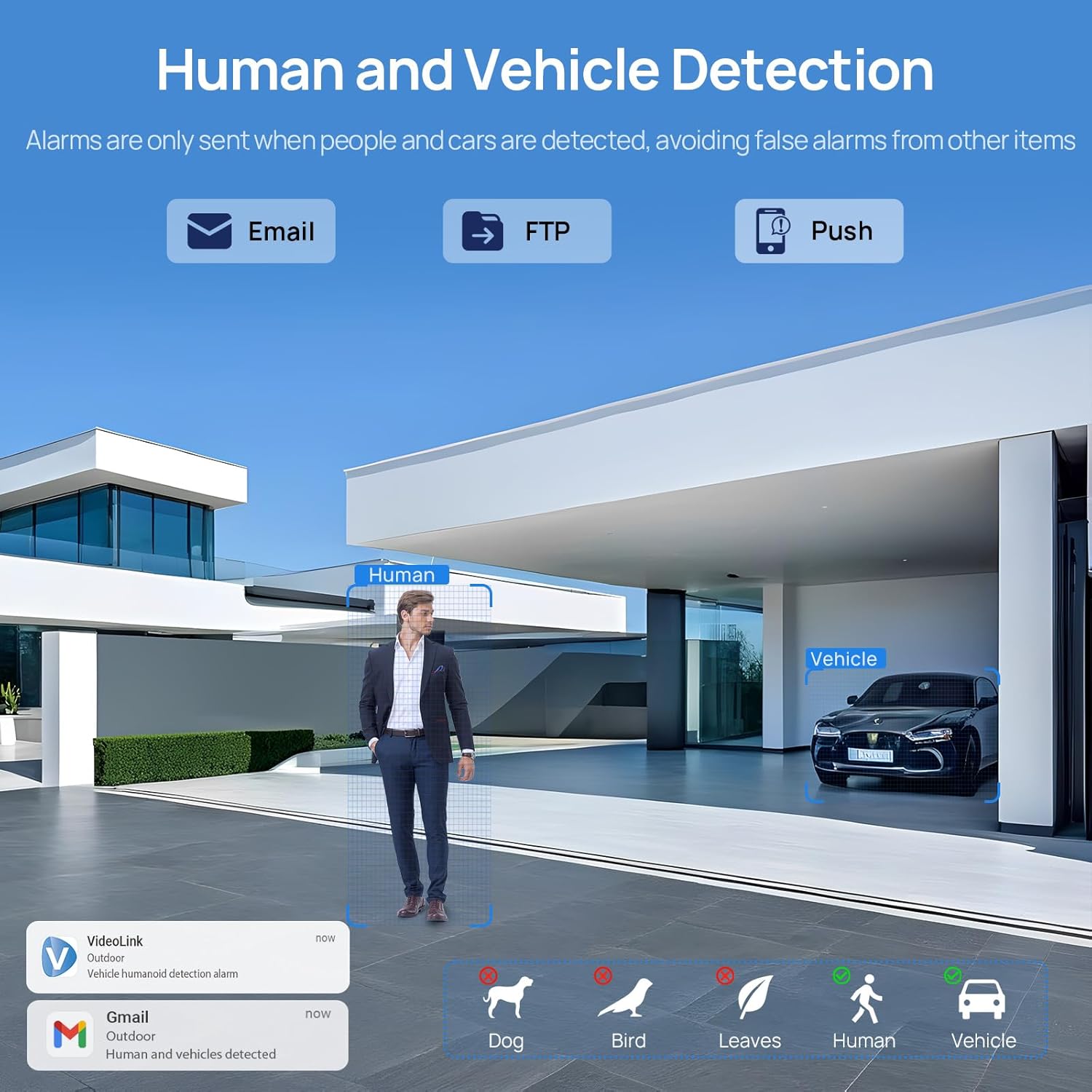
Image: A scene demonstrating the camera's human and vehicle detection capabilities, showing alerts for detected individuals and cars while ignoring animals or environmental factors.
4.3 โหมดการมองเห็นตอนกลางคืน
The camera offers versatile night vision capabilities:
- IR ไนท์วิชั่น: By default, the IR illuminator is active at night for black and white surveillance.
- การมองเห็นตอนกลางคืนแบบสีเต็มรูปแบบ: When a target is detected, the spotlight activates to record in full color. The spotlight will warn the target in the area.
- Smart Dual Illumination: The camera intelligently switches between IR light and warm light (spotlight) depending on the situation, providing color details when needed.

Image: A split image showing a scene at night with the spotlight off (black and white IR vision) and with the spotlight on (full-color night vision), demonstrating the camera's dual illumination feature.
4.4 ซูมออปติคอล 5 เท่า
The 2.7-13.5mm varifocal lens allows for 5X optical zoom, enabling you to adjust the viewing angle from 32° to 100° and focus on specific details without losing image quality.
- Adjust the zoom level through the camera's software or mobile application.
- The optical zoom maintains clarity even at maximum magnification.

Image: A series of images demonstrating the 5X optical zoom capability of the camera, showing a wide view and then progressively zoomed-in views of a specific area, highlighting the detail retention.
4.5 เสียงสองทาง
The integrated microphone and speaker enable two-way communication, allowing you to listen to the environment and speak through the camera.
- Access the two-way audio function via the mobile app.
- Use it to greet visitors or deter unwanted individuals.

Image: A scenario depicting a delivery person at a door, with a VIKVIZ camera facilitating a two-way audio conversation between the homeowner (via smartphone app) and the delivery person.
5. การบำรุงรักษา
- การทำความสะอาดปกติ: ทำความสะอาดเลนส์กล้องเป็นระยะด้วยผ้านุ่มๆamp ผ้าเช็ดทำความสะอาดเพื่อให้ได้ภาพที่คมชัด หลีกเลี่ยงน้ำยาทำความสะอาดที่มีฤทธิ์กัดกร่อน
- อัพเดตเฟิร์มแวร์: ตรวจสอบของผู้ผลิต webเยี่ยมชมเว็บไซต์หรือแอปพลิเคชันเพื่อตรวจสอบการอัปเดตเฟิร์มแวร์ที่มีให้ใช้งาน เพื่อให้มั่นใจได้ถึงประสิทธิภาพและความปลอดภัยสูงสุด
- การตรวจสอบสายเคเบิล: Regularly inspect the Ethernet cable for any signs of wear or damage, especially in outdoor installations.
- การปกป้องสิ่งแวดล้อม: While the camera is weatherproof (IP66), ensure it is not submerged in water or exposed to extreme conditions beyond its operating temperature range (-10°C to 50°C).
6 การแก้ไขปัญหา
- ไม่มีไฟฟ้า: Ensure the PoE NVR/switch/injector is powered on and the Ethernet cable is securely connected. If using a DC adapter, verify the power source and connection.
- ไม่มีภาพวิดีโอ: Check network connectivity. Ensure the camera is properly configured in your NVR or app. Verify the IP address and network settings.
- คุณภาพของภาพต่ำ: ทำความสะอาดเลนส์กล้อง ตรวจสอบสิ่งกีดขวางในขอบเขตการมองเห็น view. Ensure sufficient lighting for night vision modes. Adjust focus if applicable.
- การแจ้งเตือนการเคลื่อนไหวที่ผิดพลาด: Adjust the sensitivity settings for human/vehicle detection in the camera's software or app. Refine detection zones to exclude irrelevant areas.
- ปัญหาเสียงสองทาง: Check microphone and speaker settings in the app. Ensure network bandwidth is sufficient for real-time audio.
- ไม่สามารถเข้าถึงกล้องจากระยะไกลได้: Verify your internet connection. Ensure port forwarding (if required by your network setup) is correctly configured on your router. Check firewall settings.
7. ข้อมูลจำเพาะ
| คุณสมบัติ | ข้อมูลจำเพาะ |
|---|---|
| ชื่อรุ่น | PG2T56IRC-ZS |
| ปณิธาน | 5MP (2592 x 1944) @ 30fps |
| ซูมออปติคอล | 5X (2.7-13.5mm varifocal lens) |
| Viewอิงแองเกิล | 105° (wide) to 32° (telephoto) |
| ช่วงการมองเห็นตอนกลางคืน | สูงถึง 98 ฟุต (30 เมตร) |
| ประเภทการมองเห็นตอนกลางคืน | Full Color, IR, Smart Hybrid Light |
| เสียง | เสียงสองทาง (ไมโครโฟนและลำโพงในตัว) |
| การบีบอัดวิดีโอ | H.265+, H.265, H.264 |
| การเชื่อมต่อ | Ethernet (PoE), ONVIF |
| ตัวเลือกการจัดเก็บข้อมูล | NFS, NVR, APP Cloud Storage, Micro SD Card (up to 256GB) |
| คะแนนสภาพอากาศ | IP66 |
| อุณหภูมิในการทำงาน | -10°C ถึง 50°C (14°F ถึง 122°F) |
| แหล่งพลังงาน | PoE (Power over Ethernet) or 12V DC (adapter not included) |
| วัสดุ | โลหะ |
| ขนาด | 12.7 x 5.11 x 4.72 นิ้ว |
| น้ำหนัก | 2.2 ปอนด์ |
8. การรับประกันและการสนับสนุน
8.1 นโยบายการคืนสินค้า
This product is eligible for a return within 30 days of purchase for a refund or replacement, subject to the retailer's terms and conditions.
8.2 การสนับสนุนด้านเทคนิค
For technical assistance, troubleshooting, or warranty inquiries, please contact VIKVIZ customer support through their official website or the retailer where the product was purchased. Refer to your purchase documentation for specific contact details.


