1. บทนำ
This manual provides essential information for setting up, operating, maintaining, and troubleshooting your PELADN WO4 Gaming Mini PC. Please read this manual thoroughly before using the product to ensure optimal performance and longevity.
2. อะไรอยู่ในกล่อง
- WO-4 7640HS Mini PC 32GB+1TB
- ฐานยึด VESA พร้อมสกรู
- อะแดปเตอร์แปลงไฟ
- สาย HDMI
- คู่มือการใช้งาน

Image: Retail Boxed Packaging showing the Mini PC, VESA mount, power adapter, HDMI cable, and user manual.
3. คุณสมบัติของผลิตภัณฑ์
- โปรเซสเซอร์: Ultra-Compact AMD Ryzen 5 7640HS with ZEN 4 architecture and TSMC’s 4nm FinFET, offering high data throughput and AI performance.
- กราฟิก: Integrated AMD Radeon 760M (RDNA3) with 4GB adjustable VRAM, supporting 4K video editing and 3D modeling.
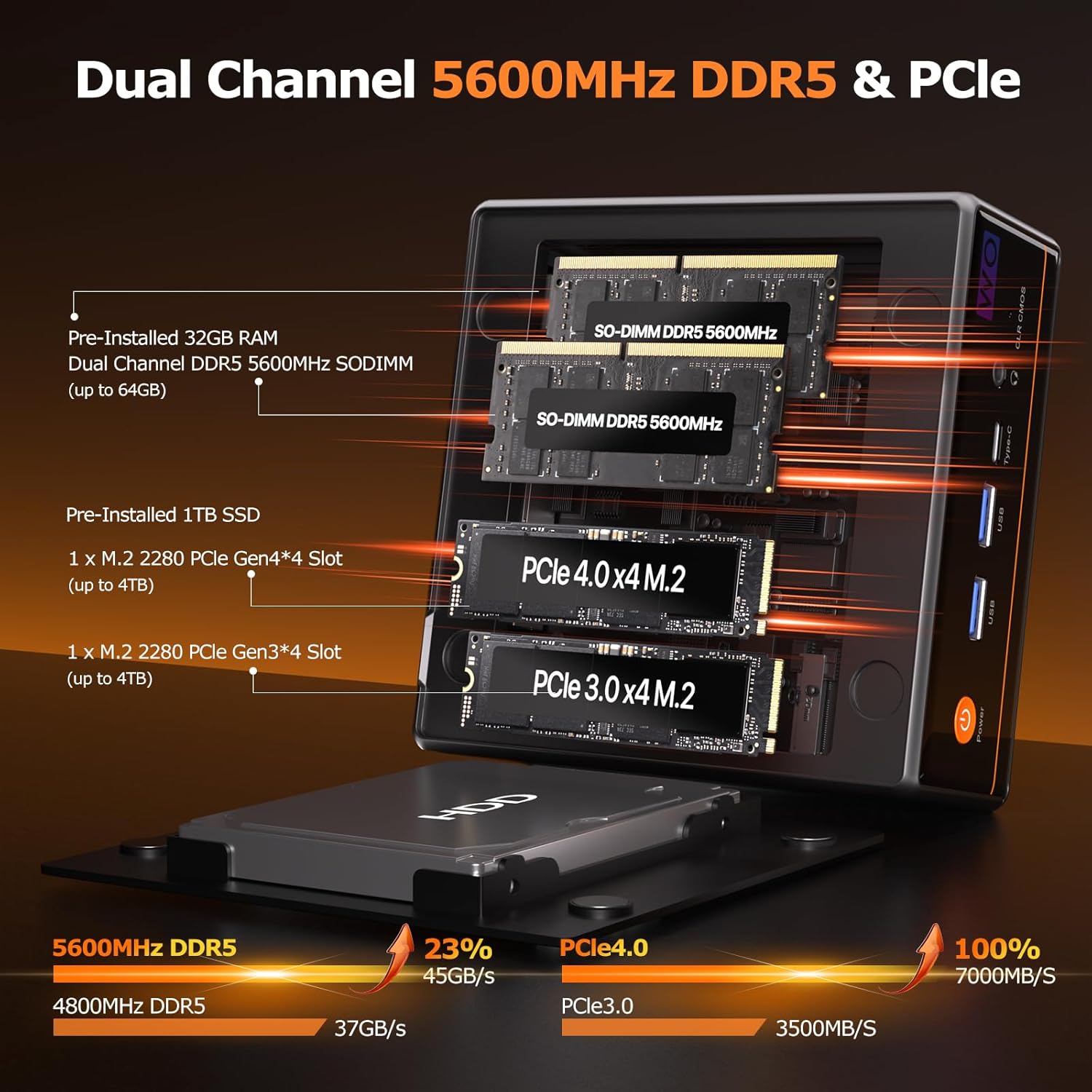
- หน่วยความจำ: Dual-channel 32GB (16GB*2) DDR5 5600MHz SO-DIMM, expandable up to 64GB.
- พื้นที่จัดเก็บ: Pre-installed 1TB PCIe 3.0 M.2 2280 NVMe SSD, with additional M.2 2280 PCIe4.0 slot for expansion up to 8TB.
- การสนับสนุนการแสดงผล: 4K Quad-Display via HDMI 2.0 (max 4K 60Hz), Type-C (USB4.0), USB3.2 Type-C (supports DP1.2 output), and DP 1.4 (max 4K 60Hz).
- เครือข่าย: Dual RJ45 LAN (1000Mbps and 2.5Gbps), WiFi6 (dual-band 5.0GHz/2.4GHz with MU-MIMO), and Bluetooth 5.2.
- การระบายความร้อน: Smart Cooling Fan with dual-turbo copper tube design for effective heat reduction and low noise.

ภาพ: รายละเอียด view of the 4NM Ultra-Compact 7640HS Processor, highlighting its ZEN 4 architecture, 4nm process, 45W TDP, 5GHz burst speed, 16MB L3 cache, 6 cores, and 12 threads. Performance benchmarks for Geekbench 6 (Single Core and Multi Core) are also shown, comparing it against other AMD Ryzen and Intel Core i9 processors.

ภาพ: ภายใน view of the Mini PC showcasing dual-channel DDR5 5600MHz SO-DIMM RAM (pre-installed 32GB, expandable to 64GB) and dual M.2 2280 SSD slots (PCIe 4.0 x4 and PCIe 3.0 x4, pre-installed 1TB, expandable to 8TB). Performance comparisons for DDR5 and PCIe generations are also displayed.
Video: Official PELADN product video highlighting the key features of the PELADN Gaming Mini PC 7640HS, including its processor, memory, storage, and connectivity options.
4. พอร์ตและการเชื่อมต่อ
พอร์ตแผงด้านหน้า:
- 1 x ปุ่มเปิดปิด
- 2 x USB 3.2 (10Gbps/S)
- 1 x Type-C (USB4.0, supports DP1.4 output and PD power input, 40Gbps)
- 1 x 3.5mm Audio Jack (2-in-1 headphone/microphone)
- 1 x CLR CMOS Button
พอร์ตแผงด้านหลัง:
- 1 x DC 19V Power Input
- 1 x USB4 Type-C (40Gbps)
- 1 x 2.5Gbps LAN Port
- 1 x 1000Mbps LAN Port
- พอร์ต DisplayPort 1 จำนวน 1.4 ช่อง
- พอร์ต HDMI 1 จำนวน 2.0 พอร์ต
- พอร์ต USB 2 จำนวน 2.0 พอร์ต
ภาพ: รายละเอียด view of the front and rear ports of the PELADN WO4 Mini PC. The front includes a power button, two USB 3.2 ports, one Type-C port, a 3.5mm audio jack, and a CLR CMOS button. The rear features a DC 19V input, USB4 Type-C, 2.5G LAN, 1G LAN, DisplayPort, HDMI, and two USB 2.0 ports.

Image: A diagram illustrating the various ports available on the PELADN WO4 Mini PC, including USB4, Power, DC Power, Audio, Type-C, RJ45 LAN, USB 2.0, HD (HDMI), and DP 1.4.
5. คำแนะนำในการตั้งค่า
- เชื่อมต่ออุปกรณ์ต่อพ่วง: Connect your monitor(s) using HDMI, DisplayPort, or Type-C cables. Connect your keyboard and mouse to the available USB ports.
- การเชื่อมต่อเครือข่าย: For initial setup, it is recommended to use a wired LAN connection for faster and more stable updates. Connect an Ethernet cable to one of the RJ45 LAN ports. Alternatively, you can connect via WiFi6.
- เปิดเครื่อง: Connect the power adapter to the DC 19V input port and then plug it into a power outlet. Press the power button on the front panel to turn on the Mini PC.
- การตั้งค่าระบบปฏิบัติการเบื้องต้น: Follow the on-screen instructions to complete the Windows 11 Pro setup. This includes selecting your region, keyboard layout, and creating a user account.
- การเปิดใช้งานออนไลน์: If prompted for online activation, ensure you have an active internet connection.
Video: A step-by-step guide on the online activation process for PELADN Mini PCs, including connecting to a network, reviewing the license agreement, and setting up a Microsoft account.
6. คู่มือการใช้งาน
- ระบบปฏิบัติการ: The Mini PC is compatible with Windows (11 Pro, 10 Pro, 10), Ubuntu, Linux, and Firewall Server.
- การตั้งค่าจอแสดงผลหลายจอ: Connect up to four displays simultaneously using the available HDMI, DisplayPort, and dual Type-C ports for enhanced productivity or entertainment.
- การเชื่อมต่อไร้สาย: Utilize WiFi6 for high-speed wireless internet access and Bluetooth 5.2 for connecting wireless peripherals like keyboards, mice, and headphones.
- คุณสมบัติขั้นสูง: Supports LAN wake-up, PXE boot, RTC wake-up, and auto power-on, making it suitable for various applications including use as a mini server.

Image: A visual representation of the PELADN WO4 Mini PC connected to four screens, demonstrating its 4K Quad-Screens Display capability via HDMI 2.0, Dual Type-C, and DP1.4 ports, suitable for design, gaming, office, and entertainment.
7. การบำรุงรักษา
- ระบบระบายความร้อน : The PELADN WO4 features a smart cooling fan with a dual-turbo copper tube design. Ensure proper ventilation around the device to maintain optimal performance and prevent overheating.
- การกำจัดฝุ่น: Periodically clean dust from the ventilation grilles to ensure efficient airflow.
- การอัปเดตซอฟต์แวร์: อัปเดตระบบปฏิบัติการและไดรเวอร์ของคุณอยู่เสมอเพื่อให้มั่นใจถึงความเสถียรและความปลอดภัยของระบบ

ภาพ: ระเบิด view illustrating the PELADN IceBlast 1.5 Cooling Technology, highlighting its triple copper heat pipes, multiple fan blades, and top heat conductor for efficient thermal management.
8 การแก้ไขปัญหา
- ไม่มีไฟฟ้า: ตรวจสอบให้แน่ใจว่าอะแดปเตอร์ไฟฟ้าเชื่อมต่อกับมินิพีซีและเต้ารับไฟฟ้าที่ใช้งานได้แน่นหนา
- ไม่มีจอแสดงผล: Verify that your monitor cables (HDMI, DP, Type-C) are correctly connected and that the monitor is set to the correct input source.
- การตั้งค่า BIOS: To enter BIOS setup, press the "Del" key during startup. To enter the boot options menu, press "F7" during startup. Be cautious when changing BIOS settings, as unauthorized alterations may prevent the computer from booting.
- Random Shutdowns: If the device experiences unexpected shutdowns, ensure it is not overheating. Check for proper ventilation and consider updating drivers or the BIOS.
- ปัญหาเครือข่าย: If experiencing network connectivity problems, ensure LAN cables are properly connected or check your WiFi settings. For initial setup, a wired connection is recommended to avoid delays from prolonged updates.
9. ข้อมูลจำเพาะ
| คุณสมบัติ | รายละเอียด |
|---|---|
| โปรเซสเซอร์ | AMD Ryzen 5 7640HS (4.3 GHz, 6 Cores) |
| แรม | 32GB DDR5 (5600 เมกะเฮิรตซ์) |
| ฮาร์ดไดรฟ์ | SSD 1 TB (PCIe x 16) |
| โคโปรเซสเซอร์กราฟิก | AMD Radeon™ 760M (4 GB) |
| ระบบปฏิบัติการ | OS (Windows 11 Pro, 10 Pro, 10) |
| ความละเอียดหน้าจอสูงสุด | 4096x2160 พิกเซล |
| ประเภทไร้สาย | WiFi6 (2.4 GHz, 5 GHz), Bluetooth 5.2 |
| พอร์ตแลน | 1 x 1000Mbps, 1 x 2.5Gbps |
| พอร์ต USB | 2 x USB 3.0, 2 x USB 2.0 |
| พอร์ต Type-C | 2 (1x USB4.0, 1x USB3.2 with DP1.2) |
| น้ำหนักสินค้า | 2.2 ปอนด์ |
| สี | สีดำ |
10. การรับประกันและการสนับสนุน
PELADN provides a one-year limited warranty for each Mini PC, starting from the purchase date. This warranty covers defects in design and workmanship. For any issues or support inquiries, please contact the dedicated after-sales team. Refer to the contact information provided with your purchase documentation.


