1. บทนำ
This manual provides essential information for the NIMO 15.6" Gaming Laptop (Model N159). It covers product features, setup procedures, operating instructions, maintenance guidelines, troubleshooting tips, and detailed specifications. Please read this manual thoroughly before using your new laptop to ensure optimal performance and longevity.

Image: The NIMO 15.6" Gaming Laptop, showcasing its display and key features like fingerprint unlock, Type-C PD charger, and backlit keyboard.
2. อะไรอยู่ในกล่อง
ตรวจสอบว่ามีสินค้าทั้งหมดอยู่ในบรรจุภัณฑ์:
- แล็ปท็อป NIMO N159 จำนวน 1 เครื่อง
- 1 x ที่ชาร์จเร็ว Type-C 100W PD
- 1 x คู่มือผู้ใช้ (เอกสารนี้)
- ระบบปฏิบัติการ Windows 11 Home (ติดตั้งมาแล้ว)
- ข้อมูลการรับประกัน (รับประกัน 2 ปี คืนสินค้าได้ภายใน 90 วัน)
3. สินค้าหมดview
3.1 คุณสมบัติหลัก
- โปรเซสเซอร์: AMD Ryzen 7 7735HS (8 คอร์, 16 เธรด, ความเร็วสูงสุด 4.75GHz)
- กราฟิก: Integrated AMD Radeon 680M GPU
- แสดง: 15.6" Full HD (1920x1080) IPS Anti-Glare Display
- หน่วยความจำ: 16GB DDR5 RAM (upgradeable)
- พื้นที่จัดเก็บ: 1TB PCIe 4.0 SSD (upgradeable)
- การชาร์จ: 100W Type-C PD Fast Charger
- ความปลอดภัย: Fingerprint Reader for secure unlock
- แป้นพิมพ์: Backlit Keyboard with Numeric Keypad
- เสียง: Dual 2W stereo speakers, dual beamforming microphones
- Webลูกเบี้ยว: 2MP with physical camera shutter
- ระบบปฏิบัติการ: วินโดวส์ 11 โฮม

Image: An illustration detailing the AMD Ryzen 7 7735HS processor, highlighting its 8 cores, 16 threads, and integrated Radeon 680M graphics for balanced performance.
3.2 พอร์ตและตัวเชื่อมต่อ
Familiarize yourself with the available ports on your NIMO laptop:

Image: A detailed diagram illustrating the location and type of ports on the NIMO laptop, including USB 2.0, USB 3.2 Gen1, Type-C Gen2 (multifunction), HDMI 2.0, Audio Jack, Micro SD Reader, and Kensington Lock.
- พอร์ต USB 2.0: สำหรับเชื่อมต่ออุปกรณ์ USB รุ่นเก่า
- พอร์ต USB 3.2 Gen1 (4 พอร์ต): สำหรับการถ่ายโอนข้อมูลความเร็วสูงกับอุปกรณ์ USB ที่รองรับ
- Type-C Gen2 Ports (x2, Multifunction): Supports data transfer, video output, and power delivery (100W PD fast charging).
- พอร์ต HDMI 2.0: สำหรับเชื่อมต่อกับจอแสดงผลภายนอกหรือทีวี
- แจ็คเสียง: สำหรับการเชื่อมต่อหูฟังหรือลำโพงภายนอก
- Micro SD Reader: สำหรับอ่านการ์ดหน่วยความจำ Micro SD
- สล็อตล็อคเคนซิงตัน: สำหรับใช้ล็อคที่ใช้งานร่วมกันได้เพื่อรักษาความปลอดภัยของแล็ปท็อปของคุณ
4. การตั้งค่า
4.1 การเปิดเครื่องครั้งแรก
- แกะแล็ปท็อปและอุปกรณ์เสริมทั้งหมดออกจากกล่อง
- Connect the 100W Type-C PD Fast Charger to one of the Type-C ports on the laptop and then to a power outlet.
- เปิดฝาแล็ปท็อป แล็ปท็อปอาจเปิดโดยอัตโนมัติ หรือคุณอาจต้องกดปุ่มเปิด/ปิดเครื่อง
- ปฏิบัติตามคำแนะนำบนหน้าจอเพื่อดำเนินการตั้งค่า Windows 11 Home ให้เสร็จสิ้น รวมถึงการเลือกภาษา การเชื่อมต่อเครือข่าย และการสร้างบัญชีผู้ใช้
4.2 การชาร์จแบตเตอรี่
Before first use, it is recommended to fully charge the laptop battery. The 100W Type-C PD Fast Charger can provide approximately 5 hours of usage time with just 1 hour of charging.

Image: A visual representation of the 100W Type-C lightning-fast charger connected to the NIMO laptop, demonstrating its ability to charge quickly and efficiently.
5. คู่มือการใช้งาน
5.1 การเปิด/ปิดเครื่องและโหมดสลีป
- เปิดเครื่อง: กดปุ่มเปิด/ปิดที่อยู่บนแป้นพิมพ์
- หมดแรง: คลิกปุ่มเริ่มใน Windows จากนั้นเลือกเปิด/ปิดเครื่อง > ปิดเครื่อง
- โหมดสลีป: คลิกปุ่มเริ่ม จากนั้นเลือกเปิด/ปิดเครื่อง > เข้าสู่โหมดสลีป หรือปิดฝาแล็ปท็อป
5.2 Using the Fingerprint Unlock
The fingerprint reader is integrated into the touchpad for quick and secure access.
- During Windows setup or later in Windows Settings, configure your fingerprint for login.
- To unlock, simply place your registered finger on the fingerprint reader on the touchpad.
5.3 Adjusting the Backlit Keyboard
The keyboard backlight can be adjusted for comfortable typing in various lighting conditions.

Image: A visual guide demonstrating the fingerprint unlock feature on the touchpad and the functionality of the backlit keyboard, including how to cycle through brightness settings using the F9 key.
- กดปุ่ม F9 key to cycle through backlight settings:
- 1 Tap: Light (Temporary)
- 2 Taps: Light (Temporary)
- 3 Taps: Light (Constant)
- 4 Taps: Off
5.4 การใช้ Webcam Shutter
For privacy, the laptop includes a physical camera shutter.
- Slide the shutter to the left to open the camera.
- Slide the shutter to the right to close and cover the camera lens.

Image: A visual guide demonstrating the physical camera shutter, showing both the 'Camera Open' and 'Camera Close' statuses for enhanced privacy.
6. การบำรุงรักษา
6.1 การทำความสะอาดแล็ปท็อป
- Always power off the laptop and disconnect the charger before cleaning.
- ใช้ผ้านุ่มไม่เป็นขุยเช็ดเล็กน้อยampชุบน้ำหรือน้ำยาทำความสะอาดหน้าจอเพื่อทำความสะอาดหน้าจอ
- สำหรับแป้นพิมพ์และตัวเครื่อง ให้ใช้ผ้านุ่มและแห้ง หลีกเลี่ยงสารเคมีรุนแรงหรือวัสดุที่มีฤทธิ์กัดกร่อน
- Use compressed air to clear dust from vents periodically.
6.2 การดูแลแบตเตอรี่
- หลีกเลี่ยงการปล่อยแบตเตอรี่จนหมดบ่อยครั้ง
- เก็บแล็ปท็อปไว้ในที่แห้งและเย็นหากไม่ได้ใช้งานเป็นเวลานาน
- อย่าวางแล็ปท็อปไว้ในที่ที่มีอุณหภูมิสูงหรือต่ำเกินไป
6.3 การอัปเดตซอฟต์แวร์
ตรวจสอบและติดตั้งการอัปเดตระบบปฏิบัติการและไดรเวอร์เป็นประจำเพื่อให้มั่นใจถึงประสิทธิภาพและความปลอดภัยที่เหมาะสมที่สุด
7 การแก้ไขปัญหา
| ปัญหา | สาเหตุที่เป็นไปได้ | สารละลาย |
|---|---|---|
| โน๊ตบุ๊คไม่สามารถเปิดเครื่องได้ | ปัญหาแบตเตอรี่อ่อนหรืออะแดปเตอร์ไฟ | Connect the charger and wait a few minutes before attempting to power on. Ensure the charger is properly connected to both the laptop and the power outlet. |
| หน้าจอว่างเปล่าหรือเป็นสีดำ | แล็ปท็อปอยู่ในโหมดพักเครื่อง มีปัญหาในการตั้งค่าการแสดงผล หรือมีปัญหาด้านฮาร์ดแวร์ | Press any key or the power button to wake from sleep. Try connecting an external monitor to check if the display output works. Restart the laptop. |
| ไฟแบ็คไลท์คีย์บอร์ดไม่ทำงาน | Backlight turned off or at lowest setting. | กดปุ่ม F9 key repeatedly to cycle through brightness levels and turn on the backlight. |
| Fingerprint unlock not working. | Finger not properly placed, or sensor issue. | Ensure your finger is clean and dry and covers the sensor completely. Re-register your fingerprint in Windows Settings if the issue persists. |
| ประสิทธิภาพการทำงานช้า | Too many applications running, insufficient storage, or outdated drivers. | Close unnecessary applications. Check available storage space. Update Windows and device drivers. |
If you encounter issues not listed here or require further assistance, please contact NIMO customer support.
8. ข้อมูลจำเพาะ
| ยี่ห้อ | นีโม |
| ชื่อรุ่น | นิโม N159B |
| ขนาดหน้าจอ | 15.6 นิ้ว |
| ความละเอียดหน้าจอ | 1920 x 1080 พิกเซล (FHD IPS) |
| โปรเซสเซอร์ | AMD Ryzen 7 7735HS (8 Cores, 4.75 GHz Max Turbo) |
| แรม | 16GB DDR5 (4800 เมกะเฮิรตซ์) |
| ฮาร์ดไดรฟ์ | SSD ขนาด 1024 GB (PCIe 4.0) |
| โคโปรเซสเซอร์กราฟิก | การ์ดจอ AMD Radeon 680M (แบบรวมในตัว) |
| ระบบปฏิบัติการ | วินโดวส์ 11 โฮม |
| ประเภทไร้สาย | 802.11a/b/g/n/ac |
| พอร์ต USB 2.0 | 1 |
| พอร์ต USB 3.0 | 4 |
| อายุการใช้งานแบตเตอรี่โดยเฉลี่ย | 5 Hours (54Wh, 11.4V/4700mAh) |
| น้ำหนักสินค้า | 3.8 ปอนด์ |
| ขนาดสินค้า | 14.07 x 8.98 x 0.76 นิ้ว |
| สี | สีฟ้า |
| หลัง Webความละเอียดของกล้อง | 2 MP |
| คุณสมบัติพิเศษ | คีย์บอร์ดเรืองแสง, เครื่องอ่านลายนิ้วมือ, ระบบเสียง HD, แป้นตัวเลข |
9. การรับประกันและการสนับสนุน
9.1 การรับประกันของผู้ผลิต
Your NIMO N159 laptop is covered by a comprehensive การรับประกันจากผู้ผลิต 2 ปี from Nimo Direct Inc. This warranty covers defects in materials and workmanship under normal use. For warranty claims, please contact customer support.
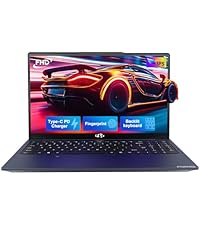
Image: A technician working on a laptop's internal components, representing the 2-year support provided for Nimo products.
9.2 นโยบายการคืนสินค้า
Nimo Direct Inc. offers a 90-Day Hassle-Free Return Policy. You may return any Nimo product for any reason within 90 days of purchase. Please refer to your purchase documentation for specific return procedures.
Image: A delivery person handing a package to a customer, illustrating the 90-day return policy for Nimo products.
9.3 การสนับสนุนลูกค้า
For any product-related questions, technical assistance, or warranty claims, please contact our professional after-sales service team. Our dedicated support team is available to resolve issues or facilitate replacements.
- อีเมล: service@nimopc.com
- ออนไลน์: เยี่ยมชมเว็บไซต์อย่างเป็นทางการของ NIMO website or product page for contact options.
Image: Customer service representatives wearing headsets, indicating professional customer assistance available via phone and live chat.


