1. บทนำ
This manual provides essential information for the proper setup, operation, and maintenance of your NIMO 15.6 inch Laptop Computer. Please read this manual thoroughly before using your device to ensure optimal performance and longevity. Keep this manual for future reference.
2. สินค้าหมดview
2.1. Laptop Components
The NIMO 15.6 inch Laptop features a Full HD display, a backlit keyboard, and an integrated fingerprint reader for secure access. It is powered by an AMD Ryzen 5 3500U processor and runs on Windows 11.

รูปที่ 2.1 : ด้านหน้า view of the NIMO 15.6 inch Laptop, showcasing การแสดงผลและเค้าโครงแป้นพิมพ์
2.2. พอร์ตและขั้วต่อ
Your NIMO laptop is equipped with various ports for comprehensive connectivity, allowing you to connect peripherals and external devices.

Figure 2.2: Expanded Connectivity Options. This image illustrates the location and type of ports available on the laptop, including Type-C (Charge Only), USB 3.0, HDMI, Type-C (Full Function), Charge LED, Micro SD Reader, USB 2.0, USB 3.0, Headphone Combo, and Kensington Lock.
- Type-C (Charge Only): สำหรับป้อนพลังงาน
- ยูเอสบี 3.0: เพื่อการถ่ายโอนข้อมูลความเร็วสูง
- ช่องต่อ HDMI: สำหรับเชื่อมต่อกับจอแสดงผลภายนอก
- Type-C (Full Function): Supports Power Delivery (PD), DisplayPort (DP), and data transfer.
- ไฟ LED ชาร์จ: บ่งชี้สถานะการชาร์จ
- Micro SD Reader: For reading Micro SD cards.
- ยูเอสบี 2.0: สำหรับอุปกรณ์ USB มาตรฐาน
- ยูเอสบี 3.0: เพื่อการถ่ายโอนข้อมูลความเร็วสูง
- Headphone Combo: สำหรับเอาต์พุตเสียงและอินพุตไมโครโฟน
- ล็อคเคนซิงตัน: เพื่อความปลอดภัยทางกายภาพ
3. การตั้งค่า
3.1. การชาร์จครั้งแรก
Before first use, connect the laptop to a power outlet using the provided 65W PD Type-C charger. The Charge LED indicator will illuminate. Allow the battery to charge fully.

Figure 3.1: Type-C 65W PD Charger. This image highlights the versatility of the 65W Power Delivery charger, capable of charging the laptop, tablets, and smartphones, reducing cable clutter.
3.2. เปิดเครื่อง
Open the laptop lid. Press the power button located on the keyboard deck. The laptop will boot up, and you will be guided through the Windows 11 initial setup process.
3.3. Windows 11 Setup
Follow the on-screen instructions to configure your Windows 11 operating system. This includes selecting your region, language, connecting to a Wi-Fi network, and setting up your user account.
4. คู่มือการใช้งาน
4.1. แป้นพิมพ์และอุปกรณ์ป้อนข้อมูล
The laptop features a backlit keyboard for comfortable typing in various lighting conditions, a responsive touchpad, and a numeric keypad for data entry.

Figure 4.1: Effortless Typing in Any Environment. This image demonstrates the backlit keyboard, touchpad, fingerprint reader, and numeric keypad, enhancing user experience and productivity.
- แป้นพิมพ์พร้อมไฟแบ็คไลท์: กดปุ่ม Fn key and the appropriate function key (usually F3 or F4, indicated by a keyboard icon) to adjust the backlight brightness or turn it on/off.
- ทัชแพด: Use the touchpad for navigation. Supports multi-touch gestures for scrolling, zooming, and other functions.
- ปุ่มกดตัวเลข: Provides dedicated number keys for efficient data entry.
4.2. การจดจำลายนิ้วมือ
The integrated fingerprint reader allows for secure and quick login. Set up your fingerprint in Windows Settings under 'Sign-in options'.
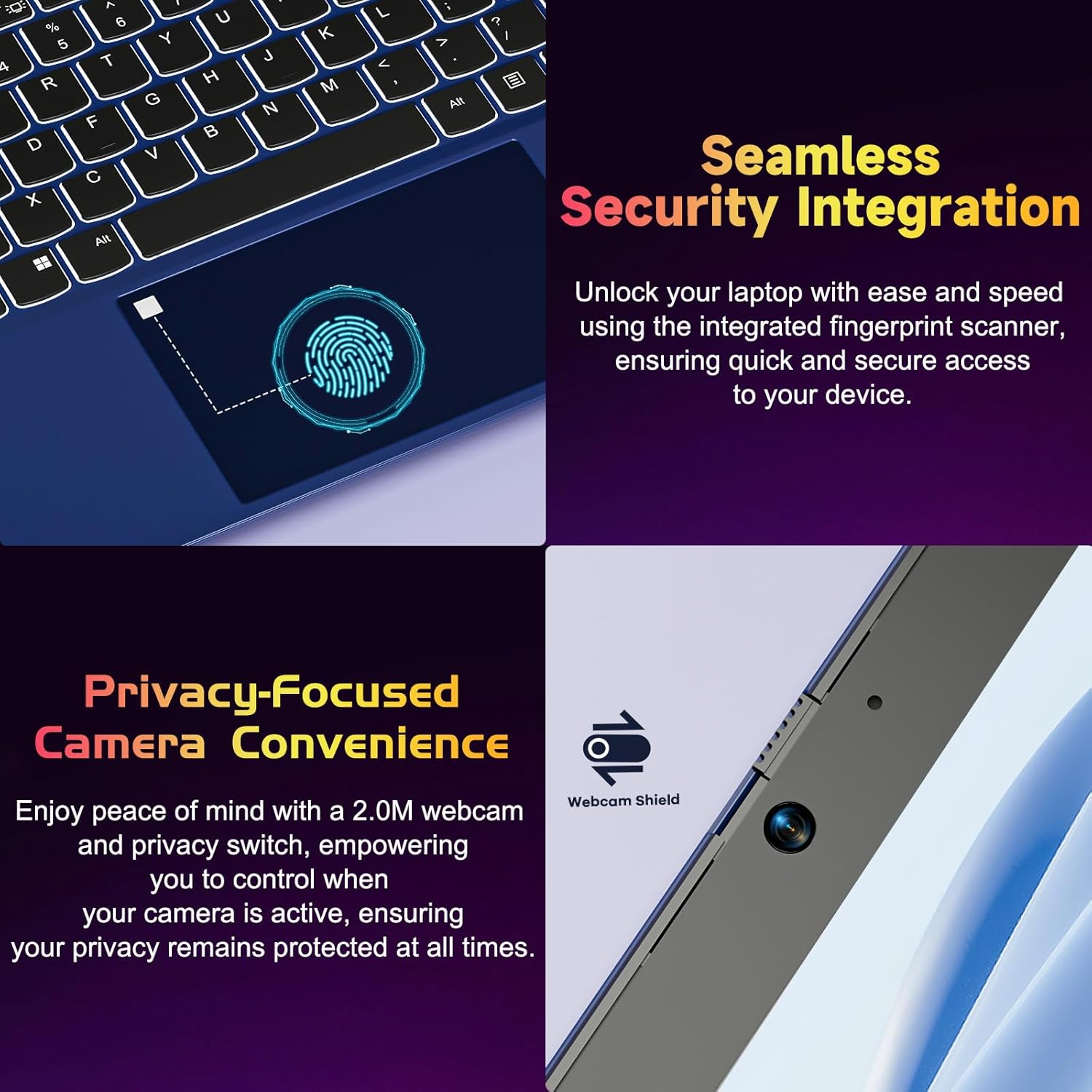
Figure 4.2: Seamless Security Integration and Privacy-Focused Camera. This image highlights the fingerprint scanner for quick and secure access, and the 2.0MP webcam with a physical privacy switch for enhanced user privacy.
4.3. คุณสมบัติการแสดงผล
The 15.6 inch Full HD (1920 x 1080 Pixel) IPS display offers vivid visuals and a wide viewing angle. The 180° lay-flat hinge allows for flexible screen positioning, ideal for sharing content.

Figure 4.3: Vivid Full HD Display. This image emphasizes the laptop's 15.6-inch Full HD (1920x1080) IPS display, offering bright visuals and eye protection.

Figure 4.4: 180° Lay-Flat Hinge. This image illustrates the laptop's ability to lay flat, expanding usage scenarios and facilitating content sharing.
4.4. Webกล้องความเป็นส่วนตัว
The laptop includes a 2.0MP webcam with a physical privacy switch (Webcam Shield). Slide the switch to cover the camera lens when not in use to ensure your privacy.
5. การบำรุงรักษา
- การทำความสะอาด: ใช้ผ้าเนื้อนุ่มที่ไม่เป็นขุยเช็ดทำความสะอาดหน้าจอและภายนอก สำหรับคราบฝังแน่น ให้ใช้ผ้าชุบน้ำหมาดๆ เช็ดเบาๆampชุบผ้าด้วยน้ำหรือน้ำยาทำความสะอาดหน้าจอ หลีกเลี่ยงสารเคมีรุนแรง
- การดูแลแบตเตอรี่ เพื่อยืดอายุการใช้งานแบตเตอรี่ ควรหลีกเลี่ยงการปล่อยให้แบตเตอรี่หมดจนเกลี้ยงบ่อยๆ และควรเก็บแล็ปท็อปไว้ในที่แห้งและเย็นหากไม่ได้ใช้งานเป็นเวลานาน
- การอัปเดตซอฟต์แวร์: อัปเดตระบบปฏิบัติการและไดรเวอร์ Windows ของคุณเป็นประจำเพื่อให้มั่นใจถึงประสิทธิภาพและความปลอดภัยที่เหมาะสมที่สุด
- การขยายพื้นที่เก็บข้อมูล: The laptop supports dual DDR4 SO-DIMM slots and M.2 NVMe SSD for memory and storage expansion. Consult a qualified technician for upgrades.
6 การแก้ไขปัญหา
6.1. ปัญหาเรื่องพลังงาน
- โน๊ตบุ๊คเปิดไม่ติด: Ensure the laptop is charged. Connect the charger and wait a few minutes before attempting to power on again.
- ไม่ชาร์จแบตเตอรี่: Verify the charger is properly connected to both the laptop and the power outlet. Try a different outlet.
6.2. ปัญหาการแสดงผล
- หน้าจอว่างเปล่า: Check if the laptop is powered on. Try adjusting screen brightness using the function keys. If an external monitor is connected, ensure it is properly configured.
6.3. ปัญหาด้านประสิทธิภาพ
- โน๊ตบุ๊คช้า: Close unnecessary applications. Check for background processes consuming high resources. Ensure sufficient free storage space. Consider performing a system scan for malware.
6.4. ปัญหาการเชื่อมต่อ
- Wi-Fi ไม่เชื่อมต่อ: Ensure Wi-Fi is enabled. Restart your router and the laptop. Check network settings in Windows.
7. ข้อมูลจำเพาะ
| คุณสมบัติ | รายละเอียด |
|---|---|
| ยี่ห้อ | นีโม |
| ชื่อรุ่น | NIMO N152R |
| ขนาดหน้าจอ | 15.6 นิ้ว |
| ความละเอียดหน้าจอ | 1920 x 1080 พิกเซล (ฟูลเอชดี) |
| โปรเซสเซอร์ | AMD Ryzen 5 3500U (3.7 GHz, 4 คอร์, 8 เธรด) |
| แรม | 8 GB DDR4 (Upgradable) |
| ความเร็วหน่วยความจำ | 3200 เมกะเฮิรตซ์ |
| ฮาร์ดไดรฟ์ | 256 GB SSD (Upgradable M.2 NVMe) |
| โคโปรเซสเซอร์กราฟิก | AMD Integrated graphics (Vega) |
| ระบบปฏิบัติการ | วินโดวส์ 11 |
| ประเภทไร้สาย | 802.11abg |
| พอร์ต USB | 1x USB 2.0, 2x USB 3.0, 2x USB-C (1x Charge Only, 1x Full Function) |
| พอร์ต HDMI | ใช่ |
| เครื่องอ่าน Micro SD | ใช่ |
| อายุการใช้งานแบตเตอรี่โดยเฉลี่ย | 5 ชั่วโมง |
| น้ำหนักสินค้า | 3.8 ปอนด์ (1.72 กก.) |
| ขนาดสินค้า | 14.07 x 8.98 x 0.76 นิ้ว |
| สี | ดอกกุหลาบ |
| หลัง Webความละเอียดของกล้อง | 2 MP |
8. การรับประกันและการสนับสนุน
Your NIMO laptop comes with a 2-year warranty, covering manufacturing defects and hardware malfunctions under normal use. Additionally, a 90-day free return policy is provided.

Figure 8.1: After-Sales Support. This image outlines the 2-year warranty, 90-day return policy, and professional customer service available for NIMO products.
8.1. การติดต่อฝ่ายสนับสนุน
For technical assistance, warranty claims, or product-related questions, please contact the NIMO U.S.-based support team. Contact information can typically be found on the official NIMO webบรรจุภัณฑ์ไซต์หรือผลิตภัณฑ์
9. ข้อมูลด้านความปลอดภัย
เพื่อป้องกันการบาดเจ็บหรือความเสียหายต่ออุปกรณ์ของคุณ โปรดปฏิบัติตามข้อควรระวังด้านความปลอดภัยต่อไปนี้:
- อย่าให้แล็ปท็อปโดนอุณหภูมิที่สูงหรือต่ำเกินไป แสงแดดโดยตรง หรือความชื้นสูง
- หลีกเลี่ยงการวางวัตถุหนักบนแล็ปท็อป
- Use only the provided charger or a compatible 65W PD Type-C charger.
- อย่าพยายามถอดประกอบหรือซ่อมแซมแล็ปท็อปด้วยตนเอง โปรดติดต่อช่างผู้ชำนาญการ
- ควรเก็บของเหลวให้ห่างจากแล็ปท็อปเพื่อป้องกันไฟฟ้าช็อตหรือความเสียหายจากไฟฟ้า
- Ensure proper ventilation when using the laptop to prevent overheating.


