1. บทนำ
This manual provides detailed instructions for the installation, operation, and maintenance of your Zomolither Android 15 Car Stereo. This unit is specifically designed for Subaru Forester, Impreza, and WRX models manufactured between 2008 and 2012. Please read this manual thoroughly before use to ensure proper functionality and to maximize your experience with the device.

Image 1: Zomolither Android 15 Car Stereo main unit. This image shows the 9-inch touchscreen displaying the Android 15 interface with app icons for iHeart, Telegram, Amap, and Spotify, along with system information like 4G signal, RAM, and ROM.
2. ข้อมูลด้านความปลอดภัย
โปรดปฏิบัติตามข้อควรระวังด้านความปลอดภัยต่อไปนี้เพื่อป้องกันการบาดเจ็บหรือความเสียหายต่ออุปกรณ์:
- ห้ามถอดประกอบหรือดัดแปลงตัวเครื่อง การดัดแปลงโดยไม่ได้รับอนุญาตอาจทำให้เกิดไฟฟ้าช็อต ไฟไหม้ หรือความเสียหายต่อผลิตภัณฑ์ได้
- ตรวจสอบให้แน่ใจว่าการเชื่อมต่อสายไฟทั้งหมดมีความปลอดภัยและมีฉนวนหุ้มอย่างเหมาะสมเพื่อป้องกันไฟฟ้าลัดวงจร
- Avoid operating the device in extreme temperatures outside the specified range (-20°C to 70°C).
- อย่าปิดกั้นช่องระบายอากาศบนตัวเครื่อง
- Always prioritize safe driving. Do not operate features that distract you from the road.
- ปรึกษาผู้เชี่ยวชาญเกี่ยวกับการติดตั้งหากคุณไม่แน่ใจเกี่ยวกับขั้นตอนใดๆ
3. เนื้อหาบรรจุภัณฑ์
ตรวจสอบว่ารายการทั้งหมดที่ระบุไว้ด้านล่างนี้รวมอยู่ในแพ็คเกจของคุณ:
- 1 x Car Stereo Head Unit
- เสาอากาศ GPS 1 เส้น
- 2 x สายไฟ
- เสาอากาศวิทยุ 1 เส้น
- 1 x Original Car USB Cable
- 1 x สายอินพุตกล้องด้านหลัง
- สาย 1 x RCA
- 1 x ไมโครโฟนภายนอก
- 1 x ด้านหลัง View Camera (Optional, if included in your specific package)
- 1 x คู่มือผู้ใช้ (เอกสารนี้)
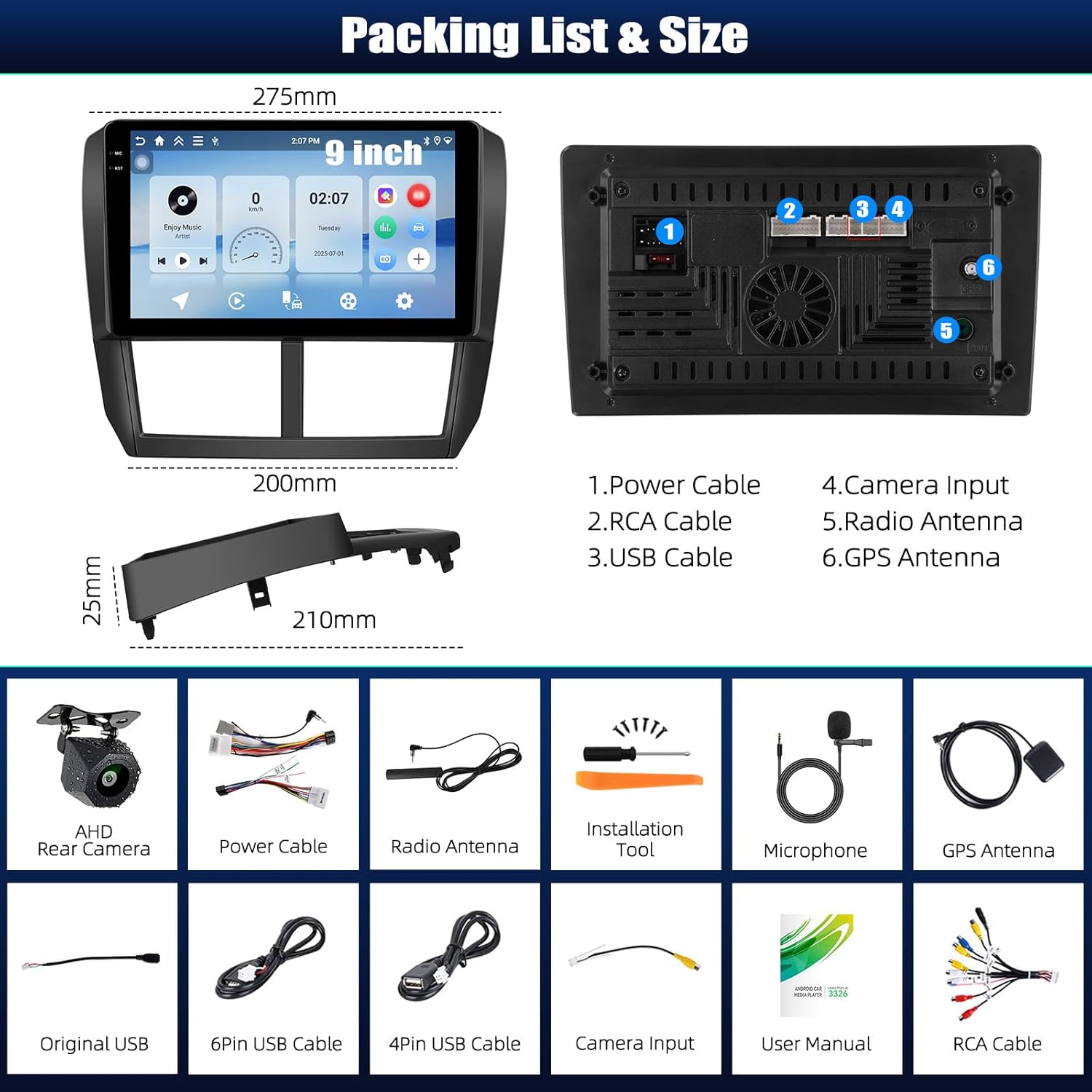
Image 2: Package contents and dimensions. This image illustrates the physical dimensions of the head unit and lists the various cables and accessories included, such as the AHD Rear Camera, Power Cable, Radio Antenna, Installation Tool, Microphone, GPS Antenna, Original USB, USB cables, Camera Input, User Manual, and RCA Cable.
4. การติดตั้ง (ตั้งค่า)
This car stereo is designed for direct fitment in Subaru Forester, Impreza, and WRX models from 2008 to 2012. Professional installation is recommended.
4.1 การตรวจสอบก่อนการติดตั้ง
- ตรวจสอบให้แน่ใจว่ากุญแจรถปิดอยู่และถอดแบตเตอรี่ออกก่อนเริ่มการติดตั้ง
- Confirm compatibility with your vehicle model and year.
- Review the wiring diagrams provided with your unit for specific connections.
4.2 ขั้นตอนการติดตั้งทั่วไป
- Carefully remove the factory radio and trim panels from your vehicle's dashboard.
- Connect the main power harness, RCA cables, USB cables, GPS antenna, and radio antenna to the new head unit.
- If installing the backup camera, route the camera cable to the rear of the vehicle and connect it to the designated input on the head unit.
- Connect the steering wheel control (SWC) wires according to your vehicle's wiring diagram.
- Mount the new head unit securely into the dashboard opening.
- Reconnect the vehicle battery and test all functions before reassembling the trim panels.

Image 3: Before and After installation. This image shows a side-by-side comparison of a Subaru dashboard with the original factory radio (Before) and the Zomolither Android 15 Car Stereo installed (After), highlighting the integrated appearance.
5. การดำเนินการ
5.1 เปิด/ปิดเครื่อง
Press the power button (usually located on the front panel or a soft button on the screen) to turn the unit on or off. The unit will typically power on automatically with the vehicle's ignition.
อินเทอร์เฟซหน้าจอสัมผัส 5.2
The 9-inch Incell touchscreen features a 1280x720 resolution, offering clear visuals and responsive touch control. Navigate through menus and applications by tapping, swiping, and pinching.
5.3 CarPlay ไร้สายและ Android Auto
Connect your compatible iPhone or Android smartphone wirelessly to access navigation, music, calls, and messages directly on the car stereo display. Follow the on-screen prompts to pair your device.

Image 4: Wireless CarPlay, Android Auto, and Mirror Link. This image displays various screens showing the integration of smartphone features like calls, messages, music, and maps via Wireless CarPlay and Android Auto, as well as the Mirror Link function.
5.4 การเชื่อมโยงมิเรอร์
The Mirror Link function allows you to display your smartphone's screen content directly onto the car stereo. This is useful for sharing videos or using specific applications not natively supported by CarPlay or Android Auto.
5.5 บลูทู ธ 5.0
Pair your smartphone via Bluetooth for hands-free calling and high-quality audio streaming. Access your phonebook, dial numbers, and control music playback directly from the head unit.

Image 5: Bluetooth, WiFi, and GPS features. This image illustrates the Bluetooth dialer for hands-free calls, a collage of app icons representing WiFi connectivity for app downloads, and a GPS navigation map displaying routes.
5.6 ระบบนำทาง GPS
The built-in GPS system supports both offline maps and real-time traffic updates when connected to WiFi. Download your preferred navigation apps from the app store.
5.7 การเชื่อมต่อ WiFi
Connect the car stereo to a WiFi hotspot (e.g., from your smartphone) to access online features, download applications, and receive system updates.
วิทยุ FM/RDS 5.8
Tune into FM radio stations. The RDS (Radio Data System) feature displays station information, song titles, and traffic announcements where available. The unit is equipped with 32EQ for clear channel search and low noise.

Image 6: FM/RDS Radio and 32-band Equalizer. This image shows the radio interface with station frequencies and RDS information, alongside a detailed 32-band equalizer for audio customization.
5.9 Audio Equalizer (32EQ)
Customize your audio experience with the integrated 32-band equalizer. Adjust frequency levels to match your preferences and vehicle acoustics.
5.10 Multiple UI Themes
Personalize the appearance of your car stereo by choosing from various user interface themes to match your style or mood.

Image 7: Split Screen and Multiple UI Themes. This image illustrates the split-screen feature, allowing two applications to run simultaneously, and showcases several distinct user interface themes for personalization.
5.11 ฟังก์ชันแบ่งหน้าจอ
Utilize the split-screen feature to run two applications simultaneously, such as navigation and music playback, for enhanced convenience.
5.12 ระบบควบคุมพวงมาลัย (SWC)
If your vehicle supports it, connect the steering wheel controls to operate the stereo without taking your hands off the wheel. This allows for safe adjustment of volume, track changes, and mode selection.

Image 8: Backup Camera and Steering Wheel Control. This image displays a simulated view from a backup camera with parking guidelines and an interface for mapping steering wheel control buttons to various stereo functions.
5.13 กล้องสำรอง
When a compatible AHD backup camera is connected, the display automatically switches to the camera view when the vehicle is put into reverse, providing clear visuals for safe parking.
6. การบำรุงรักษา
เพื่อให้เครื่องเสียงในรถยนต์ของคุณมีอายุการใช้งานยาวนานและมีประสิทธิภาพเหมาะสมที่สุด โปรดปฏิบัติตามคำแนะนำในการบำรุงรักษาดังต่อไปนี้:
- การทำความสะอาดหน้าจอ: ใช้ผ้านุ่มไม่เป็นขุยเช็ดหน้าจอสัมผัสเบาๆ สำหรับรอยเปื้อนฝังแน่น ให้เช็ดเบาๆampชุบผ้าด้วยน้ำหรือน้ำยาทำความสะอาดที่ปลอดภัยต่อหน้าจอ หลีกเลี่ยงสารเคมีรุนแรงหรือวัสดุที่มีฤทธิ์กัดกร่อน
- การทำความสะอาดทั่วไป: รักษาตัวเครื่องให้ปราศจากฝุ่นและสิ่งสกปรก ใช้แปรงขนนุ่มหรือลมเป่าทำความสะอาดบริเวณรอบปุ่มและช่องระบายอากาศ
- การอัปเดตซอฟต์แวร์: Periodically check for available software updates via the system settings when connected to WiFi. Updates can improve performance and add new features.
- การควบคุมอุณหภูมิ: Avoid exposing the unit to extreme temperatures for extended periods. The operating temperature range is -20°C to 70°C.
7 การแก้ไขปัญหา
If you encounter issues with your Zomolither car stereo, refer to the following common problems and solutions:
| ปัญหา | สาเหตุที่เป็นไปได้ | สารละลาย |
|---|---|---|
| เครื่องไม่เปิด | การเชื่อมต่อไฟฟ้าหลวม ฟิวส์ขาด แบตเตอรี่รถยนต์มีปัญหา | Check power cables and fuse. Ensure vehicle battery is connected and charged. |
| ไม่มีเสียงหรือเสียงผิดเพี้ยน | Speaker wires incorrectly connected, volume too low, EQ settings. | Verify speaker connections. Adjust volume. Reset EQ settings to default. |
| การเชื่อมต่อบลูทูธไม่เสถียร | สัญญาณรบกวน เฟิร์มแวร์ล้าสมัย ความเข้ากันได้กับโทรศัพท์ | Ensure no other devices are interfering. Update stereo firmware. Try re-pairing the device. |
| Screen goes black randomly | ความผิดพลาดของซอฟต์แวร์, ไฟฟ้าดับบ่อย | Perform a system reset (refer to the device settings for reset options). Check power connections. |
| สัญญาณ GPS อ่อนหรือไม่แม่นยำ | การวางตำแหน่งเสาอากาศ GPS การรบกวนจากสิ่งแวดล้อม | ตรวจสอบให้แน่ใจว่าเสาอากาศ GPS มีสัญญาณที่ชัดเจน view ของท้องฟ้า หลีกเลี่ยงการวางใกล้วัตถุที่เป็นโลหะ |
| การควบคุมพวงมาลัยไม่ทำงาน | Incorrect wiring, SWC learning not configured. | Check SWC wiring. Access SWC settings in the unit to program buttons. |
If the problem persists after attempting these solutions, please contact Zomolither customer support for further assistance.
8. ข้อมูลจำเพาะ
| คุณสมบัติ | รายละเอียด |
|---|---|
| ระบบปฏิบัติการ | แอนดรอยด์ 15 |
| แรม | 4GB |
| รอม | 128GB |
| ขนาดจอแสดงผล | 9 นิ้ว |
| ความละเอียดการแสดงผล | 1280x720 (Incell Touchscreen) |
| การเชื่อมต่อ | Bluetooth 5.0, WiFi, GPS |
| คุณสมบัติพิเศษ | Wireless CarPlay, Android Auto, Mirror Link, 32EQ, FM/RDS Radio, Split Screen, Multiple UI Themes, Steering Wheel Control (SWC), AHD Backup Camera Support |
| โหมดเอาต์พุตเสียง | ดิจิตอล |
| ขนาดสินค้า | 11.02 x 9.65 x 2.56 นิ้ว |
| น้ำหนักสินค้า | 3.74 ปอนด์ |
| อุณหภูมิในการทำงาน | -20°C ถึง 70°C |
9. การรับประกันและการสนับสนุน
For warranty information, technical support, or service inquiries, please refer to the contact details provided with your purchase documentation or visit the official Zomolither webไซต์นี้ โปรดเก็บหลักฐานการซื้อไว้เพื่อใช้ยืนยันการรับประกัน


