1. บทนำ
This user manual provides essential information for the installation, configuration, and operation of your Jennov 4K 8MP Outdoor PTZ IP POE Camera, Model PS6006. This advanced security camera offers high-resolution surveillance with pan, tilt, and optical zoom capabilities, along with intelligent detection features. Please read this manual thoroughly before using the product to ensure proper functionality and safety.
2. สินค้าหมดview
คุณสมบัติหลัก
- Ultra 4K HD Resolution: 8MP (3840*2160 pixels) for clear, detailed images.
- 20X Optical Zoom & 10X Digital Zoom: Motorized lens (4.7~94mm) for detailed remote viewing without quality loss.
- ฟังก์ชันแพนและเอียง: Wide coverage with pan and tilt control.
- Auto Tracking & Human Detection: Automatically tracks detected individuals and reduces false alarms.
- ระบบมองเห็นกลางคืนอินฟราเรดระยะ 320 ฟุต: Enhanced night vision with 6 high-performance infrared LED lights for clear black-and-white images in darkness.
- การจ่ายไฟผ่านสายอีเธอร์เน็ต (POE): Single Ethernet cable for power and data connection.
- เสียงสองทาง: มีไมโครโฟนและลำโพงในตัวสำหรับการสื่อสารแบบเรียลไทม์
- กันฝนระดับ IP66: Durable design for outdoor use in various weather conditions.
- Efficient H.265 Coding: Saves bandwidth and storage space.
เนื้อหาแพ็คเกจ
ตรวจสอบว่ามีรายการทั้งหมดอยู่ในแพ็คเกจของคุณ:
- Jennov 4K 8MP Outdoor PTZ IP POE Camera (Model PS6006)
- สายเคเบิลอีเทอร์เน็ต
- อะแดปเตอร์แปลงไฟ
- ขาตั้งสำหรับติดตั้ง
- คู่มือการใช้งาน
- หมวกกันน้ำ
- สติ๊กเกอร์คำเตือน
- สกรูยึด

ภาพ: รายละเอียด view of the Jennov 4K POE Camera components and the items included in the packing list, such as the camera, Ethernet cable, power adapter, stand, user manual, waterproof cap, and screws.
3. คำแนะนำในการตั้งค่า
3.1 การติดตั้งกล้อง
- Choose a suitable outdoor location for mounting, ensuring a clear field of view and access to an Ethernet cable.
- Use the provided mounting stand and screws to securely attach the camera to a wall or ceiling.
- Ensure the camera is positioned to cover the desired surveillance area.
3.2 Power and Network Connection (POE)
The Jennov PS6006 camera supports Power Over Ethernet (POE), simplifying installation by using a single Ethernet cable for both power and data transmission. This camera is only compatible with POE NVRs that support the Onvif protocol.
- ต่อปลายด้านหนึ่งของสายอีเธอร์เน็ตเข้ากับพอร์ตอีเธอร์เน็ตของกล้อง
- Connect the other end of the Ethernet cable to a POE NVR or a POE switch.
- If using a POE switch, connect the POE switch to your router.
- ตรวจสอบให้แน่ใจว่าการเชื่อมต่อทั้งหมดมีความปลอดภัย
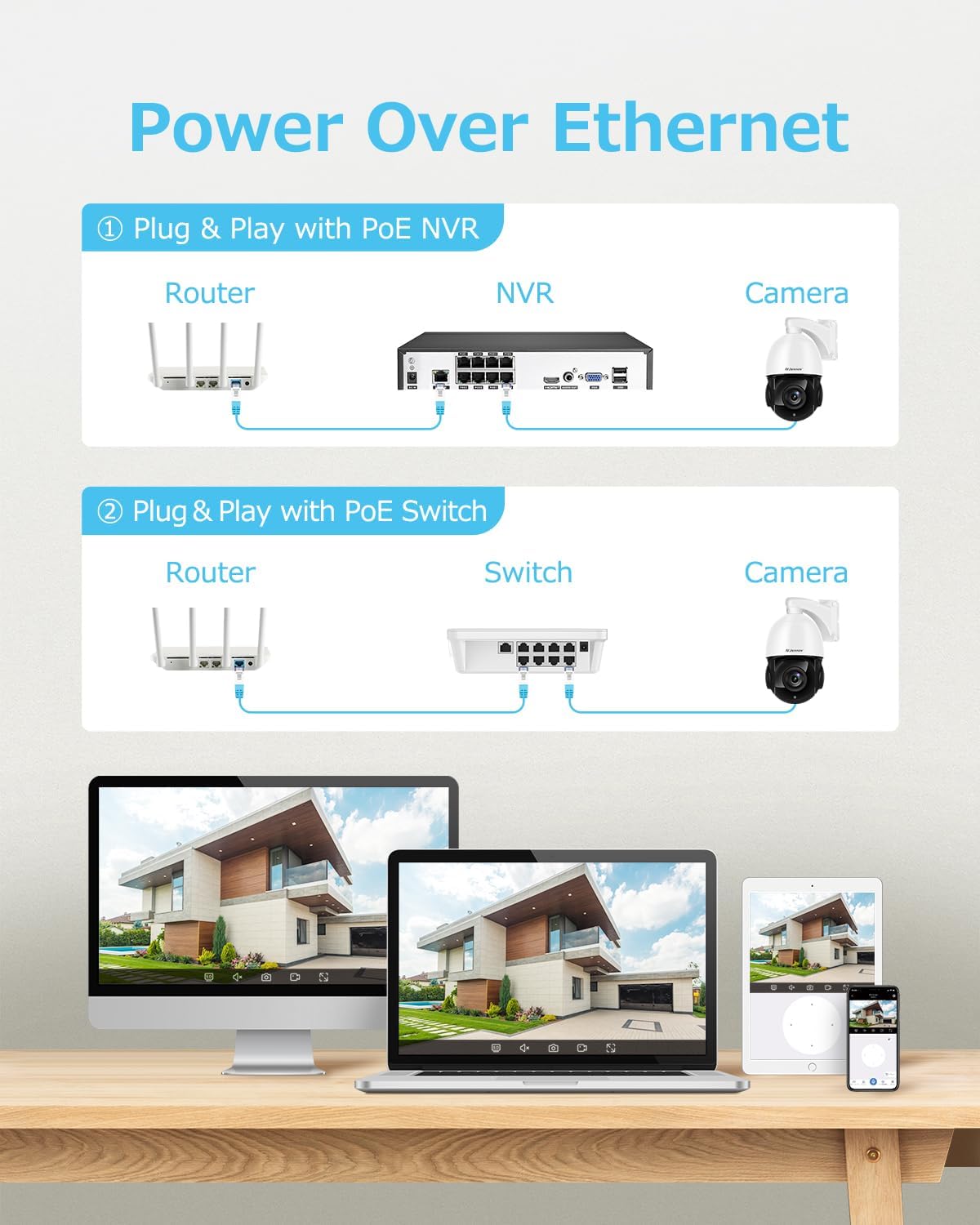
Image: Diagram illustrating two methods of Power Over Ethernet connection: directly to a POE NVR, or via a POE switch connected to a router, both providing power and data to the camera.
3.3 การกำหนดค่าเริ่มต้น
- Power up the camera by connecting it to a POE NVR or POE switch.
- Perform the initial setup through your POE NVR's user interface or by scanning the QR code via the VideoLink App on your mobile device.
- Follow the on-screen prompts to configure network settings, create user accounts, and set up recording preferences.
4. คู่มือการใช้งาน
4.1 การควบคุมการแพน การเอียง และการซูม
Control the camera's pan (horizontal rotation), tilt (vertical movement), and optical zoom remotely via the VideoLink app or your NVR interface.
- แพน: Rotate the camera horizontally to cover a wide area.
- เอียง: Adjust the camera's vertical angle to view higher or lower areas.
- ซูมออปติคอล: Use the zoom function to magnify distant objects without compromising image clarity. The camera supports 20X optical zoom.
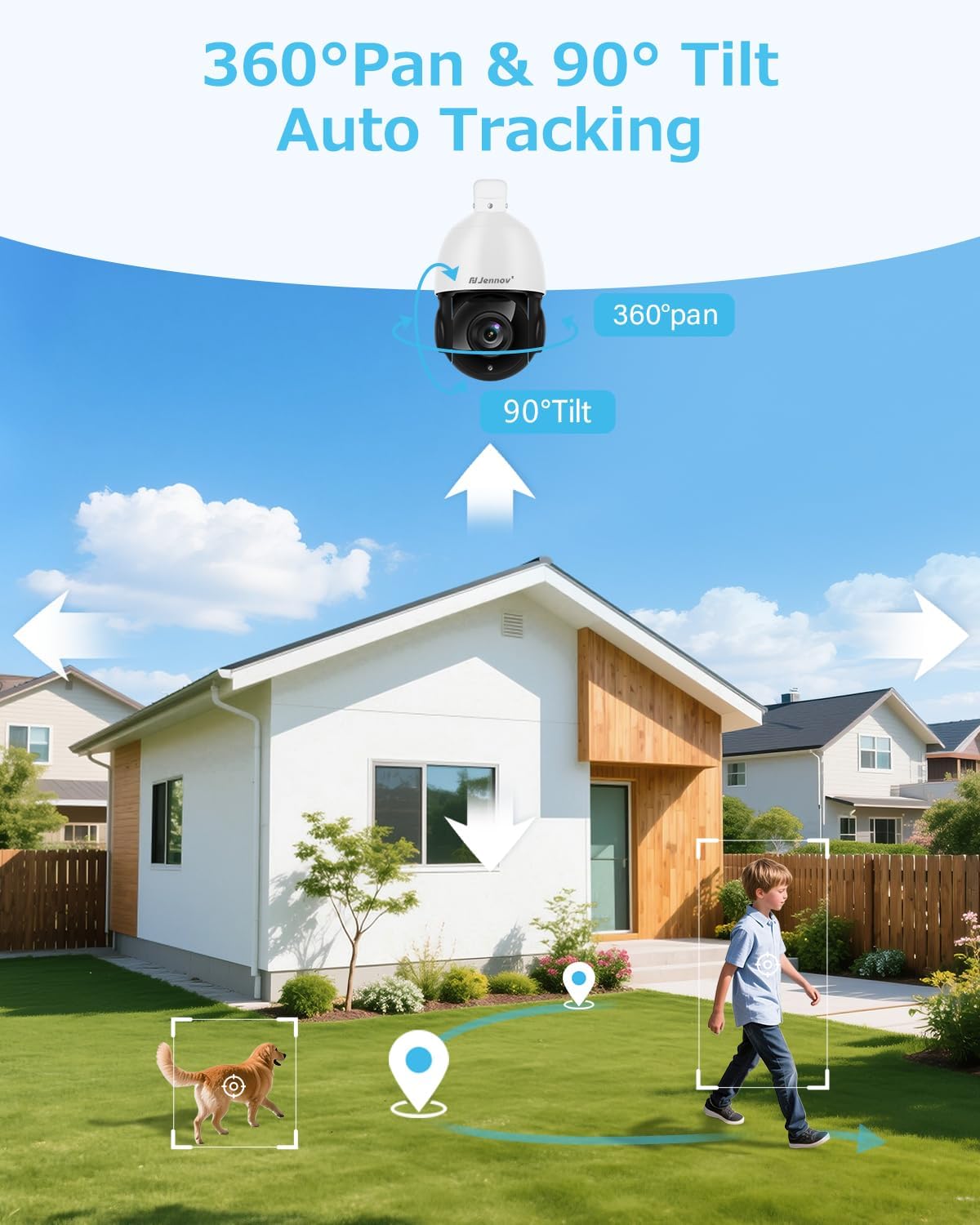
Image: An outdoor security camera mounted on a house, illustrating its 360-degree pan and 90-degree tilt capabilities, along with auto-tracking of a person and a dog in the yard.

Image: A landscape view demonstrating the camera's 20X optical zoom, showing how a distant object (like a wind turbine) becomes progressively clearer from 1X to 20X zoom.
4.2 Auto Tracking and Human Detection
The camera features intelligent auto-tracking and human detection to enhance security monitoring.
- การตรวจจับของมนุษย์: Configure detection zones and sensitivity settings in the app to minimize false alarms caused by non-human movement.
- ติดตามอัตโนมัติ: When a person is detected, the camera will automatically track their movement within its field of view. Note: The camera tracks one target at a time.
- Cruising Routes: Set up to 8 cruising routes, each with up to 16 preset positions, for cyclical patrol of specific areas.
- การแจ้งเตือน: Receive real-time video or snapshot alerts on your mobile phone when human movement is detected.
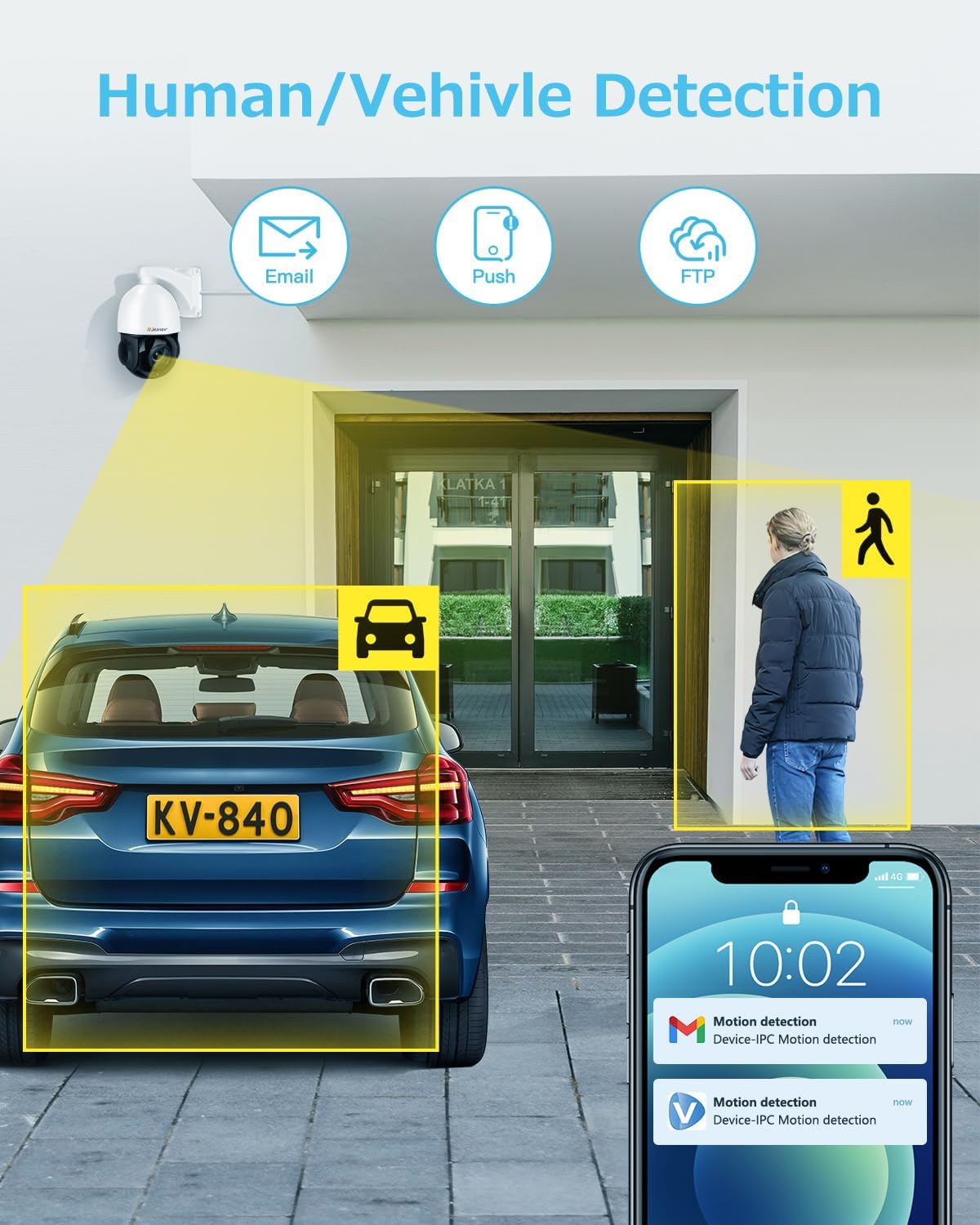
Image: An illustration showing the camera detecting both a human and a vehicle, with corresponding motion detection alerts displayed on a smartphone screen.
4.3 การมองเห็นตอนกลางคืน
The camera is equipped with advanced IR night vision for clear surveillance in low-light or no-light conditions.
- IR-Cut: The camera automatically switches between day and night modes using its IR-cut filter.
- ไฟ LED อินฟราเรด: Six high-performance infrared LED lights provide a night vision range of up to 320 feet (approximately 97 meters).
- Black-and-White Mode: In dark conditions, the camera provides clear black-and-white images for accurate motion detection and monitoring.

Image: A split image demonstrating the camera's day and night vision capabilities, showing a clear color view during the day and a detailed black-and-white infrared view at night, both covering a residential area.
4.4 เสียงสองทาง
Communicate with visitors or deter intruders using the camera's built-in microphone and speaker.
- Access the two-way audio function through the VideoLink app.
- Speak into your mobile device's microphone to transmit audio through the camera's speaker.
- Listen to audio from the camera's location through your mobile device.
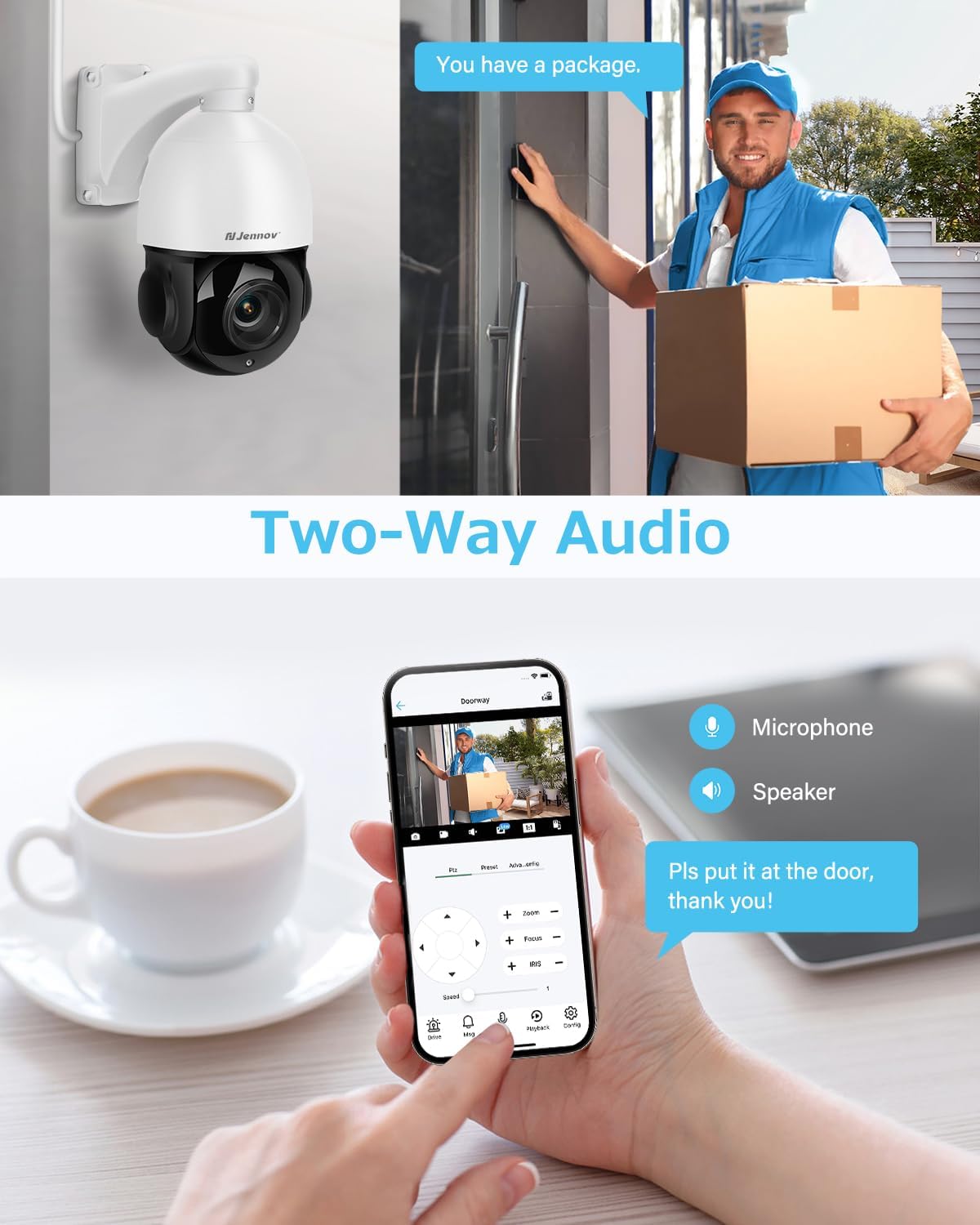
Image: A scene depicting a delivery person at a door, with a smartphone displaying the camera feed and controls for microphone and speaker, illustrating the two-way audio feature.
4.5 Remote Access and Storage
Access your camera feed and recordings from anywhere using the dedicated app.
- แอปมือถือ: Download the VideoLink app to your smartphone (Android/iOS) for live viewing, playback, snapshots, and motion alerts.
- ไคลเอ็นต์เดสก์ท็อป: A client is available for Windows operating systems. Mac users can access the camera via a web เบราว์เซอร์
- พื้นที่จัดเก็บ: The camera supports local storage via a Micro SD card (up to 256GB, not included) and continuous recording to a compatible Jennov NVR or FTP server.
5. การบำรุงรักษา
- การทำความสะอาด: Regularly clean the camera lens with a soft, dry cloth to ensure optimal image clarity. Avoid abrasive cleaners.
- อัพเดตเฟิร์มแวร์: ตรวจสอบของผู้ผลิต website or app for available firmware updates to ensure your camera has the latest features and security enhancements.
- การตรวจสอบสายเคเบิล: Periodically inspect the Ethernet cable and connections for any signs of wear or damage, especially in outdoor environments.
- การป้องกันสภาพอากาศ: While the camera is IP66 weatherproof, ensure proper installation to prevent water accumulation around connections.
6 การแก้ไขปัญหา
ปัญหาทั่วไปและแนวทางแก้ไข
- ไม่มีรูปภาพ/การเชื่อมต่อ:
- Ensure the Ethernet cable is securely connected to both the camera and the POE NVR/switch.
- Verify that the POE NVR/switch is powered on and functioning correctly.
- Check network settings and IP address configuration.
- คุณภาพของภาพต่ำ:
- ทำความสะอาดเลนส์กล้อง
- Ensure sufficient lighting for optimal performance, especially at night.
- Check your network environment; 4K cameras require stable network conditions.
- สัญญาณเตือนที่ผิดพลาด:
- Adjust the detection area and sensitivity settings in the app to reduce triggers from environmental factors (e.g., moving branches, small animals).
- Camera Not Tracking:
- Ensure auto-tracking is enabled in the camera settings.
- Verify that human detection is functioning correctly.
- ความเข้ากันได้กับ NVR:
- This camera is only compatible with POE NVRs that support the Onvif protocol. It cannot work with WiFi NVRs.
วิธีรีเซ็ตกล้อง
If you encounter persistent issues, a factory reset may be necessary.
- ปุ่มรีเซ็ตทางกายภาพ: Open the cover on the back of the camera to locate the reset button, typically next to the SD card slot. Press and hold for several seconds until the camera resets.
- Software Reset (VideoLink App): Navigate to "Config" > "Factory Reset".
- Software Reset (LMS): Right-click the IP address of the camera and select "Restore".
- Software Reset (AjDevTools): Use the tool to search for the camera's IP address, tick the camera, and click "Batch Reset".
7. ข้อมูลจำเพาะ
| คุณสมบัติ | ข้อมูลจำเพาะ |
|---|---|
| ชื่อรุ่น | พีเอส6006 |
| ความละเอียดในการจับภาพวิดีโอ | 4K (3840x2160) |
| ความละเอียดของภาพนิ่งที่มีประสิทธิภาพ | 8 MP |
| ซูมออปติคอล | 20X |
| ซูมดิจิตอล | 10X |
| ช่วงการมองเห็นตอนกลางคืน | 320 ฟุต |
| อัตราเฟรม | 20 เฟรมต่อวินาที |
| เทคโนโลยีการเชื่อมต่อ | อีเธอร์เน็ต (POE) |
| เทคโนโลยีการสื่อสารไร้สาย | Power Over Ethernet |
| การใช้งานภายใน/ภายนอกอาคาร | กลางแจ้ง |
| ระดับความต้านทานต่อน้ำ | กันน้ำระดับ IP66 |
| วัสดุ | อลูมิเนียม, พลาสติก |
| ขนาดรายการ (ยาว x กว้าง x สูง) | 4.7 x 11.7 x 8.3 นิ้ว |
| น้ำหนักสินค้า | 4.58 ปอนด์ |
| อุปกรณ์ที่รองรับ | Smartphone, POE NVR (Onvif protocol) |
| วิธีการควบคุม | แอป |
| การเข้ารหัสวิดีโอ | เอช.265 |
| ประเภทหน่วยความจำแฟลช | ไมโครเอสดี (สูงสุด 256GB) |
8. การรับประกันและการสนับสนุน
Jennov is committed to providing reliable products and excellent customer service.
- การคืนสินค้าฟรีภายใน 30 วัน: มั่นใจได้ด้วยนโยบายคืนสินค้าภายใน 30 วัน
- การสนับสนุนออนไลน์ 24/7: Access assistance anytime through online channels.
- การสนับสนุนทางเทคนิคตลอดอายุการใช้งาน: Benefit from ongoing technical support for the lifespan of your product.
- Uncomplicated Guarantee: Jennov stands behind its products with a straightforward guarantee.
หากต้องการความช่วยเหลือเพิ่มเติม โปรดไปที่เว็บไซต์อย่างเป็นทางการ Jennov Store หรือติดต่อฝ่ายสนับสนุนลูกค้า

Image: Icons representing Jennov's customer support offerings: 30-day free returns, 24/7 online support, lifetime tech support, and an uncomplicated guarantee.


