1. บทนำ
This manual provides detailed instructions for the E-YOOSO K-787 RGB Wireless Keyboard. This keyboard features versatile 3-mode connectivity (2.4G wireless, Bluetooth, and USB wired), dynamic RGB backlighting, and an ergonomic design for comfortable use across various operating systems and devices.

Image 1.1: E-YOOSO K-787 RGB Wireless Keyboard with illuminated keys.
2. การตั้งค่า
2.1 เนื้อหาบรรจุภัณฑ์
- 1x E-YOOSO K-787 Wireless Keyboard
- สายชาร์จ Type-C 1 เส้น
- 1x USB Receiver (stored in the keyboard's underside)
- 1x คู่มือผู้ใช้

Image 2.1: Contents included with the E-YOOSO K-787 keyboard.
2.2 โหมดการเชื่อมต่อ
The E-YOOSO K-787 keyboard supports three connection methods:
- โหมดสาย USB: Connect the keyboard directly to your computer using the provided Type-C cable. The keyboard will function as a wired device and charge simultaneously.
- โหมดไร้สาย 2.4G: Insert the USB receiver into an available USB port on your computer. Switch the keyboard to 2.4G mode using the switch on the back.
- Bluetooth Mode (BT1/BT2/BT3): The keyboard can connect to up to three Bluetooth devices. Switch the keyboard to Bluetooth mode using the switch on the back.
ภาพที่ 2.2: ด้านข้าง view of the keyboard showing the USB-C port and mode switches.
2.3 คำแนะนำในการจับคู่
2.3.1 2.4G Wireless Pairing
- Locate the USB receiver stored in the compartment on the underside of the keyboard.
- เสียบตัวรับสัญญาณ USB เข้ากับพอร์ต USB ที่พร้อมใช้งานบนคอมพิวเตอร์ของคุณ
- Slide the switch on the back of the keyboard to the "2.4G" position. The M indicator light will flash yellow, then become solid yellow after successful connection.
2.3.2 การจับคู่บลูทูธ
- Slide the switch on the back of the keyboard to the "BT" position.
- กดค้างไว้ Fn + 1/2/3 for 3 seconds to enter the corresponding channel's pairing mode. The M indicator light will flash blue/cyan/pink.
- On your device (computer, laptop, tablet), search for Bluetooth devices and select "E-YOOSO K-787".
- Once paired, the M indicator light will remain solid, indicating a successful connection.
2.4 การชาร์จคีย์บอร์ด
The keyboard is equipped with a 1900mAh rechargeable battery. Use the provided Type-C cable to charge the keyboard. A full charge takes approximately 2-3 hours. The M indicator light will show charging status (color may vary).

Image 2.3: The keyboard's Type-C charging port and battery specifications.
3. คู่มือการใช้งาน
3.1 ปุ่มมัลติมีเดีย
The keyboard features 10 independent multimedia keys and 12 combination multimedia keys for quick access to various functions. These include volume control, media playback, and more.
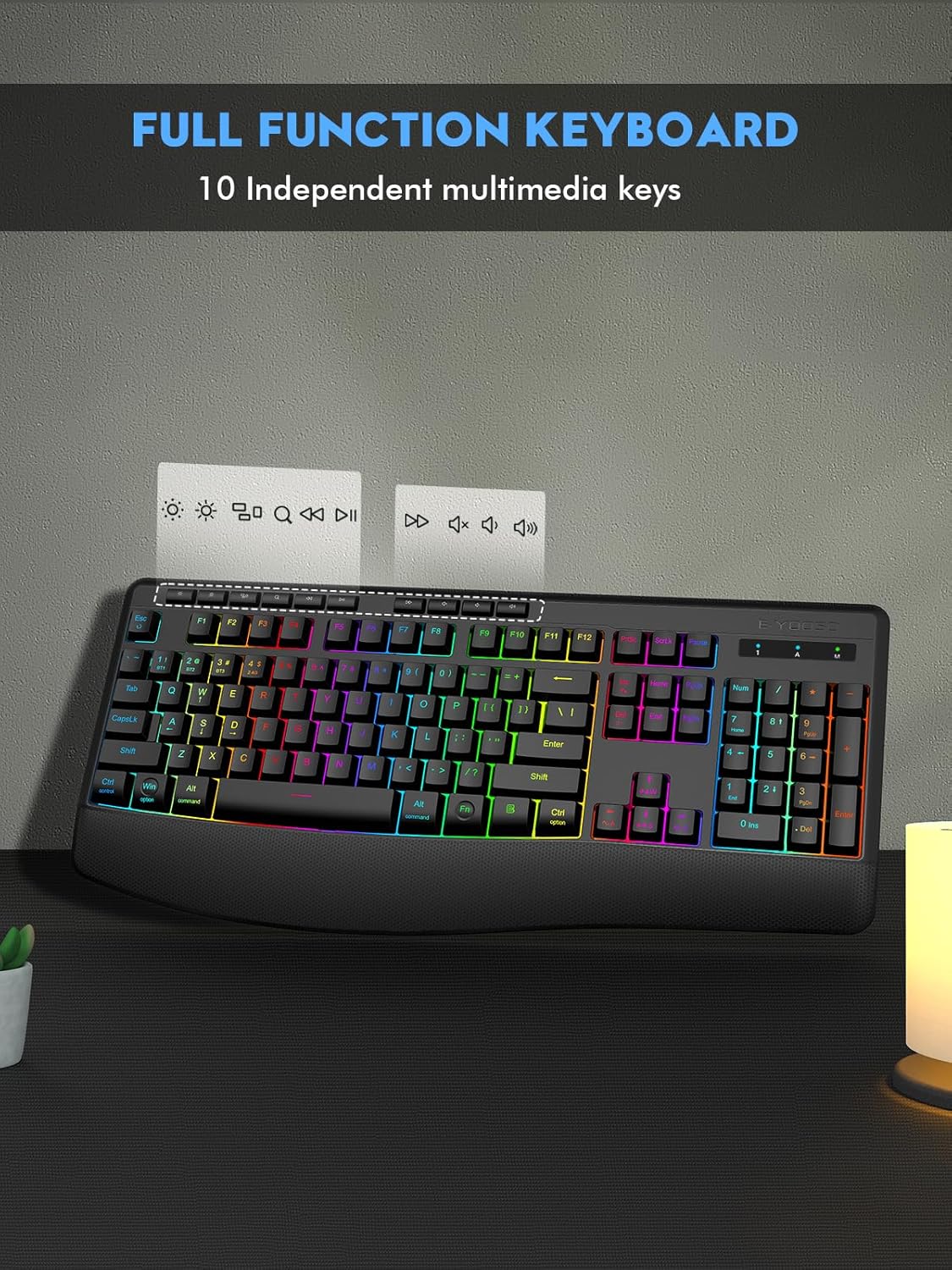
ภาพที่ 3.1: จบแล้วview of the keyboard's full function layout, including multimedia keys.
3.2 การควบคุมไฟแบ็คไลท์ RGB
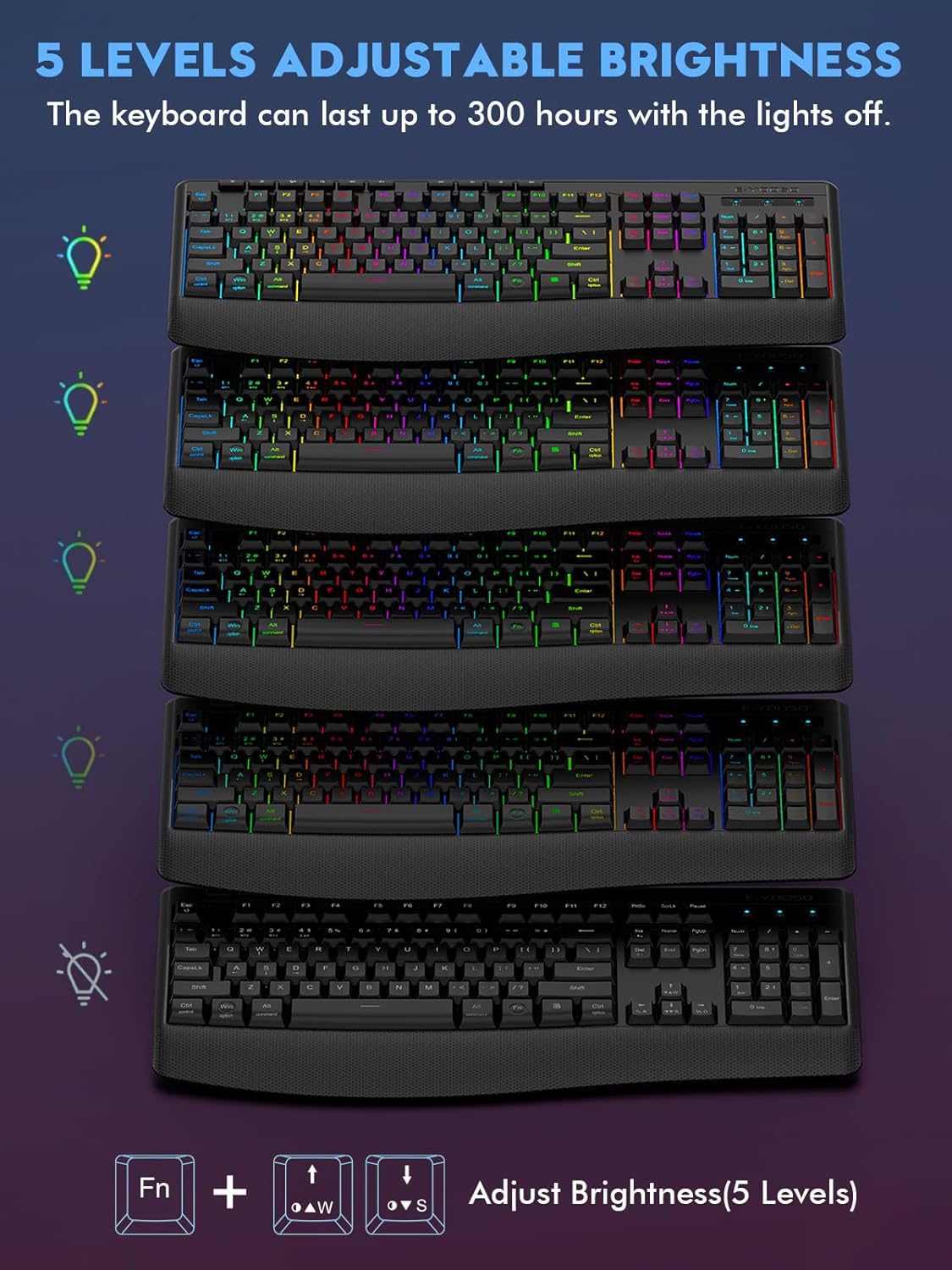
The keyboard offers 9 RGB lighting modes. You can customize the lighting effects, speed, and brightness.
- โหมดการสลับ: กด Fn + อิน to cycle through the 9 different backlight modes.
- การปรับความสว่าง: กด Fn + Up Arrow (W) เพื่อเพิ่มความสว่าง และ Fn + Down Arrow (S) เพื่อลดความสว่าง (5 ระดับ)
- การปรับความเร็ว: กด Fn + Left Arrow (A) to decrease speed, and Fn + Right Arrow (D) เพื่อเพิ่มความเร็ว

Image 3.2: Visual representation of various backlight modes and brightness adjustments.
3.3 Windows/Mac Compatibility
A dedicated switch on the back of the keyboard allows you to toggle between Windows and Mac compatibility modes, ensuring optimal key mapping for your operating system.
3.4 การออกแบบตามหลักสรีรศาสตร์
The keyboard features a built-in wrist rest and adjustable tilt legs (8° and 12°) to provide a comfortable typing experience and reduce wrist fatigue during extended use.
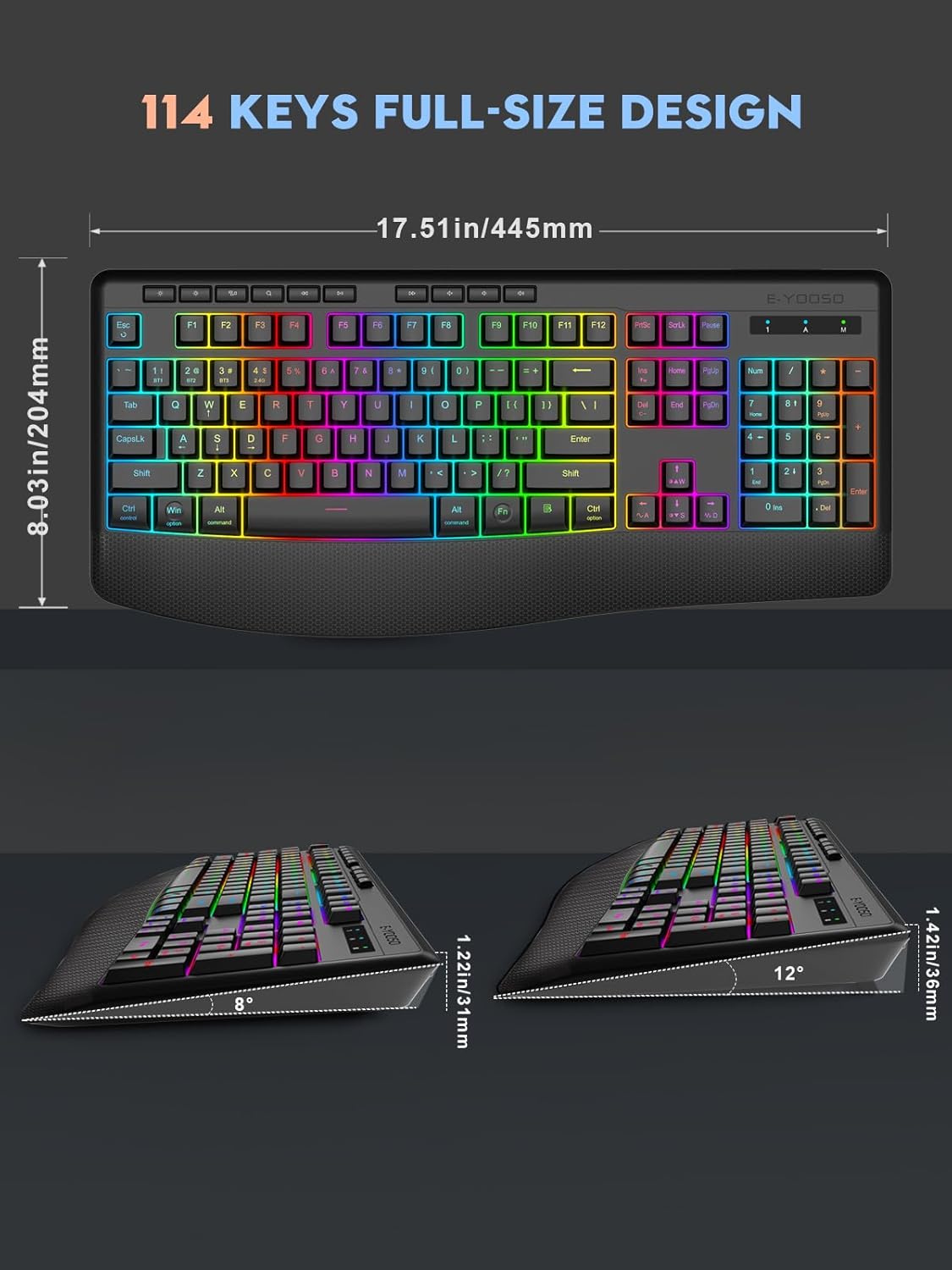
Image 3.3: Ergonomic features including the wrist rest and adjustable tilt angles.
4. การบำรุงรักษา
- Clean the keyboard regularly with a soft, dry cloth.
- Avoid exposing the keyboard to excessive moisture or liquids. The keyboard has splash resistance, but it is not waterproof.
- อย่าใช้สารเคมีรุนแรงหรือน้ำยาทำความสะอาดที่มีฤทธิ์กัดกร่อน
- Store the keyboard in a cool, dry place when not in use.
5 การแก้ไขปัญหา
5.1 แป้นพิมพ์ไม่ตอบสนอง
- ตรวจสอบการเชื่อมต่อ: Ensure the USB receiver is properly plugged in for 2.4G mode, or the Type-C cable is securely connected for wired mode. For Bluetooth, verify the device is paired and selected.
- ระดับแบตเตอรี่: If the keyboard is in wireless mode, check the battery level. Recharge if necessary.
- สวิตช์โหมด: Confirm the switch on the back of the keyboard is set to the correct connection mode (2.4G or BT).
5.2 ระดับเสียงต่ำtage ตัวบ่งชี้
เมื่อแบตเตอรี่หมดtage is below 3.3V, the red light of the M indicator will flash slowly. When the battery voltage is equal to or lower than 3.0V, the keyboard function will be turned off. Recharge the keyboard promptly.
5.3 โหมดสลีปอัจฉริยะ
The keyboard features a smart sleep mode to conserve power. If inactive for 90 seconds, the backlight will turn off, and the keyboard will enter sleep mode. Press any key to reactivate it.
5.4 ปัญหาเกี่ยวกับแสงไฟด้านหลัง
- If backlights are not working, ensure the keyboard is not in sleep mode.
- ปรับความสว่างโดยใช้ Fn + ลูกศรขึ้น/ลง กุญแจ
- สลับโหมดต่างๆ โดยใช้ Fn + อิน.
6. วิดีโอผลิตภัณฑ์
6.1 Beautiful Backlights, Comfortable Type
Video 6.1: A short demonstration showcasing the vibrant backlighting effects and comfortable typing experience of the E-YOOSO K-787 keyboard.
6.2 Ergonomically Designed, Smooth Keystrokes, Cool Lighting Effects
Video 6.2: An in-depth review highlighting the ergonomic design, smooth keystrokes, and various lighting effects of the E-YOOSO K-787 keyboard.
6.3 Excellent Silent Keyboard with Great Feel
วิดีโอ 6.3: สรุปสั้นๆview emphasizing the quiet operation and tactile feel of the E-YOOSO K-787 keyboard's keys.
6.4 Colorful Keyboard that Works with Bluetooth or WiFi
Video 6.4: A quick demonstration of the keyboard's colorful backlighting and its versatile Bluetooth and 2.4G wireless connectivity options.
7. ข้อมูลจำเพาะ
| คุณสมบัติ | รายละเอียด |
|---|---|
| หมายเลขรุ่น | เค-787 |
| เทคโนโลยีการเชื่อมต่อ | USB/BT/2.4G (Tri-mode) |
| คำอธิบายแป้นพิมพ์ | มัลติมีเดีย |
| คุณสมบัติพิเศษ | Ergonomic, RGB Backlit, Rechargeable |
| ความจุของแบตเตอรี่ | 1900mAh |
| เวลาในการชาร์จ | 2-3 ชั่วโมง |
| Standby Time (RGB OFF) | นานถึง 300 ชั่วโมง |
| โหมดสลีป | Smart sleep after 90 seconds inactivity |
| ประเภทกุญแจ | Soft Crater Membrane |
| การลดเสียงรบกวน | 95% |
| ขนาด | 17.51 x 8.03 x 1.22 นิ้ว (445 x 204 x 31 มม.) |
| น้ำหนักสินค้า | 1.98 ปอนด์ |
| อุปกรณ์ที่รองรับ | PC, Mac, Laptop (Windows/Mac switch) |
8. ข้อมูลการรับประกัน
The E-YOOSO K-787 RGB Wireless Keyboard comes with a standard 1-year limited warranty from the date of purchase. This warranty covers manufacturing defects and malfunctions under normal use. It does not cover damage caused by misuse, accidents, unauthorized modifications, or normal wear and tear. Please retain your proof of purchase for warranty claims.
9. การสนับสนุนลูกค้า
For any questions, technical assistance, or warranty inquiries regarding your E-YOOSO K-787 RGB Wireless Keyboard, please contact our customer support team. Refer to the contact information provided on the product packaging or the official E-YOOSO webเว็บไซต์.
We are committed to providing excellent service and support for your E-YOOSO product.


