1. บทนำ
This manual provides detailed instructions for setting up, operating, and maintaining your Zyxel WiFi 7 BE5100 NebulaFlex Access Point (model NWA50BE). This device is designed to deliver high-speed WiFi 7 connectivity for small business environments, featuring dual-radio 4-stream capabilities and a 2.5GbE uplink.

Image: The Zyxel WiFi 7 BE5100 Access Point shown in an office environment, emphasizing its capability to deliver speeds up to 5.1 Gbps.
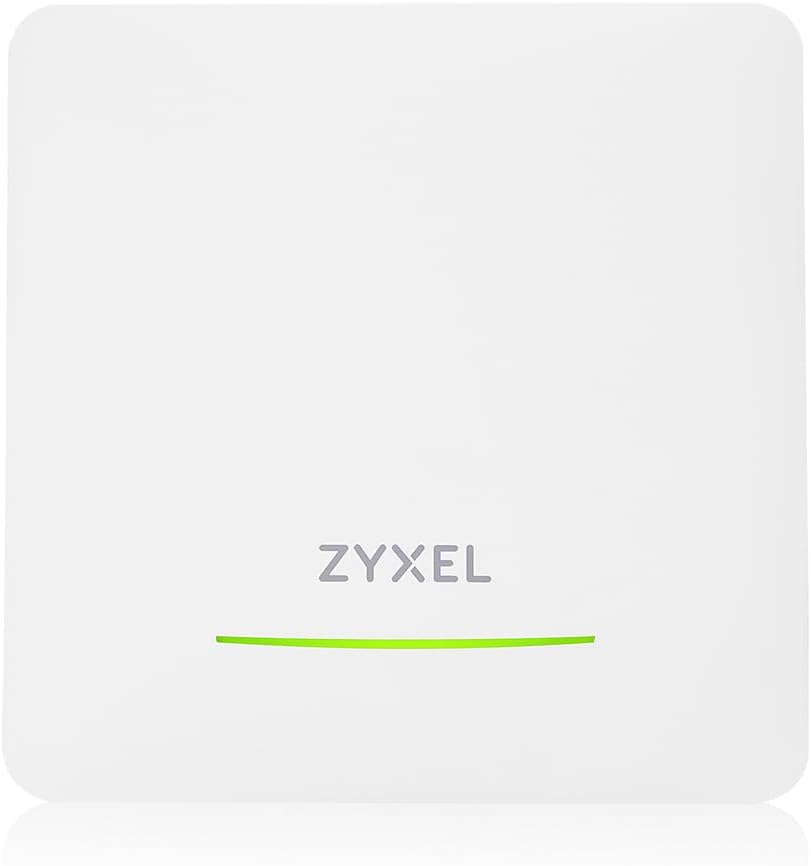
ภาพ: ด้านหน้า view of the Zyxel WiFi 7 BE5100 NebulaFlex Access Point, showing the Zyxel logo and an LED indicator.
2. เนื้อหาบรรจุภัณฑ์
ตรวจสอบว่าแพ็คเกจของคุณมีรายการต่อไปนี้:
- Zyxel WiFi 7 BE5100 NebulaFlex Access Point (NWA50BE)
- อะแดปเตอร์ไฟ (DC 12V)
- แผ่นยึด
- สกรูยึดและปลั๊กผนัง
- คู่มือเริ่มต้นอย่างรวดเร็ว (ไม่รวมอยู่ในคู่มือดิจิทัลฉบับนี้)
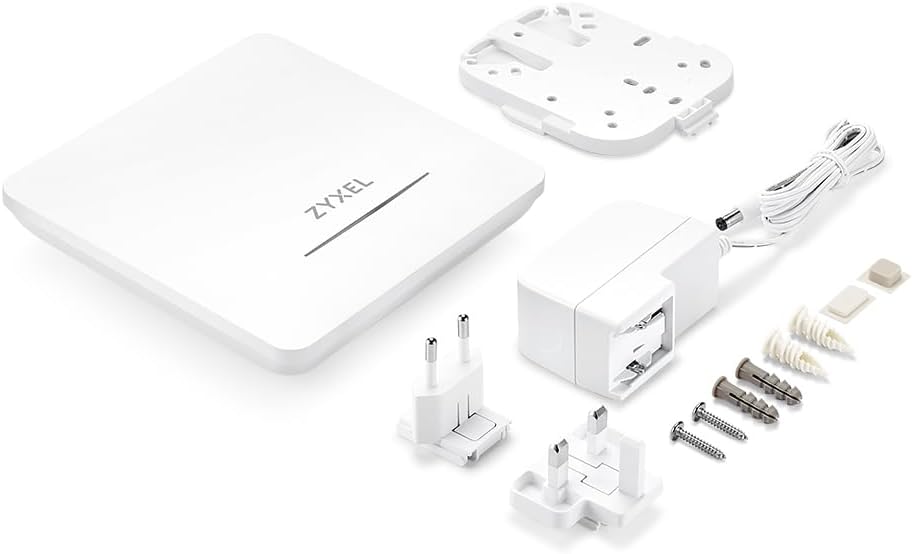
Image: The Zyxel NWA50BE Access Point, power adapter with various international plugs, mounting plate, screws, and wall plugs.
3. ทางกายภาพมากกว่าview
3.1 แผงด้านหน้า
The front panel features an LED indicator that displays the device's status.
- สีเขียว (ทึบ): อุปกรณ์เปิดอยู่และทำงานได้ปกติ
- สีเขียว (กะพริบ): อุปกรณ์กำลังบูตเครื่องหรือทำการอัปเกรดเฟิร์มแวร์
- ปิด: อุปกรณ์ปิดอยู่หรือกำลังมีปัญหา
3.2 แผงด้านหลัง
The rear panel provides connectivity ports and a reset button.

ภาพ: ด้านหลัง view of the Zyxel NWA50BE Access Point, highlighting the Console port, Uplink (2.5GbE) port, DC 12V power input, and Reset button.
- พอร์ตคอนโซล: For local management via serial connection.
- UPLINK (2.5GbE) Port: Connects to your network switch or router. Supports Power over Ethernet (PoE+).
- กระแสตรง 12V: ช่องเสียบไฟสำหรับอะแดปเตอร์แปลงไฟที่ให้มาด้วย
- ปุ่มรีเซ็ต: กดค้างไว้ 5 วินาที เพื่อคืนการตั้งค่าเริ่มต้นจากโรงงาน
4. การตั้งค่า
4.1 การจ่ายไฟให้กับจุดเชื่อมต่อ (Access Point)
The NWA50BE can be powered using either the included power adapter or Power over Ethernet (PoE+).
- การใช้ตัวแปลงไฟ: Connect the included DC 12V power adapter to the "DC 12V" port on the rear panel and plug it into a power outlet.
- Using PoE+: Connect an Ethernet cable from a PoE+ capable switch or PoE injector (sold separately) to the "UPLINK (2.5GbE)" port.

Image: Illustration demonstrating the two powering options: via PoE (PoE+) or using the included power adapter. A note indicates that a PoE injector is sold separately.
4.2 การติดตั้งจุดเชื่อมต่อ
The access point can be mounted on a wall or ceiling using the provided mounting plate and hardware.
- Attach the mounting plate to the desired location using the screws and wall plugs.
- Align the access point with the mounting plate and slide it into place until it clicks securely.
4.3 การเชื่อมต่อเริ่มต้น
After powering on, connect the UPLINK port to your network. The device will automatically obtain an IP address via DHCP. For initial configuration, you can use the Zyxel Nebula app or access the device's web อินเทอร์เฟซ
5. คู่มือการใช้งาน
5.1 Nebula Cloud Management
The Zyxel NWA50BE is designed for seamless management through the Zyxel Nebula cloud platform. This allows for centralized control and monitoring of your network devices from anywhere.
- Download the Zyxel Nebula app from your mobile app store or visit the Nebula webเว็บไซต์.
- Create a Nebula account or log in to an existing one.
- Add your NWA50BE access point to your Nebula organization by scanning its QR code or entering its MAC address.
- Configure your wireless networks (SSIDs), security settings, and other parameters through the Nebula dashboard.

Image: Screenshots of the Zyxel Nebula dashboard displayed on a tablet, laptop, and smartphone, illustrating easy setup and management without requiring IT expertise.
5.2 โหมดสแตนด์อโลน
Alternatively, the NWA50BE can operate in standalone mode without Nebula cloud management. Access the device's web interface by connecting a computer directly to the access point or to the same network segment. Refer to the Quick Start Guide for default IP address information or use a network scanner to discover the assigned IP.
5.3 Smart Mesh MLO
The NWA50BE supports Smart Mesh MLO (Multi-Link Operation) for extended wireless coverage and improved performance. This technology allows the access point to establish wireless backhaul connections with other compatible Zyxel access points, creating a seamless mesh network.

Image: A diagram showing two Zyxel access points creating a Smart Mesh MLO network, boosting bandwidth and reducing interference for high-performance WiFi coverage across multiple rooms.
5.4 ไวแลน Tagจิง
The device supports VLAN tagging for network segmentation and enhanced security. This allows you to create multiple virtual networks on a single physical network, isolating traffic for different user groups or applications. Configuration of VLANs is performed through the Nebula cloud interface or the standalone web อินเทอร์เฟซ
6. การบำรุงรักษา
การอัปเดตเฟิร์มแวร์ 6.1 รายการ
Regular firmware updates are crucial for security, performance, and new features. When managed via Nebula, firmware updates are typically handled automatically or can be scheduled from the cloud dashboard. For standalone mode, download the latest firmware from the Zyxel support website and apply it through the device's web อินเทอร์เฟซ
6.2 การทำความสะอาด
Keep the access point clean and free from dust to ensure optimal performance and airflow. Use a soft, dry cloth for cleaning. Do not use liquid or aerosol cleaners.
7 การแก้ไขปัญหา
หัวข้อนี้จะกล่าวถึงปัญหาทั่วไปที่คุณอาจพบเจอ
- ไม่มีพลังงาน/ไฟ LED ดับ:
- ตรวจสอบให้แน่ใจว่าอะแดปเตอร์ไฟฟ้าเชื่อมต่อกับอุปกรณ์และเต้ารับไฟฟ้าที่ใช้งานได้แน่นหนา
- If using PoE, verify that the Ethernet cable is connected to a PoE+ capable port on your switch or injector.
- ไม่มีการเชื่อมต่ออินเทอร์เน็ต:
- Check the Ethernet cable connection from the UPLINK port to your router/switch.
- Verify that your upstream network devices (router, modem) are functioning correctly and have internet access.
- Ensure the access point has obtained a valid IP address.
- ไม่สามารถเข้าถึง Web Interface/Nebula:
- Confirm your computer is on the same network segment as the access point.
- If in standalone mode, try resetting the device to factory defaults and reconfiguring.
- For Nebula management, ensure the device is online and registered to your Nebula account.
- Poor WiFi Performance:
- Check for physical obstructions or sources of interference (e.g., microwaves, cordless phones).
- Ensure the access point is centrally located and mounted appropriately.
- Consider using Smart Mesh MLO to extend coverage if needed.
- Verify that your client devices support WiFi 7 for optimal performance.
If issues persist, consult the Zyxel support webเว็บไซต์หรือติดต่อฝ่ายสนับสนุนด้านเทคนิค
8. ข้อมูลจำเพาะ
| คุณสมบัติ | คำอธิบาย |
|---|---|
| ชื่อรุ่น | NWA50BE |
| ไร้มาตรฐาน | 802.11be (ไวไฟ 7) |
| ระดับย่านความถี่ | ดูอัลแบนด์ (2.4 GHz, 5 GHz) |
| ความเร็ว WiFi สูงสุด | สูงสุด 5.1 Gbps (BE5100) |
| พอร์ตอีเทอร์เน็ต | 1x 2.5GbE (UPLINK), supports PoE+ |
| โปรโตคอลความปลอดภัย | WPA3 |
| การจัดการ | Nebula Cloud or Standalone Web อินเทอร์เฟซ |
| คุณสมบัติพิเศษ | Smart Mesh MLO, VLAN Tagจิง |
| กำลังไฟเข้า | DC 12V or PoE+ (802.3at) |
| ขนาด (กว้าง x ยาว x สูง) | 9.45 x 6.69 x 2.44 นิ้ว |
| น้ำหนัก | 1.76 ปอนด์ |
| ระบบปฏิบัติการ | ไซโนส |
9. ข้อมูลด้านความปลอดภัย
- อย่าให้เครื่องโดนน้ำหรือความชื้น
- อย่าเปิดหรือพยายามซ่อมแซมอุปกรณ์ แนะนำให้ช่างผู้ชำนาญเข้ารับบริการทั้งหมด
- Use only the provided power adapter or a compatible PoE+ source.
- Install the device in a well-ventilated area, away from direct sunlight and heat sources.
- Ensure proper grounding if required by local electrical codes.
10. การรับประกันและการสนับสนุน
สำหรับข้อมูลการรับประกัน โปรดดูบัตรรับประกันที่แนบมากับผลิตภัณฑ์ของคุณ หรือเยี่ยมชมเว็บไซต์อย่างเป็นทางการของ Zyxel website. Technical support and additional resources, including FAQs and firmware downloads, are available on the Zyxel support portal.
ฝ่ายสนับสนุนไซเซล Webเว็บไซต์: www.zyxel.com/support


