1. บทนำ
This manual provides detailed instructions for the setup, operation, and maintenance of your NETUM RD-1202W Industrial Bluetooth Barcode Scanner. The RD-1202W is a robust and versatile 2D/1D barcode reader designed for various industrial and commercial applications, offering multiple connectivity options and enhanced durability.
คุณสมบัติที่สำคัญ ได้แก่:
- Industrial Durability: IP67 rated for dust, splash, and water resistance, with drop protection up to 12 ft (3.65 m).
- การเชื่อมต่อแบบยืดหยุ่น: Supports 2.4G wireless and Bluetooth (HID/SPP/BLE) for connection to various devices.
- โหมดการสแกนหลายแบบ: Manual trigger, continuous, auto-sensing, and storage modes.
- ประสิทธิภาพการสแกนที่เหนือชั้น: Advanced 1.3M CMOS sensor for fast and accurate reading of 1D and 2D barcodes.
- อายุการใช้งานแบตเตอรี่ยาวนาน: 2600mAh battery provides extended operation and charging via the included cradle.
2. สินค้าหมดview
The NETUM RD-1202W barcode scanner is designed for ergonomic handling and robust performance. Below is an illustration of the scanner and its charging dock.
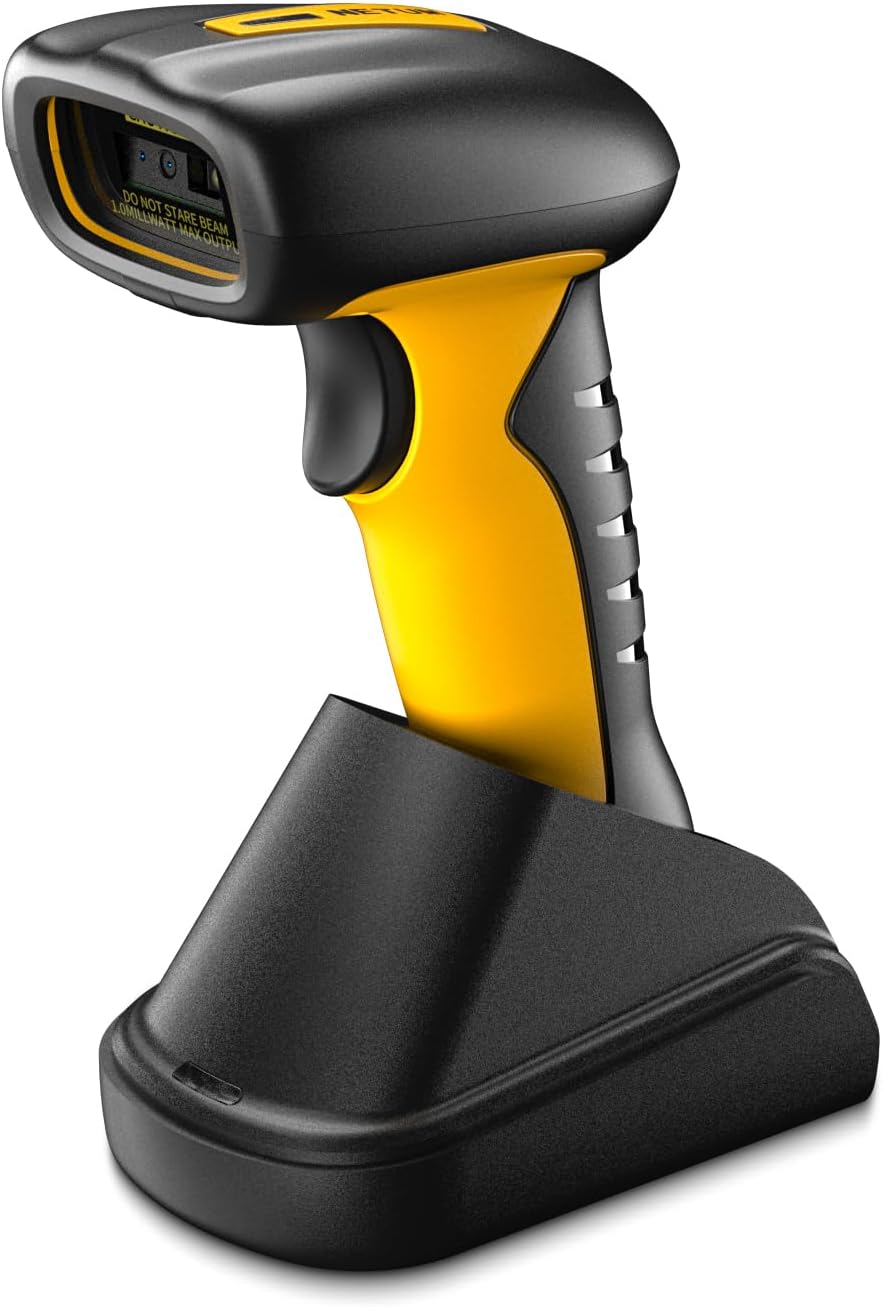
รูปที่ 2.1: NETUM RD-1202W Barcode Scanner and Charging Dock. The image displays the yellow and black scanner resting in its black charging cradle, highlighting its ergonomic design and the scanner's lens.
2.1 เนื้อหาบรรจุภัณฑ์
ตรวจสอบว่ามีรายการทั้งหมดอยู่ในแพ็คเกจ:
- NETUM RD-1202W Barcode Scanner
- Charging Dock with 2.4G Receiver
- สาย USB
- คู่มือการใช้งาน (เอกสารนี้)
3. การตั้งค่าและการเชื่อมต่อ
The RD-1202W offers both 2.4G wireless and Bluetooth connectivity options.
3.1 การชาร์จเครื่องสแกน
- Connect the USB cable to the charging dock and then to a power source (e.g., computer USB port or USB power adapter).
- วางเครื่องสแกนลงบนแท่นชาร์จ ตรวจสอบให้แน่ใจว่าวางในตำแหน่งที่ถูกต้องก่อนทำการชาร์จ
- The scanner's indicator light will show charging status. A full charge typically takes approximately 4 hours.
The 2600mAh battery provides up to 20 hours of continuous operation or 30 working days if scanning 2000 barcodes per day.
3.2 การเชื่อมต่อไร้สาย 2.4G
This method uses the 2.4G receiver built into the charging dock for a plug-and-play experience.
- Connect the charging dock to your computer's USB port using the provided USB cable. The computer should automatically recognize the receiver.
- เปิดใช้งานเครื่องสแกนบาร์โค้ด
- The scanner will automatically pair with the receiver. A successful connection is usually indicated by an audible beep and/or a change in the scanner's indicator light.
The communication distance for 2.4G wireless is 30-100m (line of sight).
3.3 การเชื่อมต่อบลูทูธ
The scanner supports HID, SPP, and BLE modes for connecting to laptops, PCs, smartphones, tablets, iPhones, iPads, and POS systems.
- เปิดใช้งานบลูทูธบนอุปกรณ์ของคุณ: Ensure Bluetooth is active on your host device (e.g., computer, tablet, smartphone).
- Set Scanner to Bluetooth Mode: Scan the specific "Bluetooth Pairing" barcode from the included quick start guide or the full manual (if provided separately) to put the scanner into Bluetooth pairing mode. The scanner's indicator light will typically flash to indicate it's discoverable.
- จับคู่กับอุปกรณ์: On your host device, search for available Bluetooth devices. Select "NETUM RD-1202W" (or similar name) from the list.
- ยืนยันการเชื่อมต่อ: Once paired, the scanner will emit a confirmation beep, and its indicator light will change to a steady state.
Refer to the specific setting barcodes in the manual for switching between HID, SPP, and BLE modes if required by your application.
4. การใช้งานเครื่องสแกนเนอร์
The RD-1202W offers various scanning modes to suit different operational needs.
4.1 โหมดการสแกน
- โหมดการทำงานแบบแมนนวล: Press the trigger button to scan each barcode individually. This is the default mode.
- โหมดการสแกนต่อเนื่อง: The scanner continuously emits a scan beam, reading barcodes as they pass within its field of view โดยไม่ต้องกดไกปืน
- โหมดการสแกนตรวจจับอัตโนมัติ: The scanner activates its beam only when a barcode is detected in its proximity, providing hands-free operation while conserving battery.
- โหมดการจัดเก็บ: When out of range of Bluetooth or 2.4G wireless connectivity, the scanner can store up to 100,000 barcodes in its internal memory (2MB flash memory). To upload stored data, re-establish connection and scan the "Upload Data" barcode (refer to the full manual for specific setting barcodes).
To switch between these modes, scan the corresponding setting barcodes found in the detailed user manual provided with the product.
4.2 Barcode Scanning Procedure
- ตรวจสอบให้แน่ใจว่าเครื่องสแกนเปิดอยู่และเชื่อมต่อกับอุปกรณ์โฮสต์ของคุณแล้ว
- หันเลนส์ของเครื่องสแกนไปที่บาร์โค้ดที่คุณต้องการสแกน
- For manual trigger mode, press the trigger button. For continuous or auto-sensing modes, position the barcode within the scan area.
- A successful scan is indicated by an audible beep and/or a green light flash. The scanned data will be transmitted to your connected device.
The scanner is equipped with an advanced 1280H × 1024V pixels (1.3M) CMOS sensor, allowing it to read various small barcodes smoothly (1D: ≥3 mil; 2D: ≥5 mil (HD); 2D: ≥7 mil (SR)).
5. การบำรุงรักษา
การบำรุงรักษาอย่างถูกต้องจะช่วยให้เครื่องสแกนบาร์โค้ดของคุณมีอายุการใช้งานยาวนานและมีประสิทธิภาพเหมาะสมที่สุด
- การทำความสะอาดสแกนเนอร์: ใช้ผ้านุ่มไม่เป็นขุยเช็ดเล็กน้อยampened with water or a mild cleaning solution to wipe the exterior of the scanner and the scanning window. Avoid abrasive cleaners or solvents.
- การดูแลแบตเตอรี่ To maximize battery life, avoid fully discharging the battery frequently. Store the scanner in a cool, dry place when not in use for extended periods.
- การปกป้องสิ่งแวดล้อม: While the scanner is IP67 rated for dust and water resistance, prolonged exposure to extreme conditions should be avoided. Do not submerge the scanner in water.
- พื้นที่จัดเก็บ: Store the scanner and its accessories in a safe place, away from direct sunlight, extreme temperatures, and corrosive materials.
6 การแก้ไขปัญหา
If you encounter issues with your NETUM RD-1202W scanner, refer to the following common problems and solutions:
| ปัญหา | สาเหตุที่เป็นไปได้ | สารละลาย |
|---|---|---|
| เครื่องสแกนเนอร์ไม่สามารถเปิดเครื่องได้ | แบตเตอรี่เหลือน้อยหรือมีปัญหาเรื่องไฟเลี้ยง | Charge the scanner using the charging dock and USB cable. Ensure the cable and power source are functional. |
| เครื่องสแกนไม่สามารถเชื่อมต่อกับอุปกรณ์ได้ | โหมดการเชื่อมต่อไม่ถูกต้อง ระยะการเชื่อมต่อไม่เพียงพอ หรือมีปัญหาในการจับคู่ |
|
| Scanner reads barcodes inaccurately or not at all. | Damaged barcode, dirty scanning window, or incorrect symbology settings. |
|
| Scanned data does not appear on the screen. | Application not in focus or input field not active. | Ensure the cursor is in the desired input field of your application (e.g., text editor, POS software). |
If the problem persists, please contact NETUM customer support for further assistance.
7. ข้อมูลจำเพาะ
| คุณสมบัติ | รายละเอียด |
|---|---|
| หมายเลขรุ่น | RD-1202W |
| การเชื่อมต่อ | 2.4G Wireless, Bluetooth (HID/SPP/BLE) |
| เซ็นเซอร์ | 1280H × 1024V pixels (1.3M) CMOS |
| ความเร็วในการสแกน | High-speed global exposure, Max frame rate 120FPS |
| Barcode Resolution | 1D: ≥3 mil; 2D: ≥5 mil (HD); 2D: ≥7 mil (SR) |
| แบตเตอรี่ | 2600mAh ลิเธียมโพลิเมอร์ |
| อายุการใช้งานแบตเตอรี่ที่คาดหวัง | 20 hours continuous operation (approx. 30 days with 2000 scans/day) |
| เวลาที่คาดว่าจะชาร์จ | 4 ชั่วโมง |
| หน่วยความจำแฟลช | 2MB (จัดเก็บบาร์โค้ดได้สูงสุด 100,000 รายการ) |
| ระยะห่างการสื่อสาร | 30-100 ม. (แนวสายตา) |
| ความทนทาน | IP67 (Dust-proof, Splash-proof, Waterproof), 12 ft (3.65 m) drop protection |
| ขนาด (แพ็คเกจ) | 8.66 x 5.91 x 3.15 นิ้ว |
| น้ำหนักสินค้า | 14.1 ออนซ์ |
| ผู้ผลิต | เน็ตทัม |
8. การรับประกันและการสนับสนุน
NETUM provides a รับประกัน 1 ปี from the date of purchase for the RD-1202W barcode scanner. This warranty covers manufacturing defects and ensures product reliability.
For technical support, warranty claims, or any inquiries regarding your NETUM product, please contact NETUM customer service. Contact information can typically be found on the NETUM official webเว็บไซต์หรือผ่านแพลตฟอร์มการซื้อของคุณ
โปรดเก็บหลักฐานการซื้อไว้เพื่อใช้ยืนยันการรับประกัน


