1. บทนำ
This manual provides essential information for setting up, operating, maintaining, and troubleshooting your HP G9 Laptop Computer. The HP G9 is designed for reliable performance, featuring an Intel Celeron Quad Core N4120 processor, 8GB RAM, 256GB PCIe SSD, and Windows 11 Pro operating system. Please read this manual thoroughly to ensure optimal use of your device.
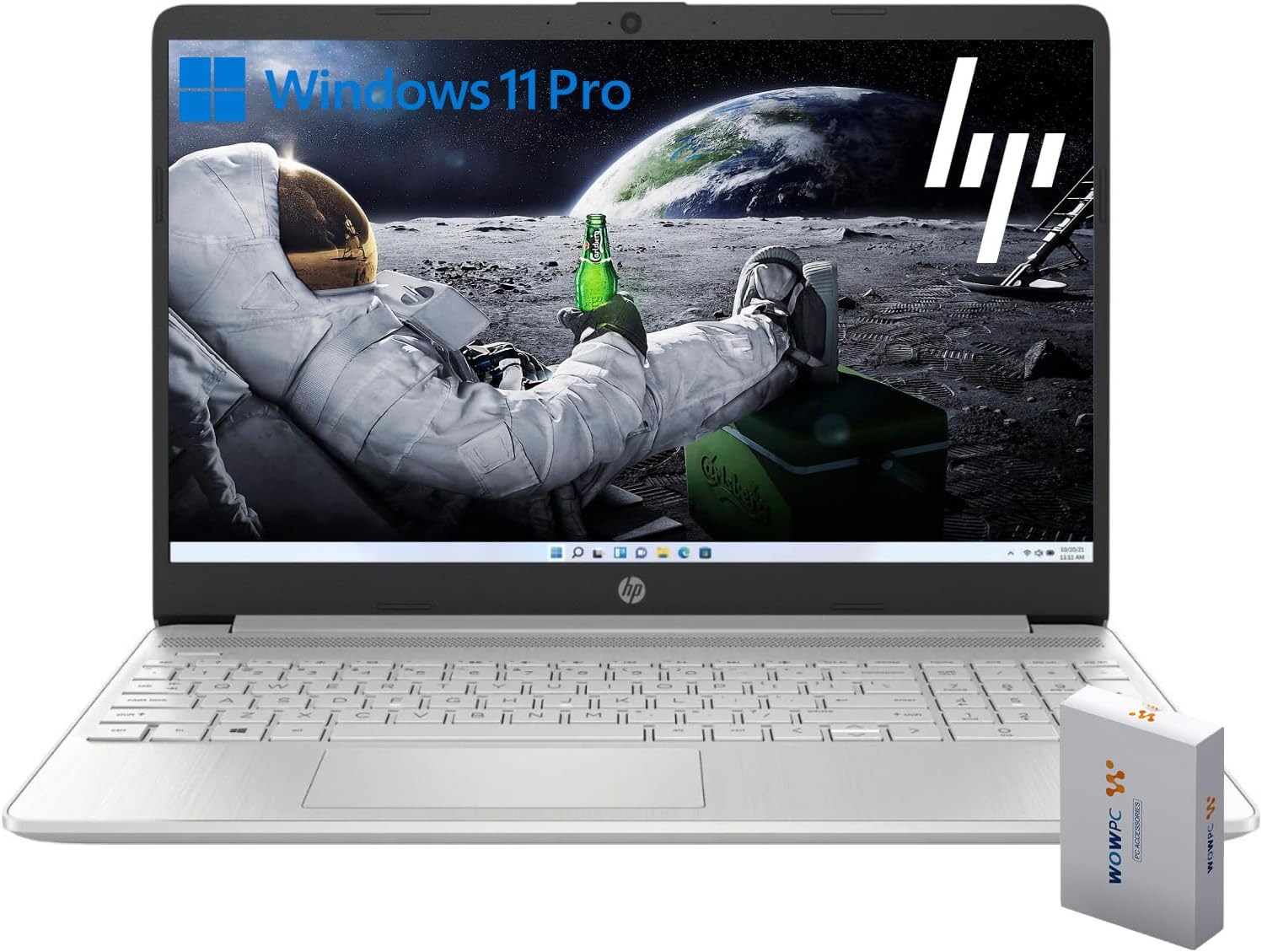
Image 1.1: HP G9 Laptop Computer. This image shows the laptop with its screen displaying the Windows 11 Pro desktop, featuring an astronaut on the moon background. A WOWPC Recovery USB is visible next to the laptop.
2. เนื้อหาบรรจุภัณฑ์
ตรวจสอบว่ามีสินค้าทั้งหมดอยู่ในบรรจุภัณฑ์ผลิตภัณฑ์:
- HP G9 Laptop Computer
- อะแดปเตอร์แปลงไฟและสายเคเบิล
- WOWPC Recovery USB
- คู่มือเริ่มต้นใช้งานฉบับย่อ (ถ้ามี)
3. สินค้าหมดview
3.1 คุณสมบัติหลัก
- โปรเซสเซอร์: Intel Celeron Quad Core N4120 (4 Cores, 4 Threads, up to 2.6 GHz Turbo Speed)
- ระบบปฏิบัติการ: Windows 11 Pro 64 บิต
- หน่วยความจำ (RAM): แรม 8GB DDR4
- พื้นที่จัดเก็บ: 256GB PCIe-NVMe SSD
- กราฟิก: แบบบูรณา Intel Graphics
- แสดง: 15.6-inch HD (1366 x 768) anti-glare panel
- การเชื่อมต่อไร้สาย: Wi-Fi 6, บลูทูธ 5.2
- เสียง: Dual stereo speakers, dual array microphones
- แป้นพิมพ์: Full-size with numeric keypad
- Webลูกเบี้ยว: จอภาพ HD 720p ในตัว

ภาพที่ 3.1: คุณสมบัติหลักview. This graphic highlights the Intel Quad-Core N4120 Processor, Windows 11 Pro, Storage options, RAM, WOWPC Recovery USB, USB 3.2, Wi-Fi 6, Bluetooth 5.2, RJ-45, and Ergonomic Design.
3.2 พอร์ตและตัวเชื่อมต่อ
ทำความคุ้นเคยกับพอร์ตต่างๆ บนแล็ปท็อปของคุณ:
- ด้านซ้าย: Power Connector, USB Type-A (5Gbps signaling rate)
- ด้านขวา: Multi-format SD media card reader, Headphone/microphone combo, USB-C (5Gbps signaling rate), HDMI 1.4b Output, RJ-45 (Ethernet)

Image 3.2: Laptop Port Layout. This image illustrates the location of the Power Connector, USB Type-A port on the left side, and the Multi-format SD media card reader, Headphone/Microphone Combo jack, USB-C port, and HDMI 1.4b port on the right side.
4. การตั้งค่าเริ่มต้น
4.1 การต่อสายไฟ
- เชื่อมต่ออะแดปเตอร์ไฟฟ้าเข้ากับขั้วต่อไฟฟ้าบนแล็ปท็อป
- เสียบสายไฟเข้ากับเต้ารับไฟฟ้า
- Allow the battery to charge for a few minutes before initial use.
4.2 การบูตครั้งแรกและการตั้งค่า Windows 11 Pro
- เปิดฝาแล็ปท็อปและกดปุ่มเปิด/ปิด
- Follow the on-screen instructions to complete the Windows 11 Pro initial setup, including language selection, region, keyboard layout, and network connection.
- Create a user account and set up a password or PIN.
4.3 การเชื่อมต่อกับเครือข่าย
During the initial setup, you will be prompted to connect to a Wi-Fi network. If you skip this step, you can connect later:
- คลิกที่ เครือข่าย icon (Wi-Fi or Ethernet) in the taskbar.
- Select your desired Wi-Fi network from the list and click เชื่อมต่อ.
- ป้อนรหัสความปลอดภัยเครือข่าย (รหัสผ่าน) หากได้รับแจ้ง
5. การใช้งานแล็ปท็อปของคุณ
5.1 การนำทางพื้นฐาน
- ทัชแพด: ใช้ท่าทางสัมผัสสำหรับการเลื่อน ซูม และสลับแอปพลิเคชัน โปรดดูการตั้งค่า Windows สำหรับการปรับแต่งทัชแพด
- แป้นพิมพ์: The full-size keyboard includes a numeric keypad for efficient data entry. Function keys (F1-F12) provide quick access to system controls.
5.2 คุณสมบัติของ Windows 11 Pro
Windows 11 Pro offers enhanced security, productivity tools, and performance:
- Snap Layouts and Groups: Organize your open windows efficiently for improved multitasking.
- การรักษาความปลอดภัยขั้นสูง: Features like Windows Hello, BitLocker, and Windows Security protect your data and device.
- การผสานรวมเข้ากับ Microsoft Teams: Stay connected with colleagues and friends directly from the taskbar.

Image 5.1: Windows 11 Pro Features. This image highlights the benefits of Windows 11 Pro, including advanced security features and optimized productivity tools for business and professional users.
5.3 Using the WOWPC Recovery USB
The included WOWPC Recovery USB is designed to assist with system recovery in case of software issues. Keep it in a safe place.
- To use, insert the USB into an available port.
- Restart your laptop and access the boot menu (often by pressing F9, F10, or F12 during startup, consult your laptop's specific boot key).
- Select the WOWPC Recovery USB as the boot device and follow the on-screen instructions for recovery options.
6. การบำรุงรักษาและการดูแล
6.1 การทำความสะอาดแล็ปท็อปของคุณ
- ใช้ผ้านุ่มไม่เป็นขุยเช็ดเล็กน้อยampชุบน้ำหรือน้ำยาทำความสะอาดหน้าจอเพื่อทำความสะอาดหน้าจอ
- สำหรับคีย์บอร์ดและตัวเครื่อง ให้ใช้ผ้านุ่มๆ หลีกเลี่ยงสารเคมีรุนแรง
- ตรวจสอบให้แน่ใจว่าแล็ปท็อปปิดอยู่และถอดปลั๊กออกก่อนทำความสะอาด
6.2 การอัปเดตซอฟต์แวร์
Regularly update your Windows operating system and drivers to ensure optimal performance and security:
- ไปที่ การตั้งค่า > Windows Update เพื่อตรวจสอบและติดตั้งการอัพเดต
- Allow updates to complete without interrupting the process.
6.3 การดูแลแบตเตอรี่
- หลีกเลี่ยงอุณหภูมิที่สูงหรือต่ำเกินไป
- For long-term storage, charge the battery to approximately 50% and store the laptop in a cool, dry place.
- Periodically discharge and recharge the battery to maintain its health.
7 การแก้ไขปัญหา
หัวข้อนี้จะกล่าวถึงปัญหาทั่วไปที่คุณอาจพบเจอ
7.1 แล็ปท็อปไม่สามารถเปิดเครื่องได้
- ตรวจสอบให้แน่ใจว่าอะแดปเตอร์ไฟฟ้าเชื่อมต่อกับแล็ปท็อปและเต้ารับไฟฟ้าที่ใช้งานได้แน่นหนา
- ตรวจสอบว่าเต้ารับไฟฟ้าใช้งานได้โดยเสียบอุปกรณ์อื่น
- หากแบตเตอรี่หมด ให้ชาร์จอย่างน้อย 30 นาทีก่อนลองเปิดเครื่อง
7.2 ไม่มีการเชื่อมต่อ Wi-Fi
- Check if Wi-Fi is enabled in Windows settings (การตั้งค่า > เครือข่ายและอินเทอร์เน็ต > Wi-Fi).
- รีสตาร์ทเราเตอร์และโมเด็มของคุณ
- ตรวจสอบให้แน่ใจว่าคุณอยู่ในระยะสัญญาณของเครือข่าย Wi-Fi
- ลองลบการเชื่อมต่อเครือข่ายแล้วเชื่อมต่อใหม่อีกครั้ง
7.3 ประสิทธิภาพช้า
- ปิดแอปพลิเคชันที่ไม่จำเป็นซึ่งทำงานอยู่เบื้องหลัง
- ตรวจสอบและติดตั้งการอัปเดต Windows ที่รอดำเนินการอยู่
- เรียกใช้การล้างข้อมูลบนดิสก์เพื่อเพิ่มพื้นที่เก็บข้อมูล
- Scan for malware using Windows Security.
8. ข้อมูลจำเพาะ
| คุณสมบัติ | รายละเอียด |
|---|---|
| ชื่อรุ่น | HP G9 |
| ระบบปฏิบัติการ | วินโดวส์ 11 โปร |
| โปรเซสเซอร์ | Intel Celeron Quad Core N4120 (1.1 GHz base, up to 2.6 GHz turbo) |
| แรม | แรม 8GB DDR4 |
| พื้นที่จัดเก็บ | 256GB PCIe-NVMe SSD |
| กราฟฟิก | แบบบูรณา Intel Graphics |
| แสดง | 15.6-inch HD (1366 x 768 pixels), anti-glare |
| การเชื่อมต่อแบบไร้สาย | Wi-Fi 6, บลูทูธ 5.2 |
| พอร์ต | 1x SuperSpeed USB-C 10Gbps, 2x SuperSpeed USB-A 10Gbps, 1x Headphone/microphone combo, 1x HDMI 1.4 Output, 1x RJ-45, 1x Audio-out, SD-Reader |
| Webลูกเบี้ยว | เอชดี 720p |
| ขนาด (กว้าง x ยาว x สูง) | 14.09 x 9.53 x 0.78 นิ้ว |
| น้ำหนัก | 4 ปอนด์ |
9. การรับประกันและการสนับสนุน
9.1 การรับประกันสินค้า
Your HP G9 Laptop Computer comes with a standard manufacturer's warranty. Please refer to the warranty card included in your product packaging or visit the official HP support webเว็บไซต์สำหรับข้อกำหนดและเงื่อนไขการรับประกันโดยละเอียดที่เฉพาะเจาะจงกับภูมิภาคของคุณ
9.2 การสนับสนุนด้านเทคนิค
For technical assistance, driver downloads, or further information, please visit the official HP support website. You can typically find support resources by searching for your specific model (HP G9) on their webเว็บไซต์.
The included WOWPC Recovery USB is a valuable tool for system recovery and troubleshooting software-related issues. Keep it accessible for future use.