1. บทนำ
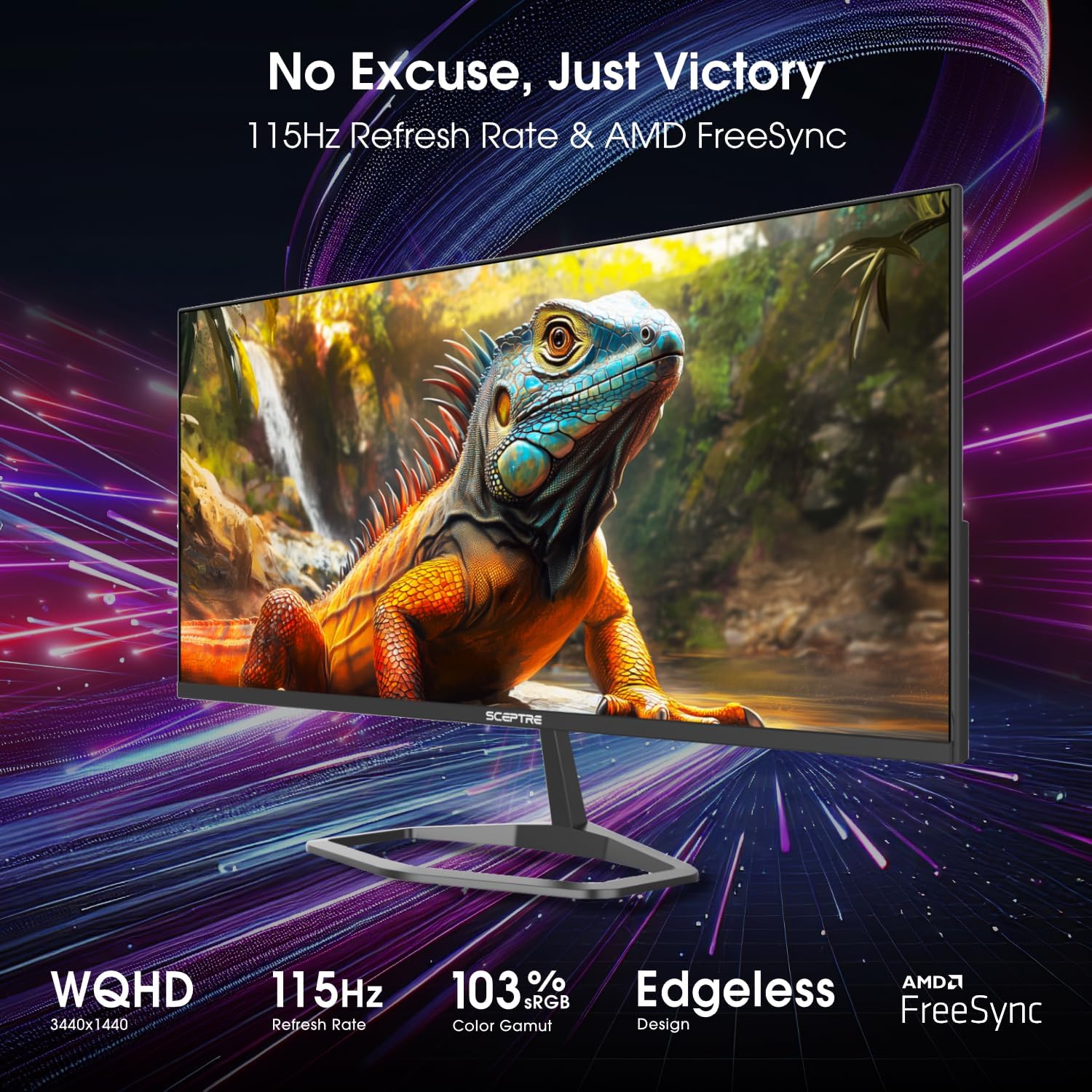
This manual provides essential information for the safe and efficient operation of your Sceptre E345W-QU120D 34-inch Ultrawide Monitor. Please read this manual thoroughly before using the product and retain it for future reference. This monitor features a 34-inch 3440x1440 display, up to 115Hz refresh rate, 103% sRGB color gamut, and multiple connectivity options including DisplayPort and HDMI, along with built-in speakers.
2. ข้อมูลด้านความปลอดภัย
Observe the following safety precautions to ensure proper operation and prevent damage to the monitor or injury to yourself.
- ห้ามวางจอภาพบนรถเข็น ขาตั้ง หรือโต๊ะที่ไม่มั่นคง
- ห้ามให้จอภาพโดนฝนหรือความชื้น เพื่อหลีกเลี่ยงอันตรายจากไฟไหม้หรือไฟฟ้าช็อต
- อย่าเปิดจอภาพcasinก. ไม่มีชิ้นส่วนใดที่ผู้ใช้สามารถซ่อมบำรุงเองได้ภายใน แนะนำให้ช่างผู้ชำนาญการซ่อมบำรุงนำชิ้นส่วนทั้งหมดไปซ่อม
- ตรวจสอบให้แน่ใจว่ามีการระบายอากาศที่เหมาะสม อย่าปิดกั้นช่องระบายอากาศใดๆ
- ใช้เฉพาะสายไฟและอะแดปเตอร์ที่ให้มาพร้อมกับจอภาพเท่านั้น
- ถอดปลั๊กไฟออกจากเต้าเสียบหากจะไม่ใช้จอภาพเป็นเวลานาน
3. เนื้อหาบรรจุภัณฑ์
ตรวจสอบว่าสินค้าทั้งหมดมีอยู่และอยู่ในสภาพดีเมื่อแกะกล่อง
- Sceptre E345W-QU120D Ultrawide Monitor
- ขาตั้งจอมอนิเตอร์ (ฐานและคอ)
- อะแดปเตอร์ไฟฟ้าและสายไฟ
- สายเคเบิล DisplayPort
- Screwdriver (for stand assembly)
- คู่มือการใช้งาน (เอกสารนี้)
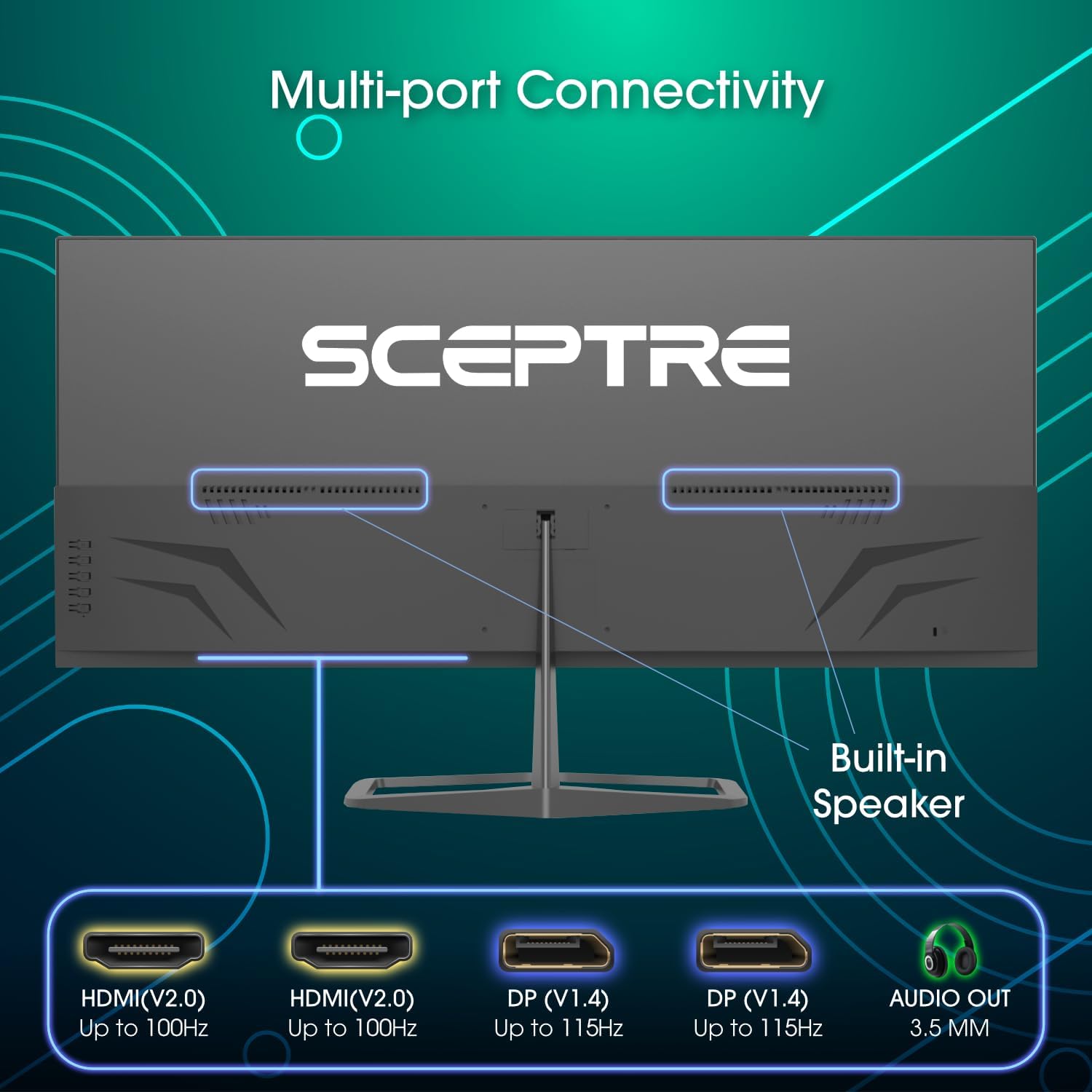
Image: Diagram illustrating the multi-port connectivity options on the Sceptre E345W-QU120D monitor, including HDMI, DisplayPort, and Audio Out. This image helps identify the various ports available on the monitor.
4. การตั้งค่า
4.1 การประกอบขาตั้ง
- วางจอภาพคว่ำหน้าลงบนพื้นผิวที่นุ่มและสะอาดอย่างระมัดระวังเพื่อป้องกันรอยขีดข่วน
- ยึดคอขาตั้งเข้ากับจอภาพโดยใช้สกรูที่ให้มา
- Connect the stand base to the neck, securing it with the remaining screws. Use the included screwdriver for assembly.
- Ensure all screws are tightened securely before placing the monitor upright.
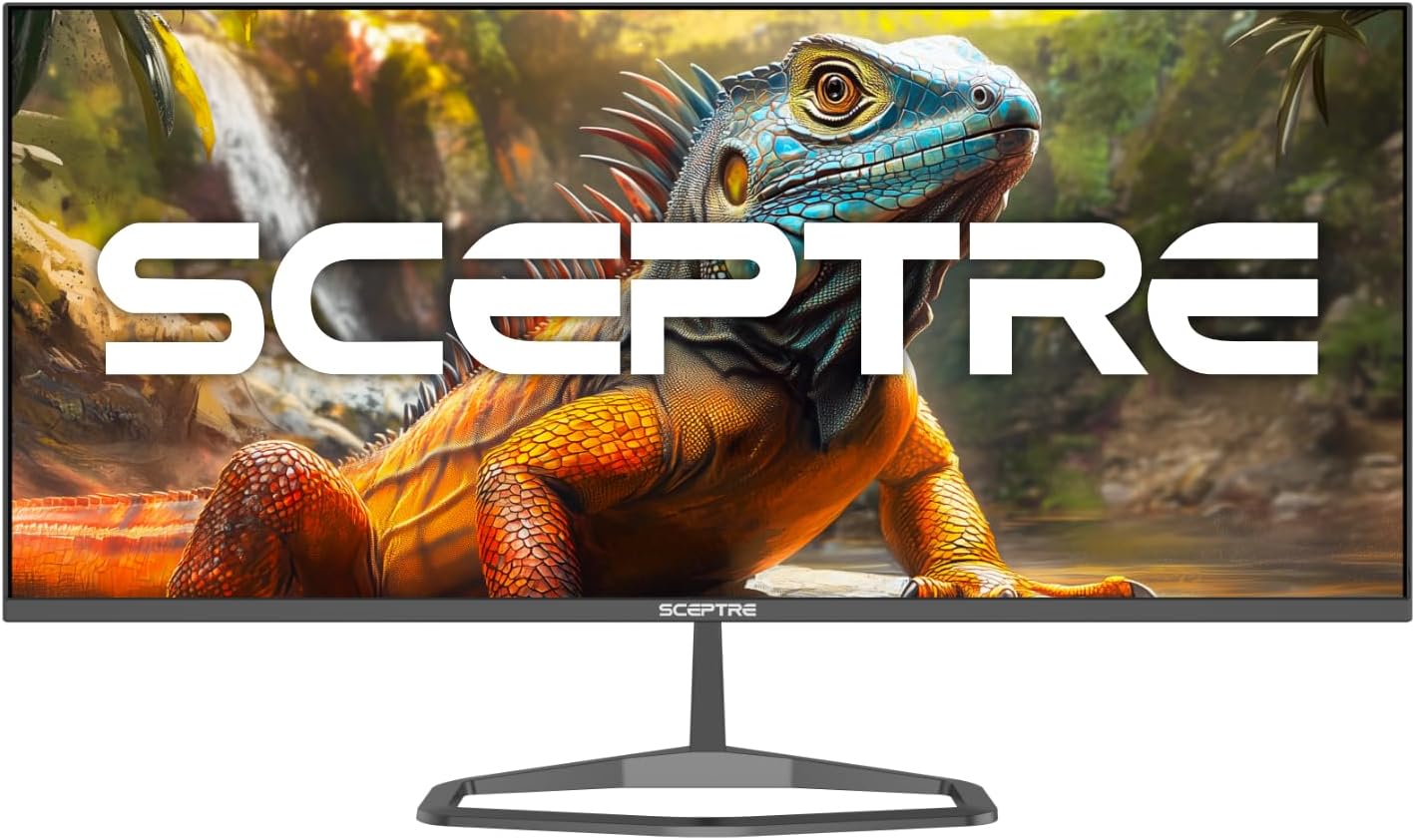
Image: The Sceptre E345W-QU120D Ultrawide Monitor displayed from the front, including its stable desktop stand. This image provides a visual reference for the assembled monitor.
4.2 การเชื่อมต่อกับคอมพิวเตอร์
- ตรวจสอบให้แน่ใจว่าทั้งจอภาพและคอมพิวเตอร์ของคุณปิดอยู่
- Connect one end of the DisplayPort cable (included) or an HDMI cable (not included) to the corresponding port on your computer's graphics card.
- Connect the other end of the cable to an available DisplayPort or HDMI input on the monitor. The monitor supports two DisplayPort (v1.4) inputs for up to 115Hz refresh rate and two HDMI (v2.0) inputs for up to 100Hz refresh rate.
- For audio output, you can use the 3.5mm Audio Out jack on the monitor to connect external speakers or headphones.
- เชื่อมต่ออะแดปเตอร์ไฟฟ้าเข้ากับช่องจ่ายไฟของจอภาพ จากนั้นเสียบสายไฟเข้ากับเต้ารับที่ผนัง
ภาพ: ด้านหลัง view of the Sceptre E345W-QU120D Ultrawide Monitor, highlighting the input ports and VESA mount area. This image assists in locating the various connection points.
5. การใช้งานจอภาพ
5.1 เปิด/ปิดเครื่อง
Press the power button, typically located on the back or bottom right side of the monitor, to turn the monitor on or off. The power indicator light will illuminate when the monitor is on.
5.2 เมนูการแสดงผลบนหน้าจอ (OSD)
เมนู OSD ช่วยให้คุณสามารถปรับการตั้งค่าต่างๆ ของจอภาพได้ ใช้ปุ่มควบคุม (โดยปกติจะอยู่ด้านหลังหรือด้านล่างของจอภาพ) เพื่อเลื่อนดูเมนู
- แหล่งสัญญาณเข้า: Select between DisplayPort 1, DisplayPort 2, HDMI 1, or HDMI 2.
- การตั้งค่ารูปภาพ: ปรับความสว่าง ความคมชัด ความคมชัด และอุณหภูมิสี
- การตั้งค่าสี: Fine-tune color balance and gamma. The monitor features 103% sRGB color gamut for accurate color reproduction.
- การตั้งค่าเสียง: Adjust volume for the built-in speakers or connected audio devices.
- การตั้งค่า OSD: ตั้งค่าภาษา OSD, ความโปร่งใส และระยะเวลาหมดเวลา
- การตั้งค่าขั้นสูง: Enable or disable features like AMD FreeSync and Blue-Light Shift.

ภาพ: ด้านหน้า view of the Sceptre E345W-QU120D 34-inch Ultrawide Monitor, showcasing its edgeless design and wide display. This image provides a general view of the monitor during operation.
5.3 คุณสมบัติหลัก
- อัตราการรีเฟรชสูง: Up to 115Hz via DisplayPort and 100Hz via HDMI for smoother visuals.
- เอเอ็มดี ฟรีซิงค์: Synchronizes the monitor's refresh rate with your graphics card's frame rate to eliminate screen tearing and stuttering. Enable this feature in the OSD menu and your graphics card settings.
- Blue-Light Shift: Reduces harmful blue light emissions to alleviate eye strain during prolonged use. This can be adjusted or enabled/disabled via the OSD menu.
- ลำโพงในตัว: Provides audio output without the need for external speakers.
6. การบำรุงรักษา
6.1 การทำความสะอาดจอภาพ
- ควรถอดปลั๊กจอภาพออกจากเต้ารับไฟฟ้าทุกครั้งก่อนทำความสะอาด
- ใช้ผ้านุ่มไม่เป็นขุยค่อยๆ งampเคลือบด้วยน้ำหรือน้ำยาทำความสะอาดหน้าจอที่ไม่กัดกร่อน
- Do not spray cleaner directly onto the screen or into any openings.
- เช็ดหน้าจอเบาๆ เพื่อขจัดฝุ่นและคราบต่างๆ
- สำหรับจอภาพ casinง. ใช้ผ้าแห้งนุ่มๆ
6.2 การดูแลทั่วไป
- หลีกเลี่ยงการวางวัตถุหนักบนจอภาพหรือสายเคเบิล
- เก็บจอภาพให้ห่างจากแสงแดดโดยตรง แหล่งความร้อน และฝุ่นละอองจำนวนมาก
- Ensure adequate space around the monitor for proper ventilation.
7 การแก้ไขปัญหา
If you encounter issues with your monitor, refer to the following troubleshooting guide.
| ปัญหา | สาเหตุที่เป็นไปได้ | สารละลาย |
|---|---|---|
| ไม่มีไฟฟ้า | ไม่ได้เชื่อมต่อสายไฟ เต้ารับไฟฟ้าไม่ทำงาน ปุ่มเปิดปิดจอภาพปิดอยู่ | Ensure power cable is securely connected to monitor and outlet. Test outlet with another device. Press monitor power button. |
| ไม่มีสัญญาณ | ไม่ได้เชื่อมต่อสายวิดีโอ; เลือกแหล่งสัญญาณเข้าไม่ถูกต้อง; คอมพิวเตอร์ไม่ส่งสัญญาณออก | Check video cable connections (DisplayPort/HDMI) to both monitor and computer. Select correct input source via OSD menu. Restart computer. |
| ภาพกระพริบหรือบิดเบี้ยว | Loose video cable; Incorrect resolution/refresh rate; Graphics card driver issues. | Secure video cable. Adjust resolution and refresh rate in computer display settings. Update graphics card drivers. |
| No audio from built-in speakers | ระดับเสียงเบาเกินไป; ปิดเสียง; เลือกเอาต์พุตเสียงไม่ถูกต้องบนคอมพิวเตอร์ | เพิ่มระดับเสียงของจอภาพผ่านเมนู OSD ตรวจสอบการตั้งค่าเสียงของคอมพิวเตอร์เพื่อให้แน่ใจว่าได้เลือกจอภาพเป็นอุปกรณ์เอาต์พุตแล้ว |
| HDMI ports feel hot | Potential overheating; Cable issue. | Ensure proper ventilation around ports. Try a different HDMI cable. If problem persists, contact support. |
8. ข้อมูลจำเพาะ
| คุณสมบัติ | รายละเอียด |
|---|---|
| หมายเลขรุ่น | E345W-QU120D |
| ขนาดหน้าจอ | 34 นิ้ว |
| ปณิธาน | 3440x1440 (WQHD) |
| Max Refresh Rate (DisplayPort) | 115เฮิรตซ์ |
| Max Refresh Rate (HDMI) | 100เฮิรตซ์ |
| อัตราส่วนภาพ | 21:9 น. |
| ช่วงสี | 103% sRGB |
| การเชื่อมต่อ | 2x HDMI (v2.0), 2x DisplayPort (v1.4), 1x Audio Out (3.5mm) |
| ลำโพงในตัว | ใช่ |
| ใช้งานร่วมกับ VESA Mount ได้ | ใช่ |
| น้ำหนักสินค้า | 9.7 ปอนด์ (ประมาณ 4.4 กก.) |
| ขนาดสินค้า (กxยxส) | 32 x 9 x 21 นิ้ว (ประมาณ 81.3 x 22.9 x 53.3 ซม.) |
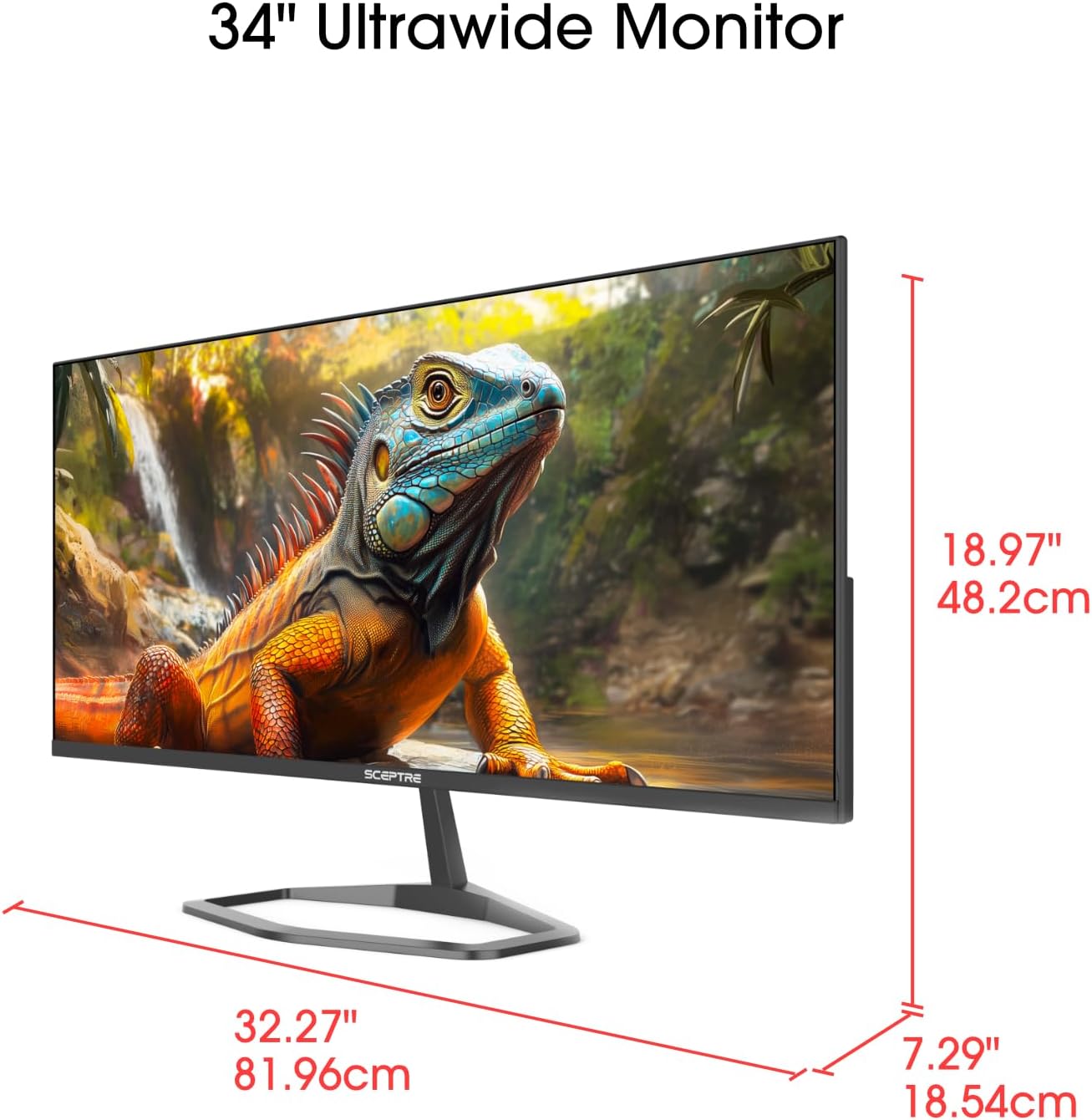
Image: This image displays the physical dimensions (height, width, and depth) of the Sceptre E345W-QU120D 34-inch Ultrawide Monitor, providing precise measurements for placement and setup.
9. ข้อมูลการรับประกัน
Sceptre products are covered by a limited warranty. For detailed warranty terms, conditions, and registration information, please refer to the official Sceptre webหรือบัตรรับประกันที่ให้มาพร้อมกับผลิตภัณฑ์ของคุณ โปรดเก็บหลักฐานการซื้อไว้เพื่อใช้ในการเรียกร้องการรับประกัน
10. การสนับสนุนลูกค้า
If you require further assistance or have questions not covered in this manual, please contact Sceptre customer support.
- การสนับสนุนทางออนไลน์: Visit the official Sceptre webไซต์สำหรับคำถามที่พบบ่อย ดาวน์โหลดไดรเวอร์ และทรัพยากรสนับสนุน
- ข้อมูลติดต่อ: Refer to the Sceptre website or your product packaging for the most current contact details (phone, email).
- Sceptre Store: คุณยังสามารถเยี่ยมชม Sceptre Store on Amazon สำหรับข้อมูลผลิตภัณฑ์และอุปกรณ์เสริม


