1. บทนำ
The Carpuride W125S is an advanced 11.26-inch HD touchscreen display designed to enhance your driving experience. It features wireless Apple CarPlay and Android Auto connectivity, allowing seamless integration with your smartphone for navigation, communication, and entertainment. This unit also includes a comprehensive 3-channel dash camera system, providing 4K front recording, 1080P rear recording, and a 1080P infrared cabin camera for all-around vehicle surveillance and safety.

ภาพ: เหนือview of the Carpuride W125S display unit, showcasing its 11.26-inch screen, integrated cameras, and key functionalities like CarPlay, Android Auto, 3-channel dash cam, and voice control.
2. เนื้อหาบรรจุภัณฑ์
โปรดตรวจสอบว่ารายการทั้งหมดที่ระบุไว้ด้านล่างมีอยู่ในแพ็คเกจของคุณหรือไม่:
- 1 x Carpuride W125S Main Unit (Autoradio)
- 1 x ด้านหลังกล้อง
- การ์ด TF 1x64GB
- 2 x Adjustable Mounts (for dashboard or windshield)
- 1 x Car Charger (Type-C 12V 1A)
- 1 x 3.5mm Audio Cable (AUX)
- 1 x Reversing Camera Cable
- 1 x คู่มือผู้ใช้

ภาพ: รายละเอียด view of all components included in the Carpuride W125S package, such as the main unit, various cables, mounting options, and the user manual.
3. การตั้งค่าและการติดตั้ง
The Carpuride W125S is designed for easy, plug-and-play installation without requiring disassembly of your car's console.
3.1 การติดตั้งจอแสดงผล
The unit comes with two adjustable mounts for flexible placement on your dashboard or windshield. These mounts offer 360° rotation and pivot functionality to achieve your preferred viewมุมอิง
- Attach the display unit securely to one of the provided adjustable mounts.
- Fix the mount to your desired location on the dashboard or windshield. Ensure the surface is clean and dry for optimal adhesion.
- Adjust the angle of the display for optimal visibility without obstructing your view ของถนน

Image: Visual guide demonstrating the rotation capabilities and installation methods for the Carpuride W125S display unit using the adjustable mounts.
3.2 การเชื่อมต่อสายไฟ
Connect the Carpuride W125S using the original Carpuride car charger via the Type-C 12V 1A cigarette lighter connector. Using a non-original charger or one with insufficient current (less than 12V 1A) may cause damage or improper operation.
The system is compatible with a 12V to 24V voltage range, suitable for most cars, RVs, SUVs, pickups, and trucks.
3.3 การติดตั้งกล้องมองหลัง (ไม่บังคับ)
Install the rear camera at the back of your vehicle. Connect it to the designated port on the main unit using the provided cable. For Volkswagen owners, an additional relay may be required for the reversing camera to function correctly.
4. คู่มือการใช้งาน
4.1 CarPlay ไร้สายและ Android Auto
The W125S supports wireless Apple CarPlay and Android Auto, allowing you to access your smartphone's features safely while driving.
- สำหรับ Apple CarPlay:
- On your iPhone, activate Wi-Fi and Bluetooth.
- On the Carpuride screen, select the CarPlay icon.
- ค้นหา "Carpuride_BT-xxxx" in your iPhone's Bluetooth settings and connect.
- ยืนยันการจับคู่บนอุปกรณ์ทั้งสองเครื่อง
- สำหรับ Android Auto:
- On your Android phone, activate Wi-Fi and Bluetooth.
- On the Carpuride screen, select the Android Auto icon.
- ค้นหา "Carpuride_BT-xxxx" in your phone's Bluetooth settings and connect.
- ยืนยันการจับคู่บนอุปกรณ์ทั้งสองเครื่อง

Image: Step-by-step guide for connecting an iPhone to Apple CarPlay wirelessly on the Carpuride W125S display.

Image: Step-by-step guide for connecting an Android phone to Android Auto wirelessly on the Carpuride W125S display.
4.2 การควบคุมด้วยเสียง
Utilize Siri or Google Assistant for hands-free control of navigation, calls, messages, music, and more. This feature helps you stay focused on the road.

Image: Illustration of voice control functionality, showing how to use Siri or Google Assistant for tasks like making calls or getting directions.
4.3 3-Channel Dash Cam Operation
The integrated dash cam system records simultaneously from three perspectives: 4K front, 1080P rear, and 1080P infrared cabin.
- การบันทึกแบบวนซ้ำ: The system supports continuous loop recording, automatically overwriting older files when the TF card is full. A 64GB TF card is included, and the system supports up to 256GB.
- จีเซ็นเซอร์: The built-in accelerometer detects impacts and automatically locks critical video fileเพื่อป้องกันไม่ให้ถูกเขียนทับ
- Infrared Cabin Camera: Provides clear night vision inside the car, automatically switching to black and white mode in low light. It is ideal for monitoring the vehicle interior.
- กล้องมองหลัง: Activate the reversing camera with a single press. The display will show auxiliary lines to assist with parking.

ภาพ: เหนือview of the 3-channel dash cam system, detailing the 4K front, 1080P rear, and 1080P infrared cabin cameras.
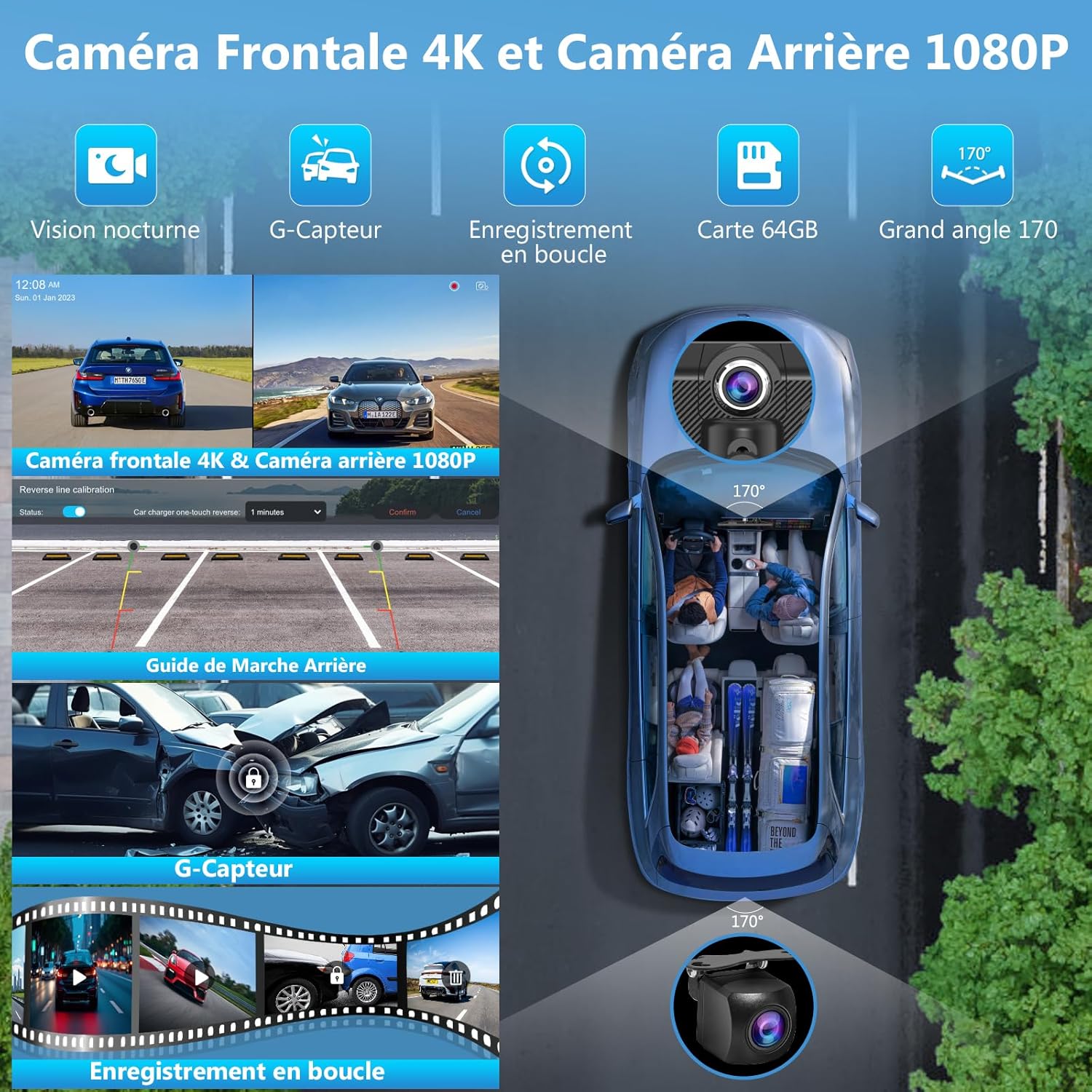
Image: Illustration of the loop recording function and G-sensor, showing how the system continuously records and protects critical video files in case of impact.
4.4 Screen Mirroring (SuperLink)
The SuperLink technology allows you to mirror your smartphone screen onto the W125S display, enabling you to watch online videos or view content directly from your phone.
- สำหรับอุปกรณ์ iOS:
- Scan the QR code on the screen or visit https://camtree.cc/dl?zone=en&id=evelink&type=ios to download the EveLink app.
- Select "Wi-Fi Direct" connection mode and search for "EVELINK-xxxx".
- Once connected, select "Screen Mirroring" from your iPhone's Control Center ("Smartscreen").
- To watch online videos, select "Parameters" and click "Lab" in the EveLink app.
- สำหรับอุปกรณ์ Android:
- Scan the QR code on the screen or visit https://camtree.cc/dl?zone=en&id=evelink to download the EveLink app.
- Select "Wi-Fi Direct" connection mode and search for "EVELINK-xxxx".
- เมื่อเชื่อมต่อแล้ว คุณสามารถ view videos from your phone on the display.

Image: Instructions for using SuperLink with iOS devices, detailing app download, connection, and screen mirroring steps.

Image: Instructions for using SuperLink with Android devices, detailing app download, connection, and video viewขั้นตอนการดำเนินการ
4.5 ตัวเลือกเอาต์พุตเสียง
The W125S offers multiple ways to output audio:
- บลูทู ธ เสียง: Connect wirelessly to your car's Bluetooth system for calls and music.
- ลำโพงในตัว: The unit has an integrated 8Ω 2W speaker for direct audio output.
- การเชื่อมต่อ AUX: Use the provided 3.5mm audio cable to connect to your car's AUX input.
- การส่งสัญญาณ FM: Transmit audio to your car's FM radio. For best sound quality, select an FM frequency between 90 MHz and 100 MHz that is not in use.

Image: Diagram illustrating the four available audio output modes: Bluetooth, built-in speaker, AUX connection, and FM transmission.
4.6 คุณสมบัติการแสดงผล
- เซ็นเซอร์แสง: The display automatically adjusts brightness based on ambient light conditions to reduce eye strain and ensure optimal visibility.
- หน้าจอแยก: The W125S supports various split-screen modes, allowing you to view multiple applications or camera feeds simultaneously.
- Custom Boot Logo: You can customize the boot logo to match your car model or display personal images.

Image: Illustration of the light sensor feature for automatic brightness adjustment and the clarity of the HD IPS touch screen.
5. การบำรุงรักษา
To ensure the longevity and optimal performance of your Carpuride W125S, follow these maintenance guidelines:
- การทำความสะอาด: ใช้ผ้านุ่มและแห้งเช็ดทำความสะอาดหน้าจอและภายนอก หลีกเลี่ยงน้ำยาทำความสะอาดที่มีฤทธิ์กัดกร่อนหรือตัวทำละลายที่อาจทำลายพื้นผิว
- อุณหภูมิ: ควรหลีกเลี่ยงการนำอุปกรณ์ไปวางไว้ในที่ที่มีอุณหภูมิสูงหรือต่ำจัดเป็นเวลานาน
- การจัดการสายเคเบิล: ตรวจสอบให้แน่ใจว่าสายเคเบิลทั้งหมดเชื่อมต่อแน่นหนาและไม่ถูกหนีบหรือดึงรั้ง
- การอัปเดตซอฟต์แวร์: ตรวจสอบของผู้ผลิต webไซต์เป็นระยะสำหรับการอัปเดตเฟิร์มแวร์ที่มีอยู่เพื่อปรับปรุงประสิทธิภาพและเพิ่มคุณสมบัติใหม่
6 การแก้ไขปัญหา
If you encounter issues with your Carpuride W125S, refer to the following common solutions:
- อุปกรณ์ไม่ได้เปิดเครื่อง:
- Ensure the original Carpuride car charger is used and properly connected to the cigarette lighter socket.
- Verify that the car's cigarette lighter socket is functioning.
- Check if the power supply is 12V 1A. Insufficient current can prevent the device from turning on or cause it to shut down automatically.
- Flickering Cabin Camera Image:
- The infrared cabin camera is optimized for in-car use. If used outside the car, the image may flicker due to sensitivity to light reflection on smooth surfaces. This is normal operation and not a defect.
- ปัญหาการเชื่อมต่อ CarPlay/Android Auto:
- Ensure Wi-Fi and Bluetooth are enabled on your smartphone and the Carpuride unit.
- Verify that your smartphone meets the minimum OS requirements for wireless CarPlay (iOS 13+) or Android Auto (Android 11+ with 5 GHz Wi-Fi).
- Disable any VPN on your Android phone if experiencing connection issues.
- Check for incompatible phone models listed in the compatibility section.
- Rear Camera Not Displaying (Volkswagen):
- Volkswagen owners may need to install an additional relay for the reversing camera to function correctly.
- TF Card Storage Full:
- The system features loop recording, automatically overwriting older files. If you need more storage, consider purchasing a TF card with a larger capacity (up to 256GB).
7. ข้อมูลจำเพาะ
| คุณสมบัติ | รายละเอียด |
|---|---|
| ยี่ห้อ | คาร์พูไรด์ |
| หมายเลขรุ่น | ดับเบิลยูทูเอส |
| ขนาดหน้าจอ | 11.26 นิ้ว |
| ความละเอียดการแสดงผล | 1920 x 720p (supports 1080P video playback) |
| เทคโนโลยีการเชื่อมต่อ | Bluetooth 5.0, Wi-Fi (for CarPlay/Android Auto), AUX |
| คุณสมบัติพิเศษ | 3-Channel Dash Cam (4K Front, 1080P Rear, 1080P IR Cabin), Wireless Apple CarPlay, Wireless Android Auto, Loop Recording, G-Sensor, Night Vision, Light Sensor, Custom Boot Logo, Split Screen Display |
| อุปกรณ์ที่รองรับ | Smartphone (iOS 13+ for CarPlay, Android 11+ for Android Auto) |
| ความละเอียดในการบันทึกวิดีโอ | 4K (Front), 1080p (Rear), 1080p (Cabin) |
| รองรับการ์ด TF | ความจุสูงสุด 256GB (รวม 64GB แล้ว) |
| กำลังไฟเข้า | Type-C 12V 1A (cigarette lighter connector), 12-24V compatible |
| วิธีการควบคุม | Touch, Voice, Application |
| ประเภทบริการยานพาหนะ | Car, Truck, RV, SUV, Pickup |
7.1 หมายเหตุเกี่ยวกับความเข้ากันได้
While compatible with most models, please note the following:
- CarPlay ไร้สาย: Requires iPhone iOS 13 or higher, with Siri activated.
- อัตโนมัติ Android ไร้สาย: Requires Android phone with Android 11 or higher, 5 GHz Wi-Fi, and Google Assistant. VPN must be disabled.
- Incompatible Android Phone Models: Some Samsung (S20, S23, Note 20), Huawei (P30, P40, Mate 20 Pro), Xiaomi (12 Pro, 11 Lite, 14T Pro), Oppo (Reno 2), and Galaxy A20 models may not support wireless Android Auto.

Image: Detailed requirements for wireless CarPlay and Android Auto, including a list of potentially incompatible Android phone models.
8. การรับประกันและการสนับสนุน
The Carpuride W125S comes with a manufacturer's warranty of 1 ปี.
For technical support or warranty claims, please contact CARPURIDE customer service through their official channels or the retailer where the product was purchased.


