1. บทนำ
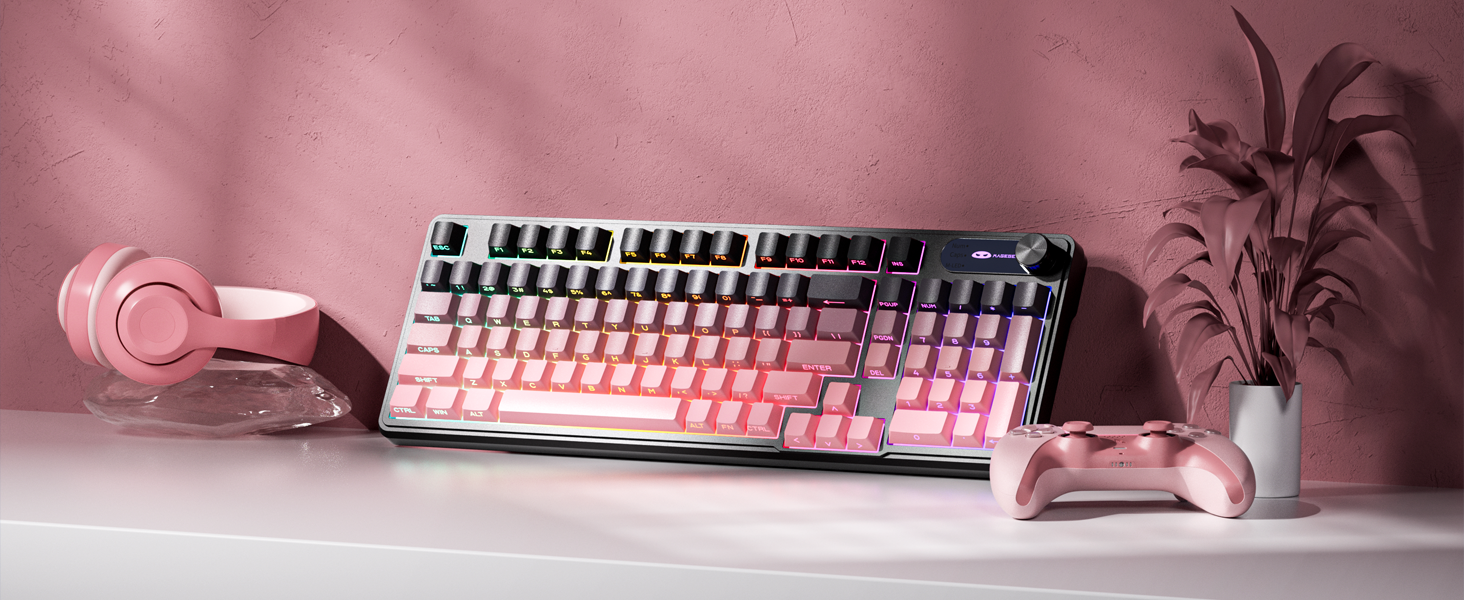
The MageGee GK960 is a versatile wireless gaming keyboard designed for optimal performance and user comfort. Featuring triple-mode connectivity (Wired USB-C, 2.4GHz Wireless, and Bluetooth), vibrant RGB backlighting, a multi-functional rotary knob, and a 98% layout with a number pad, this keyboard is suitable for various computing environments and tasks. Its ergonomic design and anti-ghosting capabilities enhance the typing and gaming experience.

Image 1.1: MageGee GK960 Wireless Gaming Keyboard highlighting key features such as Tri-Mode Connection, Side-Printed Keycaps, Knob Control, RGB Backlit, Win/Mac Support, and 19-Key Anti-Ghosting.
2. เนื้อหาบรรจุภัณฑ์
โปรดตรวจสอบว่ารายการทั้งหมดที่ระบุไว้ด้านล่างมีอยู่ในแพ็คเกจของคุณหรือไม่:
- 1 x MageGee GK960 Wireless Gaming Keyboard
- 1 x คู่มือผู้ใช้
- สายชาร์จ 1 x USB-C
- ตัวรับสัญญาณ USB 1 x 2.4G
- 1 x User Guide (Quick Start)
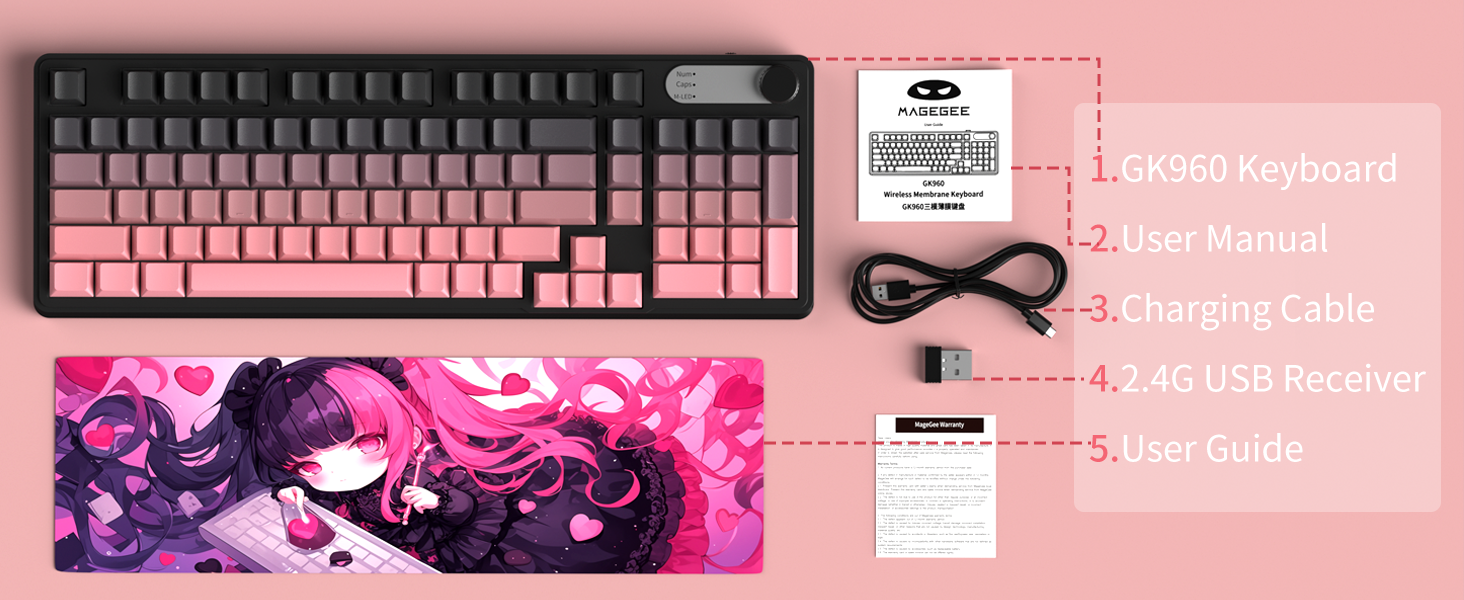
Image 2.1: Visual representation of the MageGee GK960 keyboard and its included accessories: user manual, charging cable, 2.4G USB receiver, and user guide.
3. Setup: Connectivity Modes
The GK960 keyboard offers three connectivity options: Wired USB-C, 2.4GHz Wireless, and Bluetooth. You can connect up to 5 devices simultaneously (1 wired, 1 via 2.4G, and up to 3 via Bluetooth).

Image 3.1: Diagram illustrating the three connection modes: Wired Type-C, 2.4GHz Wireless, and Bluetooth (BT FN+1/2/3).
3.1. การเชื่อมต่อแบบใช้สาย USB-C
- ค้นหาพอร์ต USB-C บนแป้นพิมพ์
- Connect the provided USB-C cable to the keyboard and the other end to an available USB port on your computer.
- แป้นพิมพ์จะถูกจดจำโดยอัตโนมัติและพร้อมใช้งาน
3.2. การเชื่อมต่อไร้สาย 2.4GHz
- Locate the 2.4G USB receiver (dongle) in the package.
- เสียบตัวรับสัญญาณ USB 2.4G เข้ากับพอร์ต USB ที่ว่างอยู่บนคอมพิวเตอร์ของคุณ
- Ensure the keyboard's mode switch (located on the back or side) is set to 2.4G mode.
- แป้นพิมพ์ควรเชื่อมต่อโดยอัตโนมัติ
3.3. การเชื่อมต่อบลูทู ธ
คีย์บอร์ดนี้รองรับการเชื่อมต่อกับอุปกรณ์บลูทูธได้สูงสุดถึงสามเครื่อง
- ตรวจสอบให้แน่ใจว่าสวิตช์โหมดของแป้นพิมพ์ถูกตั้งค่าเป็นโหมดบลูทูธ
- หากต้องการจับคู่กับอุปกรณ์ ให้กดค้างไว้ เอฟเอ็น + 1, เอฟเอ็น + 2, หรือ เอฟเอ็น + 3 for 3-5 seconds until the corresponding indicator light flashes rapidly. This indicates pairing mode.
- บนอุปกรณ์ของคุณ (คอมพิวเตอร์ แท็บเล็ต สมาร์ทโฟน) เปิดการตั้งค่าบลูทูธและค้นหาอุปกรณ์ใหม่
- Select "MageGee GK960" from the list of available devices to complete the pairing process. The indicator light will stop flashing once connected.
- หากต้องการสลับระหว่างอุปกรณ์บลูทูธที่จับคู่ เพียงแค่กด เอฟเอ็น + 1, เอฟเอ็น + 2, หรือ เอฟเอ็น + 3 (กดสั้น)
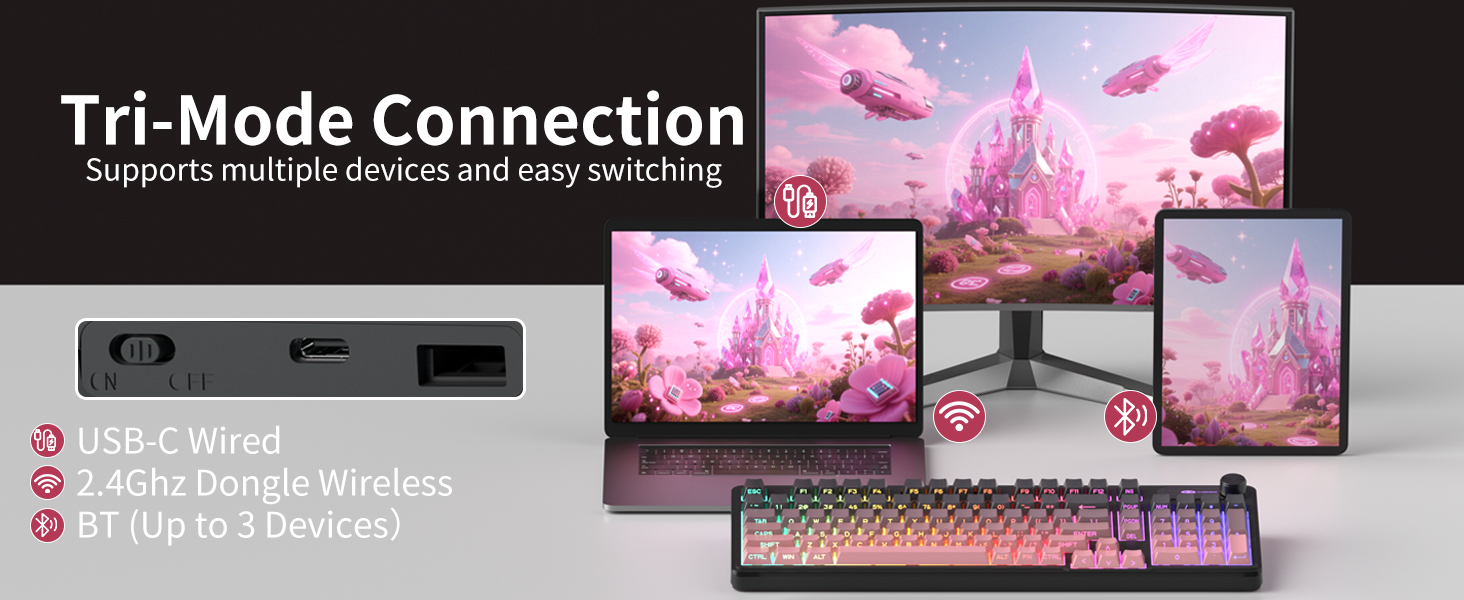
Image 3.2: The keyboard's connectivity switch, allowing selection between USB-C Wired, 2.4GHz Dongle Wireless, and Bluetooth modes.
4. คู่มือการใช้งาน
4.1. Dual-Mode Rotary Knob
The multi-functional knob provides quick control over volume and lighting settings.
- สลับโหมด: กดแบบยาว FN + ปุ่มหมุน for 5 seconds to switch between Volume Mode and Light Mode.
- โหมดระดับเสียง:
- Twist the knob clockwise to increase volume.
- Twist the knob counter-clockwise to decrease volume.
- Press down on the knob to mute/unmute audio.
- โหมดแสง:
- Twist the knob clockwise to increase backlight brightness.
- Twist the knob counter-clockwise to decrease backlight brightness.
- Press down on the knob to cycle through different lighting effects.
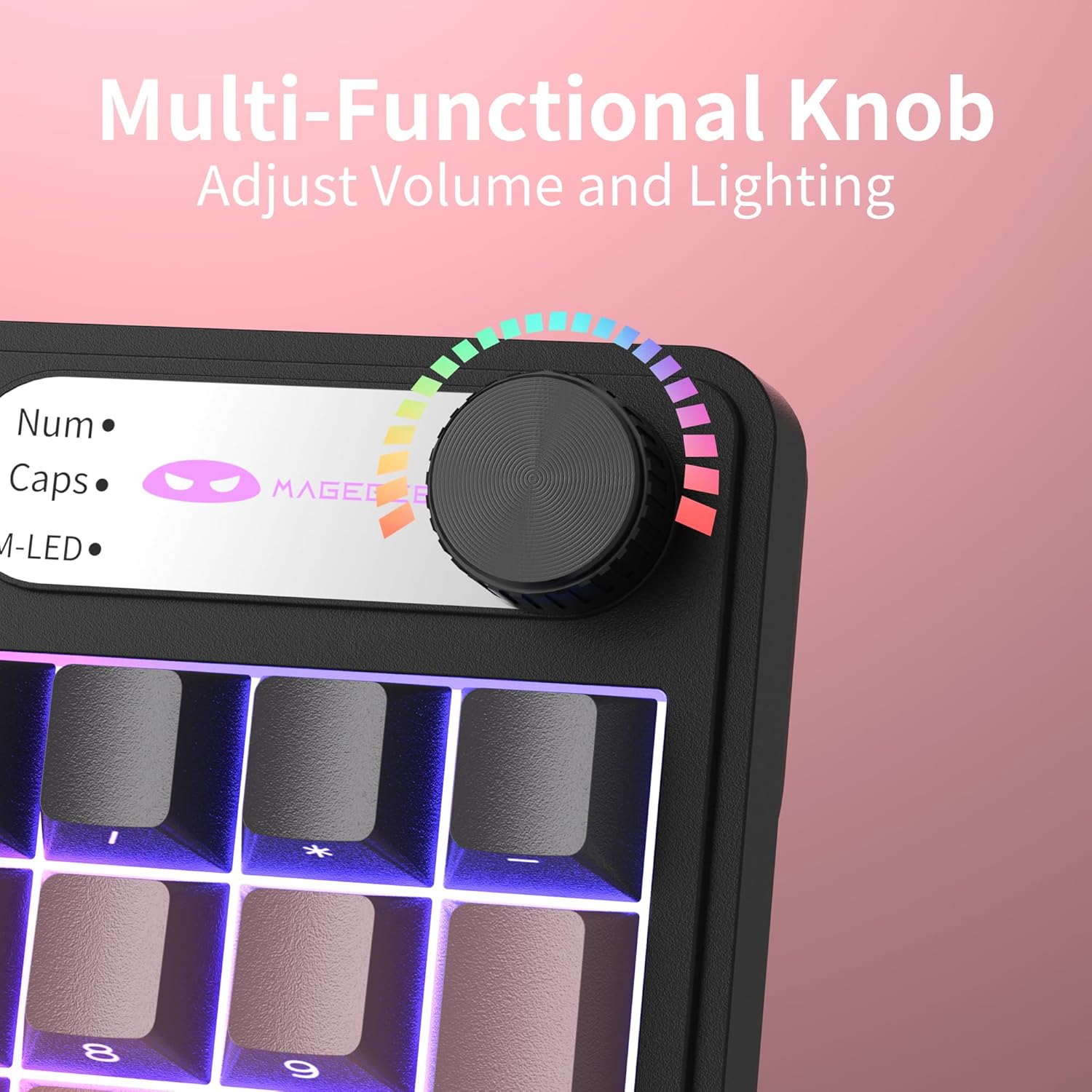
ภาพที่ 4.1: ภาพระยะใกล้ view of the multi-functional rotary knob, indicating its use for adjusting volume and lighting.
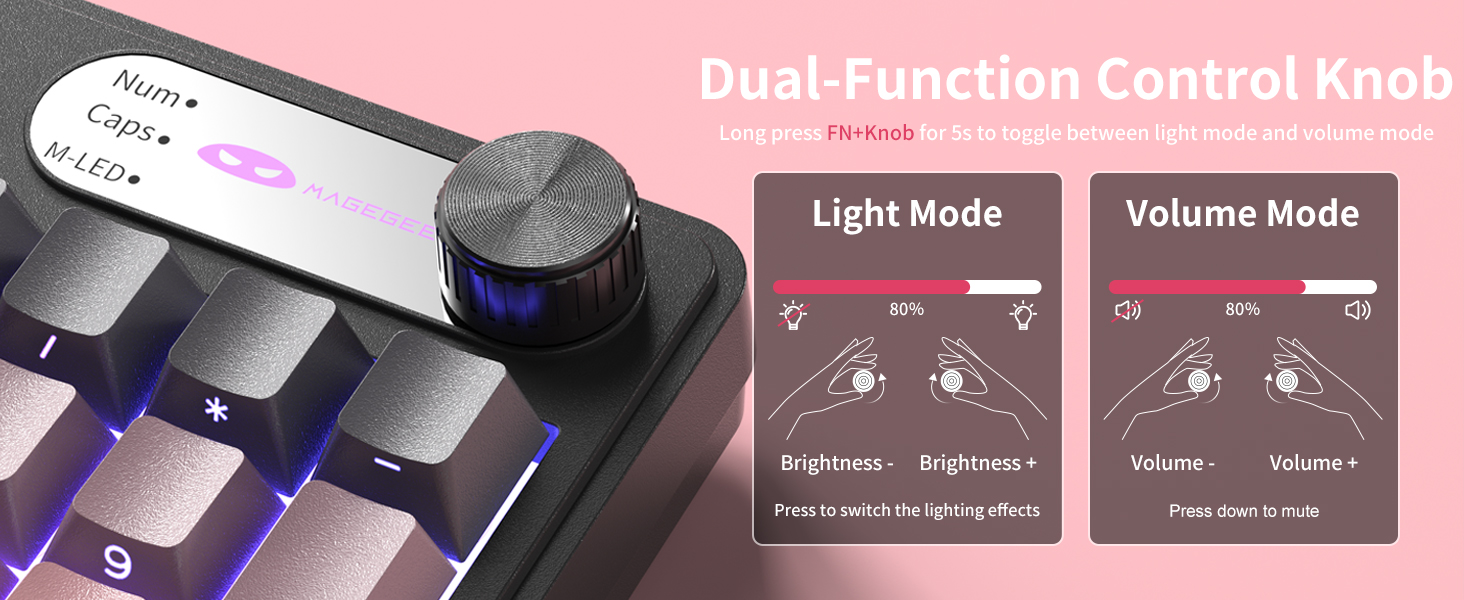
Image 4.2: Detailed illustration of the knob's functions in Light Mode (brightness adjustment, effect cycling) and Volume Mode (volume adjustment, mute).
4.2. การควบคุมไฟแบ็คไลท์ RGB
The GK960 features vibrant RGB backlighting with adjustable settings.
- FN + อิน: สลับระหว่างโหมดแสงต่างๆ
- FN + แบ็คสเปซ: เปิด/ปิดไฟแบ็คไลท์
- FN + - / = +: Adjust light speed.
- FN + PgUp / PgDn: ปรับความสว่างของแสง
- เอฟเอ็น + พี: Toggle the logo color.
ภาพที่ 4.3: จบแล้วview of function key combinations for controlling the vibrant RGB LED backlight, including switching modes, adjusting speed and brightness, and toggling logo color.
4.3. การสลับระบบ (Windows/Mac)
The GK960 keyboard supports both Windows and Mac operating systems. You can switch between them using a simple key combination.
- To switch to Windows mode: Press FN + ว.
- To switch to Mac mode: Press FN + ม.
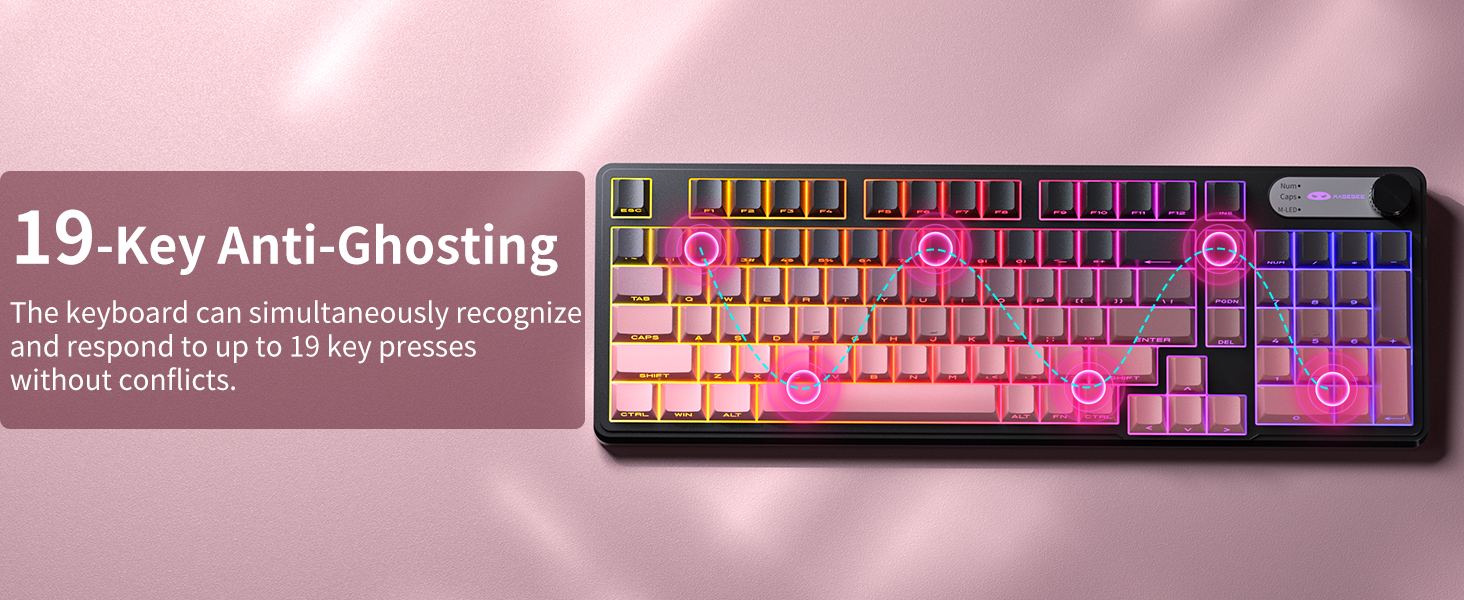
4.4. 19-Key Anti-Ghosting
The GK960 features 19-key anti-ghosting, ensuring that every keystroke is registered accurately, even during rapid, simultaneous key presses. This is particularly beneficial for gaming and fast typing, preventing missed inputs.
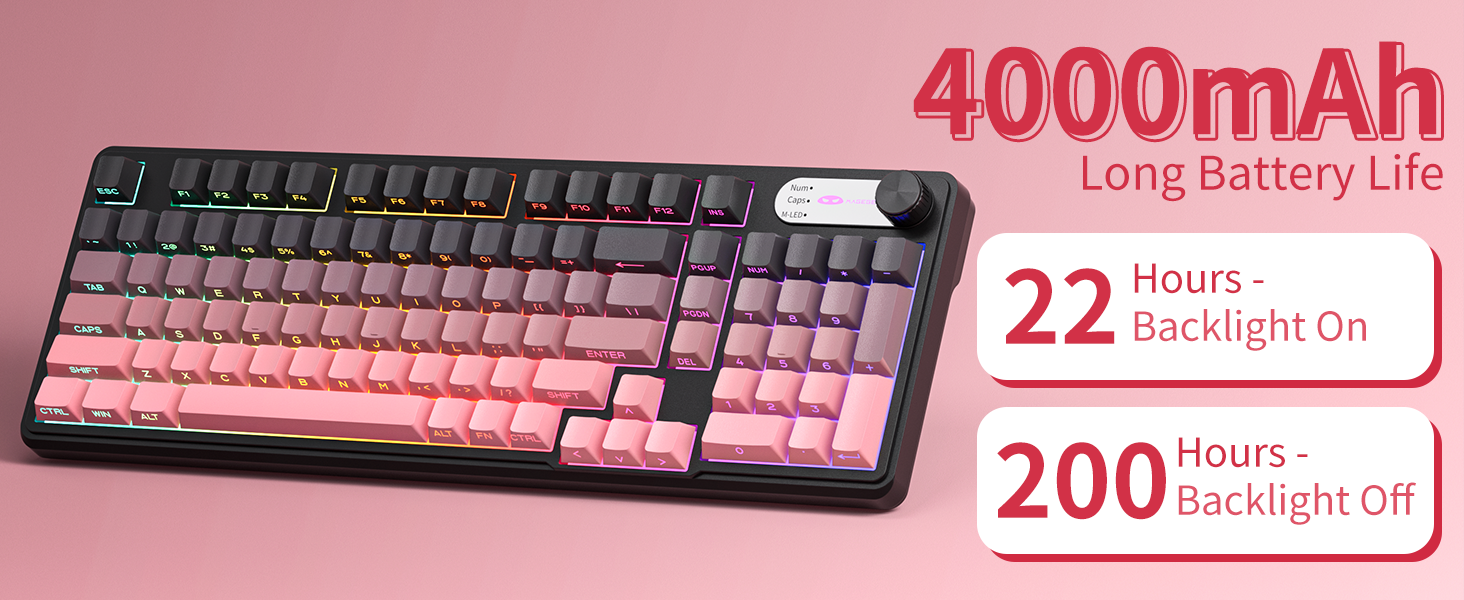
Image 4.4: Diagram illustrating the 19-key anti-ghosting feature, showing multiple simultaneous key presses being recognized.
4.5. Side-Printed Keycaps
The keycaps are crafted with double-shot injection molding, providing durability and clear legends that resist fading from prolonged use. The side-printed legends allow the backlight to shine through, enhancing visibility and aesthetics.

ภาพที่ 4.5: ภาพระยะใกล้ view of the side-printed keycaps, demonstrating how the backlight illuminates the legends.
5. แบตเตอรี่และการชาร์จ
The GK960 keyboard is equipped with a high-capacity 4000mAh battery, providing extended usage times.
- อายุการใช้งานแบตเตอรี่: Approximately 22 hours with backlight on, and up to 200 hours with backlight off.
- การชาร์จ: Connect the provided USB-C cable to the keyboard and a power source (e.g., computer USB port, USB wall adapter). The keyboard can be used in wired mode while charging.
- ไฟแสดงสถานะแบตเตอรี่ต่ำ: An indicator light will signal when the battery is low, prompting you to recharge.
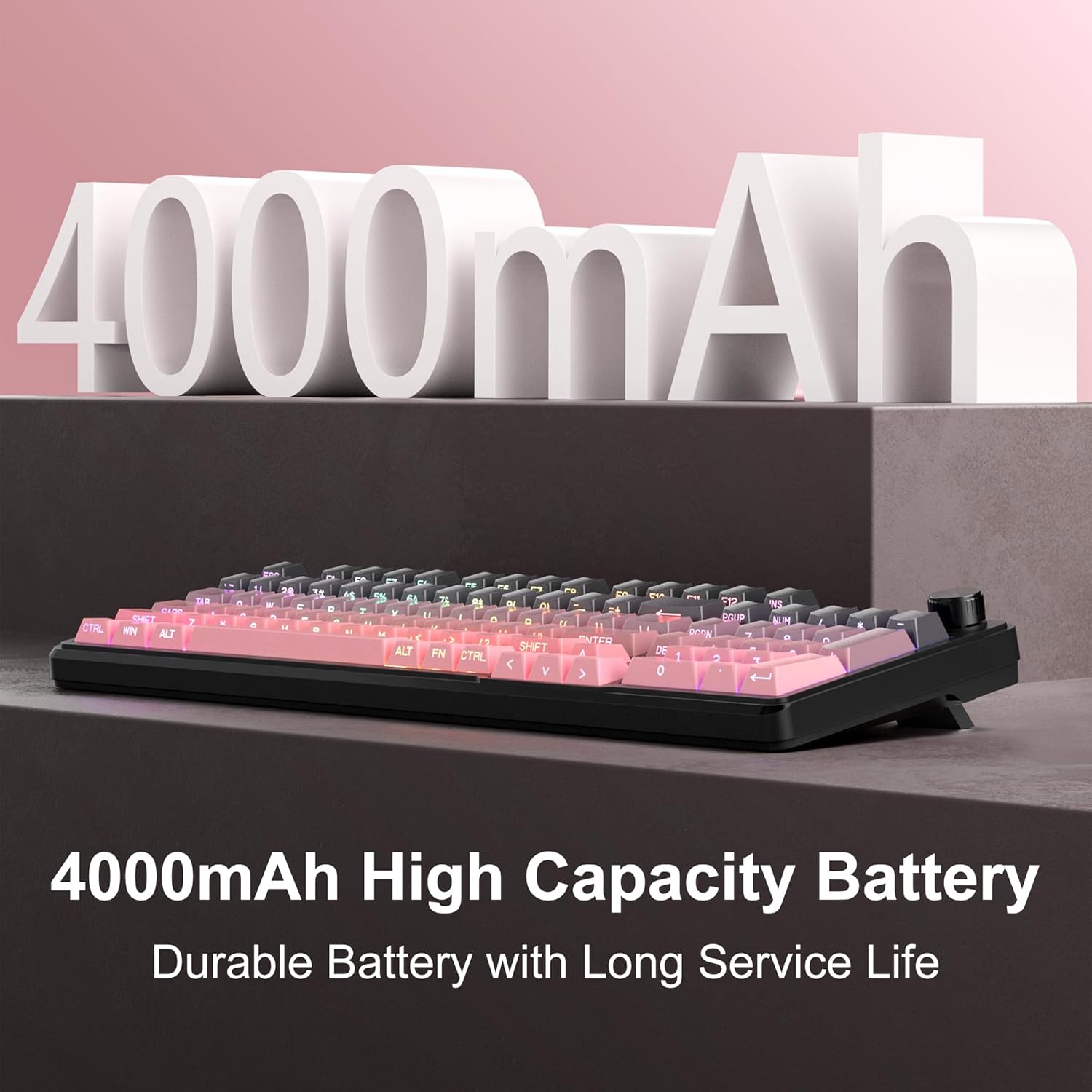
Image 5.1: Visual representation emphasizing the 4000mAh high-capacity battery for durable and long service life.
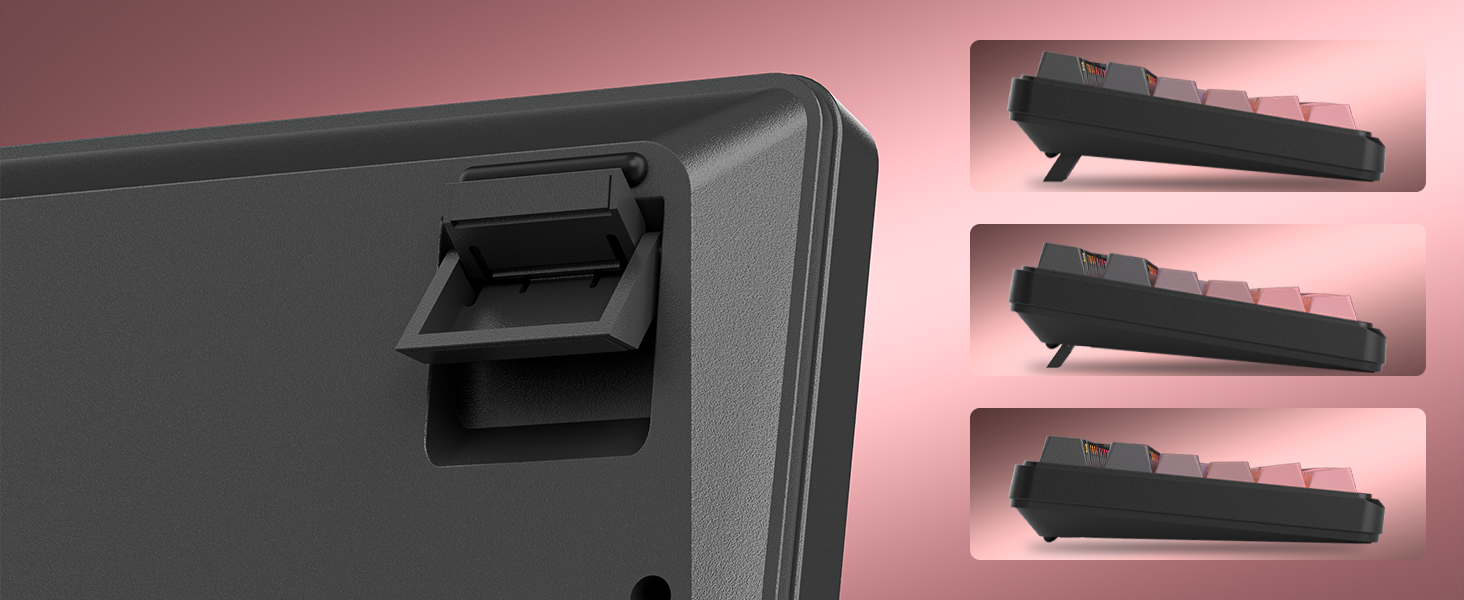
Image 5.2: Battery life estimates for the 4000mAh battery: 22 hours with backlight on and 200 hours with backlight off.
6. การบำรุงรักษา
Proper maintenance ensures the longevity and optimal performance of your MageGee GK960 keyboard.
- การทำความสะอาด: Use a soft, dry cloth to wipe the surface of the keyboard. For deeper cleaning, you may use a can of compressed air to remove dust and debris from between the keycaps. Avoid using harsh chemicals or abrasive materials.
- การถอดคีย์แคป: If necessary, keycaps can be carefully removed using a keycap puller (not included) for thorough cleaning. Exercise caution to avoid damaging the switches.
- พื้นที่จัดเก็บ: เก็บแป้นพิมพ์ไว้ในที่แห้งและเย็น หลีกเลี่ยงแสงแดดโดยตรงและอุณหภูมิที่สูงหรือต่ำเกินไป
- การสัมผัสของเหลว: Avoid spilling liquids on the keyboard. If a spill occurs, immediately disconnect the keyboard, turn it upside down to drain, and allow it to dry completely before reconnecting.
7 การแก้ไขปัญหา
If you encounter issues with your GK960 keyboard, refer to the following common troubleshooting steps:
- แป้นพิมพ์ไม่ตอบสนอง:
- ตรวจสอบให้แน่ใจว่าแป้นพิมพ์มีประจุไฟแล้ว
- Check the connectivity mode switch (Wired, 2.4G, BT) and ensure it matches your connection method.
- สำหรับระบบ 2.4G โปรดตรวจสอบให้แน่ใจว่าได้เสียบตัวรับสัญญาณ USB เข้ากับปลั๊กอย่างแน่นหนาแล้ว
- For Bluetooth, ensure the keyboard is paired correctly and selected on your device. Try re-pairing if necessary.
- ลองเชื่อมต่อผ่านสาย USB-C เพื่อตัดปัญหาเรื่องไร้สาย
- คีย์ไม่ลงทะเบียนหรือเกิดการโกสต์:
- ตรวจสอบให้แน่ใจว่าแป้นพิมพ์สะอาดและไม่มีเศษสิ่งสกปรกอยู่ใต้ปุ่มพิมพ์
- The GK960 features 19-key anti-ghosting, but excessive simultaneous presses beyond this limit may still lead to issues.
- Test the keyboard on another device to determine if the issue is with the keyboard or the computer.
- RGB backlight not working or incorrect:
- ตรวจสอบให้แน่ใจว่าได้เปิดไฟแบ็คไลท์แล้วโดยใช้ FN + แบ็คสเปซ.
- ปรับความสว่างโดยใช้ FN + PgUp / PgDn.
- สลับโหมดต่างๆ โดยใช้ FN + อิน.
- Check if the knob is in Light Mode and adjust brightness/effects.
- การเชื่อมต่อบลูทูธไม่เสถียร:
- ตรวจสอบให้แน่ใจว่าแป้นพิมพ์อยู่ภายในระยะการใช้งานที่มีประสิทธิภาพของอุปกรณ์ของคุณ
- ลดการรบกวนจากอุปกรณ์ไร้สายอื่น ๆ
- Remove and re-pair the keyboard in your device's Bluetooth settings.
8. ข้อมูลจำเพาะทางเทคนิค
| คุณสมบัติ | ข้อมูลจำเพาะ |
|---|---|
| ชื่อรุ่น | GK960 |
| ยี่ห้อ | เมจจี |
| เทคโนโลยีการเชื่อมต่อ | บลูทูธ/2.4G/USB-C (สามโหมด) |
| เค้าโครงแป้นพิมพ์ | 98% Layout (with Number Pad) |
| ประเภทปุ่มกด | Side-Printed, Double-Shot Injection Molding |
| ป้องกันการโดนผีหลอก | 19 คีย์ |
| การแบ็คไลท์ | อาร์จีบี |
| ความจุของแบตเตอรี่ | 4000mAh |
| อุปกรณ์ที่รองรับ | แล็ปท็อป, พีซี, สมาร์ทโฟน, แท็บเล็ต |
| การรองรับระบบปฏิบัติการ | วินโดวส์, แมค |
| คุณสมบัติพิเศษ | Backlit, Hotkeys and Media Keys, Rechargeable, Volume Roller, Ergonomic Design |
| น้ำหนักสินค้า | 1.88 ปอนด์ |
| ขนาดแพ็คเกจ | 17.68 x 7.09 x 2.01 นิ้ว |

Image 8.1: Diagram showing the dimensions of the MageGee GK960 keyboard.
ภาพที่ 8.2: ภาพระยะใกล้ view of the adjustable stands on the underside of the keyboard, illustrating the different ergonomic angles.
9. การรับประกันและการสนับสนุน
Specific warranty details and direct support contact information are not provided in this manual. For warranty claims, technical support, or further inquiries, please refer to the official MageGee website or contact the retailer from whom you purchased the product. Please retain your proof of purchase for warranty purposes.


