1. บทนำ
The CORSAIR Nautilus 360 RS LCD Liquid CPU Cooler delivers efficient, low-noise cooling for your CPU while offering a vibrant 2.1-inch IPS LCD screen for customization. This All-In-One (AIO) liquid cooler is designed for high-performance systems, ensuring optimal thermal transfer and quiet operation. This manual provides essential information for installation, operation, maintenance, and troubleshooting.
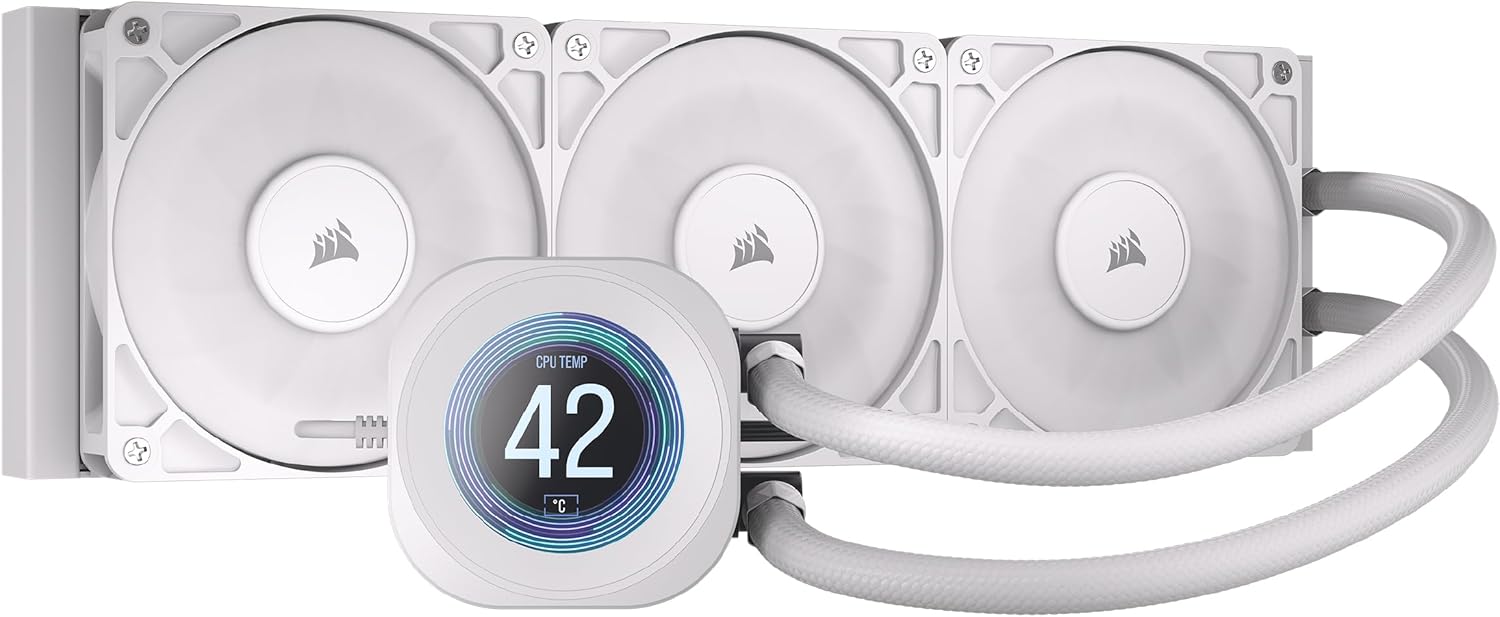
Figure 1: CORSAIR Nautilus 360 RS LCD Liquid CPU Cooler (White)
2. คุณสมบัติหลัก
- หน้าจอ LCD IPS ขนาด 2.1 นิ้ว: Customizable display for temperatures, GIFs, or custom images via iCUE Software.
- Efficient, Low-Noise Pump: Maintains high coolant flow at a quiet 20 dBA.
- Convex Cold Plate with Pre-Applied Thermal Paste: Ensures superior thermal transfer and simplifies installation.
- 3x RS120 Fans: High static pressure fans with CORSAIR AirGuide technology and Magnetic Dome bearings for efficient, low-noise cooling (10 - 36 dB(A)).
- Daisy-Chain Connections: Minimizes cable clutter for a cleaner build.
- ความเข้ากันได้กว้าง: Supports Intel LGA 1851/1700 and AMD AM5/AM4 platforms.
3. การตั้งค่าและการติดตั้ง
Follow these steps for proper installation of your CORSAIR Nautilus 360 RS LCD Liquid CPU Cooler.
3.1. เนื้อหาบรรจุภัณฑ์
ตรวจสอบให้แน่ใจว่ามีอุปกรณ์ครบทุกชิ้นก่อนเริ่มการติดตั้ง:
- CORSAIR NAUTILUS 360 RS LCD Liquid CPU Cooler (Radiator, Pump/Cold Plate with LCD, Tubing)
- 3x RS120 Fans
- Mounting Kit for Intel & AMD CPU Sockets (Brackets, Standoffs, Screws, Nuts)
- สายต่อขยาย PWM
- สกรูยึดพัดลมและหม้อน้ำ
- เอกสารรับประกันและความปลอดภัย

รูปที่ 2: ส่วนประกอบที่รวมอยู่
3.2. การเตรียมเมนบอร์ด
- สำหรับ AMD AM5/AM4: Remove the motherboard's plastic retention brackets around the CPU socket. Keep the original backplate.
- สำหรับ Intel LGA 1851/1700: Use the provided Intel backplate. Adjust the mounting hole position on the backplate to match your CPU socket (e.g., 1700).
3.3. Waterblock Installation
- Install the appropriate standoffs onto the motherboard's CPU socket holes.
- Attach the correct mounting brackets (Intel or AMD) to the standoffs using the provided screws. Ensure they are finger-tight.
- Remove the protective sticker from the cold plate of the waterblock.
- Carefully place the waterblock onto the CPU, aligning the bracket nuts with the screws on the mounting brackets.
- Tighten the screws on the waterblock bracket in a diagonal pattern until secure, ensuring even mounting pressure.

Figure 3: Cold Plate and Daisy-Chain Connections
3.4 การติดตั้งหม้อน้ำและพัดลม
- Mount the RS120 fans to the radiator using the long fan screws. Ensure the fan airflow direction is as desired (typically intake or exhaust from the case).
- Mount the radiator assembly to your PC case in the desired location (e.g., top, front).

Figure 4: RS120 Fan with AirGuide Technology
3.5. การเชื่อมต่อสายเคเบิล
- Connect the pump power cable to the CPU_OPT or AIO_PUMP header on your motherboard.
- Connect the fan PWM cables to the fan splitter cable.
- Connect the fan splitter cable to a CPU_FAN header on your motherboard to power the fans and enable PWM control.
- Connect the USB cable from the waterblock to an available USB 2.0 header on your motherboard. This is essential for iCUE software control and LCD functionality.
Video 1: CORSAIR RS-R ARGB Fans Video Trailer. This video showcases the visual effects and features of CORSAIR RS-R ARGB fans, which are similar to the RS120 fans included with this cooler.
Video 2: CORSAIR iCUE LINK TITAN RX RGB AIO Trailer. This video demonstrates the iCUE LINK ecosystem and RGB capabilities of a related CORSAIR AIO cooler, providing insight into the brand's lighting and control features.
4. คู่มือการใช้งาน
4.1. การควบคุมซอฟต์แวร์ iCUE
The CORSAIR Nautilus 360 RS LCD Liquid CPU Cooler is fully controllable via CORSAIR's iCUE software. Download and install the latest version of iCUE from the official CORSAIR webเว็บไซต์.
- LCD Customization: Use iCUE to display CPU/GPU temperatures, fan speeds, pump RPM, animated GIFs, or custom images on the 2.1-inch IPS LCD screen.
- คูลลิ่ง โปรfiles: Create and manage custom fan and pump speed profiles to balance performance and noise levels.
- การติดตาม: Monitor system vitals in real-time through the iCUE dashboard.

Figure 5: iCUE Software for LCD Control and Customization
4.2. การควบคุมความเร็วพัดลม (PWM)
The RS120 fans support PWM (Pulse Width Modulation) control, allowing for precise adjustment of fan speeds. This enables the system to automatically adapt fan speeds based on CPU temperature, optimizing for either quiet operation or maximum cooling performance.
5. การบำรุงรักษา
การบำรุงรักษาตามปกติจะช่วยให้ตัวระบายความร้อน CPU แบบของเหลวของคุณมีประสิทธิภาพสูงสุดและมีอายุการใช้งานยาวนาน
- Radiator Cleaning: Periodically clean dust from the radiator fins using compressed air. Ensure the system is powered off before cleaning.
- การทำความสะอาดพัดลม: Gently wipe fan blades with a soft, dry cloth to remove dust buildup.
- การตรวจสอบท่อ: Check tubing for any signs of kinks, leaks, or damage.
- น้ำยาหล่อเย็น : The AIO cooler is a sealed unit and does not require coolant refills or maintenance.
6 การแก้ไขปัญหา
- อุณหภูมิ CPU สูง:
- Ensure the waterblock is securely mounted to the CPU with adequate pressure.
- Verify that the pump power cable is correctly connected to the motherboard's AIO_PUMP or CPU_OPT header.
- Check fan connections and ensure they are spinning. Adjust fan curves in iCUE for higher performance if needed.
- ทำความสะอาดฝุ่นละอองที่เกาะอยู่บนครีบหม้อน้ำ
- Fans Not Spinning or Loud:
- Confirm fan cables are properly connected to the splitter and the splitter to the CPU_FAN header.
- Check fan speed settings in iCUE. Adjust to a quieter profile if noise is an issue.
- Inspect fans for any obstructions.
- หน้าจอ LCD ไม่แสดง:
- Ensure the USB cable from the waterblock is securely connected to a USB 2.0 header on the motherboard.
- Verify iCUE software is installed and running.
- Check for any driver updates for the cooler or iCUE software.
7. ข้อมูลจำเพาะ
| คุณสมบัติ | ข้อมูลจำเพาะ |
|---|---|
| ขนาดสินค้า | 396mm L x 120mm W x 27mm H (15.59"L x 4.72"W x 1.06"H) |
| ยี่ห้อ | คอร์แซร์ |
| ประเภทตัวเชื่อมต่อกระแสไฟ | 4-Pin (PWM) |
| วิธีการทำความเย็น | น้ำ |
| อุปกรณ์ที่รองรับ | เดสก์ท็อป |
| ระดับเสียง | 20 Decibels (Pump), 10 - 36 dB(A) (Fans) |
| วัสดุ | พลาสติก โลหะ แก้ว |
| ความเร็วการหมุนสูงสุด | 2100 รอบต่อนาที (พัดลม) |
| ยูพีซี | 840440400363 |
| หมายเลขรุ่นสินค้า | CW-9061034-WW |
| น้ำหนักสินค้า | 3.51 ปอนด์ |
| สี | สีขาว |
| วัสดุแผ่นเย็น | ทองแดง |
| วัสดุหม้อน้ำ | อลูมิเนียม |
| ความยาวของท่อ | 450มม. |
| วัสดุท่อ | ยางหุ้มสีขาวที่มีการซึมผ่านต่ำ |
| ตัวรองรับซ็อกเก็ตระบายความร้อน | AMD: AM5, AM4 | Intel: 1851, 1700 |
8. การรับประกันและการสนับสนุน
The CORSAIR Nautilus 360 RS LCD Liquid CPU Cooler comes with a manufacturer's warranty. Please refer to the included Warranty & Safety Leaflet for specific terms and conditions.
หากต้องการความช่วยเหลือด้านเทคนิค การดาวน์โหลดไดรเวอร์ หรือความช่วยเหลือเพิ่มเติม โปรดไปที่เว็บไซต์สนับสนุนอย่างเป็นทางการของ Corsair webเว็บไซต์หรือติดต่อฝ่ายบริการลูกค้าของพวกเขา
- ฝ่ายสนับสนุน Corsair Webเว็บไซต์: www.corsair.com/support


