1. บทนำ
The PAPIFEED Automatic Cat Feeder with Camera provides a convenient and reliable solution for managing your pet's feeding schedule. This device features remote control via a 2.4G WiFi-enabled app, a 480P adjustable camera for monitoring, two-way audio communication, and customizable meal plans to ensure your pet receives appropriate portions at scheduled times. It also includes a dual power system for uninterrupted operation.

Image 1: PAPIFEED Automatic Cat Feeder with Camera. This image shows the overall design of the feeder with a cat nearby, highlighting the brand's commitment to pet care.
2. เนื้อหาบรรจุภัณฑ์
โปรดตรวจสอบให้แน่ใจว่ามีสินค้าทั้งหมดอยู่ในแพ็คเกจ:
- PAPIFEED Automatic Pet Feeder Unit (Main Body with Food Hopper)
- ชามใส่อาหารสแตนเลส
- ที่วางชาม
- อะแดปเตอร์ไฟ (DC 5V)
- คู่มือการใช้งาน
- ถุงดูดความชื้น (ติดตั้งไว้แล้วในฝา)
- Safety Lock Strap (Velcro)
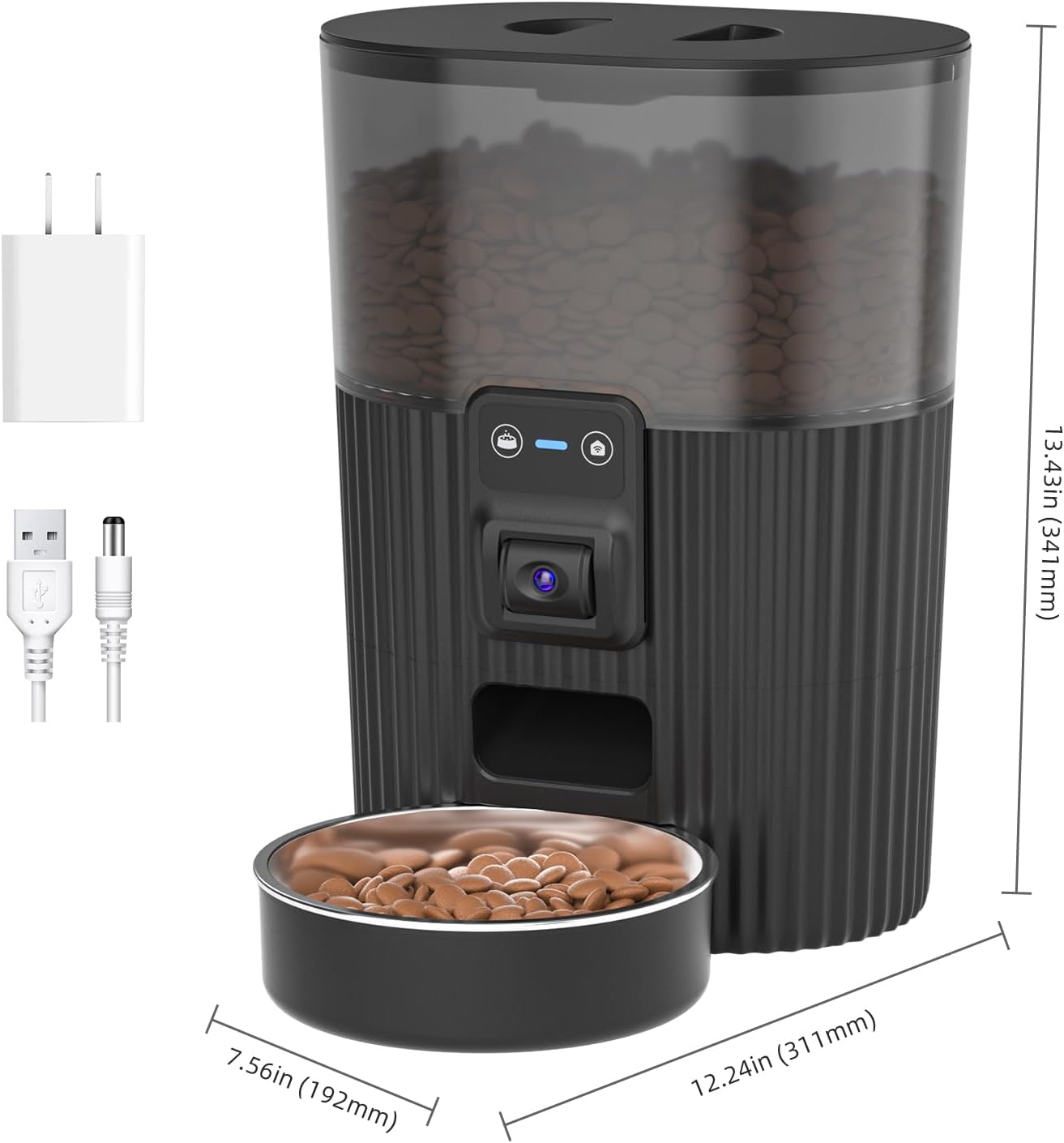
ภาพที่ 2: จบแล้วview of the PAPIFEED Automatic Cat Feeder components and dimensions, including the main unit, power adapter, and bowl.
3. คู่มือการติดตั้ง
3.1. การประกอบทางกายภาพ
- Place the main feeder unit on a stable, flat surface.
- Attach the bowl holder to the base of the feeder.
- Insert the stainless steel feeding bowl into the bowl holder.
- Open the top lid of the food hopper. Ensure the desiccant bag is properly placed inside the lid to maintain food freshness.
- Fill the food hopper with dry pet food (recommended kibble size: 2-10mm).
- Close the top lid securely. For added security, attach the provided Safety Lock Velcro strap around the lid and main unit.

Image 3: Visual guide to the feeder's components, including the stainless steel bowl, removable food hopper, and dual power options.
3.2. การเชื่อมต่อไฟฟ้า
The feeder supports dual power modes:
- กำลังไฟหลัก: Connect the DC 5V power adapter to the feeder and plug it into a wall outlet for continuous power.
- พลังงานสำรอง: For emergency power during outages, insert 4 AA batteries (not included) into the battery compartment at the bottom of the unit. The battery backup provides approximately 15 hours of standby time. Note: The feeder cannot connect to the internet when operating solely on battery power.

Image 4: Illustration of the dual power supply mode, showing both the DC 5V adapter and the battery compartment.
3.3. App Installation & WiFi Connection
- Download the "Smart Lyn" app from your smartphone's app store or scan the QR code provided in the user manual.
- Ensure your smartphone is connected to a 2.4GHz WiFi network (5GHz networks are not supported).
- Open the "Smart Lyn" app and follow the on-screen instructions to add a new device.
- On the feeder, press and hold the WiFi pairing button (usually indicated by a WiFi icon) until the indicator light flashes, signifying pairing mode.
- Complete the connection process within the app.
For a visual guide on connecting the device, please refer to the video below:
Video 1: Official PAPIFEED guide on how to connect the automatic pet feeder to the mobile application.
คุณสามารถดาวน์โหลดแอพได้จาก https://smartapp.tuya.com/smartlife.
4. คู่มือการใช้งาน
4.1. การให้อาหารด้วยตนเอง
You can manually dispense food in two ways:
- ผ่านแอป: Open the "Smart Lyn" app, navigate to the feeder's control interface, and tap the "Feed" button to dispense a single serving.
- ผ่านปุ่มป้อนอาหาร: Press the manual feed button on the front of the feeder to dispense a single serving.

Image 5: The feeder dispensing food into the bowl, with a smartphone displaying the app interface for remote interaction.
4.2. การกำหนดเวลาฟีด
Use the "Smart Lyn" app to create a customized feeding schedule:
- In the app, select the "Plan" or "Schedule" option.
- Set the desired feeding times (up to 10 meals per day).
- Specify the portion size for each meal (1-6 servings per meal).
- บันทึกตารางเวลาของคุณ เครื่องให้อาหารจะจ่ายอาหารโดยอัตโนมัติตามเวลาที่ตั้งโปรแกรมไว้
For more details on automating feeding and portions, watch the video below:
Video 2: A demonstration of how to automate pet feeding and control portions using the PAPIFEED app.
4.3. Camera & Two-Way Audio Features
The integrated 480P camera and two-way audio enhance your pet monitoring experience:
- การตรวจสอบสด: View your pet's activity and confirm they are eating through the app's live camera feed. The camera angle can be manually adjusted up and down for optimal viewing. Note: The camera does not have night vision.
- เสียงสองทาง: Speak to your pet remotely through the app. You can also record personalized meal call voices to alert your pet when it's time to eat. The speaker volume can be adjusted via the app.
- ฟังก์ชั่นภาพถ่าย: Capture photos of your pet directly from the app.

Image 6: The app interface showing the 480P camera view of the feeding bowl, indicating 2.4G WiFi connection. A note clarifies no night vision.

Image 7: A hand manually adjusting the camera angle on the feeder, emphasizing the physical adjustment feature.

Image 8: A smartphone screen displaying various app functionalities such as remote video, two-way voice communication, snapshot capture, and manual meal dispensing.
4.4. Portion Control & Slow Feeding
The feeder allows for precise control over your pet's diet:
- Set specific portion sizes (1-6 servings) for each meal to prevent overeating and promote healthy eating habits.
- Utilize the slow feeder function via the app to extend feeding intervals, which is beneficial for pets that tend to eat too quickly.
5. การบำรุงรักษาและการทำความสะอาด
Regular cleaning ensures hygiene and optimal performance of your feeder:
- The stainless steel feeding bowl is removable and food-grade, making it easy to clean by hand or in a dishwasher.
- The food hopper is also removable and washable. Ensure it is completely dry before refilling with food.
- Wipe the main unit and base with a damp ผ้า ห้ามจุ่มตัวเครื่องหลักลงในน้ำ
- Periodically check and replace the desiccant bag in the lid to maintain food freshness.

Image 9: The feeder disassembled, showing the removable food hopper, stainless steel bowl, and base, emphasizing its easy-to-clean design.
6 การแก้ไขปัญหา
- เครื่องป้อนอาหารไม่จ่ายอาหาร: Check if the food hopper is empty or if kibble is jammed. Ensure the feeder is powered on and connected to the app.
- ปัญหาการเชื่อมต่อแอป: Verify your WiFi network is 2.4GHz. Ensure the feeder is within range of your router. Restart the app and the feeder if necessary.
- พลังแห่งโอtage: If using battery backup, ensure batteries are fresh. Remember that internet connectivity is not available on battery power.
- Incorrect portion size: Adjust the portion settings within the "Smart Lyn" app.
7. ข้อมูลจำเพาะ
| ยี่ห้อ: | ปาปิฟีด |
| ชื่อรุ่น : | PPATFD |
| หมายเลขรุ่นสินค้า: | PPATFD-XRZ |
| ความจุ: | 3.5L / 15 Cups |
| การเชื่อมต่อ: | 2.4G WiFi (5GHz not supported) |
| กล้อง: | 480P, Manual Adjustable Angle (No night vision) |
| เสียง: | Two-way audio, Voice recording |
| มื้ออาหารต่อวัน: | Max 10 meals |
| Servings per Meal: | 1-6 เสิร์ฟ |
| แหล่งจ่ายไฟ: | DC 5V Power Adapter, 4 AA Batteries (backup, not included) |
| วัสดุ: | ชามสแตนเลส |
| น้ำหนักสินค้า: | 2.97 ปอนด์ |
| ขนาดสินค้า : | 6.36 x 11.8 x 6.36 นิ้ว |
8. การรับประกันและการสนับสนุน
The PAPIFEED Automatic Cat Feeder comes with a การรับประกันจากผู้ผลิต 1 ปี.
For further assistance, please refer to the contact information provided in your product packaging or visit the official PAPIFEED webเว็บไซต์.


