1. บทนำ
Thank you for choosing the Nelko PM220 Bluetooth Thermal Label Printer. This portable device is designed for efficient label printing without the need for ink cartridges, making it ideal for small businesses, address labeling, logo printing, and various organizational tasks. This manual provides detailed instructions for setup, operation, maintenance, and troubleshooting to ensure optimal performance.
2. สินค้าหมดview
The Nelko PM220 is a compact thermal label printer that connects wirelessly via Bluetooth to your smartphone or PC. It supports various label sizes and offers clear, high-resolution printing for text, barcodes, and QR codes.
2.1 เนื้อหาบรรจุภัณฑ์
- Nelko PM220 Label Printer
- Label Paper Roll (starter roll)
- สายชาร์จ USB
- คู่มือการใช้งาน

รูปที่ 1: The Nelko PM220 Bluetooth Thermal Label Printer shown with a roll of blank labels. The printer features a sleek navy blue design with a power button and a paper feed button on the front panel.
3. คู่มือการติดตั้ง
3.1 การติดเทปฉลาก
- Open the printer cover by gently pushing the release button or lifting the designated area.
- Insert the label roll into the paper bin, ensuring the labels face upwards and the leading edge extends slightly out of the printer slot.
- Adjust the paper slot guide to the right to ensure the label paper is tightly attached to the far right side of the paper bin, preventing misalignment during printing.
- ปิดฝาครอบเครื่องพิมพ์ให้แน่น

รูปที่ 2: A label roll being correctly inserted into the paper compartment of the Nelko PM220 printer. The roll is placed with the labels facing upwards.
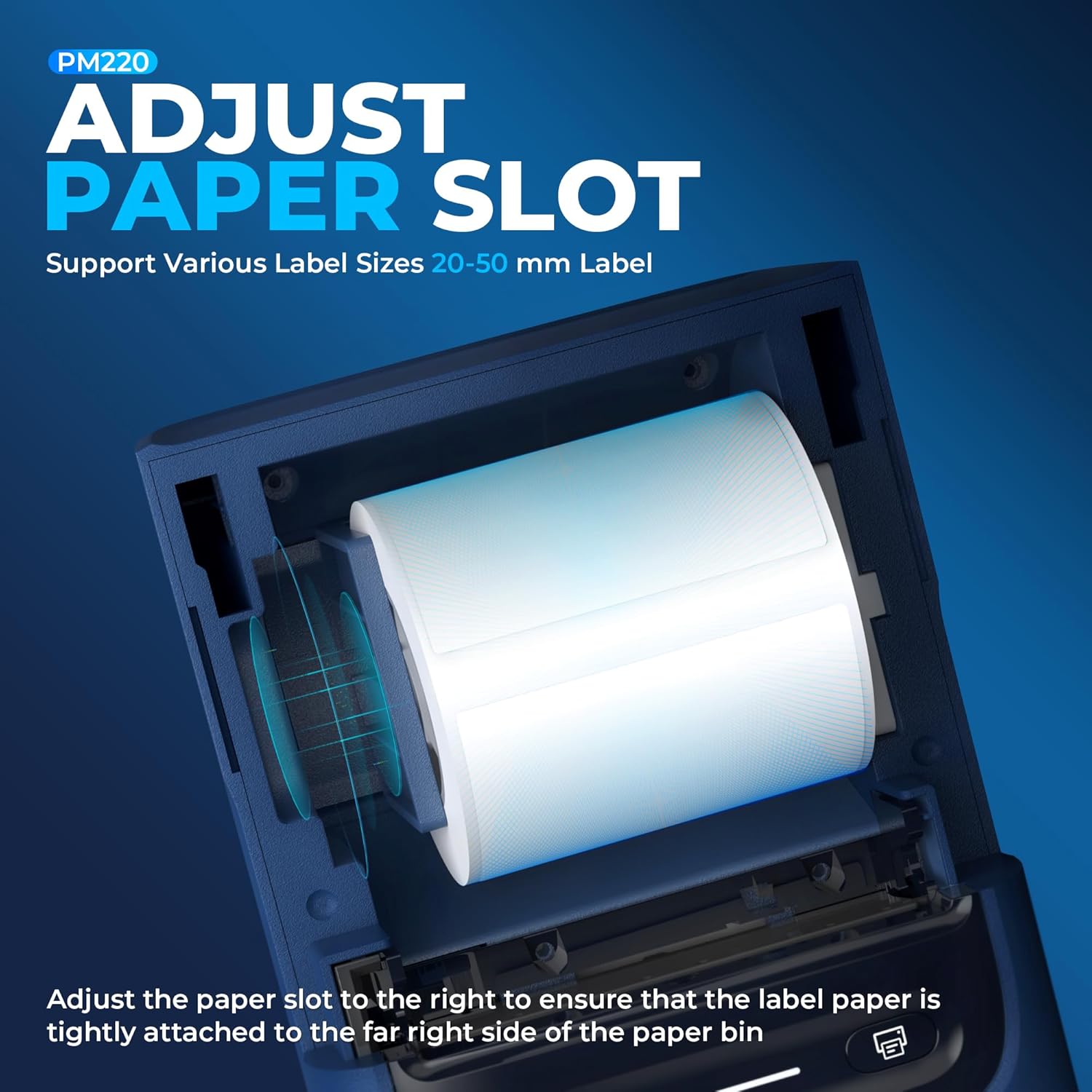
รูปที่ 3: ภาพระยะใกล้ view demonstrating how to adjust the paper slot guide within the Nelko PM220 printer. The guide is moved to the right to secure the label roll.
3.2 การเชื่อมต่อกับแหล่งจ่ายไฟ
- Connect the provided USB charging cable to the printer's charging port.
- เสียบปลายอีกด้านของสาย USB เข้ากับอะแดปเตอร์แปลงไฟ USB ที่ใช้งานร่วมกันได้ (ไม่ได้รวมอยู่ในชุด) หรือพอร์ต USB ของคอมพิวเตอร์
- Allow the printer to charge fully before first use. The indicator light will typically change color to indicate a full charge.
3.3 การติดตั้งแอปและการจับคู่บลูทูธ
- Download the official Nelko label printing application from your device's app store (e.g., Apple App Store for iOS, Google Play Store for Android). For PC connectivity, download the appropriate driver and software from the official Nelko webเว็บไซต์.
- Ensure Bluetooth is enabled on your smartphone or PC.
- Power on the Nelko PM220 printer by pressing and holding the power button until the indicator light illuminates.
- Open the Nelko app (or PC software) and navigate to the device connection section.
- ค้นหา available Bluetooth devices and select 'Nelko PM220' from the list.
- Follow any on-screen prompts to complete the pairing process. A successful connection will be indicated by a change in the printer's indicator light or a message within the app.
4. คู่มือการใช้งาน
4.1 เปิด/ปิดเครื่อง
- การเปิดเครื่อง: กดปุ่มเปิด/ปิดค้างไว้ประมาณ 2-3 วินาที จนกว่าไฟแสดงสถานะจะสว่างขึ้น
- วิธีปิดเครื่อง: กดปุ่มเปิด/ปิดค้างไว้ประมาณ 2-3 วินาที จนกว่าไฟแสดงสถานะจะดับลง
4.2 การพิมพ์ฉลาก
- Ensure the printer is powered on and successfully connected to your device via Bluetooth.
- Open the Nelko app or PC software.
- Select your desired label template or create a new label design.
- Enter the text, add images, barcodes, or QR codes as needed.
- Adjust label size and print settings within the app to match the loaded label tape.
- พรีview ติดฉลากเพื่อให้มั่นใจในความถูกต้อง
- Tap the 'Print' button in the app. The printer will feed and print the label.
- Carefully tear off the printed label along the serrated edge.

รูปที่ 4: The Nelko PM220 printer actively printing various labels, including shipping labels, product labels, and decorative stickers, demonstrating its versatility.
5. การบำรุงรักษา
5.1 การทำความสะอาดหัวพิมพ์
Regular cleaning of the print head ensures optimal print quality and extends the life of your printer. Use a soft, lint-free cloth lightly dampเคลือบด้วยแอลกอฮอล์ไอโซโพรพิล
- Ensure the printer is powered off and disconnected from power.
- เปิดฝาครอบเครื่องพิมพ์
- ค่อยๆ เช็ดพื้นผิวหัวพิมพ์ด้วยผ้าสะอาดampใช้ผ้าชุบน้ำหมาดๆ เช็ดทำความสะอาด หลีกเลี่ยงการสัมผัสหัวพิมพ์ด้วยมือเปล่า
- รอให้หัวพิมพ์แห้งสนิทก่อนปิดฝาและเปิดเครื่องพิมพ์
5.2 พื้นที่จัดเก็บ
Store the printer in a cool, dry place away from direct sunlight and extreme temperatures. Remove any label rolls if storing for an extended period.
6 การแก้ไขปัญหา
If you encounter issues with your Nelko PM220 printer, refer to the table below for common problems and solutions.
| ปัญหา | สาเหตุที่เป็นไปได้ | สารละลาย |
|---|---|---|
| เครื่องพิมพ์ไม่สามารถเปิดได้ | Low battery or no power connection | Charge the printer using the provided USB cable. Ensure the power adapter is working. |
| ไม่สามารถเชื่อมต่อผ่านบลูทูธได้ | Bluetooth is off, printer is not in pairing mode, or incorrect device selected | Ensure Bluetooth is enabled on your device. Restart the printer and try pairing again. Verify you are selecting 'Nelko PM220'. |
| คุณภาพการพิมพ์ไม่ดี (จาง เบลอ) | หัวพิมพ์สกปรก ชนิดฉลากไม่ถูกต้อง หรือแบตเตอรี่เหลือน้อย | Clean the print head as described in Section 5.1. Ensure you are using thermal labels. Charge the printer. |
| Labels are not feeding correctly | Label roll improperly loaded or paper slot not adjusted | Re-load the label roll, ensuring it is seated correctly and the paper slot guide is adjusted tightly against the roll (refer to Section 3.1). |
| Printer stops printing mid-label | Out of labels or low battery | Replace the label roll. Charge the printer. |
7. ข้อมูลจำเพาะทางเทคนิค
| คุณสมบัติ | ข้อมูลจำเพาะ |
|---|---|
| ยี่ห้อ | เนลโก |
| ชื่อรุ่น | พีเอ็ม220 |
| เทคโนโลยีการพิมพ์ | เทอร์มอล |
| เทคโนโลยีการเชื่อมต่อ | บลูทูธ |
| เอาท์พุตเครื่องพิมพ์ | เอกรงค์ |
| ความละเอียดการพิมพ์ขาวดำสูงสุด | 203 จุดต่อนิ้ว |
| ความเร็วการพิมพ์ขาวดำสูงสุด | 45 มม./วินาที |
| ขนาดสื่อที่รองรับ | 23-54 มม. (ความกว้าง) |
| ขนาดสินค้า | 13.3 x 8 x 10.2 นิ้ว |
| น้ำหนักสินค้า | 13.4 ออนซ์ |
| ประเภทหมึกพิมพ์ | No Ink (Thermal) |
| ส่วนประกอบที่รวมอยู่ | เครื่องพิมพ์, กระดาษ |
8. การรับประกันและการสนับสนุน
Nelko products are designed for reliability and performance. For specific warranty information, please refer to the warranty card included with your purchase or visit the official Nelko website. If you require technical assistance or have questions not covered in this manual, please contact Nelko customer support through their official channels.
การสนับสนุนทางออนไลน์: Visit the official Nelko webเว็บไซต์สำหรับคำถามที่พบบ่อย ไดรเวอร์ และการดาวน์โหลดซอฟต์แวร์
การสนับสนุนทางอีเมล์: ดูที่บรรจุภัณฑ์ผลิตภัณฑ์ของคุณหรือที่ทางการ webเว็บไซต์สำหรับที่อยู่อีเมลฝ่ายบริการลูกค้า


