1. บทนำ
This manual provides detailed instructions for the setup, operation, and maintenance of your NETUM NT-1200 and CS7501 QR Industrial Bluetooth Barcode Scanners. Please read this manual thoroughly before using the devices to ensure proper functionality and to maximize their lifespan. These scanners are designed for efficient and reliable barcode reading in various environments, supporting both 1D and 2D barcodes from physical labels and digital screens.
2. สินค้าหมดview
2.1 คุณสมบัติหลัก
- การสแกนความละเอียดสูง: Equipped with a megapixel (1280×800) CMOS sensor, the CS7501 scans 1D and 2D barcodes (QR, PDF417, Data Matrix, etc.) from paper or digital screens.
- การเชื่อมต่อที่หลากหลาย: Offers 3-in-1 connection options: Bluetooth, 2.4GHz Wireless Adapter, and Wired USB Connection for compatibility with smartphones, computers, POS systems, iPhones, iPads, and laptops.
- อายุการใช้งานแบตเตอรี่ที่ยาวนานขึ้น: Features a 2400mAh high-capacity battery for up to 12 hours of continuous operation, with real-time battery level indicators.
- โครงสร้างทนทาน: Built with ABS plastic and reinforced with TPU material, capable of withstanding drops from up to 4.92 feet (1.5 meters). Ergonomic design for comfortable, extended use.
- โหมดการสแกนหลายแบบ: NT-1200 offers manual trigger, continuous scanning, and auto-sensing scanning modes.
- โหมดการจัดเก็บ: Supports storage of up to 100,000 barcodes when out of wireless range.
2.2 ส่วนประกอบผลิตภัณฑ์
The package typically includes the barcode scanner(s), a charging dock (for NT-1200), a 2.4GHz wireless adapter, and USB cables.

Figure 1: NETUM NT-1200 (right, with dock) and CS7501 (left) Barcode Scanners.

Figure 2: NETUM CS7501 Barcode Scanner, showing its compact design, USB-C cable, and 2.4GHz wireless dongle.

Figure 3: NETUM NT-1200 Barcode Scanner securely placed in its charging and communication dock.
3. การตั้งค่า
3.1 การชาร์จเริ่มต้น
Before first use, fully charge your scanner. Connect the USB cable to the scanner (CS7501) or its charging dock (NT-1200) and then to a power source (e.g., computer USB port, USB wall adapter). The battery indicator will show charging status.
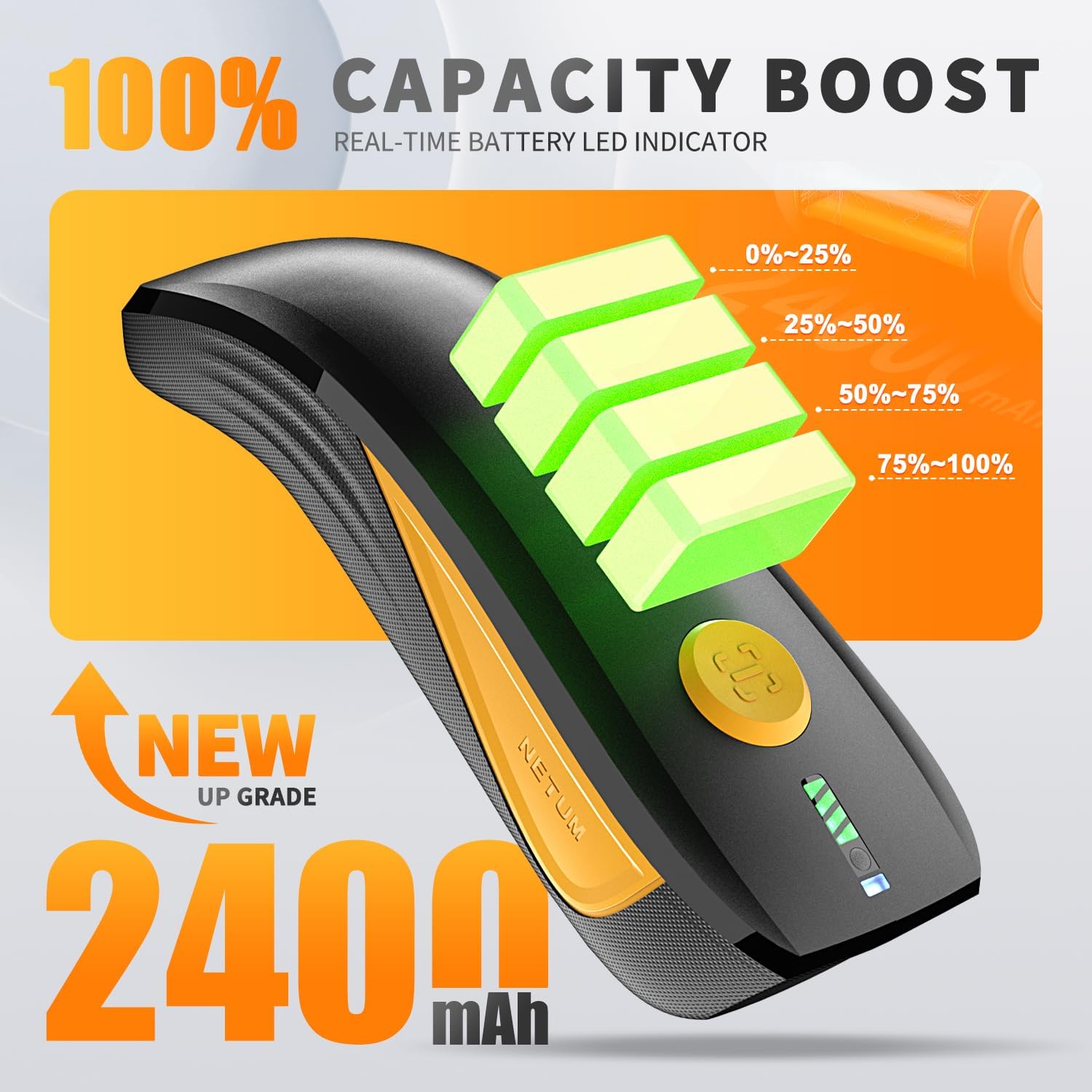
Figure 4: CS7501 scanner displaying real-time battery level indicators (0-25%, 25-50%, 50-75%, 75-100%).
3.2 ตัวเลือกการเชื่อมต่อ
Both scanners offer multiple connectivity options. Ensure the scanner is powered on before attempting to connect.
3.2.1 การเชื่อมต่อบลูทูธ
- Turn on the scanner and switch to Bluetooth mode (refer to the switch button image below).
- On your host device (smartphone, tablet, computer), enable Bluetooth and search for available devices.
- Select the scanner (e.g., "NETUM Barcode Scanner" or similar) from the list to pair.
- การเชื่อมต่อสำเร็จจะแสดงด้วยเสียงหรือไฟ LED เฉพาะบนเครื่องสแกน

Figure 5: The switch button on the CS7501 scanner, allowing selection between Bluetooth and 2.4GHz wireless connection modes. Bluetooth offers a range of up to 10m/33ft.
3.2.2 การเชื่อมต่อไร้สาย 2.4GHz
- Plug the 2.4GHz wireless adapter (dongle) into an available USB port on your computer.
- Turn on the scanner and switch to 2.4GHz wireless mode (refer to the switch button image above).
- The scanner should automatically connect to the adapter. A successful connection will be indicated by a specific sound or LED light. This mode typically offers a longer range, up to 100m/330ft.
3.2.3 การเชื่อมต่อ USB แบบมีสาย
Connect the scanner directly to your computer using the provided USB cable. The scanner will function as a USB HID keyboard device, and no additional drivers are usually required. This mode also charges the scanner.
3.3 Initial Configuration (NT-1200)
For the NT-1200, specific settings like scanning modes or data transmission options may require scanning configuration barcodes found in the separate NT-1200 manual. Always refer to the dedicated manual for the NT-1200 for detailed setup barcodes.
4. คู่มือการใช้งาน
4.1 การสแกนบาร์โค้ด
Point the scanner's window at the barcode you wish to scan. Press the trigger button (for manual mode) or allow the scanner to detect the barcode automatically (in auto-sensing mode). A successful scan is usually indicated by a beep and/or a green LED light.

Figure 6: The CS7501 scanner demonstrating its 1MP high-resolution sensor's ability to capture various 1D and 2D barcodes, including QR codes, from different surfaces.
4.2 Scanning Modes (NT-1200)
- โหมดการทำงานแบบแมนนวล: กดปุ่มเพื่อสแกนบาร์โค้ดแต่ละอัน
- โหมดการสแกนต่อเนื่อง: เครื่องสแกนจะปล่อยเส้นสแกนอย่างต่อเนื่องเพื่ออ่านบาร์โค้ดขณะที่ผ่านเข้ามาในบริเวณนั้น view โดยไม่ต้องกดไกปืน
- โหมดการสแกนตรวจจับอัตโนมัติ: เครื่องสแกนจะตรวจจับบาร์โค้ดในพื้นที่ตรวจจับโดยอัตโนมัติ view and scans it without manual trigger activation.
To switch between these modes, you will need to scan specific configuration barcodes provided in the NT-1200's dedicated manual.
4.3 โหมดการจัดเก็บ
When the scanner is out of Bluetooth or 2.4GHz wireless range, it can store scanned barcodes internally. The NT-1200 supports storage of up to 100,000 barcodes. To upload stored data, reconnect the scanner to your host device and scan the "Upload Data" configuration barcode (if applicable, refer to your specific model's manual).
5. การบำรุงรักษา
- การทำความสะอาด: Use a soft, dry cloth to clean the scanner's exterior. For the scanning window, use a lens cleaning cloth and a mild, non-abrasive cleaner if necessary. Avoid harsh chemicals or abrasive materials.
- พื้นที่จัดเก็บ: เก็บเครื่องสแกนเนอร์ไว้ในที่แห้งและเย็น หลีกเลี่ยงแสงแดดโดยตรงและอุณหภูมิที่สูงหรือต่ำเกินไป
- การดูแลแบตเตอรี่ เพื่อให้แบตเตอรี่ใช้งานได้นานที่สุด ควรหลีกเลี่ยงการปล่อยให้แบตเตอรี่หมดจนเกลี้ยงบ่อยๆ หากเก็บรักษาไว้เป็นเวลานาน ควรชาร์จแบตเตอรี่ประมาณ 50% แล้วชาร์จใหม่ทุกๆ สองสามเดือน
- การป้องกันการตก: While designed to be rugged (withstanding drops up to 4.92 feet / 1.5 meters), avoid unnecessary drops to prolong the device's life.

Figure 7: The CS7501 scanner's robust construction, featuring ABS+TPU materials for enhanced durability and drop protection.
6 การแก้ไขปัญหา
- เครื่องสแกนไม่เชื่อมต่อ:
- Ensure the scanner is powered on and fully charged.
- Verify the correct connectivity mode (Bluetooth, 2.4GHz, USB) is selected on the scanner.
- For Bluetooth, ensure your host device's Bluetooth is enabled and the scanner is paired.
- For 2.4GHz, ensure the dongle is securely plugged in.
- ลองรีสตาร์ททั้งเครื่องสแกนเนอร์และอุปกรณ์โฮสต์
- Cannot Scan Barcodes:
- ตรวจสอบให้แน่ใจว่าบาร์โค้ดสะอาด ไม่ชำรุด และมีแสงสว่างเพียงพอ
- ตรวจสอบระยะห่างและมุมระหว่างเครื่องสแกนและบาร์โค้ด
- Verify the scanner is in the correct scanning mode (e.g., manual trigger if required).
- ตรวจสอบให้แน่ใจว่าเครื่องสแกนรองรับบาร์โค้ดประเภทนั้น (1D/2D)
- Clean the scanner's reading window.
- Scanned Data Not Appearing:
- Confirm the scanner is successfully connected to your host device.
- Ensure the cursor is in a text input field on your host device.
- Check if the scanner is in storage mode; if so, upload the data.
- อายุการใช้งานแบตเตอรี่สั้น:
- โปรดตรวจสอบให้แน่ใจว่าเครื่องสแกนชาร์จแบตเตอรี่เต็มแล้วก่อนใช้งาน
- Check the battery health indicators.
- Reduce screen brightness or disable unnecessary features if applicable.
7. ข้อมูลจำเพาะ
| คุณสมบัติ | รายละเอียด |
|---|---|
| หมายเลขรุ่น | NT-1200, CS7501 |
| Sensor (CS7501) | Megapixel CMOS (1280×800) |
| ความเข้ากันได้ของบาร์โค้ด | 1D and 2D (QR, PDF417, Data Matrix, GS1 Code128, Aztec, Maxi, etc.) |
| เทคโนโลยีการเชื่อมต่อ | บลูทูธ, ไร้สาย 2.4GHz, USB |
| ช่วงบลูทูธ | สูงสุด 10ม. / 33ฟุต |
| 2.4GHz Wireless Range | สูงสุด 100ม. / 330ฟุต |
| อุปกรณ์ที่รองรับ | Computer, Laptop, POS, Smartphone, iPad, iPhone |
| แหล่งพลังงาน | ใช้พลังงานจากแบตเตอรี่ |
| Battery Capacity (CS7501) | 2400mAh |
| Continuous Operation (CS7501) | นานถึง 12 ชั่วโมง |
| การป้องกันการตกหล่น | Withstands drops from up to 4.92 feet (1.5 meters) |
| Storage Capacity (NT-1200) | บาร์โค้ดสูงสุด 100,000 รายการ |
8. การรับประกันและการสนับสนุน
NETUM products are designed for reliability and performance. For specific warranty details, please refer to the warranty card included with your product or visit the official NETUM website. For technical support, troubleshooting assistance, or service inquiries, please contact NETUM customer support through the contact information provided on their official webบรรจุภัณฑ์ไซต์หรือผลิตภัณฑ์


