1. บทนำ
Welcome to the TABWEE K10 Kids Tablet! This 10.1-inch Wi-Fi tablet is designed to provide a safe and engaging learning and entertainment experience for children. Featuring Android 15 Go Edition, Google Kids Space, robust parental controls via Google Family Link, and a durable EVA protective case, the K10 is built for young users.
This manual will guide you through the tablet's features, setup process, operation, maintenance, and troubleshooting to ensure a smooth and enjoyable experience.
มีอะไรอยู่ในกล่อง
Upon opening your TABWEE K10 Kids Tablet package, you should find the following items:
- TABWEE K10 Kids Tablet (with pre-installed EVA protective case)
- แตะปากกา
- สายเคเบิล USB Type-C
- อะแดปเตอร์แปลงไฟ
- คู่มือการใช้งาน (เอกสารนี้)
- AR Zoo Cards (for interactive learning)
Video: Unboxing the TABWEE K10 Kids Tablet, showing the tablet, protective case, and accessories.
2. ข้อมูลด้านความปลอดภัย
Please read the following safety guidelines carefully to ensure safe and proper use of your TABWEE K10 Kids Tablet:
- การดูแลผู้ใหญ่: Always supervise young children while they are using the tablet.
- การชาร์จ: Use only the provided power adapter and USB Type-C cable for charging. Do not use damaged chargers or cables. Ensure the tablet is charged in a well-ventilated area.
- น้ำและความชื้น: Keep the tablet away from water, liquids, and excessive humidity.
- อุณหภูมิ: หลีกเลี่ยงการสัมผัสแท็บเล็ตในอุณหภูมิที่สูงหรือต่ำเกินไป (ร้อนหรือเย็น)
- ความเสียหายทางกายภาพ: While the EVA case provides protection, avoid dropping the tablet from significant heights or applying excessive force.
- เวลาหน้าจอ: Encourage breaks during extended use to prevent eye strain. Utilize parental controls to manage screen time.
- การป้องกันการได้ยิน: When using headphones, ensure the volume is set to a safe level to protect hearing.
- การทำความสะอาด: Use a soft, dry cloth to clean the tablet. Do not use harsh chemicals.
3. การเริ่มต้นใช้งาน (การตั้งค่า)
3.1 ค่าบริการเริ่มต้น
Before first use, fully charge the tablet using the included USB Type-C cable and power adapter. The battery indicator on the screen will show charging progress.
3.2 การเปิด/ปิดเครื่อง
- การเปิดเครื่อง: Press and hold the Power button (located on the side) for a few seconds until the TABWEE logo appears.
- วิธีปิดเครื่อง: Press and hold the Power button until a menu appears on the screen. Select "Power Off" and confirm.
- ในการรีสตาร์ท: From the power menu, select "Restart."
3.3 ตัวช่วยการตั้งค่าเริ่มต้น
Upon first power-on, the tablet will guide you through an initial setup process:
- เลือกภาษา: เลือกภาษาที่คุณต้องการ
- การเชื่อมต่อ Wi-Fi: เลือกเครือข่าย Wi-Fi ของคุณและป้อนรหัสผ่านเพื่อเชื่อมต่ออินเทอร์เน็ต
- บัญชี Google: Sign in with an existing Google account or create a new one. This is necessary for accessing Google services like Kids Space and Play Store.
- วันที่และเวลา: ตั้งวันที่และเวลาให้ถูกต้อง
- Google Kids Space Setup: Follow the on-screen prompts to set up Google Kids Space for your child. This will provide age-appropriate content and a child-friendly interface.
- Google Family Link Setup: Install the Google Family Link app on your own smartphone and follow the instructions to link your child's tablet. This enables parental control features.
4. สินค้าหมดview (Components & Controls)
Familiarize yourself with the physical components and controls of your TABWEE K10 Kids Tablet:

Image: The TABWEE K10 tablet showing its various ports, buttons, and cameras.
- ปุ่มเปิด/ปิด: Turns the tablet on/off or puts it to sleep.
- ปุ่มปรับระดับเสียง: ปรับระดับเสียง
- พอร์ต USB Type-C: สำหรับการชาร์จและถ่ายโอนข้อมูล
- แจ็คเสียงขนาด 3.5 มม.: สำหรับเชื่อมต่อหูฟัง.
- ช่องเสียบการ์ด MicroSD: สำหรับขยายพื้นที่เก็บข้อมูลได้ถึง 2TB
- กล้องหน้า (2MP): สำหรับวิดีโอคอลและเซลฟี่
- กล้องหลัง (5MP): สำหรับถ่ายภาพและวีดีโอ
- วิทยากร: ให้เอาต์พุตเสียง
- ไมโครโฟน: สำหรับการป้อนข้อมูลด้วยเสียง
- EVA Protective Case: Provides drop protection and includes a built-in stand/handle.
5. คู่มือการใช้งาน
5.1 การนำทางพื้นฐาน
The TABWEE K10 uses a touchscreen interface. Use your finger or the included touch pen for navigation:
- แตะ: เลือกรายการหรือเปิดแอป
- ปัด: เลื่อนดูหน้าต่างๆ หรือเมนู
- หยิก: ซูมเข้าหรือออกจากรูปภาพและ web หน้า
5.2 Google Kids Space
Google Kids Space offers a curated library of apps, books, and videos designed for children. It categorizes content into "Play," "Read," "Watch," and "Make" to encourage exploration and learning.
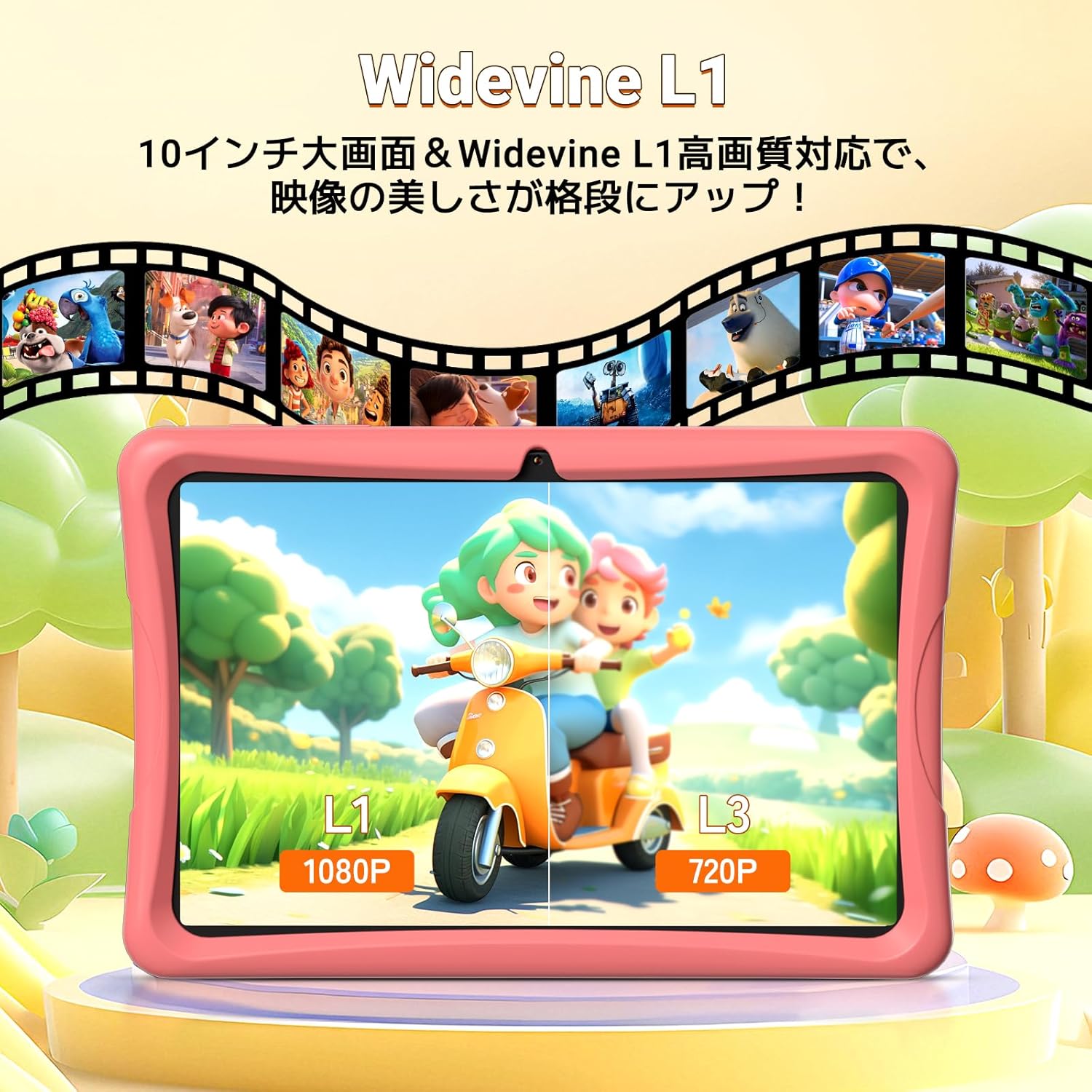
Image: The tablet screen showing the Google Kids Space interface with various app categories.
To access Kids Space, tap its icon on the home screen. Parents can manage the content available through Google Family Link.
Video: Demonstrating the variety of educational apps and content available within Google Kids Space.
5.3 YouTube Kids
The tablet supports YouTube Kids, offering a safer video experience for children. You can adjust filter settings based on your child's age and preferences.

Image: The tablet screen displaying the YouTube Kids application.
5.4 Parental Controls (Google Family Link)
Google Family Link allows you to manage your child's tablet usage remotely from your smartphone. Key features include:
- การจัดการเวลาหน้าจอ: Set daily usage limits in 15-minute increments.
- App Restrictions: Block or allow specific apps.
- การกรองเนื้อหา: Ensure age-appropriate content is displayed.
- การตรวจสอบระยะไกล: View your child's activity and screen time.
Video: Demonstration of Google Family Link features for managing app usage and screen time on the tablet.
5.5 Using the Touch Pen
The included touch pen allows for precise interaction with the tablet, making drawing, writing, and educational games more engaging. Simply use the pen as you would your finger on the screen.

Image: A child interacting with the tablet using the dedicated touch pen.
5.6 โหมดการแสดงผล
The tablet offers various display modes to enhance comfort and reduce eye strain:
- โหมดกลางคืน: ลดการปล่อยแสงสีฟ้าเพื่อความสบายตา viewในสภาพแสงน้อย
- โหมดมืด: Changes the interface to a darker color scheme, which can reduce eye fatigue.
- โหมดการอ่าน: Optimizes the display for reading, often by adjusting colors to mimic paper.

Image: The tablet screen demonstrating Night Mode, Dark Mode, and Reader Mode.
5.7 AR Zoo App
The tablet comes with an AR Zoo app that uses augmented reality technology. Use the included AR Zoo cards with the tablet's camera to bring animals to life on the screen, providing an interactive learning experience.
Image: The tablet displaying an augmented reality animal from the AR Zoo app, with physical cards nearby.
5.8 การจัดการการจัดเก็บข้อมูล
The tablet has 64GB of internal storage, which can be expanded up to 2TB using a microSD card (sold separately). To insert a microSD card, locate the card slot on the side of the tablet and gently push the card in until it clicks into place.
5.9 การใช้งานกล้อง
The tablet is equipped with a 2MP front camera and a 5MP rear camera. Open the Camera app to take photos or record videos. The intuitive interface makes it easy for children to capture their moments.
6. การบำรุงรักษา
- การทำความสะอาด: Use a soft, lint-free cloth to wipe the screen and body of the tablet. For stubborn smudges, slightly dampชุบผ้าด้วยน้ำ หลีกเลี่ยงการใช้น้ำยาทำความสะอาดที่มีฤทธิ์กัดกร่อนหรือตัวทำละลาย
- การดูแลแบตเตอรี่ To prolong battery life, avoid fully discharging the tablet frequently. Charge the tablet when the battery level is low. Store the tablet in a cool, dry place when not in use for extended periods.
- การอัปเดตซอฟต์แวร์: Periodically check for system updates in the tablet's settings. Keeping the software updated ensures optimal performance and security.
- กรณีอีวา: The EVA case can be cleaned with mild soap and water if it gets dirty. Ensure it is completely dry before reattaching it to the tablet.
7 การแก้ไขปัญหา
If you encounter any issues with your TABWEE K10 Kids Tablet, please refer to the following common solutions:
| ปัญหา | สารละลาย |
|---|---|
| แท็บเล็ตไม่สามารถเปิดเครื่องได้ | ตรวจสอบให้แน่ใจว่าแท็บเล็ตชาร์จแบตเตอรี่เต็มแล้ว เสียบที่ชาร์จและรอสักครู่ก่อนที่จะลองเปิดเครื่องอีกครั้ง |
| ปัญหาการเชื่อมต่อ Wi-Fi | Check if your Wi-Fi router is working correctly. Go to Settings > Network & internet > Wi-Fi, forget the network, and reconnect. Restart the tablet and router. |
| แอปขัดข้องหรือค้าง | Close the problematic app and reopen it. Clear the app's cache (Settings > Apps > [App Name] > Storage & cache > Clear cache). Restart the tablet. |
| ประสิทธิภาพการทำงานช้า | Close unnecessary background apps. Clear app caches. Ensure there is sufficient free storage space. Restart the tablet. |
| Parental controls not working as expected. | Ensure both the tablet and your smartphone have the latest Google Family Link app versions. Check the settings within the Family Link app on your smartphone. |
| Touch pen not responding. | Ensure the screen is clean. Try restarting the tablet. |
หากปัญหายังคงมีอยู่หลังจากลองขั้นตอนเหล่านี้แล้ว โปรดติดต่อฝ่ายสนับสนุนลูกค้าเพื่อขอความช่วยเหลือเพิ่มเติม
8. ข้อมูลจำเพาะ
| คุณสมบัติ | รายละเอียด |
|---|---|
| ชื่อรุ่น | แทบวี เค10 |
| ระบบปฏิบัติการ | Android 15 รุ่น Go |
| แสดง | 10.1-inch HD IPS (1280x800 pixels) |
| โปรเซสเซอร์ | RK3562 Quad-Core (Cortex-A55, max 2.0GHz) |
| จีพียู | มะลิ-G52 |
| แรม | 12GB (4GB หน่วยความจำจริง + 8GB หน่วยความจำเสมือน) |
| การจัดเก็บข้อมูลภายใน | รอม 64GB |
| พื้นที่เก็บข้อมูลแบบขยายได้ | รองรับความจุสูงสุด 2TB ผ่านการ์ด microSD (ไม่รวมอยู่ในชุด) |
| แบตเตอรี่ | ลิเธียมไอออน 5000mAh |
| กล้องหน้า | 2MP |
| กล้องหลัง | 5MP |
| การเชื่อมต่อ | Wi-Fi (802.11ac), บลูทูธ |
| ขนาด | 32.79 x 20 x 3.9 ซม. |
| น้ำหนัก | 1.02 กก. |
| การรับรอง | TELEC, GMS |
9. การรับประกันและการสนับสนุน
Your TABWEE K10 Kids Tablet comes with a รับประกัน 24 เดือน นับจากวันที่ซื้อ การรับประกันนี้ครอบคลุมถึงข้อบกพร่องจากการผลิตและช่วยให้คุณอุ่นใจได้
For any questions, technical support, or warranty claims, please contact TABWEE customer service. Our support team is available 24 hours a day via email in both Japanese and English.
วิธีติดต่อฝ่ายสนับสนุน:
- ผ่านทาง Amazon: Go to your Amazon account, navigate to "Order History," select the relevant order, and click "Contact Seller."
- From the Product Page: On the product page, below the "Add to Cart" button, click on the store name. Then, in the upper right corner, click "Ask a Question" to send an email.
We aim to respond to all inquiries as quickly as possible, excluding holidays.

Image: A customer support representative assisting with inquiries.


