1. บทนำ
This manual provides essential instructions for the safe operation, setup, and maintenance of your Ameta S20 Pro GPS Drone. Please read this manual thoroughly before operating the drone to ensure proper function and to prevent damage or injury.

Image 1.1: The Ameta S20 Pro drone in flight, showcasing its design and operational context.
2. คำแนะนำด้านความปลอดภัย
Adherence to these safety guidelines is crucial for safe operation and to avoid potential hazards.
- การตรวจสอบก่อนบิน: Always inspect the drone, remote control, and batteries for any damage before each flight.
- สภาพแวดล้อม : Avoid flying in strong winds, rain, snow, or fog. Maintain a clear line of sight to the drone.
- พื้นที่บิน: Operate the drone in open areas, away from people, animals, buildings, and power lines. Do not fly over crowds.
- ความปลอดภัยของแบตเตอรี่: Use only approved batteries and chargers. Do not overcharge or puncture batteries. Discontinue use if batteries show signs of swelling or damage.
- ปฏิบัติตามกฎระเบียบท้องถิ่น: Be aware of and comply with all local aviation laws and regulations regarding drone operation. The Ameta S20 Pro weighs under 249g, which may exempt it from registration requirements in some regions. Always verify local laws.

Image 2.1: The Ameta S20 Pro drone, highlighting its lightweight design (under 249g) and potential exemption from registration in certain jurisdictions. Users should always check local regulations.
3. เนื้อหาบรรจุภัณฑ์
ตรวจสอบว่ารายการทั้งหมดที่ระบุไว้ด้านล่างนี้รวมอยู่ในแพ็คเกจของคุณ:
- โดรน GPS พร้อมกล้อง 4K
- รีโมทคอนโทรล
- 2 x Batteries (3000mAh)
- คู่มือการใช้งาน
- กระเป๋าใส่อุปกรณ์
- ใบพัดสำรอง (8 ชิ้น)
- สายชาร์จ USB
- ไขควง

Image 3.1: All components included in the Ameta S20 Pro drone package.
4. สินค้าหมดview
4.1 ส่วนประกอบของโดรน
Familiarize yourself with the various parts of the Ameta S20 Pro drone.

Image 4.1: The Ameta S20 Pro drone with its arms extended.
- ใบพัด: ใบพัดสี่ใบสำหรับสร้างแรงยกและแรงขับเคลื่อน
- มอเตอร์ไร้แปรงถ่าน: Provide efficient and stable flight.
- กล้อง 4K: Integrated camera with 13MP Sony IMX258 sensor for high-resolution photo and video capture.
- ช่องใส่แบตเตอรี่: เป็นที่เก็บแบตเตอรี่สำหรับเครื่องบิน
- ไฟ LED แสดงสถานะ: Provide status information during flight and operation.
4.2 การควบคุมระยะไกล
The remote control allows for precise manipulation of the drone's flight and camera functions.
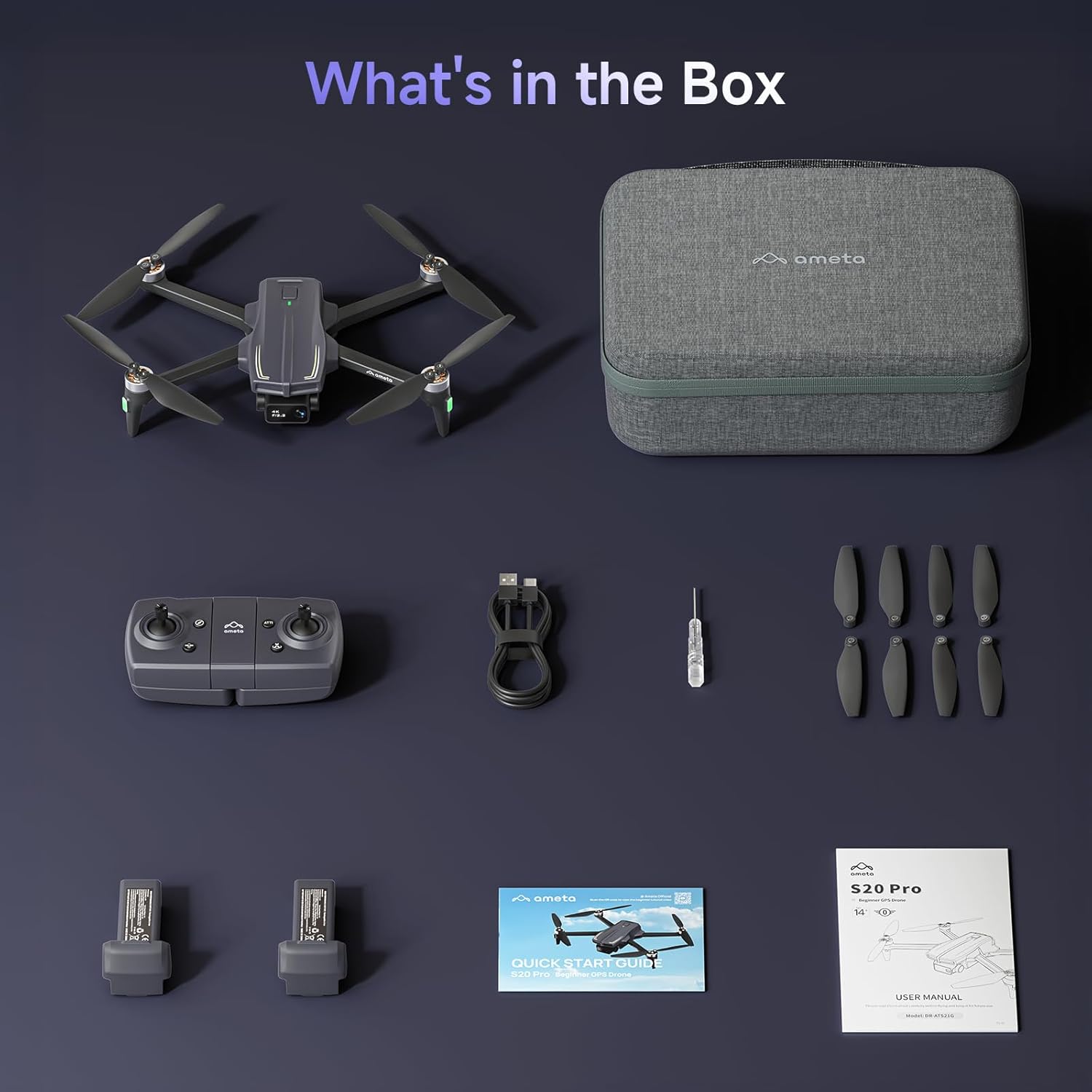
Image 4.2: The remote control with a smartphone holder.
- แท่งควบคุม: For directional flight and altitude control.
- ที่วางสมาร์ทโฟน: ยึดสมาร์ทโฟนของคุณให้แน่นหนาสำหรับการถ่ายภาพ FPV viewการควบคุมด้วยแอปพลิเคชัน
- ปุ่มฟังก์ชั่น: Dedicated buttons for takeoff/landing, Return-to-Home, photo/video capture, and speed adjustment.
5. การตั้งค่า
5.1 การชาร์จแบตเตอรี่
- Insert the flight battery into the drone's battery compartment.
- Connect the USB charging cable to the drone's charging port and a USB power adapter (not included).
- The LED indicator on the drone will show charging status. A full charge typically takes approximately 2 hours for each 3000mAh battery.
- The drone cannot be flown while the battery is charging.

Image 5.1: Illustration of the drone battery and its extended flight duration.
5.2 การติดตั้งใบพัด
Ensure propellers are correctly installed before flight. Match propellers with corresponding motor arms (A and B markings).
- Identify propellers marked 'A' and 'B'.
- Attach 'A' propellers to motor arms marked 'A', and 'B' propellers to motor arms marked 'B'.
- ยึดใบพัดแต่ละอันให้แน่นด้วยสกรูที่ให้มา โดยใช้ไขควง
5.3 การควบคุมระยะไกลและการตั้งค่าแอปพลิเคชัน
- Install 3 AAA batteries (not included) into the remote control.
- Download the Ameta flight app from your device's app store.
- เปิดโดรน จากนั้นเปิดรีโมทคอนโทรล
- Connect your smartphone to the drone's Wi-Fi network (usually named 'Ameta-S20Pro-XXXX').
- Open the Ameta flight app to establish a connection.
5.4 การสอบเทียบ
Perform compass and gyroscope calibration before the first flight and whenever flying in a new location.
- Follow the on-screen instructions in the Ameta app for compass calibration. This typically involves rotating the drone horizontally and vertically.
- Place the drone on a flat, level surface for gyroscope calibration.
6. คู่มือการใช้งาน
6.1 การตรวจสอบก่อนบิน
- Ensure batteries are fully charged in both drone and remote control.
- Propellers are securely attached and undamaged.
- Drone is placed on a flat, open surface.
- GPS signal is acquired (indicated by solid green lights on the drone).
6.2 การขึ้นและลงจอด
- ขึ้นบินได้ด้วยปุ่มเดียว: Press the one-button takeoff icon on the remote control or in the app. The drone will automatically ascend to a safe altitude and hover.
- การบินขึ้นด้วยมือ: กดคันบังคับทั้งสองลงและออกไปด้านนอกเพื่อสตาร์ทมอเตอร์ ค่อยๆ ดันคันบังคับด้านซ้ายขึ้นเพื่อขึ้นไปด้านบน
- การลงจอดด้วยปุ่มเดียว: Press the one-button landing icon. The drone will descend and land automatically.
- การลงจอดด้วยตนเอง: ค่อยๆ ดึงคันบังคับด้านซ้ายลงเพื่อลงจอด เมื่อลงจอดแล้ว ให้ดันคันบังคับทั้งสองลงและเข้าด้านในเพื่อหยุดมอเตอร์

Image 6.1: Key beginner-friendly features of the Ameta S20 Pro drone.
6.3 ระบบควบคุมการบิน
Use the control sticks on the remote for basic flight maneuvers:
- คันบังคับซ้าย (คันเร่ง/การหมุน): ขึ้น/ลงเพื่อปรับระดับความสูง ซ้าย/ขวาเพื่อปรับการหมุน
- จอยสติ๊กด้านขวา (ปรับระดับเสียง/การหมุน): Up/Down for forward/backward movement, Left/Right for left/right movement.
6.4 โหมดการบินอัจฉริยะ
The Ameta S20 Pro features several intelligent flight modes for enhanced control and creative shots. Note: GPS features are only available when GPS mode is enabled and a strong GPS signal is acquired.
- กลับสู่บ้านเกิด (RTH): Automatically brings the drone back to its takeoff point. Activated by a button press, low battery, or signal loss.

Image 6.2: Visual representation of the Return-to-Home function.
- จุดแวะพักเที่ยวบิน: Set custom points on a map, and the drone will follow the designated path.

Image 6.3: The drone executing a Waypoint Flight path.
- วงกลมบิน: The drone orbits around a selected point, capturing circular footage.

Image 6.4: The drone performing a Circle Fly maneuver.
- ระบบติดตาม GPS: The drone automatically follows the remote control (and thus the user), keeping them in the frame.

Image 6.5: The drone utilizing GPS Follow Me mode.
- Other Creative Modes: Rocket, Orbit, Dolly Zoom, Panorama, Time-lapse, and Gesture Selfie are available via the app for diverse shooting options.

ภาพที่ 6.6: จบแล้วview of creative shooting modes.
6.5 การทำงานของกล้อง
The Ameta S20 Pro is equipped with a 4K camera for high-quality imaging.

Image 6.7: Details of the 4K camera with 13MP sensor.
- ถ่ายภาพ/วิดีโอ: ใช้ปุ่มเฉพาะบนรีโมทคอนโทรลหรือในแอปพลิเคชันเพื่อถ่ายภาพหรือเริ่ม/หยุดการบันทึกวิดีโอ
- FPV (มุมมองบุคคลที่หนึ่ง View): The 5G WiFi transmission provides real-time video feed to your connected smartphone.
- เลนส์ที่ปรับได้: The camera lens can be adjusted 90 degrees for varied shooting angles.
- พื้นที่จัดเก็บ: Photos and videos are saved to a microSD card (not included) inserted into the drone.
7. การบำรุงรักษา
7.1 การทำความสะอาด
- Wipe the drone and remote control with a soft, dry cloth after each use.
- อย่าใช้สารเคมีหรือตัวทำละลายที่รุนแรง
- Ensure no dust or debris obstructs the camera lens or motor vents.
7.2 การเปลี่ยนใบพัด
Replace damaged or bent propellers immediately to ensure stable flight.
- ปิดโดรน
- Use the provided screwdriver to remove the screws securing the damaged propeller.
- Carefully remove the damaged propeller.
- Install a new propeller, ensuring it matches the 'A' or 'B' marking of the motor arm.
- Secure the new propeller with screws.
7.3 การดูแลและจัดเก็บแบตเตอรี่
- เก็บแบตเตอรี่ไว้ในที่แห้งและเย็น หลีกเลี่ยงแสงแดดโดยตรงและอุณหภูมิที่สูงหรือต่ำเกินไป
- For long-term storage, charge batteries to approximately 50-60% capacity.
- Do not store fully charged or fully depleted batteries for extended periods.
8 การแก้ไขปัญหา
| ปัญหา | สาเหตุที่เป็นไปได้ | สารละลาย |
|---|---|---|
| โดรนไม่เปิดเครื่อง | แบตเตอรี่อ่อน; ใส่แบตเตอรี่ไม่ถูกต้อง | ชาร์จแบตเตอรี่; ใส่แบตเตอรี่กลับเข้าไปให้แน่น |
| No connection to remote control | Remote control battery low; Pairing failed | Replace remote control batteries; Re-pair drone and remote control |
| การบินไม่เสถียร/การลอยตัว | Improper calibration; Damaged propellers; Strong winds | Perform gyroscope and compass calibration; Replace damaged propellers; Fly in calm conditions |
| No FPV video feed | Phone not connected to drone Wi-Fi; App not open; Weak Wi-Fi signal | Connect to drone Wi-Fi; Open app; Fly closer to drone |
| GPS features not working | Weak GPS signal; GPS mode not enabled | Fly in an open area with clear sky; Ensure GPS mode is enabled in app |
| โดรนสูญหายระหว่างบิน | Out of range; RTH not activated | Use the 'Find Your Drone' feature in the app (if available and GPS was active). Always fly within visual line of sight. |

Image 8.1: The 'Find Your Drone' feature on the app, useful for locating a lost drone if GPS was active.
9. ข้อมูลจำเพาะ
| คุณสมบัติ | รายละเอียด |
|---|---|
| ยี่ห้อ | อเมต้า |
| ชื่อรุ่น | เอส20โปร |
| ความละเอียดในการจับภาพวิดีโอ | 4K |
| ความละเอียดของภาพนิ่งที่มีประสิทธิภาพ | 13 MP |
| เทคโนโลยีการเชื่อมต่อ | ไวไฟ (5G) |
| คุณสมบัติพิเศษ | 13MP Sensor, 50-Min Flight Time, GPS Drone, One Button Return, Speed Adjustment |
| ระดับทักษะ | ผู้เริ่มต้น |
| น้ำหนักสินค้า | 20.14 ออนซ์ (ประมาณ 571 กรัม) |
| ความจุของแบตเตอรี่ | 3000 มิลลิวินาทีamp ชั่วโมง (ต่อแบตเตอรี่) |
| ขนาดสินค้า (พับ) | ยาว 8.27 นิ้ว x กว้าง 10.43 นิ้ว x สูง 3.15 นิ้ว |
| วัสดุ | เอบีเอส |

Image 9.1: Product dimensions of the Ameta S20 Pro drone.
10. การรับประกันและการสนับสนุน
The Ameta S20 Pro GPS Drone comes with a standard manufacturer's warranty. For specific warranty terms, duration, and conditions, please refer to the warranty card included in your package or contact Ameta customer support.
For technical assistance, troubleshooting not covered in this manual, or to inquire about replacement parts, please contact Ameta customer support through the contact information provided on the official Ameta webไซต์หรือแพลตฟอร์มการซื้อของคุณ