1. บทนำ
This manual provides detailed instructions for the installation, operation, and maintenance of your Girafit GRF-T350SW 3K 5MP Indoor/Outdoor Pan/Tilt/Zoom Wi-Fi Security Camera. Please read this manual thoroughly before using the product to ensure proper functionality and safety. Keep this manual for future reference.
2. สินค้าหมดview
คุณสมบัติหลัก
- 3K 5MP Resolution with 4X Digital Zoom: ให้ภาพวิดีโอที่ชัดเจนและมีรายละเอียดtage.
- หมุนได้ 360° ในแนวนอน และหมุนได้ 180° ในแนวตั้ง: Offers comprehensive coverage of your monitoring area.
- AI Person/Pet/Vehicle Detection: Advanced artificial intelligence for accurate identification of subjects, reducing false alerts.
- Auto Motion Tracking: Automatically follows detected subjects within the camera's field of view.
- การมองเห็นสีในเวลากลางคืนภายใต้แสงดาว: Enhanced low-light performance for vivid color images at night.
- เสียงสองทาง: มีไมโครโฟนและลำโพงในตัวสำหรับการสื่อสารแบบเรียลไทม์
- Auto Alert Siren: Deters intruders with an audible alarm.
- ระดับการกันน้ำ IP65: Suitable for outdoor use in various weather conditions.
- ตัวเลือกการจัดเก็บที่ยืดหยุ่น: Supports encrypted US cloud storage and local Micro SD card storage (up to 256GB).
- 2.4GHz/5GHz Wi-Fi Connectivity: Dual-band Wi-Fi support for stable connection.
มีอะไรอยู่ในกล่อง
- Girafit GRF-T350SW Camera Body
- อะแดปเตอร์แปลงไฟ
- สกรูยึดและตัวล็อค
- เทมเพลตการติดตั้ง
- คู่มือการใช้งาน

Figure 2.1: Girafit GRF-T350SW camera showing its pan and tilt capabilities.

Figure 2.2: The Girafit GRF-T350SW camera operating reliably in both rainy and sunny conditions, highlighting its IP65 weatherproof design.
3. การตั้งค่า
3.1 การติดตั้งทางกายภาพ
- เลือกตำแหน่ง: Select a suitable outdoor or indoor location that provides the desired viewing angle and is within range of your Wi-Fi network. Ensure the power outlet is accessible.
- ติดตั้งกล้อง: Use the provided mounting template to mark drill holes. Secure the mounting bracket to the wall or ceiling using the screws and anchors. Attach the camera to the bracket.
- เชื่อมต่อพลังงาน: Plug the power adapter into the camera and then into a power outlet. The camera will power on and initiate its startup sequence.
3.2 การติดตั้งแอปและการสร้างบัญชี
- Download the Girafit App: ค้นหา 'Girafit' in your smartphone's app store (iOS or Android) and download the official application.
- สร้างบัญชี: เปิดแอปและทำตามคำแนะนำบนหน้าจอเพื่อลงทะเบียนบัญชีใหม่
3.3 การเชื่อมต่อเครือข่าย
- เพิ่มอุปกรณ์: In the Girafit app, tap the '+' icon to add a new device. Select your camera model.
- ทำตามคำแนะนำในแอป: The app will guide you through connecting the camera to your 2.4GHz or 5GHz Wi-Fi network. This typically involves scanning a QR code displayed on your phone with the camera lens.
- เสร็จสิ้น: เมื่อเชื่อมต่อแล้ว ไฟแสดงสถานะของกล้องจะเปลี่ยนไป และคุณจะเห็นภาพสดในแอป
4. ปฏิบัติการ
4.1 การควบคุมการแพน การเอียง และการซูม
จากการถ่ายทอดสด view in the Girafit app, use the on-screen controls to remotely adjust the camera's viewing angle. The camera supports 360° horizontal pan and 180° vertical tilt. You can also digitally zoom in up to 4X to view รายละเอียด.

Figure 4.1: Visual comparison demonstrating the clarity of 3K 5MP resolution with 4X zoom compared to standard 3MP resolution.
4.2 การตรวจจับการเคลื่อนไหวและการติดตามอัตโนมัติ
The camera features advanced AI detection capabilities to identify humans, pets, and vehicles. When motion is detected, the camera can automatically track the subject, zoom in, record the event, and send push notifications to your smartphone.
- เปิดใช้งานการตรวจจับ: Navigate to the camera settings in the app to enable AI Person/Pet/Vehicle Detection.
- ตั้งค่าโซนการตรวจจับ: กำหนดพื้นที่เฉพาะภายในกล้อง view ในตำแหน่งที่คุณต้องการให้ระบบตรวจจับการเคลื่อนไหวทำงาน
- Activate Auto Tracking: Enable auto tracking in the settings to allow the camera to follow detected subjects.
- Auto Alert Siren: Configure the camera to trigger an audible siren upon detection to deter unwanted visitors.

Figure 4.2: Illustration of the camera's automatic tracking feature, showing a person being followed with a 4X zoom.

Figure 4.3: The camera's AI accurately detecting a human, a pet, and a vehicle in a home environment.

Figure 4.4: The camera detecting activity in a defined hexagonal area and issuing an auto voice alert.
4.3 การมองเห็นตอนกลางคืน
The GRF-T350SW offers multiple night vision modes for clear surveillance in low-light conditions.
- การมองเห็นสีในเวลากลางคืนภายใต้แสงดาว: Utilizes a Starlight Sensor and f/1.6 aperture to capture more light, providing full-color video even in very dim environments.
- โหมดอินฟราเรด: Standard black and white night vision using infrared LEDs.
- โหมดสปอตไลท์: Activates built-in spotlights to illuminate the area and capture color video when motion is detected at night.
You can switch between these modes or set them to automatic in the app settings.

Figure 4.5: Visual representation of the camera's Starlight Color Night Vision, Infrared Mode, and Spotlight Mode capabilities.
4.4 เสียงสองทาง
The integrated microphone and speaker allow for two-way communication. You can speak through the camera to visitors or deter intruders directly from your smartphone via the Girafit app.
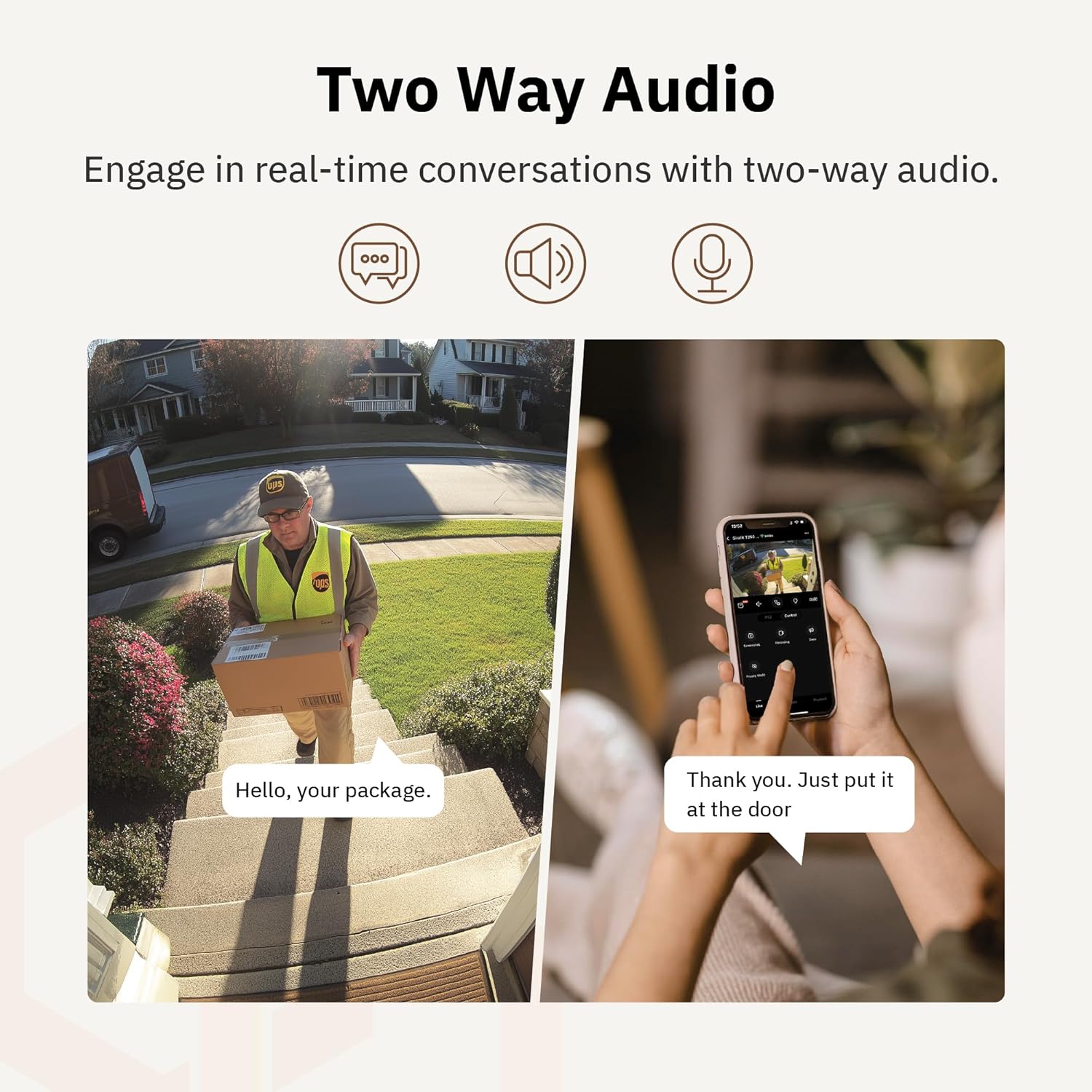
รูปที่ 4.6: ตัวอย่างample of using two-way audio to communicate with a delivery person at the door.
4.5 โหมดความเป็นส่วนตัว
For enhanced privacy, the camera features a privacy mode. When activated, the camera lens physically tilts down by 180°, ensuring no live feed is captured or transmitted. This provides 100% privacy protection when needed.

Figure 4.7: The camera in privacy mode, with the lens tilted downwards to ensure no recording or live view.
4.6 ที่จัดเก็บวิดีโอ
The camera supports two primary methods for video storage:
- การ์ด Micro SD: Insert a Micro SD card (up to 256GB, not included) into the designated slot on the camera for local storage of recordings.
- การเก็บข้อมูลบนคลาวด์: Girafit offers encrypted cloud storage services in the US. Refer to the app for subscription options and details.
5. การบำรุงรักษา
5.1 การทำความสะอาด
เพื่อรักษาประสิทธิภาพการทำงานให้อยู่ในระดับสูงสุด ควรทำความสะอาดเลนส์และตัวกล้องเป็นระยะ โดยใช้ผ้าเนื้อนุ่มและแห้งamp ใช้ผ้าเช็ดทำความสะอาดฝุ่นและสิ่งสกปรก หลีกเลี่ยงการใช้สารเคมีรุนแรงหรือวัสดุที่มีฤทธิ์กัดกร่อนซึ่งอาจทำให้เลนส์หรือพื้นผิวเสียหายได้
การอัปเดตเฟิร์มแวร์ 5.2 รายการ
Girafit regularly releases firmware updates to improve camera performance, add new features, and enhance security. Check the Girafit app periodically for available updates and follow the in-app instructions to install them. Ensure the camera has a stable power supply during updates.
6 การแก้ไขปัญหา
- กล้องไม่ได้เชื่อมต่อกับ Wi-Fi:
- Ensure your Wi-Fi network is 2.4GHz or 5GHz and the password is correct.
- ย้ายกล้องให้เข้าใกล้เราเตอร์ Wi-Fi ของคุณมากขึ้น
- รีสตาร์ทเราเตอร์และกล้องของคุณ
- คุณภาพวิดีโอไม่ดี:
- ตรวจสอบความเร็วในการเชื่อมต่ออินเตอร์เน็ตของคุณ
- ทำความสะอาดเลนส์กล้อง
- Ensure the camera is receiving adequate power.
- การตรวจจับความเคลื่อนไหวไม่ทำงาน:
- ตรวจสอบให้แน่ใจว่าได้เปิดใช้งานการตรวจจับการเคลื่อนไหวในการตั้งค่าแอปแล้ว
- ปรับความไวในการตรวจจับและโซนการตรวจจับ
- ตรวจสอบให้แน่ใจว่าไม่มีสิ่งกีดขวางปิดกั้นกล้อง view.
- ปัญหาเสียงสองทาง:
- Check microphone and speaker permissions for the Girafit app on your phone.
- ตรวจสอบให้แน่ใจว่าไมโครโฟนและลำโพงของกล้องไม่มีสิ่งกีดขวาง
For further assistance, please contact Girafit customer support.
7. ข้อมูลจำเพาะ
| คุณสมบัติ | คำอธิบาย |
|---|---|
| ชื่อรุ่น | GRF-T350SW |
| ความละเอียดในการจับภาพวิดีโอ | 3K (5 ล้านพิกเซล) |
| การใช้งานภายใน/ภายนอกอาคาร | กลางแจ้ง |
| เทคโนโลยีการเชื่อมต่อ | Wi-Fi (2.4GHz/5GHz), Wired |
| แหล่งพลังงาน | สายไฟ |
| ประเภทการติดตั้ง | ติดผนัง |
| คุณสมบัติพิเศษ | 2-Way Audio, AI Detection (Human/Pet/Vehicle), Auto Tracking, Color Night Vision, IP65 Weatherproof |
| อุปกรณ์ที่รองรับ | Desktop, Laptop, Smartphone (Android/iOS) |
| ขนาดรายการ (ยาว x กว้าง x สูง) | 2.63 x 2.63 x 4.76 นิ้ว |
| น้ำหนักสินค้า | 14.7 ออนซ์ |
| ตัวเลือกการจัดเก็บข้อมูล | การ์ด Micro SD (สูงสุด 256GB), พื้นที่จัดเก็บข้อมูลบนคลาวด์ |
| ยูพีซี | 764742517881 |
8. การรับประกันและการสนับสนุน
Girafit products are designed for reliability and performance. For warranty information, please refer to the warranty card included with your product or visit the official Girafit website. For technical support, troubleshooting assistance, or any inquiries regarding your Girafit GRF-T350SW camera, please contact Girafit customer service through the contact information provided on the official website or within the Girafit app.


