1. บทนำ
This manual provides detailed instructions for the setup, operation, and maintenance of your Dierya M1 Wireless Gaming Mouse. Please read this manual thoroughly before using the product to ensure proper functionality and to maximize your user experience.

Figure 1: Dierya M1 Wireless Gaming Mouse and 2.4G USB Receiver.
2. คุณสมบัติของผลิตภัณฑ์
- เซ็นเซอร์ออปติคัล 24,000 DPI: Adjustable DPI range from 200 to 24,000, with 6 preset levels (400-6400 DPI). Features a 125-1000 Hz polling rate, 300 IPS tracking speed, and 35G acceleration.
- การเชื่อมต่อสามโหมด: Supports ultra-fast 2.4 GHz wireless (1000 Hz polling rate), energy-efficient Bluetooth 5.2 (125 Hz polling rate), and stable USB-C wired connection (1000 Hz polling rate).
- อายุการใช้งานแบตเตอรี่ที่ยาวนานขึ้น: Equipped with a 1000 mAh battery, providing up to 180 hours of use in ECO mode or 48 hours with RGB lighting enabled. Fully recharges in approximately 1 hour via USB-C. Includes an automatic power-saving mode after 1-5 minutes of inactivity.
- น้ำหนักเบาและการออกแบบตามหลักสรีรศาสตร์: Weighs 90g with a breathable honeycomb shell. Symmetrical design (125x63x41 mm) suitable for various grip styles.
- ส่วนประกอบที่ทนทาน: Features Huano switches rated for 20 million clicks and 100% PTFE feet for smooth gliding.
- ปุ่มที่สามารถตั้งโปรแกรมได้: Six customizable buttons for macros and reassignments.
- แสง RGB แบบไดนามิก: 13 integrated dynamic RGB lighting effects with 16.8 million customizable colors.
- ความเข้ากันได้ของระบบ: Compatible with Windows, macOS, Linux, and Chrome OS.
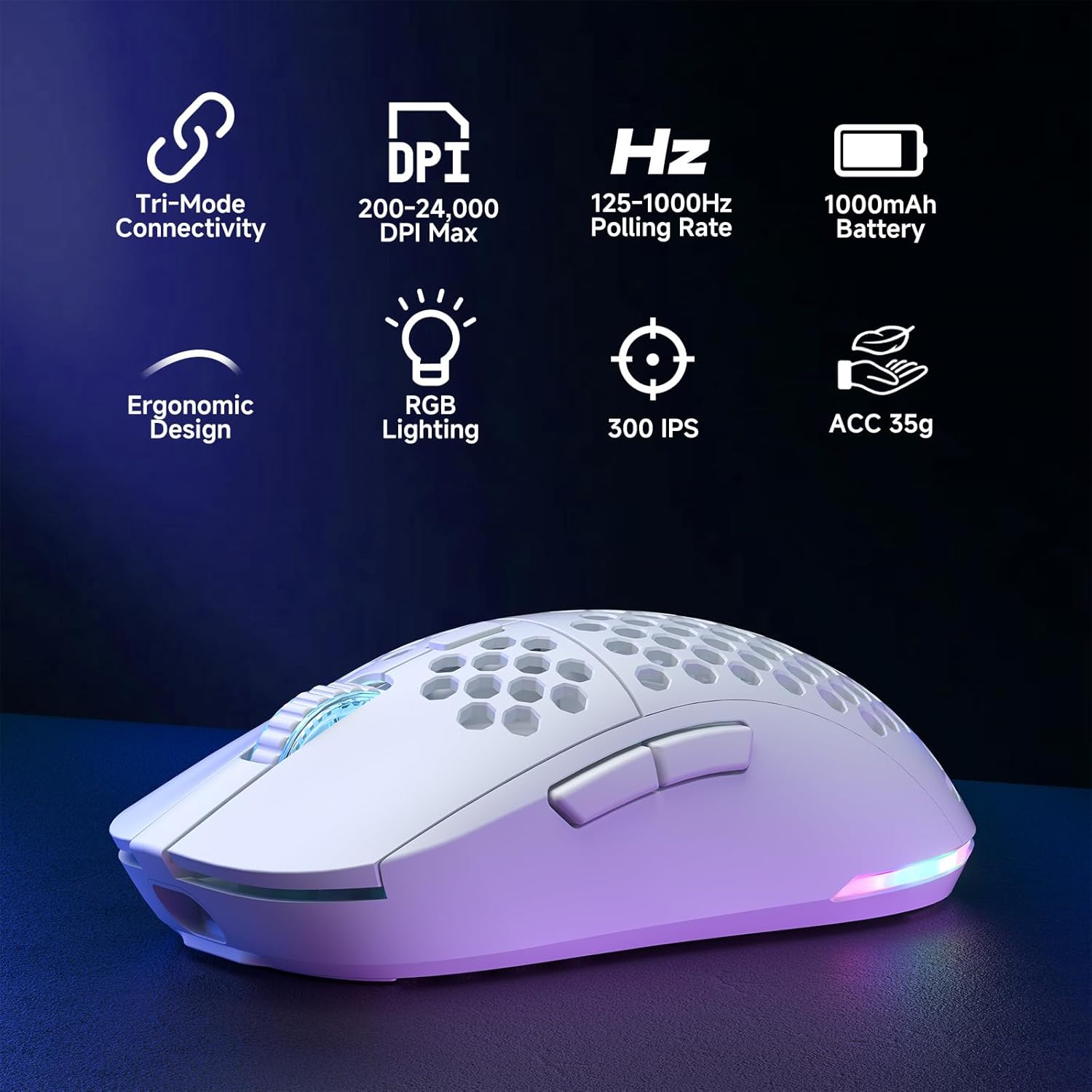
Figure 2: Key features of the Dierya M1 Wireless Gaming Mouse.
3. แผนภาพผลิตภัณฑ์และส่วนประกอบ
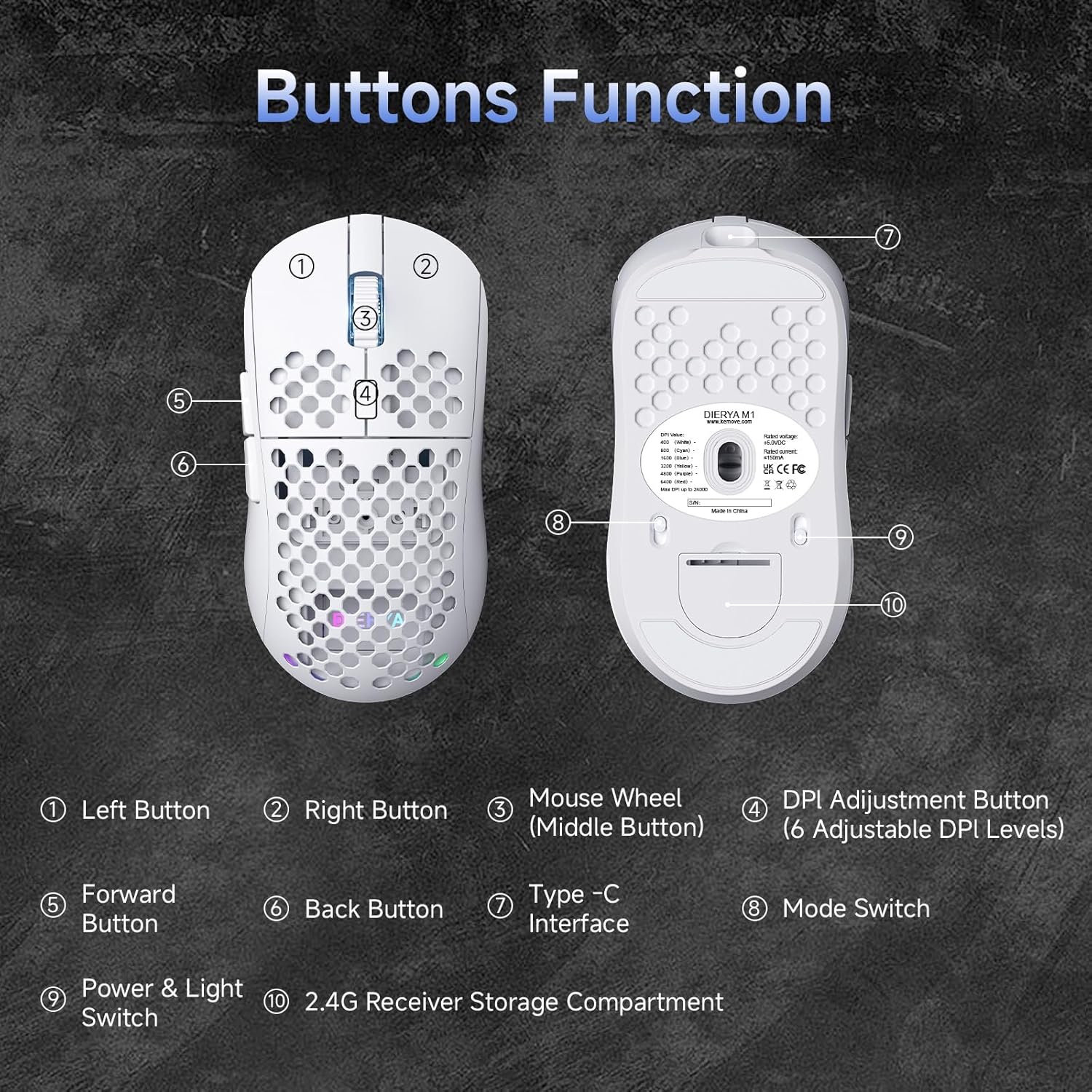
รูปที่ 3: ด้านบนและด้านล่าง view of the Dierya M1 mouse with labeled components.
- ปุ่มซ้าย
- ปุ่มขวา
- Mouse Wheel (Middle Button)
- DPI Adjustment Button (6 Adjustable DPI Levels)
- ปุ่มเดินหน้า
- ปุ่มย้อนกลับ
- อินเทอร์เฟซ Type-C
- Mode Switch (2.4G / Bluetooth / Wired)
- Power & Light Switch
- 2.4G Receiver Storage Compartment
4. การตั้งค่าและการเชื่อมต่อ
The Dierya M1 mouse offers three connection modes: 2.4 GHz Wireless, Bluetooth 5.2, and USB-C Wired.

รูปที่ 4: เกินview จากโหมดการเชื่อมต่อทั้งสามแบบ
4.1. การเชื่อมต่อไร้สาย 2.4 GHz
- ค้นหาตัวรับสัญญาณ USB 2.4G ในช่องเก็บของด้านล่างของเมาส์
- เสียบตัวรับสัญญาณ USB เข้ากับพอร์ต USB ที่พร้อมใช้งานบนคอมพิวเตอร์ของคุณ
- ตั้งสวิตช์โหมดที่ด้านล่างของเมาส์ไปที่ตำแหน่ง '2.4G'
- เมาส์ควรเชื่อมต่อโดยอัตโนมัติ
4.2. การเชื่อมต่อบลูทูธ 5.2
- Set the mode switch on the bottom of the mouse to the 'Bluetooth' position.
- เปิดการตั้งค่าบลูทูธบนคอมพิวเตอร์หรืออุปกรณ์ของคุณ
- ค้นหา new devices and select 'Dierya M1' from the list.
- ปฏิบัติตามคำแนะนำบนหน้าจอเพื่อดำเนินการจับคู่ให้เสร็จสมบูรณ์
4.3. การเชื่อมต่อผ่านสาย USB-C
- Connect the provided USB-C cable to the Type-C interface on the front of the mouse.
- เชื่อมต่อปลายอีกด้านหนึ่งของสาย USB-C เข้ากับพอร์ต USB ที่ว่างอยู่บนคอมพิวเตอร์ของคุณ
- ตั้งสวิตช์โหมดที่ด้านล่างของเมาส์ไปที่ตำแหน่ง 'มีสาย'
- เมาส์นี้จะทำหน้าที่เป็นเมาส์แบบมีสายและชาร์จไปพร้อมๆ กัน
5. คู่มือการใช้งาน
5.1. การปรับ DPI
The DPI Adjustment Button (4) on the top of the mouse allows you to cycle through preset DPI levels. Each DPI level is indicated by a specific color on the scroll wheel LED for a few seconds after adjustment.
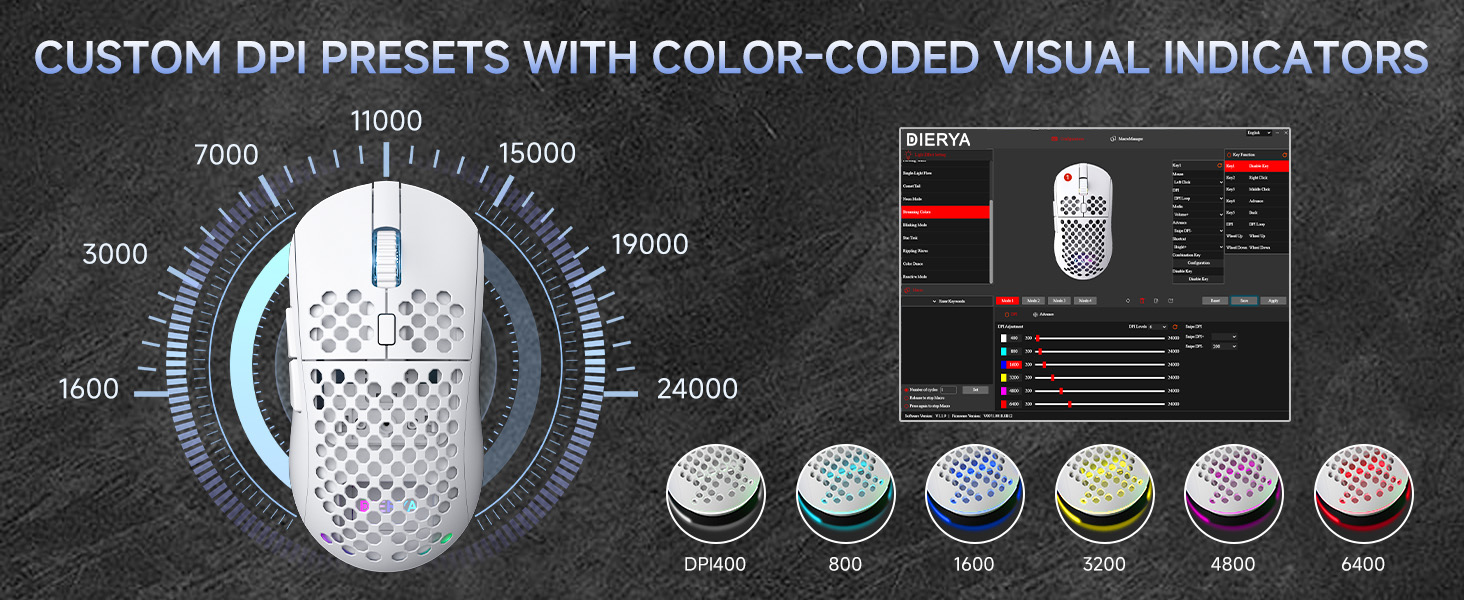
Figure 5: DPI levels and their corresponding scroll wheel LED colors.
- Press the DPI button to switch between 6 preset DPI levels.
- Default presets: 400 DPI (Red), 800 DPI (Green), 1600 DPI (Blue), 3200 DPI (Yellow), 4800 DPI (Purple), 6400 DPI (Cyan).
- For custom DPI settings and a wider range (200-24,000 DPI), use the M1 Driver Software (Windows only).
5.2. การควบคุมแสง RGB
The mouse features 13 dynamic RGB lighting effects. You can control the lighting directly on the mouse or customize it further with the software.
- To cycle through RGB effects: Press and hold the DPI Adjustment Button (4) for 3 seconds.
- To turn RGB lighting On/Off: Use the Power & Light Switch (9) on the bottom of the mouse.
- For advanced customization of colors and effects, use the M1 Driver Software (Windows only).
5.3. ปุ่มที่สามารถตั้งโปรแกรมได้
The Dierya M1 has 6 programmable buttons (Left, Right, Middle, DPI, Forward, Back). These buttons can be customized for various functions, macros, or key reassignments using the M1 Driver Software.
6. การชาร์จและการจัดการแบตเตอรี่
The Dierya M1 mouse is equipped with a 1000 mAh rechargeable battery.

Figure 6: Charging the Dierya M1 mouse and battery life indicators.
- การชาร์จ: Connect the mouse to your computer using the provided USB-C cable. The mouse will charge while in wired mode or when connected to a power source. A full charge takes approximately 1 hour.
- อายุการใช้งานแบตเตอรี่: Expect up to 180 hours of use in ECO mode (RGB off) and up to 48 hours with RGB lighting enabled.
- ประหยัดพลังงาน: The mouse automatically enters a power-saving sleep mode after 1-5 minutes of inactivity. This duration can be adjusted via the M1 Driver Software.
- ไฟแสดงสถานะแบตเตอรี่ต่ำ: The RGB lighting or a specific LED will indicate when the battery is low. Charge the mouse promptly to avoid interruption.
7. M1 Driver Software (Windows Only)
The M1 Driver Software allows for advanced customization of your mouse settings. This software is currently available for Windows operating systems only.

Figure 7: M1 Driver Software interface.
7.1. คุณสมบัติของซอฟต์แวร์
- การมอบหมายที่สำคัญ: Customize the function of all 6 buttons.
- ตัวแก้ไขมาโคร: สร้างและกำหนดแมโครที่ซับซ้อน
- การปรับ DPI: Fine-tune DPI settings from 200 to 24,000 in increments.
- อัตราการสำรวจความคิดเห็น: Adjust the polling rate (125-1000 Hz).
- การปรับแต่ง RGB: Personalize lighting effects, colors, and brightness.
- เวลานอน: Configure the automatic power-saving sleep mode duration.
- โปรfile การจัดการ: บันทึกและโหลดโปรต่างๆfileสำหรับแอปพลิเคชันหรือเกมต่างๆ
7.2. การติดตั้ง
Download the latest M1 Driver Software from the official Dierya website. Follow the on-screen instructions to install the software on your Windows computer.
8. การบำรุงรักษา
- การทำความสะอาด: ใช้ผ้านุ่มและแห้งเช็ดทำความสะอาดเมาส์ สำหรับคราบฝังแน่น ให้เช็ดเบาๆamp สามารถใช้ผ้าเช็ดทำความสะอาดได้ เพื่อป้องกันไม่ให้ของเหลวเข้าไปในเมาส์
- พื้นที่จัดเก็บ: เก็บเมาส์ไว้ในที่แห้งและเย็น หลีกเลี่ยงแสงแดดโดยตรงและอุณหภูมิที่สูงหรือต่ำเกินไป
- การดูแลแบตเตอรี่ Avoid fully discharging the battery frequently. For long-term storage, charge the mouse to about 50% and store it in a cool, dry place.
9 การแก้ไขปัญหา
- เมาส์ไม่ตอบสนอง:
- ตรวจสอบให้แน่ใจว่าเมาส์เปิดอยู่
- ตรวจสอบว่าสวิตช์โหมดการเชื่อมต่อ (2.4G, บลูทูธ, แบบใช้สาย) ตั้งค่าถูกต้องแล้ว
- สำหรับระบบ 2.4G โปรดตรวจสอบให้แน่ใจว่าได้เสียบตัวรับสัญญาณ USB เข้ากับปลั๊กอย่างแน่นหนาแล้ว
- สำหรับการเชื่อมต่อบลูทูธ ให้ทำการจับคู่อุปกรณ์ใหม่อีกครั้ง
- Try connecting via USB-C cable to check if it works in wired mode.
- Charge the mouse; the battery might be depleted.
- การเชื่อมต่อล่าช้าหรือขาดๆ หายๆ:
- Ensure the mouse is within range of the receiver/device (for wireless connections).
- ลดการรบกวนจากอุปกรณ์ไร้สายอื่น ๆ
- ตรวจสอบให้แน่ใจว่าแบตเตอรี่มีประจุเพียงพอ
- Update mouse drivers if available (Windows only).
- แสง RGB ไม่ทำงาน:
- Check the Power & Light Switch (9) on the bottom of the mouse.
- Ensure the mouse is not in ECO mode or a low-power state.
- If using the software, verify RGB settings.
- การปรับค่า DPI ไม่ทำงาน:
- Ensure you are pressing the correct DPI Adjustment Button (4).
- If using custom settings, check the M1 Driver Software.
10. ข้อมูลจำเพาะ
| คุณสมบัติ | ข้อมูลจำเพาะ |
|---|---|
| ยี่ห้อ | Dierya |
| ชื่อรุ่น | M1 |
| สี | สีขาว |
| เทคโนโลยีการเชื่อมต่อ | 2.4GHz ไร้สาย, บลูทูธ 5.2, USB-C แบบมีสาย |
| เทคโนโลยีเซ็นเซอร์ | ออฟติคอล |
| ช่วง DPI | 200 - 24,000 จุดต่อนิ้ว |
| อัตราการสำรวจความคิดเห็น | 125-1000 เฮิรตซ์ |
| ความเร็วในการติดตาม | 300 IPS |
| การเร่งความเร็ว | 35จี |
| จำนวนปุ่ม | 6 (ตั้งโปรแกรมได้) |
| สวิตซ์ | ฮวนโน่ (20 ล้านคลิก) |
| วัสดุของเท้า | 100% PTFE |
| ความจุของแบตเตอรี่ | 1000 mAh (ลิเธียมไออน) |
| Battery Life (ECO Mode) | นานถึง 180 ชั่วโมง |
| Battery Life (RGB Mode) | นานถึง 48 ชั่วโมง |
| เวลาในการชาร์จ | ประมาณ 1 ชั่วโมง |
| น้ำหนัก | 90 กรัม |
| ขนาด | 125 x 63 x 41 มม. |
| ความเข้ากันได้ของระบบปฏิบัติการ | Windows, macOS, Linux, Chrome OS |
11. การรับประกันและการสนับสนุน
The Dierya M1 Wireless Gaming Mouse comes with a รับประกันจากผู้ผลิต 1 ปีการรับประกันนี้ครอบคลุมถึงข้อบกพร่องในวัสดุและฝีมือการผลิตภายใต้การใช้งานปกติ
For warranty claims, technical support, or further inquiries, please contact Dierya customer service through the official website or your point of purchase. Please have your product model number (M1) and proof of purchase ready when contacting support.


