1. บทนำ
แว่นตา VITURE Luma Pro XR ออกแบบมาเพื่อมอบประสบการณ์ความเป็นจริงเสมือนที่เหนือชั้น ด้วยจอแสดงผลเสมือนจริงขนาดใหญ่ คมชัด เหมาะสำหรับความบันเทิง เกม และการทำงาน ด้วยเทคโนโลยีด้านเลนส์ขั้นสูง ระบบเสียงที่เหนือกว่า และความเข้ากันได้กับอุปกรณ์หลากหลาย แว่นตาเหล่านี้มุ่งมั่นที่จะเปลี่ยนแปลงวิธีการที่คุณโต้ตอบกับเนื้อหาดิจิทัล

ภาพ: แว่นตา VITURE Luma Pro XR ที่จัดแสดงasinด้วยดีไซน์ที่เรียบหรูและเลนส์สีฟ้า
คุณสมบัติหลัก:
- จอแสดงผล Ultra Sharp ความละเอียด 1200P: สัมผัสประสบการณ์หน้าจอเสมือนขนาด 152 นิ้ว ที่คมชัดเป็นพิเศษ คมชัดกว่ารุ่นก่อนๆ อย่างเห็นได้ชัด
- ภาพที่ดื่มด่ำ: เพลิดเพลินไปกับมุมมองภาพ 52 องศา View (FOV), ความสว่าง 1000 นิต และอัตราการรีเฟรช 120Hz เพื่อภาพที่สดใสและลื่นไหล
- ความสบายและความพอดี: ออกแบบมาเพื่อความสบายตลอดวัน ด้วยขาแว่นที่ยืดหยุ่น แป้นรองจมูกแม่เหล็กตามหลักสรีรศาสตร์ และขาแว่นที่ปรับเอียงได้ มีให้เลือกสองขนาดเพื่อรองรับช่วงระยะห่างระหว่างดวงตา (IPD) ที่แตกต่างกัน
- ฮาร์แมน ออดิโอ: ระบบเสียงแบบครบวงจรที่ออกแบบโดย HARMAN เพื่อเสียงที่สมจริงและเต็มอิ่ม พร้อมเสียงเบสที่ทรงพลังและเสียงแหลมที่คมชัด
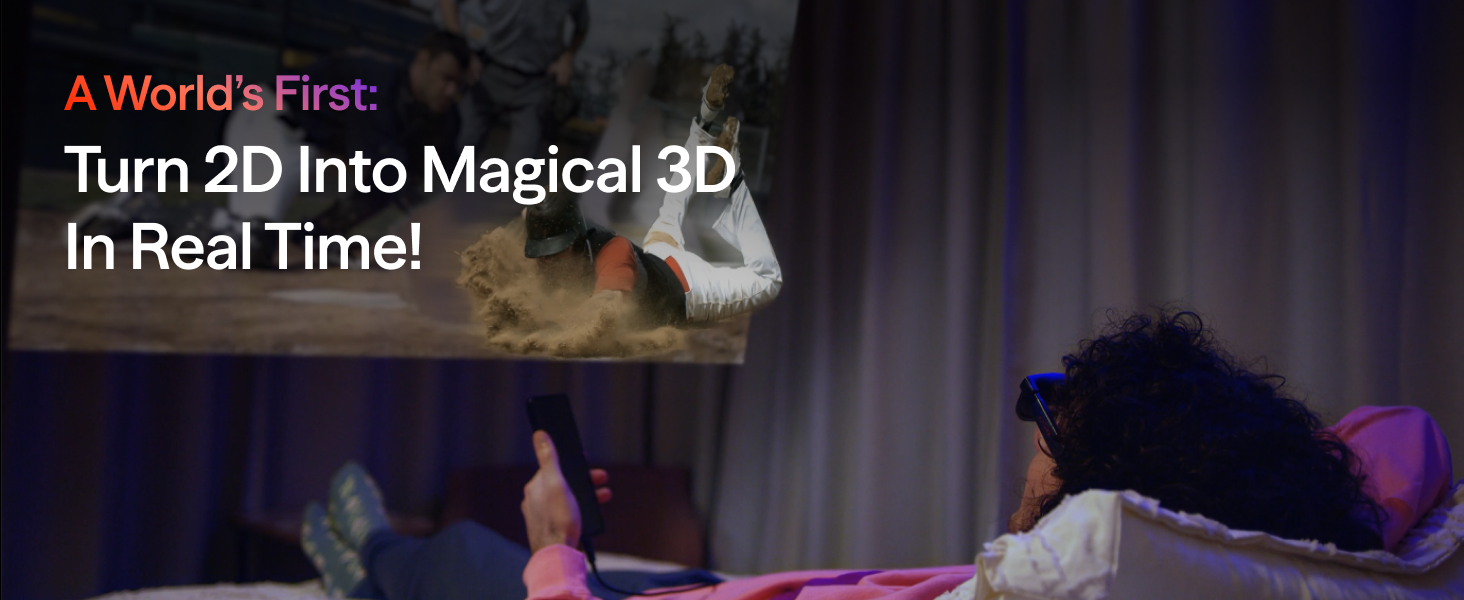
- ซอฟต์แวร์ขั้นสูง: โดดเด่นด้วยคุณสมบัติการแปลงภาพ 2 มิติเป็น 3 มิติแบบเรียลไทม์เป็นครั้งแรกของโลก และความสามารถในการใช้งานหลายหน้าจอผ่านแอป SpaceWalker เพื่อเพิ่มประสิทธิภาพการทำงาน
- เอฟเฟ็กต์แสงแบบไดนามิก: แสงไฟ RGB ที่ปรับแต่งได้เพื่อความสวยงามที่เป็นเอกลักษณ์เฉพาะตัว
- มีระบบปรับแก้สายตาสั้นในตัว: ปรับโฟกัสได้ละเอียดถึง -4.0 ไดออปเตอร์โดยตรงบนแว่นตา ช่วยลดความจำเป็นในการใช้เลนส์เสริมสำหรับผู้ใช้จำนวนมาก
- ฟิล์มอิเล็กโทรโครมิก: ปรับเลนส์ให้มืดลงทันทีเพื่อการมองเห็นที่ชัดเจนและความเป็นส่วนตัวอย่างเต็มที่ เพียงแตะครั้งเดียว
2. อะไรอยู่ในกล่อง
เมื่อเปิดกล่องแว่นตา VITURE Luma Pro XR โปรดตรวจสอบให้แน่ใจว่ามีสิ่งของต่อไปนี้ครบถ้วน:
- แว่นตา VITURE Luma Pro XR จำนวน 1 อัน
- แผ่นรองจมูกแบบถอดเปลี่ยนได้ 3 ชิ้น
- สายเคเบิล USB-C ไปยังขั้วต่อแม่เหล็ก (1.2 เมตร) x 1
- กล่องใส่แว่นตา 1 กล่อง
- ผ้าเช็ดแว่น x 1
- ฝาครอบที่เป็นมิตรต่อเส้นผม x 1
- คู่มือเริ่มต้นอย่างรวดเร็ว x 1
- แนวทางด้านความปลอดภัย x 1
3. การตั้งค่า
การตั้งค่าแว่นตา VITURE Luma Pro XR ของคุณนั้นออกแบบมาให้ง่ายดาย โดยสามารถใช้งานร่วมกับอุปกรณ์หลากหลายประเภทแบบเสียบปลั๊กและใช้งานได้ทันที
3.1 การเชื่อมต่อเริ่มต้น
เชื่อมต่อแว่นตา VITURE Luma Pro XR เข้ากับอุปกรณ์ที่ใช้งานร่วมกันได้ (iPhone 15/16, โทรศัพท์ Android ที่มีเอาต์พุต DP, Mac, PC, Steam Deck, Switch 2 หรือเครื่องเล่นเกมอื่นๆ) โดยใช้สาย USB-C to Magnetic Connector ที่ให้มา แว่นตาได้รับการออกแบบมาให้เชื่อมต่อได้อย่างราบรื่นโดยไม่ต้องตั้งค่าที่ซับซ้อน
ภาพ: แผนภาพแสดงให้เห็นถึงความเข้ากันได้อย่างกว้างขวางของแว่นตา VITURE Luma Pro XR กับอุปกรณ์ต่างๆ รวมถึงแล็ปท็อป โทรศัพท์ และเครื่องเล่นเกม
3.2 การปรับเพื่อความสบายและการมองเห็น
- แผ่นรองจมูก: เลือกแผ่นรองจมูกที่สบายที่สุดจากสามตัวเลือกที่ให้มา แล้วติดเข้ากับแว่นตา
- ขาแว่นปรับระดับความเอียงได้: ปรับมุมของขาแว่นเพื่อให้กระชับพอดีกับใบหน้าของคุณ
- การปรับแก้สายตาสั้น: หากคุณมีสายตาสั้น ให้หมุนแป้นปรับบนแว่นตาเพื่อให้มองเห็นได้ชัดเจน แว่นตานี้รองรับค่าสายตาได้ถึง -4.0 ไดออปเตอร์ สำหรับค่าสายตาที่มากกว่า -4.0D หรือมีภาวะสายตาเอียง สามารถซื้อกรอบเลนส์แม่เหล็กสำหรับเลนส์สายตาได้แยกต่างหาก
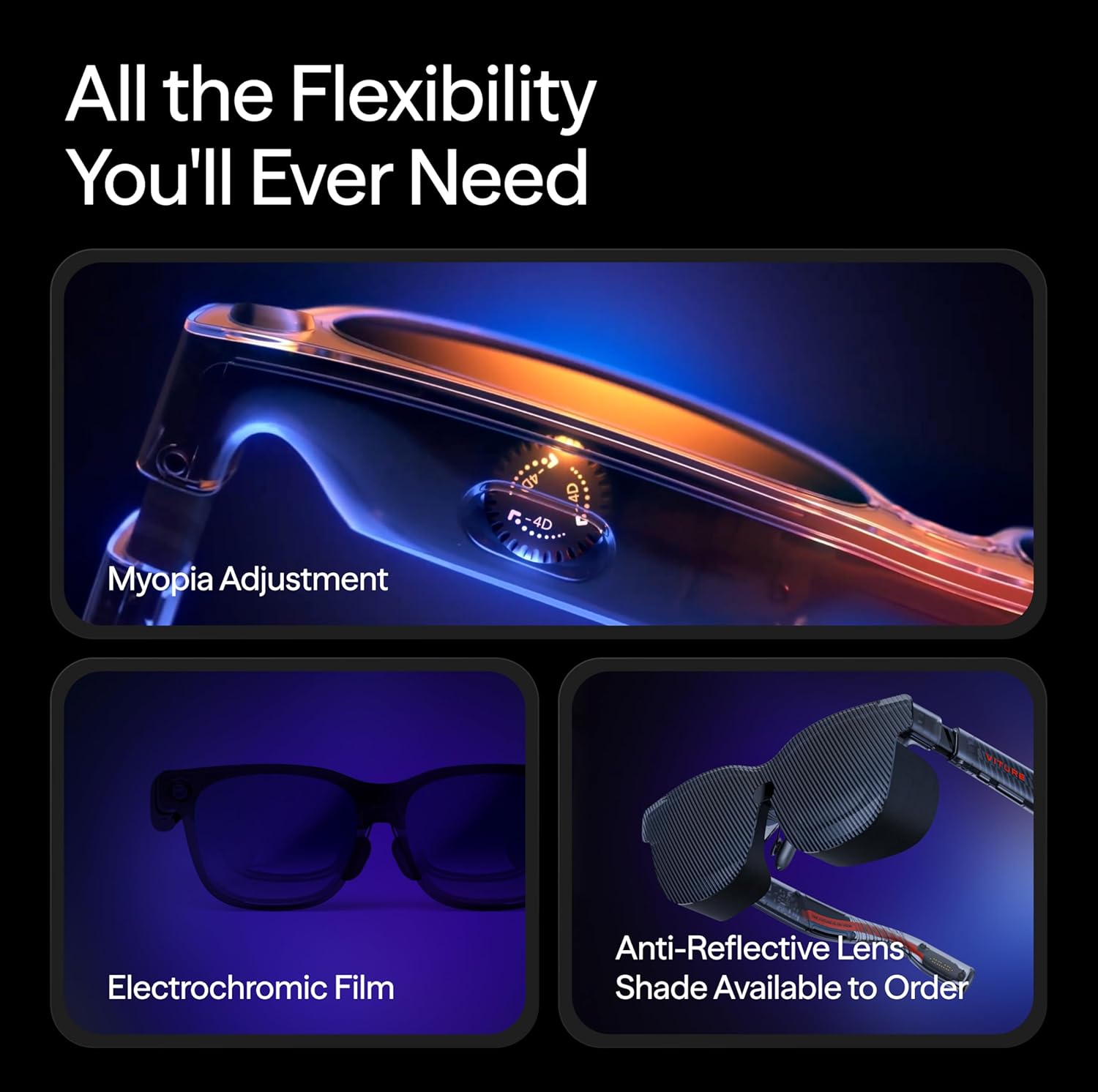
ภาพ: ระยะใกล้ view ของแป้นหมุนปรับสายตาสั้นและคุณสมบัติฟิล์มอิเล็กโทรโครมิกบนแว่นตา VITURE Luma Pro XR
3.3 การติดตั้งซอฟต์แวร์ (ทางเลือก)
สำหรับฟีเจอร์ขั้นสูง เช่น การทำงานหลายหน้าจอ และการแปลงภาพ 2 มิติเป็น 3 มิติแบบเรียลไทม์ โปรดดาวน์โหลดและติดตั้งแอป SpaceWalker บนอุปกรณ์ที่รองรับ แอปนี้จะช่วยเพิ่มประสิทธิภาพประสบการณ์ XR โดยการเพิ่มฟังก์ชันการทำงานและตัวเลือกการปรับแต่งเพิ่มเติม
4. คู่มือการใช้งาน
แว่นตา VITURE Luma Pro XR ออกแบบมาเพื่อการใช้งานที่ง่ายดาย ช่วยให้คุณควบคุมอุปกรณ์ได้อย่างสะดวก viewการสร้างประสบการณ์
4.1 การควบคุมการแสดงผล
- เปิด/ปิดเครื่อง: แว่นตาจะเปิดโดยอัตโนมัติเมื่อเชื่อมต่อกับอุปกรณ์ที่ใช้งานร่วมกันได้ ถอดปลั๊กเพื่อปิดเครื่อง
- การปรับความสว่าง: ใช้ปุ่มควบคุมบนแว่นตา (โปรดดูคู่มือเริ่มต้นใช้งานฉบับย่อสำหรับรายละเอียดการใช้งานปุ่ม) เพื่อปรับความสว่างของหน้าจอได้สูงสุดถึง 1000 นิต เพื่อการใช้งานที่เหมาะสมที่สุด viewในสภาพแสงต่างๆ
- ฟิล์มอิเล็กโทรโครมิก: แตะปุ่มควบคุมที่กำหนดเพื่อเปิดใช้งานฟิล์มอิเล็กโทรโครมิก ซึ่งจะทำให้เลนส์มืดลงทันที เพื่อประสบการณ์การรับชมที่ดื่มด่ำและเป็นส่วนตัวยิ่งขึ้น viewการสร้างประสบการณ์
- การแปลงภาพ 2 มิติเป็น 3 มิติ: ใช้ฟีเจอร์แปลงภาพ 2 มิติเป็น 3 มิติแบบเรียลไทม์ผ่านแอป SpaceWalker หรือปุ่มควบคุมเฉพาะ เพื่อเปลี่ยนเนื้อหามาตรฐานให้เป็นประสบการณ์ 3 มิติที่สมจริง
ภาพ: ภาพประกอบแสดงปุ่มควบคุมต่างๆ บนแว่นตา VITURE Luma Pro XR รวมถึงปุ่มเปิด/ปิด, ความสว่าง และปุ่มสลับโหมด 3 มิติ
4.2 ประสบการณ์เสียง
ระบบเสียง HARMAN ในตัวให้คุณภาพเสียงที่ยอดเยี่ยม ปรับระดับเสียงโดยใช้ปุ่มควบคุมบนแว่นตาหรืออุปกรณ์ที่เชื่อมต่อ ตรวจสอบให้แน่ใจว่าได้วางแว่นตาในตำแหน่งที่ถูกต้องเพื่อให้ได้เสียงที่ดีที่สุด
4.3 การแสดงผลหลายหน้าจอและการนำทาง
- แอป SpaceWalker: ใช้แอป SpaceWalker เพื่อสร้างพื้นที่ทำงานแบบพาโนรามาหลายหน้าจอได้สูงสุดถึงสามหน้าจอเสมือนจริงจาก Mac หรือ PC ของคุณ สำรวจโหมดแนวตั้ง แนวนอน หรือโหมดเขียนโค้ดเพื่อเพิ่มประสิทธิภาพการทำงานให้สูงสุด
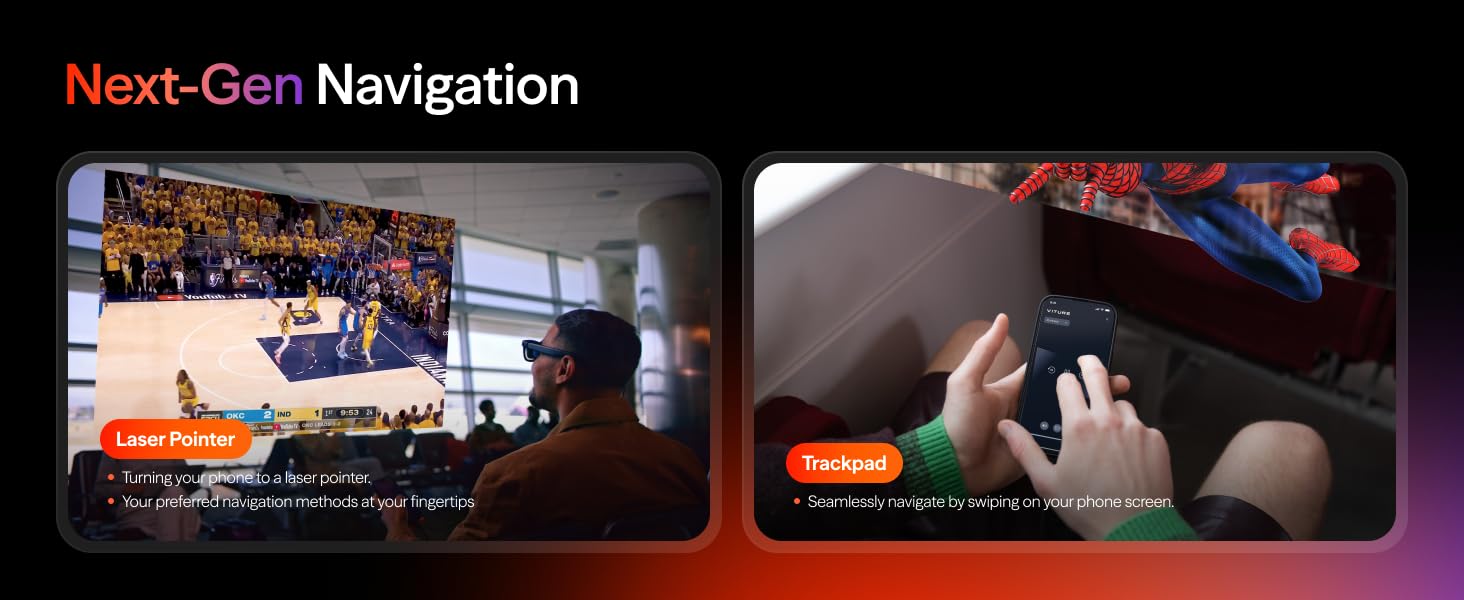
- การนำทาง: ใช้โทรศัพท์ของคุณเป็นตัวชี้เลเซอร์หรือแทร็กแพดเพื่อสำรวจสภาพแวดล้อมเสมือนจริง ช่วยให้โต้ตอบกับเนื้อหาที่แสดงได้อย่างราบรื่น

ภาพ: ผู้ใช้งานกำลังโต้ตอบกับหน้าจอเสมือนจริงหลายหน้าจอที่แสดงผ่านแว่นตา VITURE Luma Pro XR เพื่อสาธิตความสามารถในการใช้งานหลายหน้าจอ
5. การบำรุงรักษา
การบำรุงรักษาอย่างถูกวิธีจะช่วยให้แว่นตา VITURE Luma Pro XR ของคุณมีอายุการใช้งานยาวนานและทำงานได้อย่างมีประสิทธิภาพสูงสุด
5.1 การทำความสะอาด
- เลนส์: ใช้ผ้าเช็ดแว่นที่ให้มาเช็ดเลนส์เบาๆ สำหรับคราบสกปรกที่เช็ดออกยาก ให้เช็ดเบาๆ อีกครั้งampชุบผ้าด้วยน้ำยาทำความสะอาดเลนส์ที่ออกแบบมาสำหรับพื้นผิวเลนส์โดยเฉพาะ หลีกเลี่ยงการใช้วัสดุที่มีฤทธิ์กัดกร่อนหรือสารเคมีรุนแรง
- กรอบ: เช็ดกรอบด้วยผ้าแห้งนุ่มๆ หากจำเป็น ให้เช็ดด้วยน้ำสะอาดเล็กน้อยamp สามารถใช้ผ้าแล้วเช็ดให้แห้งทันที
5.2 พื้นที่จัดเก็บ
เมื่อไม่ใช้งาน ควรเก็บแว่นตาไว้ในกล่องแว่นตาที่ให้มา เพื่อป้องกันฝุ่น รอยขีดข่วน และแรงกระแทก หลีกเลี่ยงการวางแว่นตาไว้ในที่ที่มีอุณหภูมิสูงหรือต่ำเกินไป หรือโดนแสงแดดโดยตรงเป็นเวลานาน
5.3 การดูแลทั่วไป
- ควรหลีกเลี่ยงการทำแว่นตาตก หรือการกระแทกอย่างแรง
- ห้ามถอดประกอบหรือซ่อมแซมแว่นตาด้วยตนเอง เพราะจะทำให้การรับประกันเป็นโมฆะและอาจทำให้เกิดความเสียหายได้
- รักษาขั้วต่อแม่เหล็กให้สะอาดและปราศจากสิ่งสกปรก เพื่อให้มั่นใจได้ว่าการเชื่อมต่อมีความเสถียร
6 การแก้ไขปัญหา
ส่วนนี้จะกล่าวถึงปัญหาทั่วไปที่คุณอาจพบเจอขณะใช้งานแว่นตา VITURE Luma Pro XR ของคุณ
6.1 ปัญหาการแสดงผล
- ไม่มีจอแสดงผล/หน้าจอสีดำ: ตรวจสอบให้แน่ใจว่าแว่นตาเชื่อมต่อกับอุปกรณ์ของคุณอย่างแน่นหนา และอุปกรณ์เปิดใช้งานอยู่และกำลังส่งสัญญาณวิดีโอ ตรวจสอบสายเคเบิลว่ามีรอยชำรุดหรือไม่
- ภาพเบลอ/ข้อความไม่ชัด: ปรับแป้นปรับสายตาสั้นบนแว่นตาให้ตรงกับค่าสายตาของคุณ ตรวจสอบให้แน่ใจว่าแว่นตาอยู่ในตำแหน่งที่ถูกต้องบนใบหน้าของคุณ และแป้นรองจมูกเหมาะสมกับรูปทรงใบหน้าของคุณ หากใช้แอป SpaceWalker โปรดตรวจสอบให้แน่ใจว่าได้อัปเดตเป็นเวอร์ชันล่าสุดแล้ว
- หน้าจอกะพริบ/ภาพบิดเบี้ยว: ลองเชื่อมต่อแว่นตาอีกครั้ง ตรวจสอบให้แน่ใจว่าการตั้งค่าการแสดงผลของอุปกรณ์ของคุณเข้ากันได้กับความละเอียดและอัตราการรีเฟรชของแว่นตา (1200p, 120Hz) อัปเดตไดรเวอร์หรือซอฟต์แวร์ที่เกี่ยวข้องบนอุปกรณ์ที่เชื่อมต่อของคุณ
- รูปภาพไม่เต็มหน้าจอ/แสดงเพียงบางส่วน View: ปัญหานี้อาจเกิดขึ้นได้กับเนื้อหาหรือแอปพลิเคชันบางอย่าง โปรดตรวจสอบให้แน่ใจว่าแอป SpaceWalker ได้รับการอัปเดตแล้ว และลองปรับการตั้งค่าการแสดงผลภายในแอปหรือบนอุปกรณ์ที่เชื่อมต่อของคุณ
6.2 ปัญหาด้านเสียง
- ไม่มีเสียง: ตรวจสอบระดับเสียงทั้งบนแว่นตาและอุปกรณ์ที่เชื่อมต่อ ตรวจสอบให้แน่ใจว่าได้เลือกแว่นตาเป็นอุปกรณ์ส่งสัญญาณเสียงในระบบของคุณแล้ว
- ปริมาณน้อย/คุณภาพต่ำ: ตรวจสอบให้แน่ใจว่าแว่นตาอยู่ในตำแหน่งที่ถูกต้องบนหูของคุณ และตรวจสอบดูว่ามีสิ่งกีดขวางใดๆ ในบริเวณลำโพงหรือไม่
6.3 ปัญหาการเชื่อมต่อ
- การเชื่อมต่อไม่ต่อเนื่อง: ตรวจสอบให้แน่ใจว่าขั้วต่อแม่เหล็กสะอาดและเสียบแน่นสนิท หลีกเลี่ยงการงอหรือดึงสายเคเบิลให้ตึง
- อุปกรณ์ไม่รู้จักแว่นตา: ลองรีสตาร์ทอุปกรณ์ที่เชื่อมต่ออยู่ ตรวจสอบให้แน่ใจว่าพอร์ต USB-C ของอุปกรณ์ของคุณรองรับ DisplayPort Alternate Mode (DP Alt Mode) สำหรับการส่งออกวิดีโอ
6.4 ปัญหาซอฟต์แวร์/แอป
- แอป SpaceWalker ใช้งานไม่ได้: ตรวจสอบให้แน่ใจว่าแอปได้รับการอัปเดตเป็นเวอร์ชันล่าสุดแล้ว ลองปิดแอปแล้วเปิดใหม่อีกครั้ง หากปัญหายังคงอยู่ ให้ลองติดตั้งแอปใหม่
- ปัญหาความหน่วง/ประสิทธิภาพการทำงาน: ตรวจสอบให้แน่ใจว่าอุปกรณ์ที่เชื่อมต่อของคุณตรงตามข้อกำหนดขั้นต่ำของระบบสำหรับแอป SpaceWalker และเนื้อหาที่คุณกำลังใช้งาน viewปิดแอปพลิเคชันที่ทำงานอยู่เบื้องหลังที่ไม่จำเป็น
หากยังคงพบปัญหาหลังจากลองทำตามขั้นตอนการแก้ไขปัญหาเหล่านี้แล้ว โปรดดูข้อมูลเพิ่มเติมจากแหล่งข้อมูลสนับสนุนอย่างเป็นทางการของ VITURE หรือติดต่อฝ่ายบริการลูกค้า
7. ข้อมูลจำเพาะ
รายละเอียดคุณสมบัติทางเทคนิคของแว่นตา VITURE Luma Pro XR:
| คุณสมบัติ | ข้อมูลจำเพาะ |
|---|---|
| ขนาดสินค้า | 6.1 x 1.97 x 2.22 นิ้ว |
| น้ำหนักสินค้า | 2.79 ออนซ์ |
| หมายเลขรุ่นสินค้า | วี1251 |
| ความละเอียดการแสดงผล | 1200p (เสมือน 152 นิ้ว ที่ความละเอียด 3M) |
| ความสว่าง | ความสว่างสูงสุด 1000 นิต |
| อัตราการรีเฟรช | 120เฮิรตซ์ |
| ทุ่งแห่ง View (เอฟโอวี) | 52° |
| การปรับแก้สายตาสั้น | ปรับได้สูงสุดถึง -4.0D ในตัว |
| เสียง | ฮาร์แมน ออดิโอ |
| การเชื่อมต่อ | พอร์ต USB-C พร้อมเอาต์พุต DisplayPort |
| ผู้ผลิต | บริษัท VITURE จำกัด |
8. การรับประกันและการสนับสนุน
VITURE ให้การรับประกันแบบจำกัดสำหรับแว่นตา Luma Pro XR เฉพาะความบกพร่องของวัสดุและฝีมือการผลิตภายใต้การใช้งานปกติ โปรดดูเอกสารแนวทางความปลอดภัยอย่างเป็นทางการที่แนบมาในบรรจุภัณฑ์สำหรับข้อกำหนดและเงื่อนไขการรับประกันโดยละเอียด
8.1 เอกสารทางการ
สำหรับข้อมูลที่ครบถ้วน โปรดศึกษาเอกสาร PDF อย่างเป็นทางการ:
8.2 การสนับสนุนลูกค้า
หากต้องการความช่วยเหลือเพิ่มเติม การสนับสนุนทางเทคนิค หรือการเรียกร้องการรับประกัน โปรดไปที่ร้านค้าออนไลน์อย่างเป็นทางการของ VITURE หรือติดต่อฝ่ายบริการลูกค้าของ VITURE ผ่านช่องทางอย่างเป็นทางการ คุณสามารถค้นหาข้อมูลและแหล่งข้อมูลการสนับสนุนเพิ่มเติมได้ที่ ร้าน VITURE บน Amazon.