1. บทนำ
This manual provides detailed instructions for the setup, customization, operation, and maintenance of your Turtle Beach Victrix Pro BFG Reloaded Wireless Gaming Controller. This controller is designed for use with Xbox Series X|S, Xbox One, and PC, offering advanced modularity and precision for an enhanced gaming experience.
Please read this manual thoroughly before using your controller to ensure proper functionality and to maximize its features.
2. เนื้อหาบรรจุภัณฑ์
- Victrix Pro BFG Reloaded Controller
- เครื่องส่งสัญญาณไร้สาย USB
- Detachable 3m Braided USB-C Cable
- 6-button Fightpad Module with Kailh Microswitches
- Reversible D-Pad and Thumbstick Left Module with Hall-Effect Technology
- Swappable Button & Thumbstick Right Module with Hall-Effect Technology
- Interchangeable D-Pads, Thumbsticks, and Gates (various types)
- Module Customization Tool
- กระเป๋าใส่อุปกรณ์
3. การตั้งค่า
3.1 การชาร์จเริ่มต้น
Before first use, fully charge the controller using the included 3m braided USB-C cable. Connect the USB-C end to the controller and the USB-A end to a powered USB port on your console, PC, or a wall adapter. The LED indicator on the controller will show charging status.
3.2 Wireless Connection (USB Transmitter)
- Insert the USB Wireless Transmitter into an available USB-A port on your Xbox console or PC.
- Power on the controller by pressing the Xbox button.
- The controller and transmitter will automatically pair. The LED on both devices will become solid when connected.
3.3 การเชื่อมต่อบลูทูธ
For compatible devices such as mobile phones, Smart TVs, or cloud streaming services:
- ตรวจสอบให้แน่ใจว่าตัวควบคุมปิดอยู่
- Press and hold the Bluetooth pairing button (refer to controller diagram for location) until the LED flashes rapidly.
- On your device, go to Bluetooth settings and select 'Victrix Pro BFG Reloaded' to pair.
- The controller LED will become solid when successfully paired.
3.4 การเชื่อมต่อแบบมีสาย
For a direct, low-latency connection, or during tournaments:
- Connect the 3m braided USB-C cable to the controller.
- Connect the USB-A end to your Xbox console or PC.
- The controller will automatically switch to wired mode and function without the wireless transmitter.
4. การปรับแต่ง
The Victrix Pro BFG Reloaded offers extensive modular customization to adapt to your preferred playstyle.
4.1 Modular Components
The controller features three main modular sections: the left module (D-Pad/Thumbstick), the right module (Buttons/Thumbstick), and the Fightpad module. These can be swapped using the included customization tool.
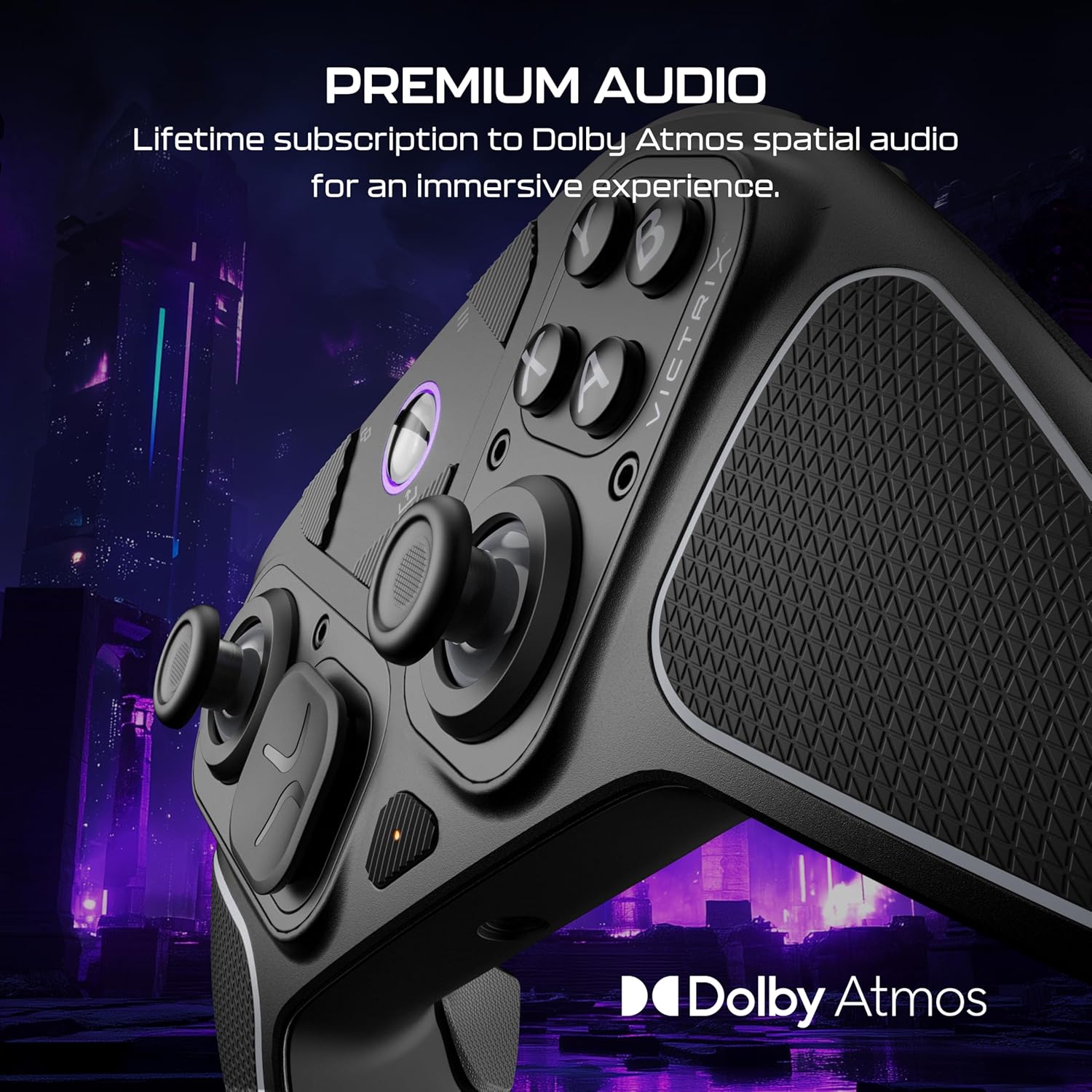
Image: The Victrix Pro BFG Reloaded controller disassembled, showing the main body, the left and right modular sections, the Fightpad module, various thumbstick caps, D-pads, and gates. This illustrates the extensive customization options available.
4.2 Hall-Effect Thumbsticks and D-Pads
The controller includes Hall-Effect thumbsticks for drift-free precision. Various thumbstick caps (standard, dome, sniper) and D-pads are provided to suit different gaming genres and preferences. To change, gently pull off the existing component and press the new one into place.

ภาพ: รายละเอียด view of the controller's left and right thumbsticks, highlighting the Hall-Effect technology for enhanced precision and durability.
4.3 Fightpad Module
The ergonomically enhanced 6-button Fightpad module with Kailh microswitches can be swapped into the right module slot for fighting game enthusiasts. Use the customization tool to carefully remove the standard right module and install the Fightpad module.

Image: The controller configured with the 6-button Fightpad module on the right side, designed for precise inputs in fighting games.
4.4 5-Stop Hall-Effect Clutch Triggers
The patented 5-stop Hall-Effect Clutch Triggers offer adjustable sensitivity, including a Hair-Trigger mode for faster reaction times in FPS games. Adjust the physical switches located on the underside of the controller to set your preferred trigger travel distance.

ภาพ: ก. view of the controller's underside, highlighting the adjustable 5-stop Hall-Effect clutch triggers and their adjustment mechanisms.
4.5 Mappable Quick-Action Back Buttons
The controller features four mappable quick-action back buttons. These can be programmed for various functions to provide faster response times and enhanced control. Refer to the Victrix Control Hub App section for mapping instructions.
5. การใช้งานคอนโทรลเลอร์
5.1 เปิด/ปิดเครื่อง
To power on the controller, press the Xbox button. To power off, press and hold the Xbox button for several seconds until the controller shuts down.
5.2 Victrix Control Hub App
The free Victrix Control Hub app (available on Xbox and PC) allows for advanced customization:
- ปุ่มรีแมป
- Adjust deadzones
- Optimize triggers
- Adjust EQ settings for audio
- เรียกใช้การวินิจฉัย
- อัพเดตเฟิร์มแวร์
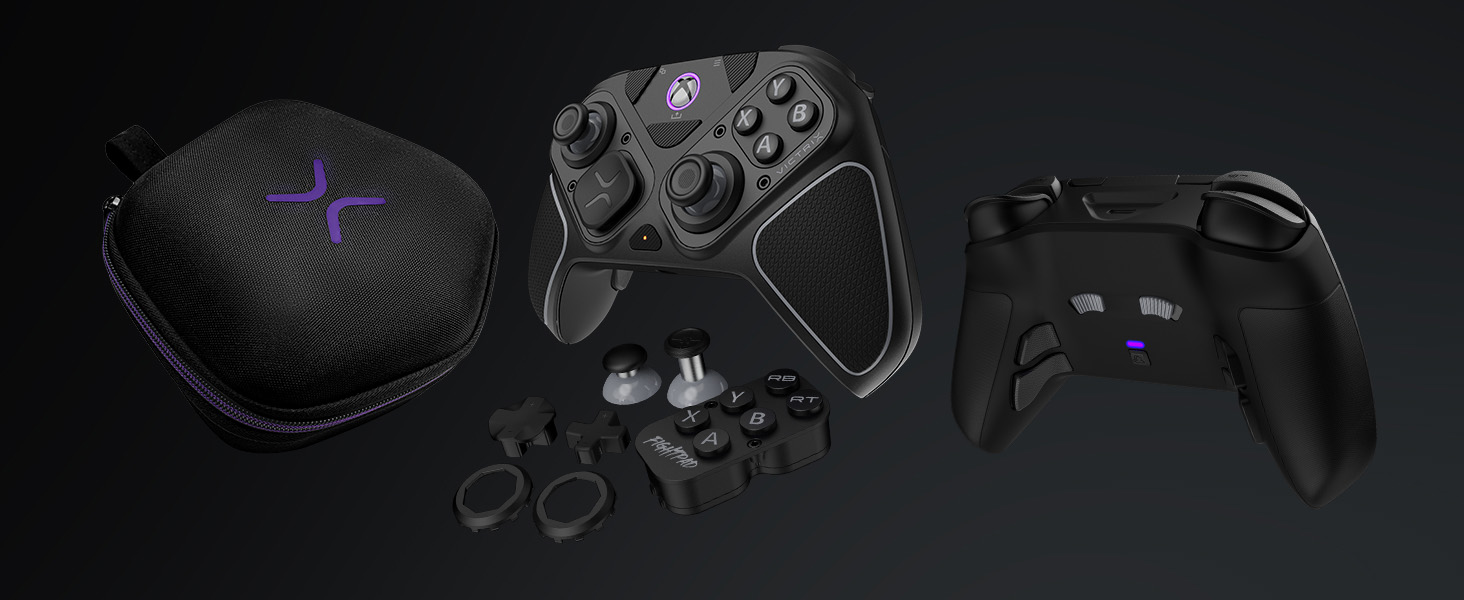
Image: A digital interface displaying the Victrix Control Hub app, which allows users to configure various controller settings such as button mapping, audio, and diagnostics.
ระบบเสียง Dolby Atmos 5.3
The controller supports Dolby Atmos spatial audio through its 3.5mm headset jack, providing an immersive sound experience. A lifetime subscription to Dolby Atmos is included. Connect a compatible headset to the 3.5mm jack on the controller.
6. การบำรุงรักษา
6.1 การทำความสะอาด
ใช้ผ้านุ่มและแห้งเช็ดทำความสะอาดคอนโทรลเลอร์ สำหรับสิ่งสกปรกฝังแน่น ให้เช็ดเบาๆamp cloth can be used, but ensure no moisture enters openings. Avoid harsh chemicals or abrasive materials.
6.2 พื้นที่จัดเก็บ
Store the controller in its included carrying case when not in use to protect it from dust, spills, and physical damage. Avoid storing in extreme temperatures or direct sunlight.
6.3 การดูแลแบตเตอรี่
To prolong battery life, avoid fully discharging the controller frequently. Charge the controller regularly, even if not in constant use. If storing for an extended period, charge the battery to approximately 50%.
7 การแก้ไขปัญหา
7.1 ปัญหาการเชื่อมต่อ
- Wireless (USB Transmitter): Ensure the transmitter is securely plugged in and the controller is within range (up to 30 feet). Try re-pairing by pressing the sync button on both the controller and transmitter.
- บลูทูธ: Ensure Bluetooth is enabled on your device and the controller is in pairing mode. Forget the device on your system and attempt to re-pair.
- มีสาย: Verify the USB-C cable is fully inserted into both the controller and the console/PC. Try a different USB port or cable.
7.2 Input or Drift Issues
The Hall-Effect technology minimizes drift. If you experience input issues, ensure all modular components are securely seated. Use the Victrix Control Hub app to calibrate thumbsticks and adjust deadzones.
7.3 ปัญหาด้านเสียง
Ensure your headset is fully plugged into the 3.5mm jack. Check audio settings on your console/PC and within the Victrix Control Hub app. Verify Dolby Atmos is correctly configured.
7.4 ตัวควบคุมไม่ตอบสนอง
Try resetting the controller by holding the Xbox button for 10-15 seconds. If the issue persists, connect the controller via USB-C cable to check if it functions in wired mode. Ensure the battery is charged.
8. ข้อมูลจำเพาะทางเทคนิค
| หมายเลขรุ่น | ทบีซี-2101-05 |
| ความเข้ากันได้ | Xbox Series X|S, Xbox One, PC (Wireless & Wired); Mobile, Smart TVs, Cloud Streaming Services (Bluetooth) |
| การเชื่อมต่อ | Low-latency Wireless (USB-A transmitter), Wired (3m braided USB-C cable), Bluetooth |
| เสียง | 3.5mm 4-pole headset jack, Dolby Atmos support (lifetime subscription included) |
| แบตเตอรี่ | 2000mAh Lithium Ion (up to 20 hours per charge) |
| ขนาด (ตัวควบคุม) | 6.3” x 4.1” x 2.4” (160 มม. x 105 มม. x 60 มม.) |
| น้ำหนัก | 9.3 ออนซ์ (264 กรัม) |
9. การรับประกันและการสนับสนุน
For warranty information and technical support, please visit the official Turtle Beach webหรือติดต่อฝ่ายบริการลูกค้า เก็บหลักฐานการซื้อไว้เพื่อใช้ในการเคลมประกัน
การสนับสนุนทางออนไลน์: www.turtlebeach.com/pages/support


