1. บทนำ
This manual provides detailed instructions for the setup, operation, and maintenance of your ELEPHAS K350 Smart Projector. Please read this manual thoroughly before using the product to ensure proper function and longevity. Keep this manual for future reference.
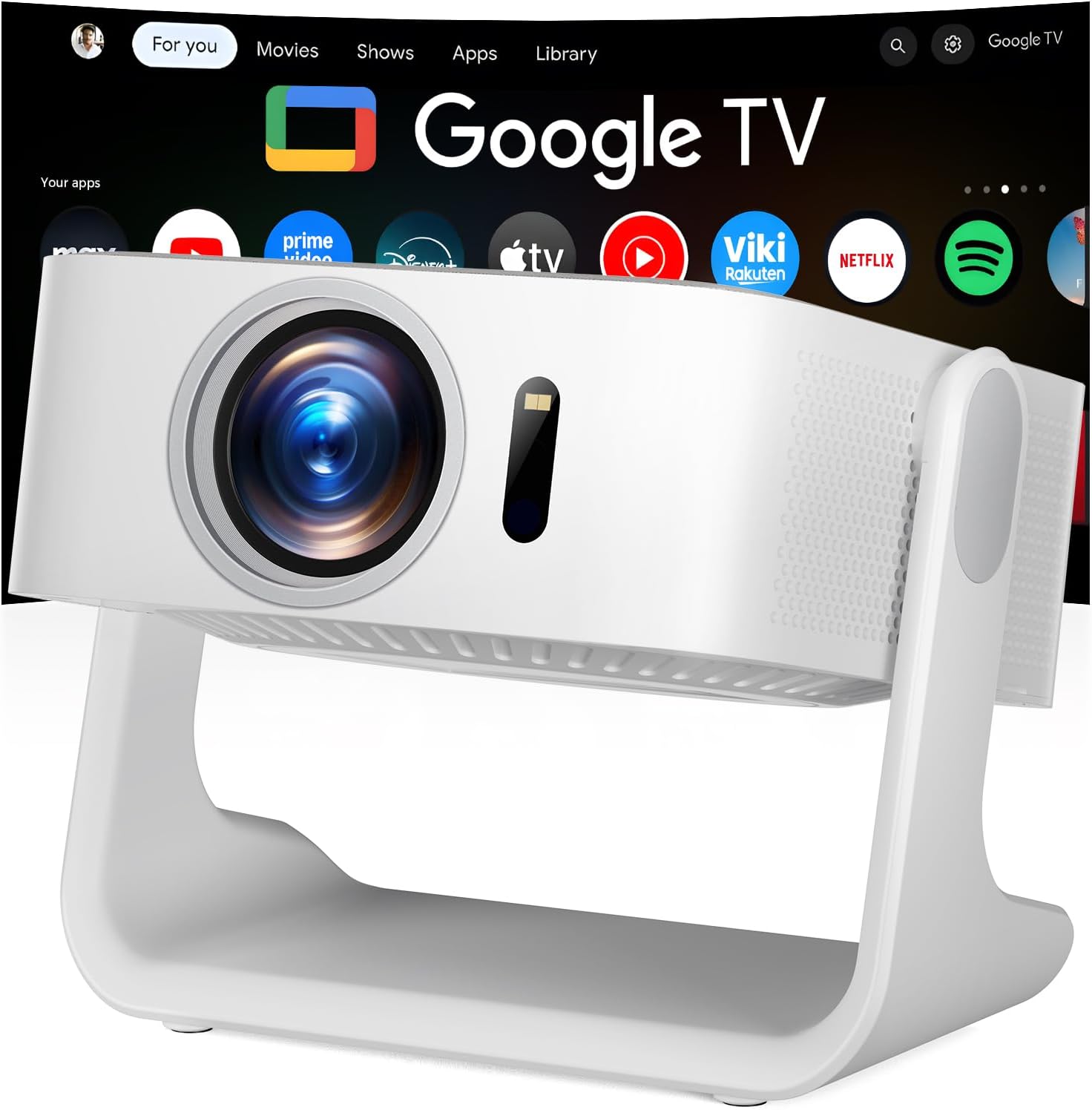
Image 1.1: The ELEPHAS K350 Smart Projector, a compact device with a lens visible on the front, projecting the Google TV interface onto a screen. The projector is white and sits on a stable base.
2. เนื้อหาบรรจุภัณฑ์
ตรวจสอบว่ามีรายการทั้งหมดอยู่ในแพ็คเกจ:
- ELEPHAS K350 Smart Projector
- รีโมทคอนโทรล
- อะแดปเตอร์แปลงไฟ
- สาย HDMI
- คู่มือการใช้งาน (เอกสารนี้)
3. สินค้าหมดview
ทำความคุ้นเคยกับส่วนประกอบและพอร์ตต่างๆ ของโปรเจ็กเตอร์
3.1 ด้านหน้าและด้านข้าง View
ภาพที่ 3.1: ด้านหน้า view of the ELEPHAS K350 Smart Projector, highlighting the projection lens and sensor for auto-focus/keystone correction.
3.2 แผงด้านหลังและการเชื่อมต่อ
The rear panel typically includes power input, HDMI port, USB port, and audio output. Refer to the physical device for exact port locations.

Image 3.2: The ELEPHAS K350 Smart Projector connected to power, with its remote control and various streaming app logos (Netflix, Prime Video, YouTube, HBO Max, Hulu) displayed, indicating its smart capabilities.
4. การตั้งค่า
4.1 การเปิดเครื่องครั้งแรก
- เชื่อมต่ออะแดปเตอร์แปลงไฟเข้ากับช่องเสียบสายไฟของโปรเจ็กเตอร์ จากนั้นเสียบเข้ากับเต้ารับไฟฟ้า
- กดปุ่มเปิด/ปิดบนโปรเจ็กเตอร์หรือรีโมทคอนโทรลเพื่อเปิดอุปกรณ์
- Follow the on-screen instructions for initial language and region settings.
4.2 Network Connection (Wi-Fi 6)
The projector supports Wi-Fi 6 for fast and stable internet connectivity.
- Navigate to the "Settings" menu on the Google TV interface.
- เลือก "เครือข่ายและอินเทอร์เน็ต"
- เลือกเครือข่าย Wi-Fi ของคุณจากรายการและป้อนรหัสผ่าน
- ยืนยันการเชื่อมต่อ

Image 4.1: Illustration of the projector's dual-band Wi-Fi 6 capability, showing a user gaming with the projector, emphasizing fast and stable connections for online content.
4.3 Bluetooth Pairing (Bluetooth 5.4)
Connect external audio devices or use the projector as a Bluetooth speaker.
- Go to "Settings" and select "Remotes & Accessories".
- Enable Bluetooth on the projector and your desired device (e.g., speaker, headphones).
- เลือกอุปกรณ์ของคุณจากรายการที่จะจับคู่

Image 4.2: Depiction of the projector's two-way Bluetooth 5.4 connectivity, showing it paired with external speakers for enhanced audio and a tablet for screen mirroring, illustrating versatile audio and display options.
4.4 Physical Placement and 270° Rotatable Stand
The integrated 270° rotatable stand allows flexible projection angles.
- วางโปรเจ็กเตอร์บนพื้นผิวที่มั่นคง
- Adjust the stand to direct the projection onto a wall, screen, or ceiling.
- Ensure no objects obstruct the projection path.
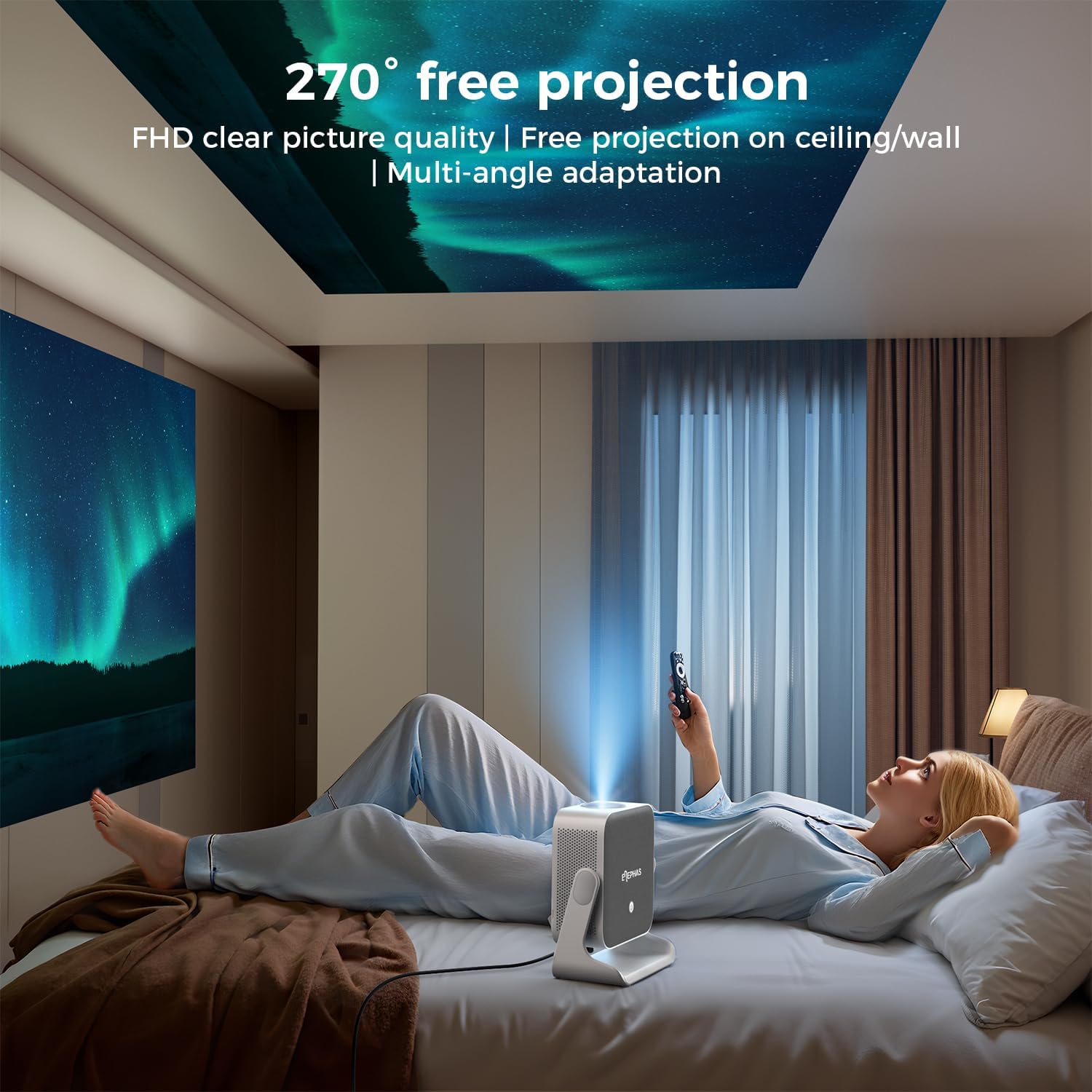
Image 4.3: A user lying in bed, watching content projected onto the ceiling by the ELEPHAS K350 Smart Projector, demonstrating its 270° rotatable stand for flexible viewมุมการเอียง
4.5 Auto Focus, Auto Keystone, and Auto Obstacle Avoidance
The projector features advanced automatic adjustments for optimal image quality.
- โฟกัสอัตโนมัติ: The projector automatically adjusts the image clarity using TOF technology. This occurs within milliseconds upon startup or movement.
- แก้ไขภาพบิดเบี้ยวอัตโนมัติ: The image will automatically adjust to a rectangular shape, even if the projector is placed at an angle (up to ±30° vertical/horizontal).
- ระบบหลีกเลี่ยงสิ่งกีดขวางอัตโนมัติ: The projector detects and adjusts the projection area to avoid obstacles on the surface.
- ซูม: The projection size can be adjusted up to 70% via settings if needed.

Image 4.4: A diagram illustrating the projector's AI intelligent algorithm for image correction, showing how TOF auto focus, auto obstacle avoidance, and auto keystone correction work to provide a clear, properly framed image.
5. คู่มือการใช้งาน
5.1 อินเทอร์เฟซ Google TV
The ELEPHAS K350 features an integrated Google TV system, providing access to a wide range of streaming services and applications.
- Use the remote control's navigation buttons to browse the Google TV home screen.
- Access pre-installed apps like Netflix, Prime Video, YouTube, Hulu, and Disney+.
- ดาวน์โหลดแอปพลิเคชันเพิ่มเติมจาก Google Play Store

Image 5.1: The Google TV interface displayed on a projection screen, with examples of voice commands for the Google Assistant, such as "Open YouTube" or "Play Netflix," demonstrating effortless smart control.
5.2 Google Voice Assistant
Utilize the built-in Google Voice Assistant for hands-free control.
- Press the dedicated voice button on the remote control.
- Speak your command clearly, such as "Open Netflix," "Adjust volume," or "ค้นหา action movies."
- The projector will respond to your voice commands.
5.3 External Device Connection (HDMI)
Connect gaming consoles, Blu-ray players, or other devices via the HDMI port.
- Ensure both the projector and the external device are powered off.
- Connect one end of the HDMI cable (included) to the external device and the other end to the HDMI port on the projector.
- เปิดเครื่องทั้งสองเครื่อง
- Select the HDMI input source from the projector's input menu.
5.4 Screen Mirroring (Google Cast)
Cast content from your Android or iOS devices using Google Cast.
- ตรวจสอบให้แน่ใจว่าอุปกรณ์เคลื่อนที่และโปรเจ็กเตอร์ของคุณเชื่อมต่อกับเครือข่าย Wi-Fi เดียวกัน
- On your mobile device, open a compatible app (e.g., YouTube, Netflix) or use the screen mirroring function.
- Select the Cast icon and choose your ELEPHAS K350 projector from the list of available devices.
6. การบำรุงรักษา
การบำรุงรักษาอย่างสม่ำเสมอจะช่วยให้โปรเจคเตอร์ทำงานได้อย่างมีประสิทธิภาพสูงสุดและยืดอายุการใช้งาน
- การทำความสะอาดเลนส์: ใช้ผ้าเนื้อนุ่ม ปราศจากขน ที่ออกแบบมาสำหรับเลนส์โดยเฉพาะ เช็ดเลนส์โปรเจคเตอร์เบาๆ หลีกเลี่ยงวัสดุที่มีฤทธิ์กัดกร่อนหรือสารเคมีรุนแรง
- การกำจัดฝุ่น: Periodically clean the projector's exterior with a soft, dry cloth. Ensure ventilation openings are free from dust accumulation to prevent overheating. Do not spray cleaning liquids directly onto the projector.
- พื้นที่จัดเก็บ: เมื่อไม่ได้ใช้งานเป็นเวลานาน ควรเก็บโปรเจ็กเตอร์ไว้ในที่แห้งและเย็น หลีกเลี่ยงแสงแดดโดยตรงและอุณหภูมิที่สูงหรือต่ำเกินไป
- การอัปเดตซอฟต์แวร์: Ensure the projector's software is up-to-date through the Google TV settings to benefit from the latest features and performance improvements.
7 การแก้ไขปัญหา
หัวข้อนี้จะกล่าวถึงปัญหาทั่วไปที่คุณอาจพบเจอ
| ปัญหา | สาเหตุที่เป็นไปได้ | สารละลาย |
|---|---|---|
| ไม่มีไฟฟ้า | ไม่ได้เสียบสายไฟ; มีปัญหาที่ปลั๊กไฟ | ตรวจสอบให้แน่ใจว่าสายไฟเชื่อมต่อแน่นดีแล้ว ทดสอบเต้ารับกับอุปกรณ์อื่น |
| ไม่มีภาพที่ฉาย | Lens cap on; Incorrect input source; Device not powered on | Remove lens cap. Select the correct input source (e.g., HDMI). Ensure connected device is powered on. |
| ภาพเบลอ | ภาพไม่ชัด; โปรเจ็กเตอร์ถูกเคลื่อนย้าย | The projector has auto-focus. If manual adjustment is needed, check settings. Ensure the projector is stable. |
| Image distorted (not rectangular) | Incorrect keystone settings; Projector angle too extreme | The projector has auto-keystone correction. If issues persist, check manual keystone settings in the menu. Reposition the projector if the angle is too severe. |
| ไม่มีเสียง | Volume too low; Muted; Incorrect audio output selected; Bluetooth not paired | Increase volume. Check if muted. Ensure internal speakers are selected or Bluetooth device is correctly paired. |
| ปัญหาการเชื่อมต่อ Wi-Fi | รหัสผ่านไม่ถูกต้อง; ปัญหาเกี่ยวกับเราเตอร์; อยู่นอกช่วงสัญญาณ | Verify Wi-Fi password. Restart router. Move projector closer to router. |
8. ข้อมูลจำเพาะ
| คุณสมบัติ | รายละเอียด |
|---|---|
| ยี่ห้อ | ช้าง |
| หมายเลขรุ่น | เค350 |
| ความละเอียดการแสดงผล | 1920 x 1080 (ฟูลเอชดี) |
| เทคโนโลยีการเชื่อมต่อ | Wi-Fi 6, Bluetooth 5.4, HDMI |
| คุณสมบัติพิเศษ | Auto Focus, Auto Keystone, Auto Obstacle Avoidance, Built-In Speaker, Built-In Wi-Fi, Google TV, Google Voice Assistant, 270° Rotatable Stand |
| เสียง | Built-in 10W Hi-Fi speakers (Dolby Audio support) |
| น้ำหนักสินค้า | 4.51 ปอนด์ |
| ขนาดแพ็คเกจ | 11.02 x 10.12 x 7.09 นิ้ว |
| ข้อแนะนำการใช้ | Home Cinema, Gaming, Outdoor Movie Nights, Presentations |
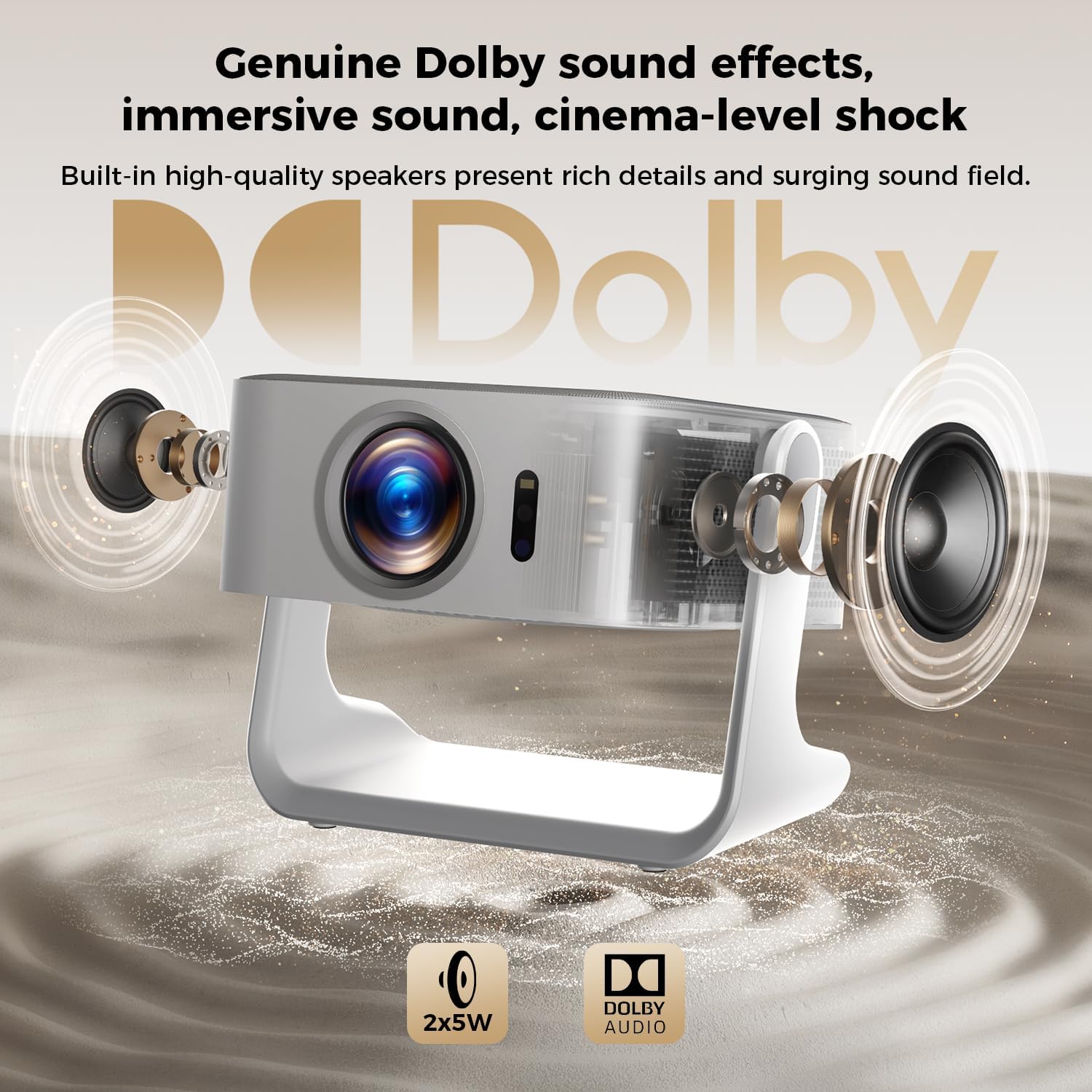
ภาพที่ 8.1: ระเบิด view of the ELEPHAS K350 Smart Projector, highlighting its internal 2x5W speakers and Dolby Audio support, indicating immersive sound capabilities.
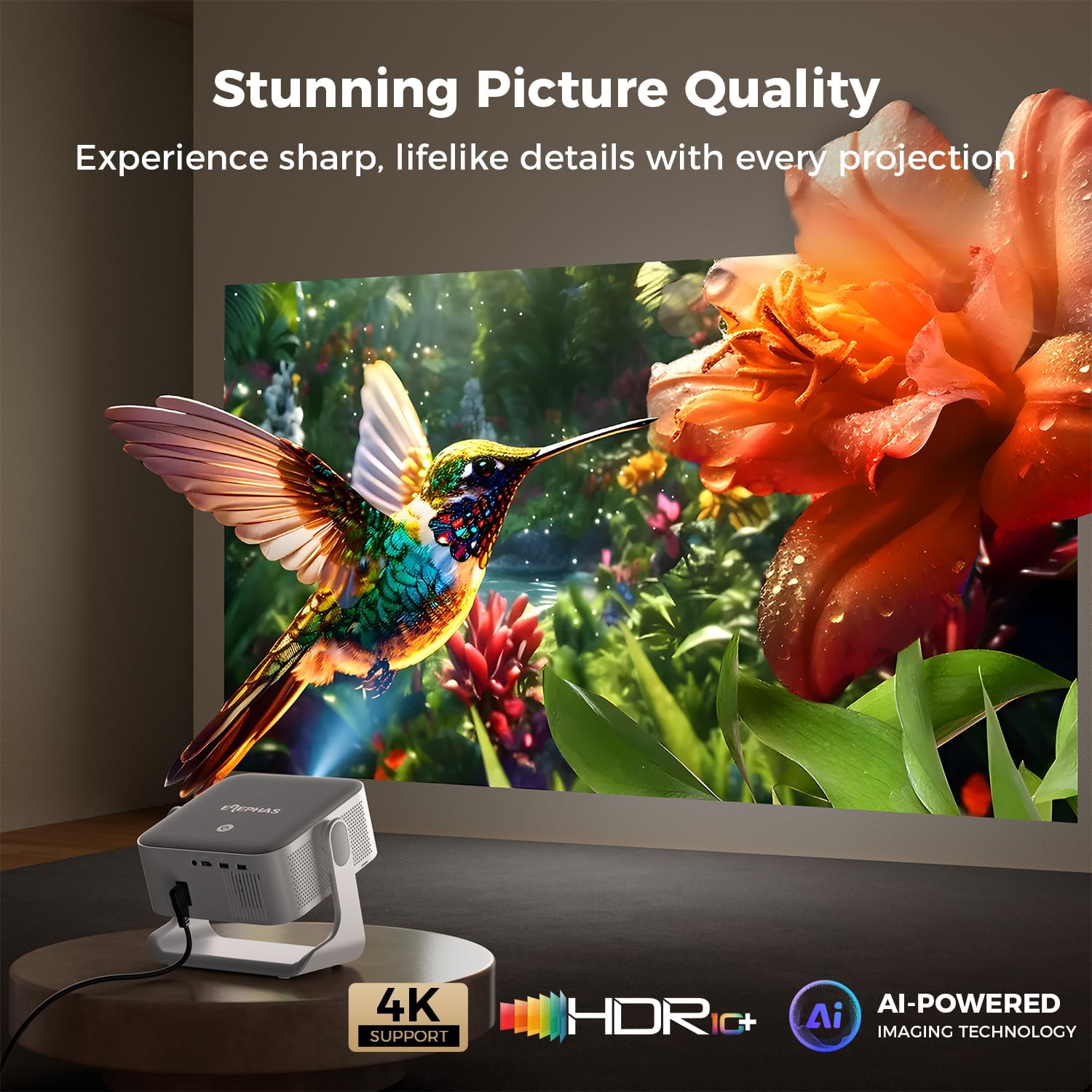
Image 8.2: The ELEPHAS K350 Smart Projector projecting a vibrant, detailed image of a hummingbird and flower, emphasizing its stunning picture quality with 4K support, HDR, and AI-powered imaging technology.
9. การรับประกันและการสนับสนุน
The ELEPHAS K350 Smart Projector is backed by a 2-year service guarantee.
For any product-related issues, technical assistance, or warranty claims, please contact ELEPHAS customer support through the official channels provided at the point of purchase or on the ELEPHAS brand webเว็บไซต์.
โปรดเก็บหลักฐานการซื้อไว้เพื่อใช้ยืนยันการรับประกัน


