1. บทนำ
Welcome to the user manual for your new FASTWD Android 15 Tablet 11-inch. This guide provides essential information for setting up, operating, and maintaining your device. Please read this manual thoroughly to ensure optimal performance and longevity of your tablet.
The FASTWD Android 15 Tablet features an 11-inch 2K QHD display, an Octa-Core T615 processor, 36GB RAM, 256GB ROM, and an 8000mAh battery. It supports 5G WiFi, 4G LTE, and includes AI-enhanced cameras, Gemini AI, and Widevine L1 for high-quality streaming.
2. เนื้อหาบรรจุภัณฑ์
Upon unboxing, please verify that all items listed below are present in your package:
- FASTWD Android 15 Tablet (11-inch)
- หนู
- แป้นพิมพ์
- คลิก ปากกา
- เคสหนัง
- เครื่องชาร์จ
- สายข้อมูล (USB Type-C)
- คู่มือผู้ใช้แท็บเล็ต

รูปที่ 2.1: Included accessories with the FASTWD Android 15 Tablet.
3. อุปกรณ์โอเวอร์view
The FASTWD Android 15 Tablet features a sleek, lightweight metal body with a slim profile and straight edges. The display bezel measures 7.8mm, contributing to an immersive viewการสร้างประสบการณ์
ลักษณะทางกายภาพ
- แสดง: 11-inch 2K QHD (2560x1440) In-cell Display with 90Hz refresh rate and Wide Viewไอเอ็นจีแองเกิล
- ร่างกาย: Metal construction, weighing approximately 568g.
- พอร์ต: USB Type-C for charging and data transfer, SIM/MicroSD card slot.
- กล้องถ่ายรูป: Rear 13MP + 3MP with autofocus and Low Light LED Flash; Front 8MP with autofocus.
- เสียง: สี่ Amplitude Speakers with Artificial Intelligence Noise Cancellation technology.

รูปที่ 3.1: เกินview of the tablet's design and key features.

รูปที่ 3.2: Detail of the tablet's connectivity ports and speaker placement.
4. การตั้งค่า
4.1 การชาร์จเริ่มต้น
Before first use, fully charge your tablet using the provided USB Type-C cable and charger. Connect the cable to the tablet's USB-C port and the charger to a power outlet. The battery indicator on the screen will show charging progress.
4.2 การเปิด/ปิดเครื่อง
- การเปิดเครื่อง: Press and hold the Power button until the FASTWD logo appears on the screen.
- วิธีปิดเครื่อง: กดปุ่มเปิด/ปิดค้างไว้ จากนั้นเลือก "ปิดเครื่อง" จากตัวเลือกที่ปรากฏบนหน้าจอ
- ในการรีสตาร์ท: กดปุ่มเปิด/ปิดค้างไว้ จากนั้นเลือก 'เริ่มระบบใหม่' จากตัวเลือก
4.3 ตัวช่วยการตั้งค่าเริ่มต้น
เมื่อเปิดเครื่องครั้งแรก แท็บเล็ตจะนำคุณเข้าสู่กระบวนการตั้งค่าเริ่มต้น ซึ่งรวมถึงการเลือกภาษา การเชื่อมต่อกับเครือข่าย Wi-Fi การตั้งค่าบัญชี Google และการกำหนดค่าการตั้งค่าความปลอดภัยขั้นพื้นฐาน
4.4 การติดตั้งซิมการ์ดและการ์ด MicroSD
Locate the SIM/MicroSD card tray on the side of the tablet. Use the provided SIM ejector tool to open the tray. Insert your Nano-SIM card (for 4G LTE connectivity) and/or a MicroSD card (for expanded storage) into the designated slots, ensuring correct orientation. Gently push the tray back into the tablet.
4.5 การจับคู่อุปกรณ์บลูทูธ
To connect Bluetooth accessories like the included keyboard or mouse:
- ไปที่ การตั้งค่า > อุปกรณ์ที่เชื่อมต่อ > บลูทูธ.
- สลับบลูทูธ On.
- ตรวจสอบให้แน่ใจว่าอุปกรณ์ Bluetooth ของคุณอยู่ในโหมดจับคู่
- Select 'Pair new device' and choose your device from the list.
- ปฏิบัติตามคำแนะนำบนหน้าจอเพื่อทำการจับคู่ให้เสร็จสิ้น

รูปที่ 4.1: Bluetooth device connection interface.
4.6 การปลดล็อคด้วยการจดจำใบหน้า
For convenient and secure unlocking, you can set up Face Recognition:
- ไปที่ การตั้งค่า > ความปลอดภัยและความเป็นส่วนตัว > ปลดล็อคอุปกรณ์ > ปลดล็อคด้วยใบหน้า.
- Follow the on-screen instructions to register your face. Ensure you are in a well-lit environment.
รูปที่ 4.2: Face Recognition Unlock setup.
5. คู่มือการใช้งาน
5.1 การนำทางพื้นฐาน
The tablet uses standard Android touch gestures:
- แตะ: เลือกรายการหรือเปิดแอป
- ปัด: เลื่อนดูหน้าหรือรายการ
- บีบเพื่อซูม: ซูมเข้าหรือออกจากรูปภาพและ web หน้า
- กดยาว: เข้าถึงเมนูบริบทหรือย้ายไอคอนแอป
5.2 Wi-Fi and 4G LTE Connectivity
- ไวไฟ : ไปที่ การตั้งค่า > เครือข่ายและอินเตอร์เน็ต > อินเทอร์เน็ต. Select your desired Wi-Fi network and enter the password if required. The tablet supports 2.4G/5G dual-band Wi-Fi.
- 4G แอลทีอี: If a SIM card is installed, go to การตั้งค่า > เครือข่ายและอินเตอร์เน็ต > ซิม to manage mobile data settings. The tablet supports 4G LTE TDD+FDD and VoLTE.

รูปที่ 5.1: Connectivity features of the tablet.
5.3 การจัดการแอปพลิเคชัน
To manage your applications:
- ติดตั้งแอพ: Use the Google Play Store to download and install new applications.
- ถอนการติดตั้งแอป: Long-press an app icon on the home screen or app drawer, then drag it to 'Uninstall' or select 'App info' and choose 'Uninstall'.
- Free Up Storage Space: ไปที่ การตั้งค่า > แอปพลิเคชั่น > ดูแอพทั้งหมด. Select an app, then choose 'Storage & cache' to clear cache or data, or 'Force stop' to temporarily halt its operation.
รูปที่ 5.2: App management options.
5.4 การควบคุมโดยผู้ปกครอง
Manage and monitor tablet usage for children using parental controls:
- ไปที่ การตั้งค่า > ความเป็นอยู่ที่ดีทางดิจิทัลและการควบคุมโดยผู้ปกครอง.
- Set up screen time limits, app restrictions, and content filters.
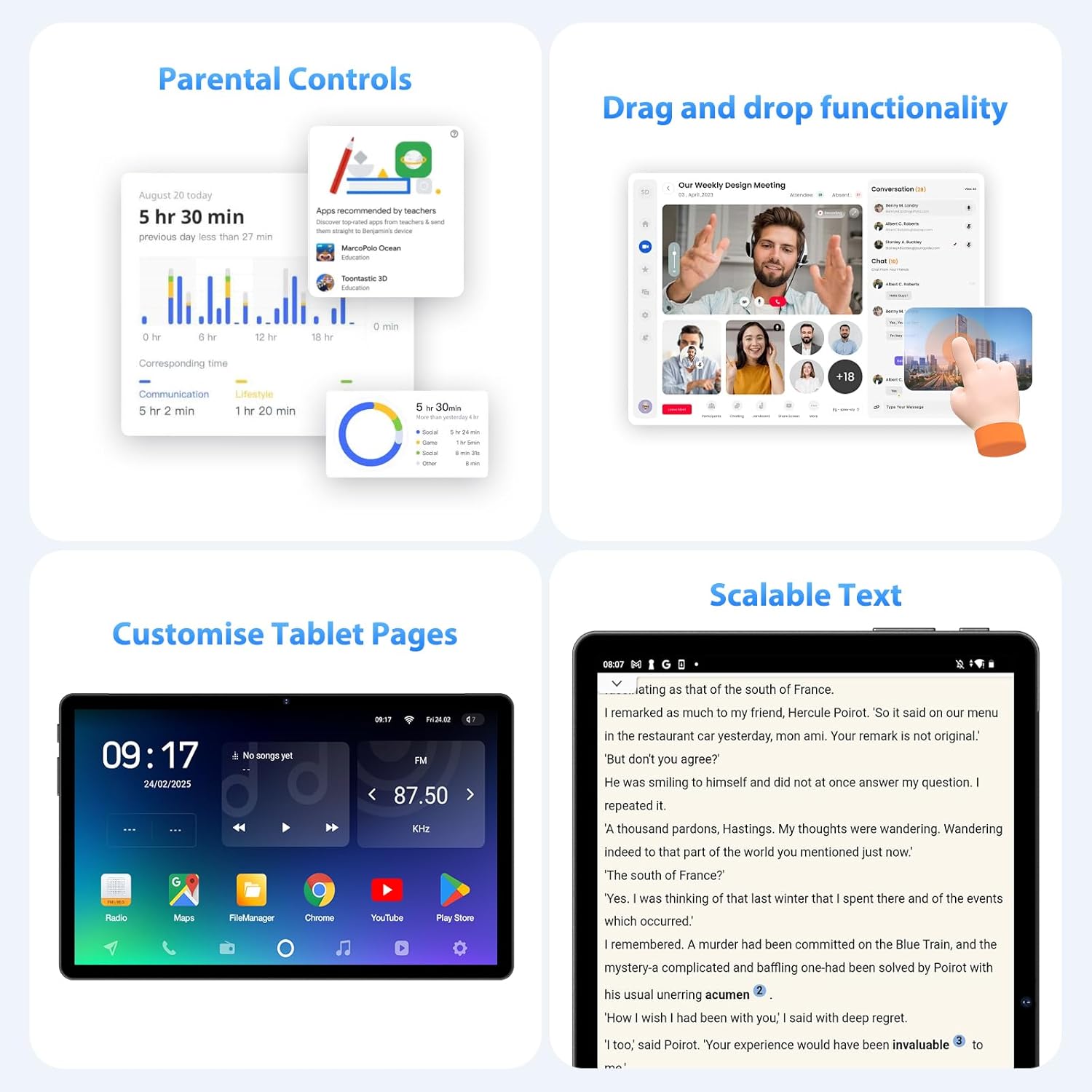
รูปที่ 5.3: Parental control settings.
5.5 Double-tap to Wake
To quickly wake the screen without pressing the power button, simply double-tap the display. This feature can usually be enabled or disabled in การตั้งค่า > แสดง > Lock screen display.
รูปที่ 5.4: Double-tap to wake functionality.
5.6 Customizing Tablet Pages
Personalize your tablet's home screens by long-pressing on an empty area to access wallpaper, widgets, and home screen settings. You can also rearrange app icons and create folders.
รูปที่ 5.5: Example of a customized tablet page.
6. คุณสมบัติขั้นสูง
6.1 การแสดงผลและมัลติมีเดีย
- 2K QHD 90Hz Display: Enjoy smooth visuals and vibrant colors on the 11-inch 2560x1440 resolution display. The 90Hz refresh rate enhances scrolling and gaming experiences.
- DRM แบบไวด์ไวด์ L1: Supports Widevine L1 Digital Rights Management, enabling high-definition (1080P) streaming from services like Netflix.
- DP HD Screen Throwing: Allows for high-definition screen mirroring or extension to compatible external displays.
- Scalable Text: Adjust text size for improved readability via display settings.
รูปที่ 6.1: Scalable text feature for enhanced readability.
6.2 Performance and AI
- Octa-Core T615 Processor: Equipped with a powerful 12nm Octa-Core T615 processor (4x A73 + 4x A53) and Mali-G72 GPU for efficient multitasking and smooth application performance.
- Gemini AI Integration: Leverages Gemini AI for enhanced smart features and optimized user experience.
- ระบบตรวจจับอัจฉริยะ AI: The tablet incorporates AI for various smart detection functionalities, improving user interaction and device efficiency.
รูปที่ 6.2: Octa-core processor specifications.
6.3 คุณสมบัติกล้อง
The tablet is equipped with AI-enhanced cameras:
- กล้องหลัง: 13MP + 3MP with HD Video Call support, autofocus, and Low Light LED Flash.
- กล้องหน้า: 8MP with autofocus.
- Capture Unlock Face: Utilize the front camera for face recognition to unlock the device.
6.4 ระบบเสียง
Experience clear audio with the tablet's advanced sound system:
- สี่ Amplitude Speakers: Delivers rich and immersive sound.
- ระบบตัดเสียงรบกวนด้วย AI: Artificial Intelligence Noise Cancellation technology automatically filters out ambient noise for clearer audio output.
7. การบำรุงรักษาและการดูแล
7.1 การทำความสะอาดแท็บเล็ต
Use a soft, lint-free cloth to gently wipe the screen and body of the tablet. For stubborn smudges, slightly dampชุบผ้าด้วยน้ำหรือน้ำยาทำความสะอาดหน้าจอ หลีกเลี่ยงการใช้สารเคมีรุนแรงหรือวัสดุที่มีฤทธิ์กัดกร่อน
7.2 การดูแลแบตเตอรี่
The tablet is equipped with an 8000mAh battery, providing approximately 8 hours of usage. To prolong battery life:
- หลีกเลี่ยงอุณหภูมิที่สูงหรือต่ำเกินไป
- อย่าปล่อยให้แบตเตอรี่หมดจนหมดบ่อยๆ
- โปรดใช้ที่ชาร์จที่ให้มาเพื่อการชาร์จที่ดีที่สุด
- ลดความสว่างหน้าจอและปิดใช้งานคุณสมบัติที่ไม่จำเป็น (Wi-Fi, Bluetooth, GPS) เมื่อไม่ได้ใช้งาน
7.3 การอัปเดตซอฟต์แวร์
ตรวจสอบและติดตั้งการอัปเดตซอฟต์แวร์เป็นประจำเพื่อให้แน่ใจว่าแท็บเล็ตของคุณมีฟีเจอร์ แพตช์ความปลอดภัย และการปรับปรุงประสิทธิภาพล่าสุด ไปที่ การตั้งค่า > ระบบ > การอัพเดทระบบ เพื่อตรวจสอบการอัปเดตที่มีอยู่
7.4 การจัดการการจัดเก็บข้อมูล
The tablet comes with 256GB of internal storage, expandable up to 1TB via MicroSD card. To manage storage:
- ลบสิ่งที่ไม่จำเป็นออกเป็นประจำ fileเอสและแอพ
- เคลื่อนย้ายขนาดใหญ่ files (photos, videos) to the MicroSD card or cloud storage.
- Clear app cache periodically via การตั้งค่า > พื้นที่จัดเก็บ.
8 การแก้ไขปัญหา
หัวข้อนี้จะกล่าวถึงปัญหาทั่วไปที่คุณอาจพบกับแท็บเล็ตของคุณ
แท็บเล็ต 8.1 ไม่เปิด
- ตรวจสอบให้แน่ใจว่าแบตเตอรี่ชาร์จเต็มแล้ว เสียบแท็บเล็ตเข้ากับเครื่องชาร์จอย่างน้อย 30 นาที
- กดปุ่มเปิด/ปิดค้างไว้ 10-15 วินาทีเพื่อรีสตาร์ทอัตโนมัติ
8.2 ปัญหาการเชื่อมต่อ Wi-Fi
- รีสตาร์ทเราเตอร์ Wi-Fi และแท็บเล็ตของคุณ
- ตรวจสอบให้แน่ใจว่าคุณอยู่ในระยะสัญญาณ Wi-Fi
- ตรวจสอบว่ารหัสผ่าน Wi-Fi ถูกต้อง
- ลืมเครือข่ายในการตั้งค่า Wi-Fi และเชื่อมต่อใหม่อีกครั้ง
8.3 ประสิทธิภาพช้า
- ปิดแอปพลิเคชันที่ไม่ได้ใช้งานซึ่งทำงานอยู่เบื้องหลัง
- Clear app caches and free up storage space.
- รีสตาร์ทแท็บเล็ตเป็นระยะๆ
- Consider performing a factory reset if performance issues persist (บันทึก: This will erase all data on the tablet. Back up important data first).
8.4 หน้าจอไม่ตอบสนอง
- ดำเนินการรีสตาร์ทโดยบังคับโดยกดปุ่มเปิด/ปิดค้างไว้
- ตรวจสอบให้แน่ใจว่าหน้าจอสะอาดและไม่มีความชื้นหรือเศษขยะ
9. ข้อมูลจำเพาะ
| คุณสมบัติ | ข้อมูลจำเพาะ |
|---|---|
| ยี่ห้อ | ฟาสต์ ดับเบิ้ลยู |
| ชื่อรุ่น | FASTWD Android 15 Tablet 11-inch |
| ระบบปฏิบัติการ | แอนดรอยด์ 15 |
| โปรเซสเซอร์ | Octa-Core T615 (4x A73, 4x A53, 12nm) |
| จีพียู | มะลิ-G72 |
| แรม | 36GB (12GB + 24GB เสมือน) |
| การจัดเก็บข้อมูลภายใน | 256GB |
| พื้นที่เก็บข้อมูลแบบขยายได้ | Up to 1TB MicroSD |
| ขนาดจอแสดงผล | 11 นิ้ว |
| ความละเอียดการแสดงผล | 2560x1440 (2K QHD) |
| อัตราการรีเฟรช | 90เฮิรตซ์ |
| ความจุของแบตเตอรี่ | 8000 มิลลิแอมป์ |
| อายุการใช้งานแบตเตอรี่ | ประมาณ 8 ชั่วโมง |
| กล้องหลัง | 13MP + 3MP with Autofocus and LED Flash |
| กล้องหน้า | กล้อง 8 ล้านพิกเซล พร้อมระบบโฟกัสอัตโนมัติ |
| ไวไฟ | 802.11ac (2.4G/5G Dual-band) |
| การเชื่อมต่อเซลลูล่าร์ | 4G LTE (TDD+FDD), VoLTE |
| บลูทูธ | ใช่ |
| พอร์ต | ยูเอสบี ไทป์ ซี |
| ขนาด (สินค้า) | 26L x 16W x 0.8H ซม |
| น้ำหนัก | ประมาณ 568กรัม |
| การสนับสนุน DRM | ไวด์ไวน์ แอล1 |
| คุณสมบัติอื่น ๆ | Gemini AI, GPS, TÜV Certified (implied from product title) |
10. การรับประกันและการสนับสนุน
For detailed warranty information, please refer to the warranty card included in your product packaging or contact your point of purchase. Warranty terms and conditions may vary by region and retailer.
If you encounter issues not covered in this manual or require further assistance, please contact FASTWD customer support through the contact information provided with your product or on the official FASTWD webเว็บไซต์.


