1. บทนำ
This manual provides detailed instructions for the ATTACK SHARK X68PRO HE 8000Hz Wireless Gaming Magnetic Switch Keyboard. Please read this manual thoroughly to ensure proper setup, operation, and maintenance of your device. This keyboard is designed for high-performance gaming, featuring advanced Hall Effect magnetic switches and a rapid trigger system.
2. สินค้าหมดview
The ATTACK SHARK X68PRO HE is a compact 60% layout gaming keyboard engineered for precision and speed. Key features include an 8000Hz polling rate, adjustable actuation, Rapid Trigger technology, and a durable aluminum frame.

ภาพ: คีย์บอร์ด ATTACK SHARK X68PRO HE (ภาพประกอบ)asing its compact design and key features such as 3-mode connection, magnetic switches, 0.01mm RT accuracy, DKS support, full RGB backlight, PBT keycaps, MAC/WIN support, and web driver compatibility. Dimensions are indicated as 12.80 inches length, 4.645 inches width, and 1.57 inches height, with a weight of 0.78 KG.
เนื้อหาแพ็คเกจ:
- ATTACK SHARK X68PRO HE Keyboard
- สาย USB-C
- ATTACK SHARK KS01 2-in-1 Switch & Keycap Puller Tool
- คู่มือการใช้งาน
3. การตั้งค่า
3.1 โหมดการเชื่อมต่อ
The X68PRO HE keyboard supports three connection modes:
- โหมดสาย: เชื่อมต่อแป้นพิมพ์เข้ากับคอมพิวเตอร์โดยตรงโดยใช้สาย USB-C ที่ให้มา
- โหมดไร้สาย 2.4GHz: Use the included USB dongle for a low-latency wireless connection.
- โหมดบลูทู ธ : Pair the keyboard with compatible devices via Bluetooth.
3.2 การเชื่อมต่อเริ่มต้น
- Select your desired connection mode using the switch located on the keyboard.
- For Wired Mode, connect the USB-C cable to the keyboard and your computer.
- For 2.4GHz Wireless Mode, insert the USB dongle into an available USB port on your computer. The keyboard should automatically connect.
- For Bluetooth Mode, activate Bluetooth on your device and put the keyboard into pairing mode (refer to specific key combinations in the quick start guide if available). Select "ATTACK SHARK X68PRO HE" from your device's Bluetooth list.
4. คู่มือการใช้งาน
4.1 Adjustable Actuation
The X68PRO HE features Hall Effect magnetic switches allowing for precise actuation point adjustments. You can set the actuation distance from 0.1mm to 3.4mm with a sensitivity of 0.01mm. This customization enables you to tailor key responsiveness to your preference, from ultra-sensitive for rapid inputs to deeper for deliberate presses.
4.2 เทคโนโลยีทริกเกอร์อย่างรวดเร็ว
Rapid Trigger technology allows keys to reset instantly without requiring a full release. This feature is particularly beneficial in fast-paced gaming scenarios, enabling quicker successive inputs and improved reaction times.

Image: A comparison illustrating the difference between a regular gaming keyboard's fixed active/reset point and a magnetic gaming keyboard's dynamic active/reset points with Rapid Trigger. The magnetic switch shows an adjustable trigger reset area from 0.1mm to 3.4mm, allowing for instant key resets.
4.3 Dual-Action Key Functionality
This feature allows a single keypress to execute two different commands based on the pressure applied or the depth of the press. This can be configured through the keyboard's software to enable complex command sequences with a single key.
4.4 การปรับแต่งแสง RGB
The keyboard features 16.8 million RGB colors and multiple lighting effects. These can be customized to personalize your setup and enhance the aesthetic appeal of your workspace. Refer to the official software or web driver for detailed customization options.
5. การบำรุงรักษา
Regular maintenance ensures the longevity and optimal performance of your keyboard. The ATTACK SHARK KS01 2-in-1 Switch & Keycap Puller Tool is included for easy cleaning and customization.
5.1 Using the KS01 2-in-1 Switch & Keycap Puller Tool
The KS01 tool is made of high-grade 304 stainless steel and is designed for safely removing keycaps and switches.
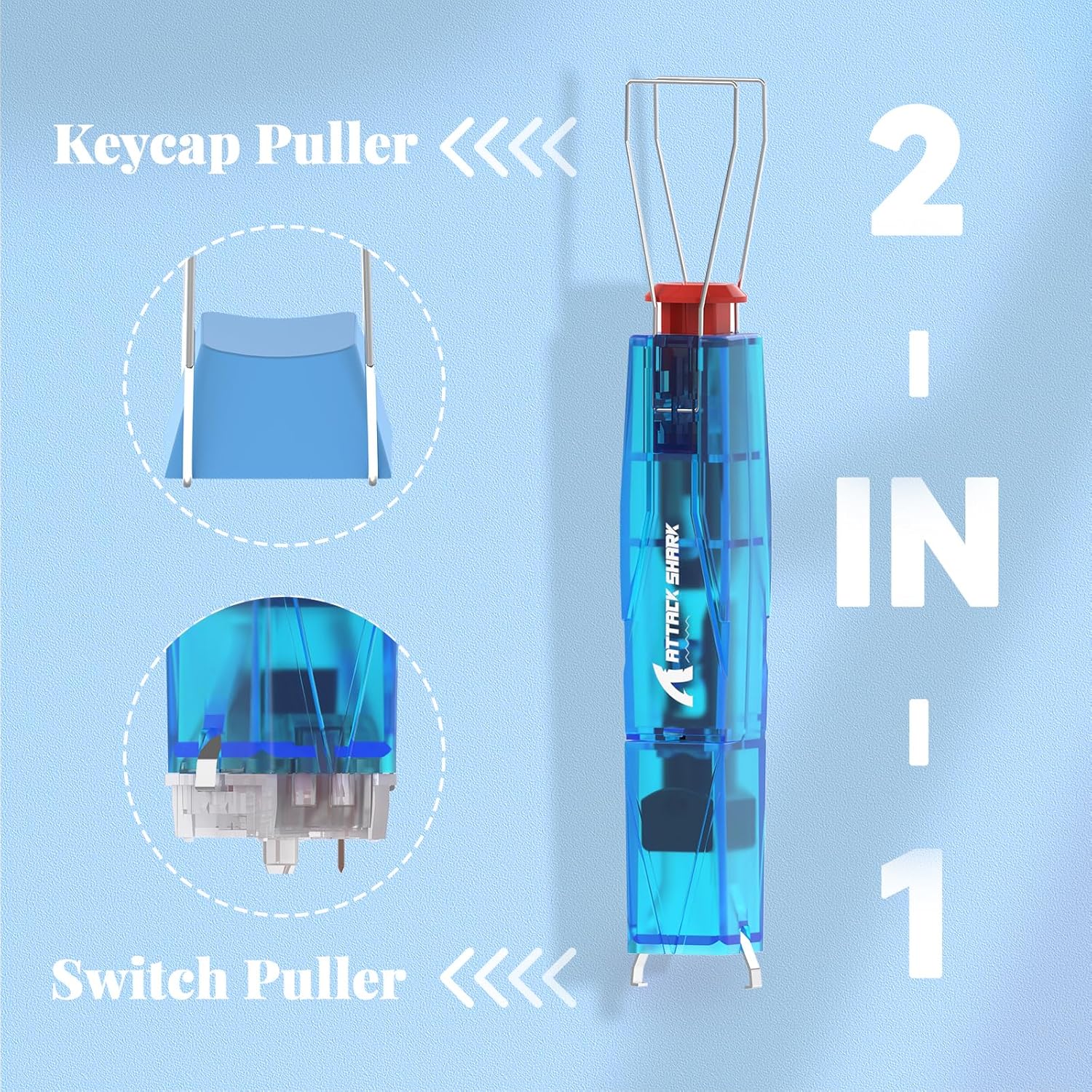
Image: The ATTACK SHARK KS01 2-in-1 tool shown in its keycap puller configuration, demonstrating how it grips and lifts a keycap from the keyboard.
5.1.1 การถอดปุ่มกด
- Position the keycap puller wires under the keycap you wish to remove.
- Gently squeeze the wires together to secure the keycap.
- Pull upwards slowly and evenly until the keycap detaches from the switch stem.

Image: The ATTACK SHARK KS01 2-in-1 tool shown in its switch puller configuration, positioned to remove a switch from the keyboard's plate.
5.1.2 การถอดสวิตช์
- First, remove the keycap from the desired switch.
- Orient the KS01 tool to its switch puller configuration.
- Align the two prongs of the switch puller with the clips on the top and bottom of the switch housing.
- Gently depress the clips and pull the switch upwards. Ensure even pressure to avoid damaging the switch or PCB.

Image: A step-by-step visual guide on how to use the switch puller. It shows depressing and releasinจี เดอะ ซีแอลamp, aligning with the switch, pushing downward, elevating upwards, and finally depressing and releasing the switch for removal.
5.2 การทำความสะอาด
Use a soft brush or compressed air to remove dust and debris from between the keycaps and switches. For stubborn dirt, remove keycaps and gently wipe them with a damp ผ้า ตรวจสอบให้แน่ใจว่าส่วนประกอบทั้งหมดแห้งก่อนประกอบกลับเข้าที่
6 การแก้ไขปัญหา
- แป้นพิมพ์ไม่ตอบสนอง: Check cable connections for wired mode, ensure dongle is properly inserted for 2.4GHz, or re-pair for Bluetooth mode. Ensure the keyboard is charged.
- กุญแจไม่ลงทะเบียน: Verify the keyboard is powered on and connected. If specific keys are not working, consider removing the keycap and switch (refer to Maintenance section) to check for obstructions or damage.
- ปัญหาแสง RGB: Ensure the keyboard software/driver is installed and updated. Check lighting settings within the software.
- การเชื่อมต่อไร้สายไม่เสถียร: Move the keyboard closer to the receiver (2.4GHz) or paired device (Bluetooth). Avoid sources of interference.
7. ข้อมูลจำเพาะ
| คุณสมบัติ | ข้อมูลจำเพาะ |
|---|---|
| แบบอย่าง | X68PRO HE |
| อัตราการสำรวจความคิดเห็น | 8000เฮิรตซ์ |
| ความหน่วงเวลา | 0.125มิลลิวินาที |
| ประเภทสวิตซ์ | สวิตช์แม่เหล็กแบบฮอลล์เอฟเฟกต์ |
| ช่วงการทำงาน | 0.1mm to 3.4mm (0.01mm sensitivity) |
| ทริกเกอร์อย่างรวดเร็ว | รองรับ |
| Dual-Action Keys | รองรับ |
| วัสดุปุ่มกด | PBT (Side-Engraved) |
| เค้าโครง | ขนาดกะทัดรัด 60% |
| วัสดุกรอบ | อะลูมิเนียมชุบอะโนไดซ์เกรดอากาศยาน |
| Dampเอนดิ้ง | Dual-layer PORON Foam |
| การเชื่อมต่อ | แบบมีสาย (USB-C), ไร้สาย 2.4GHz, บลูทูธ |
| เปลี่ยนอายุการใช้งาน | การกดแป้น 100 ล้านครั้ง |
| รวมการเดินทาง | 3.8 ± 0.3 มม |
| กำลังปฏิบัติการ | 40 ± 5 ก.ฟ |
| ฟลักซ์แม่เหล็กเริ่มต้น | 95 ± 15GS |
| ฟลักซ์แม่เหล็กด้านล่าง | 580 ± 50GS |
| น้ำหนัก | 0.78 กก. |
| ขนาด (กว้าง x ยาว x สูง) | 12.80 นิ้ว x 4.645 นิ้ว x 1.57 นิ้ว |
8. การรับประกันและการสนับสนุน
สำหรับข้อมูลการรับประกันและการสนับสนุนทางเทคนิค โปรดดูที่เว็บไซต์อย่างเป็นทางการของ ATTACK SHARK webหรือติดต่อฝ่ายบริการลูกค้า เก็บใบเสร็จรับเงินไว้เพื่อใช้ในการเคลมประกัน


