1. บทนำ
Thank you for choosing the EWEADN V102 Wired Gaming Keyboard. This manual provides detailed instructions for setting up, operating, and maintaining your keyboard to ensure optimal performance and longevity. The V102 features a compact 98-key layout, dynamic RGB backlighting, a multi-function control knob, and a smart display screen.
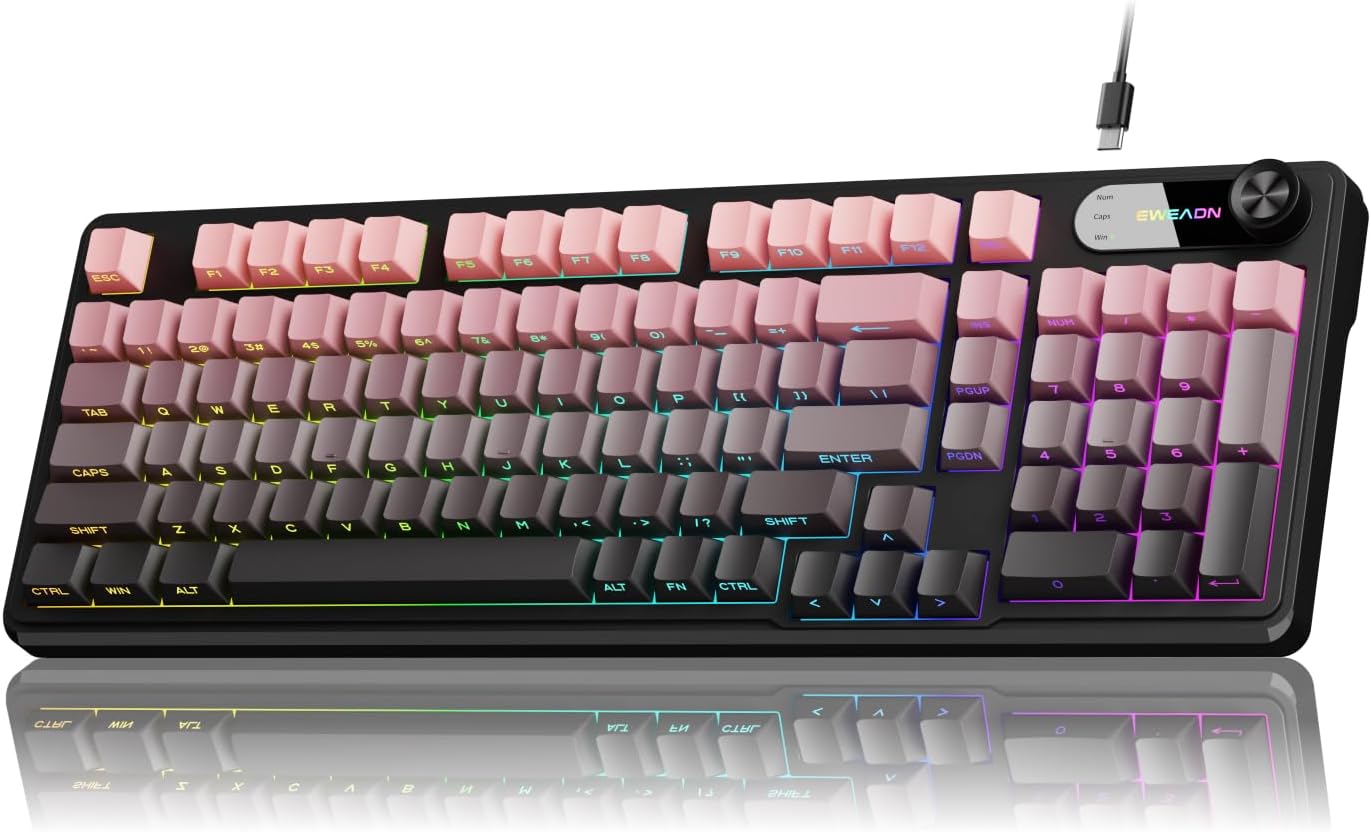
Image 1: EWEADN V102 Wired Gaming Keyboard, showcasing its compact layout and RGB lighting.
2. เนื้อหาบรรจุภัณฑ์
โปรดตรวจสอบว่าสินค้าทั้งหมดมีอยู่ในแพ็คเกจของคุณ:
- EWEADN V102 Wired Gaming Keyboard
- สายเคเบิล USB Type-C
- คู่มือการใช้งาน (เอกสารนี้)
3. การตั้งค่า
3.1 การเชื่อมต่อคีย์บอร์ด
- Locate the USB Type-C port on the back of the EWEADN V102 keyboard.
- Connect one end of the provided USB Type-C cable to the keyboard's port.
- Connect the other end of the USB cable to an available USB port on your computer (PC, Laptop, Gaming Console, Tablet, or Smartphone).
- The keyboard is plug-and-play and should be recognized automatically by your operating system.

Image 2: Illustration of the wired Type-C connection, showing the cable connecting the keyboard to a computer.
4. คู่มือการใช้งาน
4.1 Multi-Function Control Knob
The rotary knob on the keyboard provides quick access to various functions:
- Default Mode (Backlight Control):
- Press the knob: Toggles between different RGB backlight modes.
- Rotate the knob: Adjusts the backlight brightness (5 levels).
- Multimedia Mode (Volume Control):
- To switch to Multimedia Mode: Press and hold FN + Knob.
- Press the knob: Mutes/unmutes audio.
- Rotate the knob: Adjusts system volume.
- To switch back to Backlight Control Mode: Press and hold FN + Knob อีกครั้ง.

ภาพที่ 3: รายละเอียด view of the multi-function control knob, illustrating its use for backlight and volume adjustments.
4.2 ไฟแบ็คไลท์ RGB แบบไดนามิก
The keyboard features 12 dynamic RGB lighting effects. Control the backlighting using the following key combinations:
- FN + อิน: สลับไปมาระหว่างเอฟเฟกต์แสง RGB 12 แบบที่แตกต่างกัน
- FN + PGUP/PGDN: Adjusts backlight brightness (5 levels).
- FN + "_" / "+": Adjusts lighting speed (5 levels).
- FN + แบ็คสเปซ: Toggles backlight On/Off.

Image 4: Visual guide to RGB backlight controls, showing key combinations for effects, brightness, and speed.
4.3 Smart Display Screen
The built-in display screen provides real-time status indicators:
- แคปล็อค: Indicates when Caps Lock is active.
- ล็อคหมายเลข: Indicates when Num Lock is active.
- วินล็อค: Indicates when the Windows key is locked (preventing accidental presses during gaming).
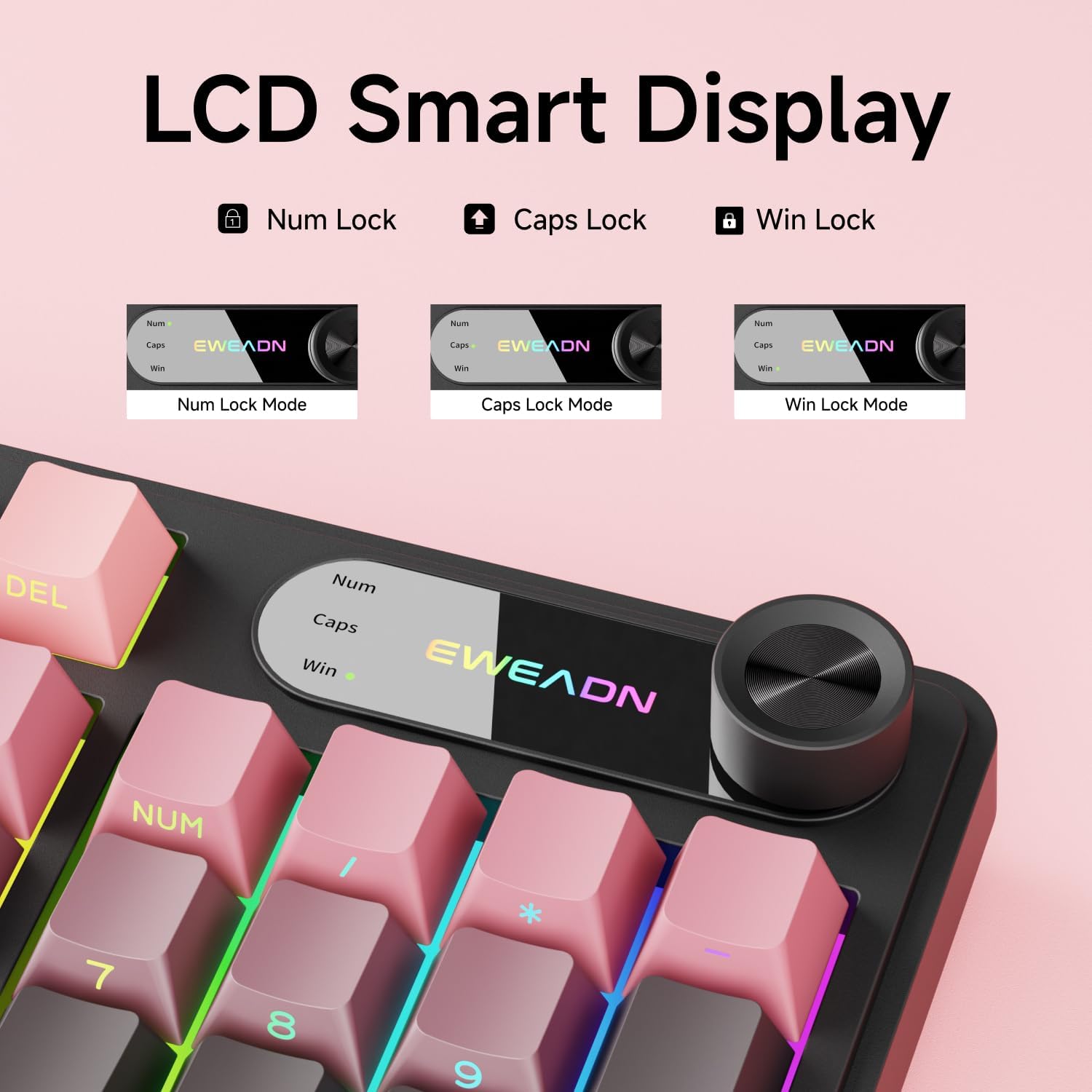
Image 5: Close-up of the LCD smart display, showing indicators for Num Lock, Caps Lock, and Win Lock.
4.4 Dual-System Compatibility
The EWEADN V102 keyboard supports both Windows and Mac operating systems. Switch between layouts using the following key combinations:
- เอฟเอ็น + เอ: Switches to Windows layout.
- เอฟเอ็น + เอส: Switches to Mac layout.

Image 6: Diagram illustrating the FN+A and FN+S key combinations for switching between Windows and Mac layouts.
4.5 Adjustable Typing Angles
The keyboard is equipped with two-stage adjustable feet on the bottom, allowing you to choose a comfortable typing angle:
- ขั้นแรกtage: Provides a slight incline.
- วินาทีที่สองtage: Provides a steeper incline for ergonomic comfort.

Image 7: Illustration of the keyboard's two-stage adjustable feet, demonstrating different typing angles.
5. การบำรุงรักษา
5.1 การทำความสะอาด
- ถอดแป้นพิมพ์ออกจากคอมพิวเตอร์ของคุณก่อนทำความสะอาด
- ใช้ผ้านุ่มไม่เป็นขุยเช็ดเล็กน้อยampล้างออกด้วยน้ำหรือน้ำยาทำความสะอาดอ่อนๆ เพื่อเช็ดปุ่มกดและพื้นผิวแป้นพิมพ์
- หลีกเลี่ยงการใช้สารเคมีรุนแรง น้ำยาทำความสะอาดที่มีฤทธิ์กัดกร่อน หรือตัวทำละลาย
- สำหรับฝุ่นละอองและเศษต่างๆ ระหว่างคีย์ ให้ใช้ลมอัด
5.2 ความต้านทานต่อการหกเลอะเทอะ
The keyboard features a spill-resistant design. In case of accidental spills:
- Immediately disconnect the keyboard from your computer.
- Wipe off any liquid from the surface with a clean cloth.
- ปล่อยให้แป้นพิมพ์แห้งสนิทก่อนที่จะเชื่อมต่อกลับเข้าไปใหม่

Image 8: Visual representation of the keyboard's spill-resistant capabilities.
6 การแก้ไขปัญหา
- แป้นพิมพ์ไม่ตอบสนอง: Ensure the USB Type-C cable is securely connected to both the keyboard and the computer. Try a different USB port or a different cable.
- กุญแจไม่ลงทะเบียน: Check for any debris under the keycaps. If specific keys are not working, contact customer support.
- ไฟแบ็คไลท์ไม่ทำงาน: Ensure the backlight is not turned off (FN + Backspace). Adjust brightness using FN + PGUP/PGDN.
- Knob not controlling volume: Ensure the knob is in Multimedia Mode (press and hold FN + Knob to switch).
- Incorrect key functions (Mac/Windows): Verify you are in the correct operating system layout (FN + A for Windows, FN + S for Mac).
7. ข้อมูลจำเพาะ
| คุณสมบัติ | รายละเอียด |
|---|---|
| หมายเลขรุ่น | วี102 |
| การเชื่อมต่อ | แบบมีสาย (USB Type-C) |
| เค้าโครงคีย์ | 98-Key Compact Layout |
| ประเภทแป้นพิมพ์ | Wired Membrane Keyboard |
| การแบ็คไลท์ | RGB (16.8 ล้านสี) |
| คุณสมบัติพิเศษ | Multi-Function Knob, Smart Display Screen, Ergonomic Design, Adjustable Feet, Spill Resistant |
| อุปกรณ์ที่รองรับ | Laptop, PC, Gaming Console, Tablet, Smartphone |
| วัสดุ | โลหะ, พลาสติก |
| น้ำหนักสินค้า | 1 ปอนด์ |
8. การรับประกันและการสนับสนุน
EWEADN is committed to providing quality products and customer satisfaction. For any inquiries, troubleshooting assistance, or warranty claims, please contact our support team.
8.1 ข้อมูลการติดต่อ
- การสนับสนุนทางอีเมล์: eweadnkeyboard@outlook.com
- ร้านค้าอเมซอน: Visit the EWEADN Store page on Amazon and click "Ask a question" to contact the seller.

ภาพที่ 9: จบแล้วview of EWEADN's after-sales support services, including Q&A, troubleshooting, and returns.


