การแนะนำ
Welcome to the DIERYA M1 Wireless Gaming Mouse user manual. This guide provides detailed instructions for setting up, operating, and maintaining your new mouse. Please read this manual thoroughly to ensure proper use and to maximize your gaming and productivity experience.
เนื้อหาแพ็คเกจ
ตรวจสอบว่ามีรายการทั้งหมดอยู่ในแพ็คเกจของคุณ:
- เมาส์ไร้สาย M1
- Nylon USB-A to C Cable
- คู่มือการใช้งาน
สินค้าเกินview
The DIERYA M1 mouse features a lightweight, ergonomic design with multiple programmable buttons and versatile connectivity options.

คำอธิบายภาพ: ค่าใช้จ่ายทางอ้อม view of the black DIERYA M1 wireless gaming mouse, showcasing its honeycomb shell design and RGB lighting. A small USB receiver is positioned to the right of the mouse.
ส่วนประกอบเมาส์

คำอธิบายภาพ: An overhead and underside view of the DIERYA M1 mouse with various components labeled. These include the Left Button, Right Button, Mouse Wheel (Middle Button), DPI Adjustment Button (6 Adjustable DPI Levels), Forward Button, Back Button, Type-C Interface, Power & Light Switch, and 2.4G Receiver Storage Compartment. The mouse features a honeycomb shell design.
- ปุ่มซ้าย: ฟังก์ชั่นคลิกซ้ายมาตรฐาน
- ปุ่มขวา: ฟังก์ชั่นคลิกขวามาตรฐาน
- Mouse Wheel (Middle Button): ฟังก์ชันการเลื่อนและการคลิกกลาง
- ปุ่มปรับ DPI: หมุนเวียนผ่านระดับ DPI ที่ตั้งไว้ล่วงหน้า
- ปุ่มไปข้างหน้า: นำทางไปข้างหน้าใน web เบราว์เซอร์หรือแอพพลิเคชั่น
- ปุ่มย้อนกลับ: นำทางย้อนกลับใน web เบราว์เซอร์หรือแอพพลิเคชั่น
- อินเทอร์เฟซ Type-C: สำหรับการเชื่อมต่อแบบมีสายและการชาร์จ
- Power & Light Switch: Controls power and RGB lighting.
- 2.4G Receiver Storage Compartment: Located on the underside for storing the USB dongle.
การตั้งค่า
The DIERYA M1 mouse offers three connectivity modes: 2.4GHz Wireless, Bluetooth 5.2, and USB-C Wired.

คำอธิบายภาพ: An illustration demonstrating the three connectivity modes of the M1 mouse: Bluetooth 5.2 pairing with a smartphone, 2.4GHz Wireless with a USB dongle connected to a laptop, and USB-C Wired connection to a laptop. Polling rates for each mode are indicated.
1. การเชื่อมต่อไร้สาย 2.4GHz
- Locate the 2.4G USB receiver in the storage compartment on the underside of the mouse.
- เสียบตัวรับสัญญาณ USB เข้ากับพอร์ต USB-A ที่ว่างอยู่บนคอมพิวเตอร์ของคุณ
- Turn on the mouse using the Power & Light Switch.
- The mouse will automatically connect to the receiver. The polling rate in this mode is 1000Hz.
2. การเชื่อมต่อบลูทูธ 5.2
- Turn on the mouse using the Power & Light Switch.
- Press and hold the dedicated connectivity mode button (refer to the product's specific button combination if not a dedicated button) to switch to Bluetooth mode. The LED indicator will show the active connection.
- On your device (PC, Mac, Laptop, iPad), go to Bluetooth settings and search for "DIERYA M1".
- Select the mouse to pair. The polling rate in Bluetooth mode is 125Hz.
- The mouse supports dual-device pairing in Bluetooth mode. Refer to the software for managing multiple Bluetooth connections.
3. การเชื่อมต่อผ่านสาย USB-C
- Connect the provided USB-A to C cable to the Type-C interface on the front of the mouse.
- เสียบปลายสาย USB-A เข้ากับพอร์ต USB ที่มีอยู่ในคอมพิวเตอร์ของคุณ
- The mouse will function immediately as a wired mouse. This mode also charges the mouse. The polling rate in wired mode is 1000Hz.
คำแนะนำการใช้งาน
การปรับ DPI
The mouse features a dedicated DPI adjustment button to cycle through six preset DPI levels: 400, 800, 1600, 3200, 4800, and 6400. The scroll wheel LED and RGB lighting strip provide instant color-coded feedback for the current DPI setting.
คำอธิบายภาพ: An image illustrating the DPI range from 200 to 24,000 and the corresponding scroll wheel LED colors for preset DPI levels (400, 800, 1600, 3200, 4800, 6400). The image also shows a software interface for advanced DPI customization.
ไฟ RGB
The DIERYA M1 mouse features 16.8 million color RGB lighting with 13 vibrant effects, including Breath, Static, Flow, and Starlight. These can be customized via the dedicated driver software.
ปุ่มที่สามารถตั้งโปรแกรมได้
All six buttons on the DIERYA M1 mouse are fully programmable. Use the dedicated driver software to assign macros, remap functions, and customize button actions.
การจัดการแบตเตอรี่
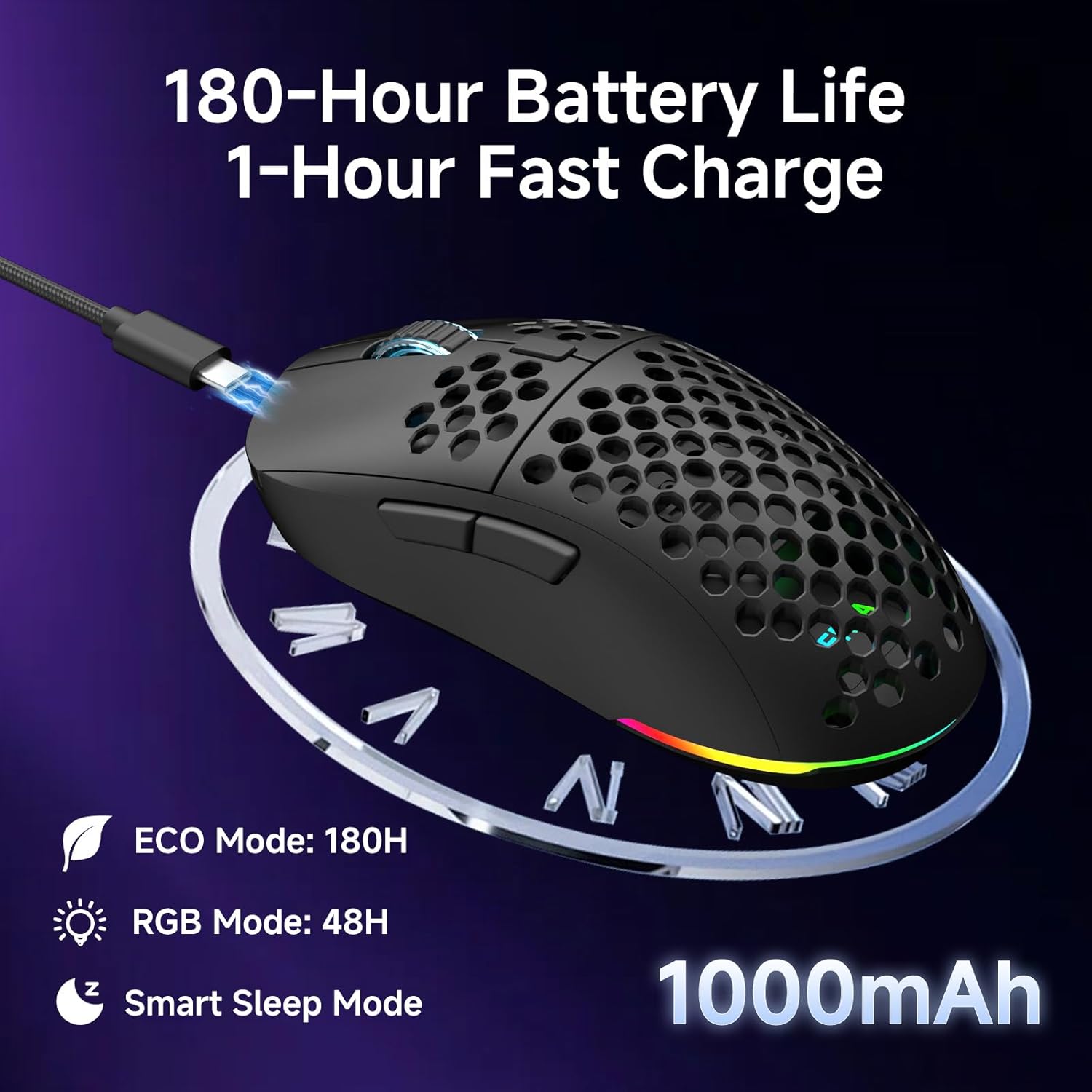
เมาส์รุ่นนี้มาพร้อมแบตเตอรี่แบบชาร์จไฟได้ขนาด 1000 mAh
- อายุการใช้งานแบตเตอรี่: Up to 180 hours in ECO mode, or 48 hours with full RGB lighting.
- การชาร์จ: Fast USB-C charging allows a full charge in approximately 1 hour.
- Smart Sleep Modes: The mouse enters intelligent sleep modes after 1 and 5 minutes of inactivity to conserve power. These timers can be customized via software.

คำอธิบายภาพ: An image showing the DIERYA M1 mouse connected via USB-C for charging, highlighting its 1000mAh battery, 180-hour ECO mode battery life, 48-hour RGB mode battery life, and smart sleep mode feature.
การติดตั้งซอฟต์แวร์และไดรเวอร์
ซอฟต์แวร์ปรับแต่ง
To unlock the full potential of your DIERYA M1 mouse, including DPI customization (up to 24,000 DPI), report rate adjustment (125-1000Hz), button remapping, macro creation, RGB lighting effects, and sleep timer settings, download and install the dedicated driver software.
The software allows you to define every detail and save up to 4 device profiles.
Visit the official DIERYA website for the latest software download: www.dierya.com/support (อดีตamp(ลิงก์ต้นฉบับอาจแตกต่างกันไป)

คำอธิบายภาพ: A screenshot of the DIERYA M1 mouse driver software interface, showing options for key assignment, DIY macros, customizable RGB lighting, DPI adjustment, report rate adjustment, and profile กำลังโหลด
การซ่อมบำรุง
การทำความสะอาดและการดูแลรักษา
- Regularly clean the mouse with a soft, dry cloth.
- สำหรับสิ่งสกปรกฝังแน่น ให้เช็ดออกเล็กน้อยampชุบผ้าด้วยน้ำหรือน้ำยาทำความสะอาดอ่อนๆ หลีกเลี่ยงสารเคมีรุนแรง
- ห้ามจุ่มเมาส์ลงในน้ำหรือของเหลวใดๆ
- Keep the PTFE feet clean to ensure smooth gliding.
พื้นที่จัดเก็บ
- When not in use, store the 2.4G USB receiver in its dedicated compartment on the underside of the mouse.
- เก็บเมาส์ไว้ในที่แห้งและเย็น หลีกเลี่ยงแสงแดดโดยตรงและอุณหภูมิที่สูงหรือต่ำเกินไป
การแก้ไขปัญหา
ปัญหาทั่วไปและแนวทางแก้ไข
- เมาส์ไม่ตอบสนอง:
- ตรวจสอบให้แน่ใจว่าเมาส์เปิดอยู่
- ตรวจสอบระดับแบตเตอรี่และชาร์จหากจำเป็น
- For 2.4GHz wireless, ensure the USB receiver is securely plugged in.
- For Bluetooth, ensure the mouse is paired and selected in your device's Bluetooth settings.
- Try connecting via USB-C wired mode to confirm functionality.
- รีสตาร์ทเครื่องคอมพิวเตอร์ของคุณ
- การเคลื่อนไหวล่าช้าหรือไม่สม่ำเสมอ:
- Ensure the mouse is within range of the receiver (for 2.4GHz) or your device (for Bluetooth).
- ตรวจสอบสัญญาณรบกวนจากอุปกรณ์ไร้สายอื่นๆ
- ทำความสะอาดเซ็นเซอร์ออปติคัลที่อยู่ใต้เมาส์
- โปรดตรวจสอบให้แน่ใจว่าได้ใช้เมาส์บนพื้นผิวที่เหมาะสม (ไม่ใช่พื้นผิวสะท้อนแสงสูงหรือโปร่งใส)
- Update mouse drivers via the software.
- DPI ไม่เปลี่ยนแปลง:
- กดปุ่มปรับ DPI ให้แน่น
- Ensure the mouse software is installed and running correctly if custom DPI settings are configured.
- แสง RGB ไม่ทำงาน:
- Check the Power & Light Switch position.
- ตรวจสอบให้แน่ใจว่าแบตเตอรี่มีประจุเพียงพอ
- Adjust lighting settings through the driver software.
ข้อมูลจำเพาะ
รายละเอียดทางเทคนิค
| คุณสมบัติ | รายละเอียด |
|---|---|
| แบบอย่าง | M1 |
| การเชื่อมต่อ | 2.4GHz ไร้สาย, บลูทูธ 5.2, USB-C แบบมีสาย |
| ช่วง DPI | 200 - 24,000 จุดต่อนิ้ว |
| อัตราการสำรวจความคิดเห็น | 125-1000เฮิรตซ์ |
| ความเร็วในการติดตาม | 300 IPS |
| การเร่งความเร็ว | 35จี |
| ความจุของแบตเตอรี่ | 1000mAh |
| อายุการใช้งานแบตเตอรี่ | Up to 180 hours (ECO mode), 48 hours (RGB on) |
| เวลาในการชาร์จ | ประมาณ 1 ชั่วโมง |
| น้ำหนัก | 90 กรัม |
| ขนาด | 125 x 63 x 41 มม. |
| สวิตซ์ | Huano Micro Switches (20 million clicks) |
| เท้า | พีทีเอฟ |
| ไฟ RGB | 16.8 Million Colors, 13 Effects |
| ปุ่มที่สามารถตั้งโปรแกรมได้ | 6 |
| ความเข้ากันได้ | PC, Mac, Laptop, iPad, Chromebook |
การรับประกันและการสนับสนุน
การรับประกันสินค้า
DIERYA products typically come with a limited warranty. Please refer to the warranty card included in your package or visit the official DIERYA webดูรายละเอียดข้อกำหนดและเงื่อนไขการรับประกันได้ที่เว็บไซต์ เก็บหลักฐานการซื้อไว้เพื่อใช้ในการเรียกร้องการรับประกัน
การสนับสนุนลูกค้า
If you encounter any issues or have questions regarding your DIERYA M1 Wireless Gaming Mouse, please contact DIERYA customer support.
- Webเว็บไซต์: www.dierya.com/support (อดีตampลิงค์จริงอาจแตกต่างกัน)
- อีเมล: โปรดดูที่บรรจุภัณฑ์ของผลิตภัณฑ์ หรือ webเว็บไซต์สำหรับที่อยู่อีเมลฝ่ายสนับสนุน
When contacting support, please provide your product model (M1) and a detailed description of the issue.


