1. สินค้าหมดview
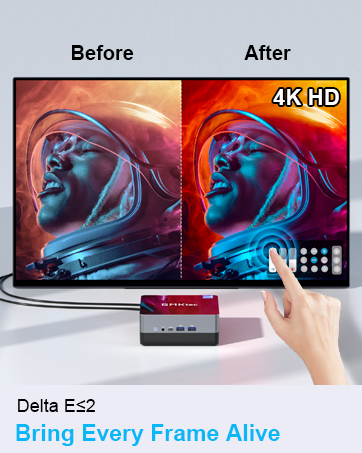
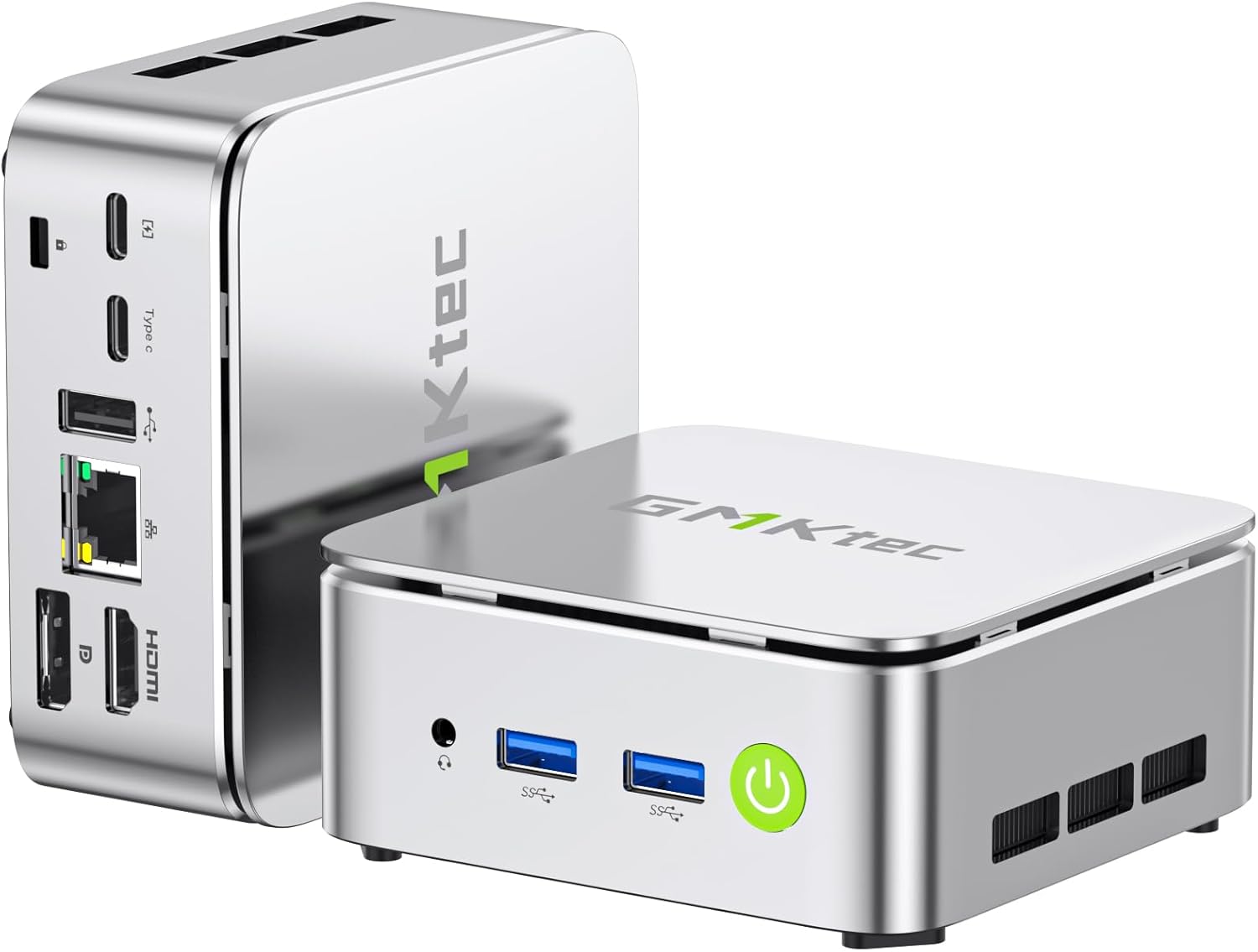
The GMKtec Nucbox G10 is a compact and powerful mini PC designed for various computing tasks, from office productivity to light gaming and multimedia consumption. It features an AMD Ryzen 5 3500U processor, ample memory, and fast storage, along with extensive connectivity options.

2. เนื้อหาบรรจุภัณฑ์
ตรวจสอบว่ามีรายการทั้งหมดอยู่ในแพ็คเกจ:
- GMKtec Nucbox G10 AMD Ryzen 5 3500U Mini PC Computer
- แหล่งจ่ายไฟและสายเคเบิล
- สาย HDMI
- ขาตั้ง VESA และสกรู
- คู่มือการใช้งาน

3. คำแนะนำในการตั้งค่า
3.1 การเชื่อมต่ออุปกรณ์ต่อพ่วง
ก่อนเปิดเครื่องมินิพีซี โปรดเชื่อมต่ออุปกรณ์ต่อพ่วงที่จำเป็นทั้งหมด:
- แสดง: Connect your monitor(s) using the HDMI 2.1 TMDS, DisplayPort (DPv1.4), or USB-C (DP Alt Mode) ports. The Nucbox G10 supports up to three 4K displays simultaneously.
- คีย์บอร์ดและเมาส์: Connect your USB keyboard and mouse to the available USB 3.2 (5Gbps) or USB 2.0 ports.
- เครือข่าย: For a wired connection, connect an Ethernet cable to the 2.5GbE LAN port. For wireless, ensure your WiFi network is available.
- เสียง: Connect speakers or headphones to the 3.5mm audio jack (CTIA standard).
- พลัง: เชื่อมต่ออะแดปเตอร์ไฟเข้ากับพอร์ต DC-in บนมินิพีซี จากนั้นจึงเชื่อมต่อกับเต้ารับไฟฟ้า

3.2 การเปิดเครื่องครั้งแรก
Press the power button located on the front of the device. The system will boot up, and you will be guided through the initial operating system setup (Windows 11 Pro is pre-installed).
3.3 การติดตั้ง VESA Mount
The Nucbox G10 includes a VESA mount for attaching the Mini PC to the back of a compatible monitor or TV. This helps save desk space and creates a cleaner setup.
- Locate the VESA mounting holes on your monitor (typically 75x75mm or 100x100mm).
- Attach the VESA bracket to the Mini PC using the provided screws. You may need to remove two of the foot pads on the Mini PC to properly secure the bracket.
- Secure the Mini PC with the attached VESA bracket to your monitor's VESA mounting holes using the appropriate screws.
4. คู่มือการใช้งาน
4.1 เปิด/ปิดเครื่อง
- เปิดเครื่อง: กดปุ่มเปิด/ปิดหนึ่งครั้ง
- หมดแรง: From the operating system, select 'Shut down'. Alternatively, press and hold the power button for 5-7 seconds to force a shutdown (use only when necessary).
4.2 การกำหนดค่าการแสดงผล
The Nucbox G10 supports up to three independent 4K displays. Connect your displays to the HDMI, DisplayPort, and USB-C (DP Alt Mode) ports. Configure display settings within your operating system to extend or duplicate your desktop.

4.3 การเชื่อมต่อเครือข่าย
- LAN แบบมีสาย: Connect an Ethernet cable to the 2.5GbE port for high-speed internet access.
- ไวไฟ : The device supports Wi-Fi 5 for wireless internet. Access network settings in your operating system to connect to available Wi-Fi networks.
- บลูทูธ: Bluetooth 5.0 is integrated for connecting wireless peripherals such as keyboards, mice, and headphones.

4.4 การขยายพื้นที่จัดเก็บข้อมูลและหน่วยความจำ
The Nucbox G10 comes with 16GB DDR4 RAM and a 256GB M.2 2280 SSD. Both are expandable:
- แรม : The dual-channel DDR4 SO-DIMM RAM can be expanded up to 64GB.
- พื้นที่จัดเก็บ: The device features dual M.2 2280 PCIe 3.0 slots, supporting storage expansion up to 16TB (2x 8TB SSDs).
Note: Upgrades are not included and should be performed by a qualified technician if you are unfamiliar with hardware installation.

5. การบำรุงรักษา
5.1 ระบบทำความเย็น
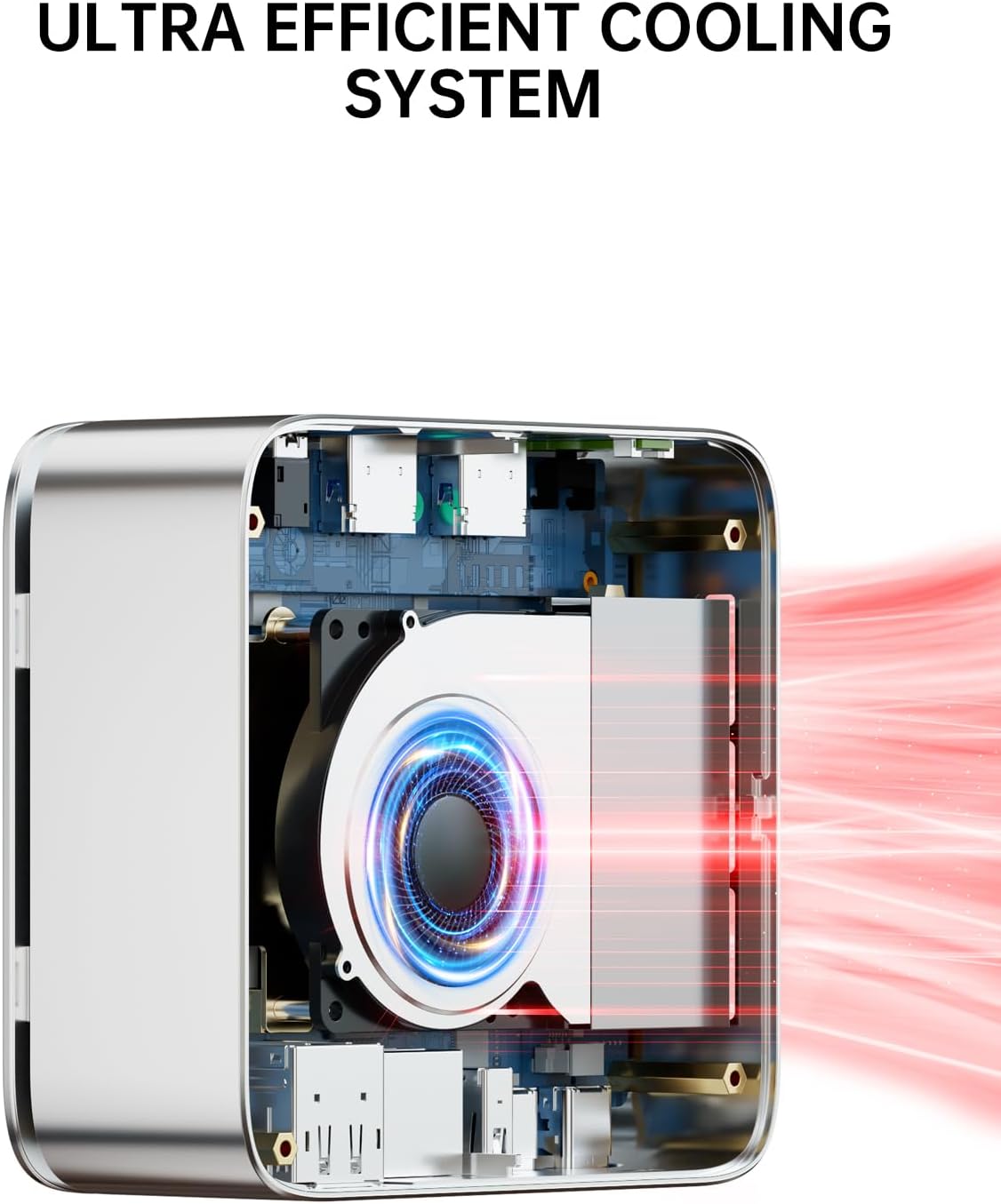
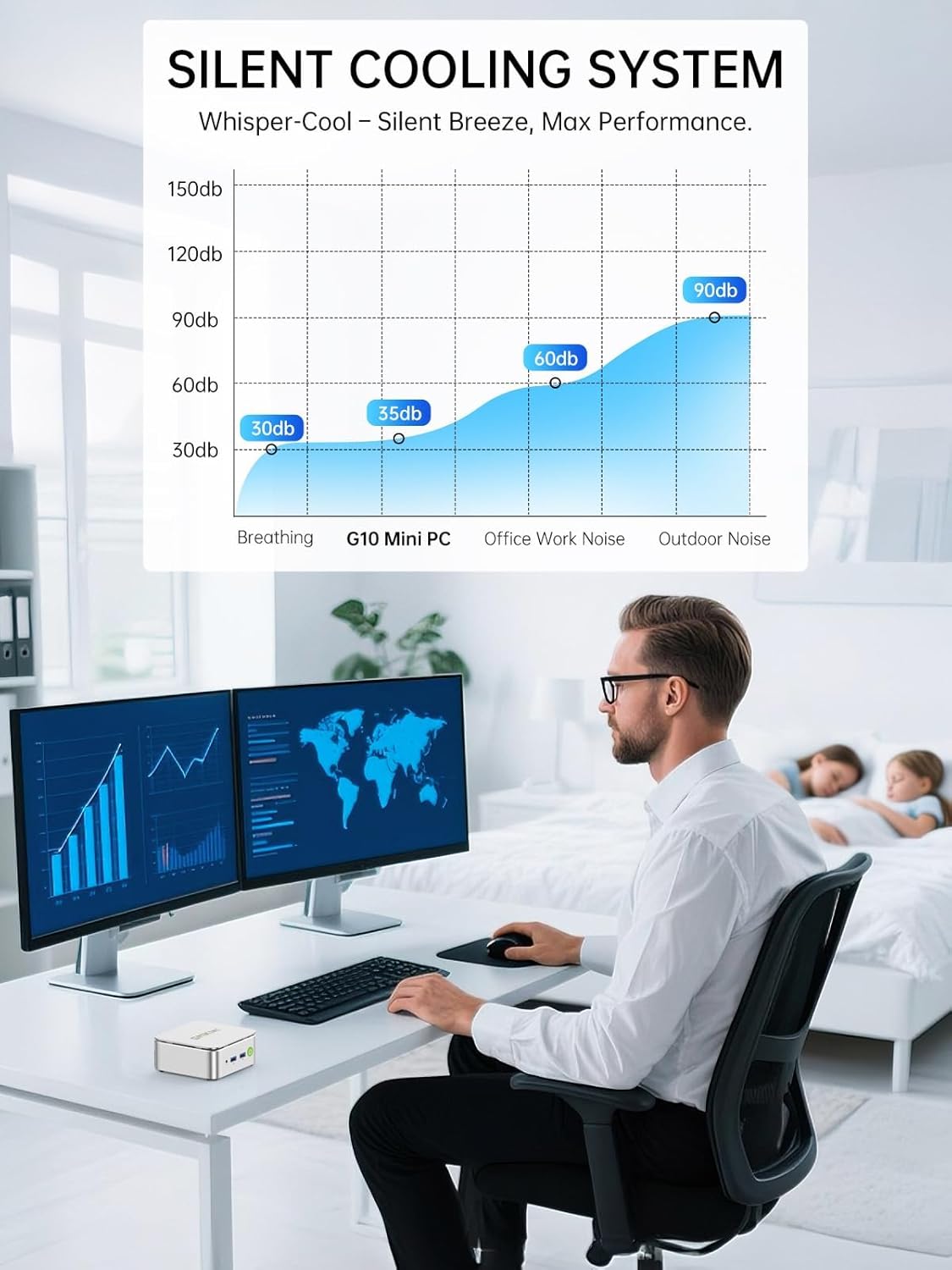
The Nucbox G10 features an ultra-efficient silent turbo cooling system designed to maintain optimal performance and quiet operation. Ensure the ventilation openings are not obstructed to allow for proper airflow.
5.2 การดูแลทั่วไป
- ควรเก็บอุปกรณ์ไว้ในที่สะอาดและแห้ง หลีกเลี่ยงแสงแดดโดยตรงและอุณหภูมิที่สูงหรือต่ำเกินไป
- หลีกเลี่ยงการทำของเหลวหกใส่อุปกรณ์
- Clean the exterior with a soft, dry cloth. Do not use harsh chemicals.
6 การแก้ไขปัญหา
6.1 ไม่มีไฟฟ้า
- ตรวจสอบให้แน่ใจว่าอะแดปเตอร์ไฟฟ้าเชื่อมต่อกับมินิพีซีและเต้ารับไฟฟ้าที่ใช้งานได้แน่นหนา
- ตรวจสอบว่าเต้ารับไฟฟ้าใช้งานได้โดยเสียบอุปกรณ์อื่น
6.2 ไม่มีการแสดงผล
- Check that the display cables (HDMI, DP, USB-C) are securely connected to both the Mini PC and the monitor.
- ตรวจสอบให้แน่ใจว่าจอภาพเปิดอยู่และตั้งค่าแหล่งอินพุตที่ถูกต้อง
- ลองเชื่อมต่อกับจอแสดงผลอื่น หรือใช้สายเคเบิลอื่นดู
6.3 ปัญหาการเชื่อมต่อเครือข่าย
- มีสาย: Ensure the Ethernet cable is properly connected and the router/modem is working. Check network adapter settings in the operating system.
- ไวไฟ : Verify that Wi-Fi is enabled in the operating system and you are connected to the correct network with the correct password. Ensure the Wi-Fi signal is strong.
6.4 ปัญหาประสิทธิภาพของระบบ
- ปิดแอปพลิเคชันที่ไม่จำเป็นเพื่อเพิ่มทรัพยากรระบบ
- Ensure the cooling vents are clear and not obstructed.
- ตรวจสอบการอัปเดตระบบปฏิบัติการและการอัปเดตไดรเวอร์
7. ข้อมูลจำเพาะ
| คุณสมบัติ | ข้อมูลจำเพาะ |
|---|---|
| โปรเซสเซอร์ | AMD Ryzen 5 3500U (4 คอร์, 8 เธรด, ความเร็วพื้นฐาน 2.1 GHz, ความเร็วสูงสุด 3.7 GHz) |
| กราฟฟิก | กราฟิก AMD Radeon Vega 8 (1200 MHz) |
| แรม | 16GB DDR4 SO-DIMM (2x8GB), expandable to 64GB |
| พื้นที่จัดเก็บ | 256GB M.2 2280 NVMe SSD, dual slot expandable to 16TB (2x 8TB) |
| ระบบปฏิบัติการ | วินโดวส์ 11 โปร |
| เอาท์พุตวิดีโอ | 1x HDMI 2.1 TMDS (4K@60Hz), 1x DisplayPort 1.4 (4K@60Hz), 1x USB-C (DP Alt Mode) |
| พอร์ต USB | 2x USB 3.2 (5Gbps), 1x USB 2.0, 1x Full Function USB-C (PD/DP/Data), 1x USB-C (PD Only) |
| เครือข่าย | LAN 2.5GbE, Wi-Fi 5, Bluetooth 5.0 |
| เสียง | แจ็คเสียง CTIA ขนาด 3.5 มม. 1 ช่อง |
| ขนาด | 6.46 x 6.26 x 4.21 นิ้ว (บรรจุภัณฑ์) |
| น้ำหนัก | 2.29 ปอนด์ (รายการ) |
8. การรับประกันและการสนับสนุน
GMKtec ให้การรับประกันแบบจำกัด 1 ปี สำหรับมินิพีซีแต่ละเครื่อง นับจากวันที่ซื้อ การรับประกันนี้ครอบคลุมถึงข้อบกพร่องที่เกิดจากการออกแบบและฝีมือการผลิต
8.1 การสนับสนุนลูกค้า
For technical assistance or warranty claims, please contact GMKtec support:
- การสนับสนุนทางอีเมล์: support@gmktec.com (บริการลูกค้าตลอด 24 ชั่วโมง 7 วันต่อสัปดาห์)
- การสนับสนุนของ Amazon: For purchases made on Amazon, log in to your Amazon account, navigate to 'Your Orders', and select 'Ask Product Question' for the relevant order.
GMKtec มุ่งมั่นที่จะนำเสนอผลิตภัณฑ์ที่เชื่อถือได้และบริการหลังการขายอย่างมืออาชีพ