1. บทนำ
This manual provides detailed instructions for the installation, operation, and maintenance of your Jennov 5MP Wireless Security Camera System P48. This system includes an 8-channel NVR with a built-in monitor and four 5MP wireless cameras, designed for both indoor and outdoor surveillance. Please read this manual thoroughly before using the product to ensure proper setup and functionality.
2. เนื้อหาบรรจุภัณฑ์
Verify that all items listed below are included in your package. If any items are missing or damaged, please contact Jennov customer support.
- 4 x Security Cameras (Outdoor Wireless)
- 1 x NVR Monitor
- 1 x P48 Security System (Integrated NVR with Monitor)
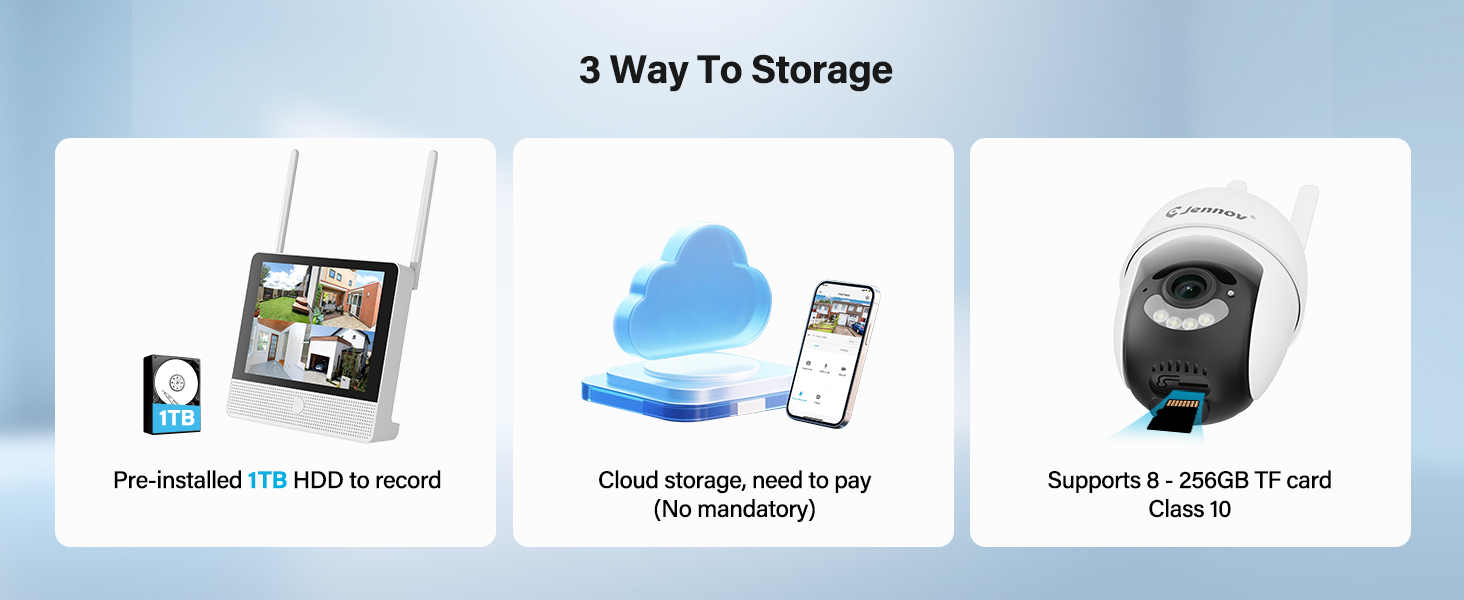
- 1 x 1TB Hard Disk (Pre-installed)
- 1 x Ethernet Cable
- 1 x เมาส์
- 4 x Hole Stickers (for camera mounting)
- 4 x Camera Bases
- 1 x แหล่งจ่ายไฟ NVR
- 4 x Camera Power Supplies
- สาย HDMI 1 เส้น
- 1 x สติ๊กเกอร์คำเตือน
- 1 x คู่มือผู้ใช้ (เอกสารนี้)
- 1 x Screws Pack (for mounting)
3. สินค้าหมดview
The Jennov P48 system is a comprehensive wireless security solution designed for ease of use and reliable performance. Key features include:
- ความละเอียดระดับ HD 5 ล้านพิกเซล: Cameras capture clear, detailed video.
- การเชื่อมต่อไร้สาย: Cameras connect to the NVR wirelessly, simplifying installation.
- พื้นที่เก็บข้อมูล HDD ขนาด 1TB: Pre-installed hard drive for local recording without subscription fees.
- การมองเห็นตอนกลางคืน: Enhanced visibility in low-light conditions up to 15 meters.
- การตรวจจับการเคลื่อนไหว: Triggers recording and alerts upon detecting movement.
- กันฝนระดับ IP66: Cameras are designed to withstand various outdoor weather conditions.
- ปลั๊กแอนด์เพลย์: Simple setup with cameras pre-paired to the NVR.
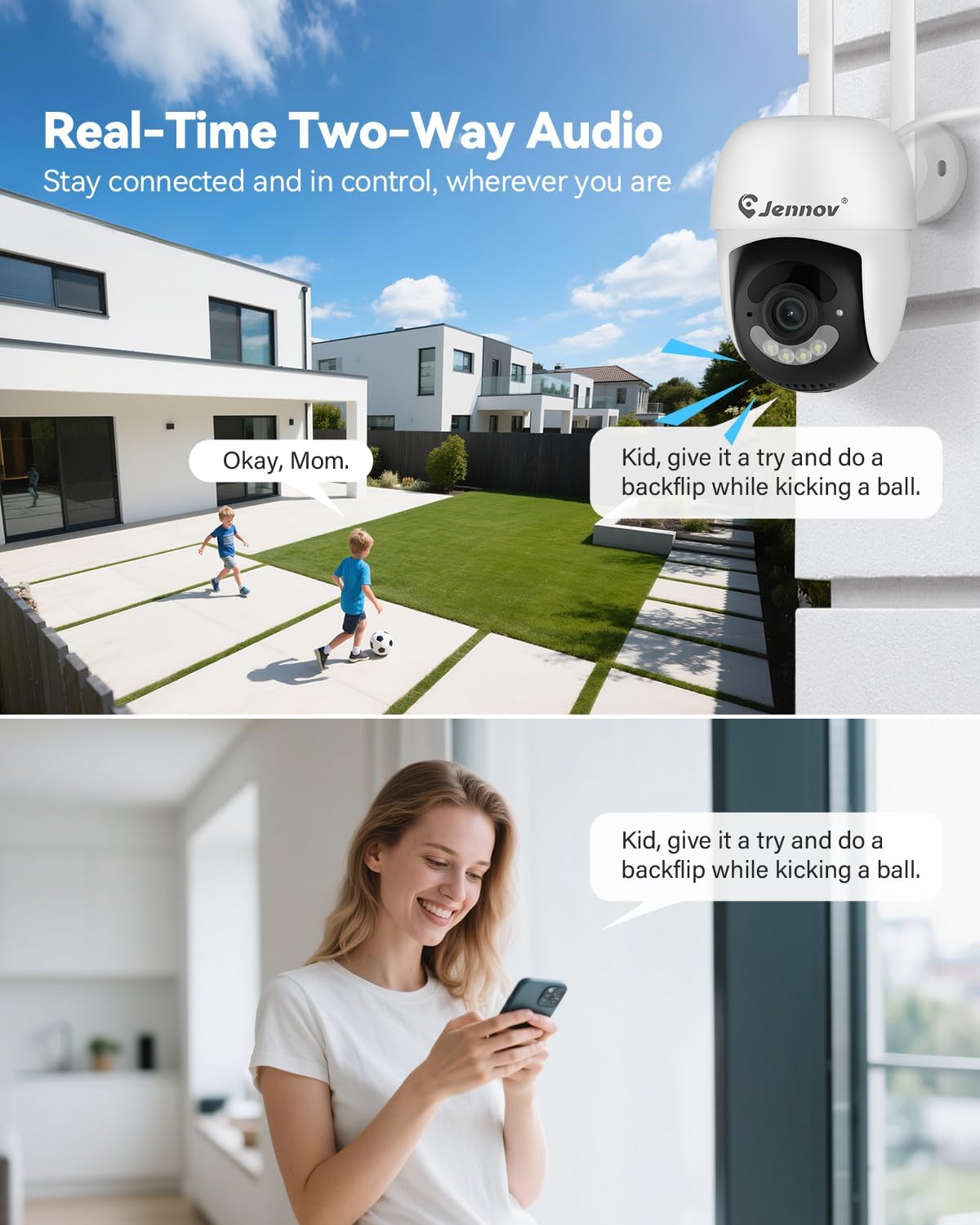
- เสียงสองทาง: Communicate through the cameras using the mobile app.
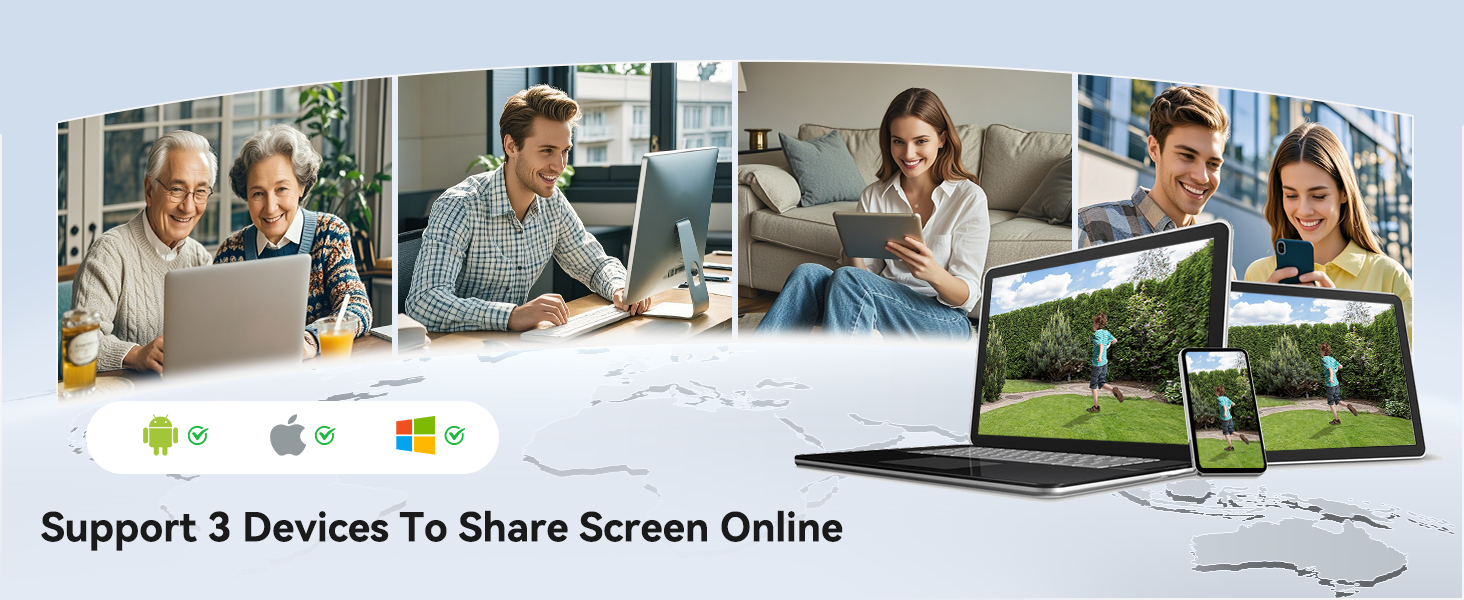
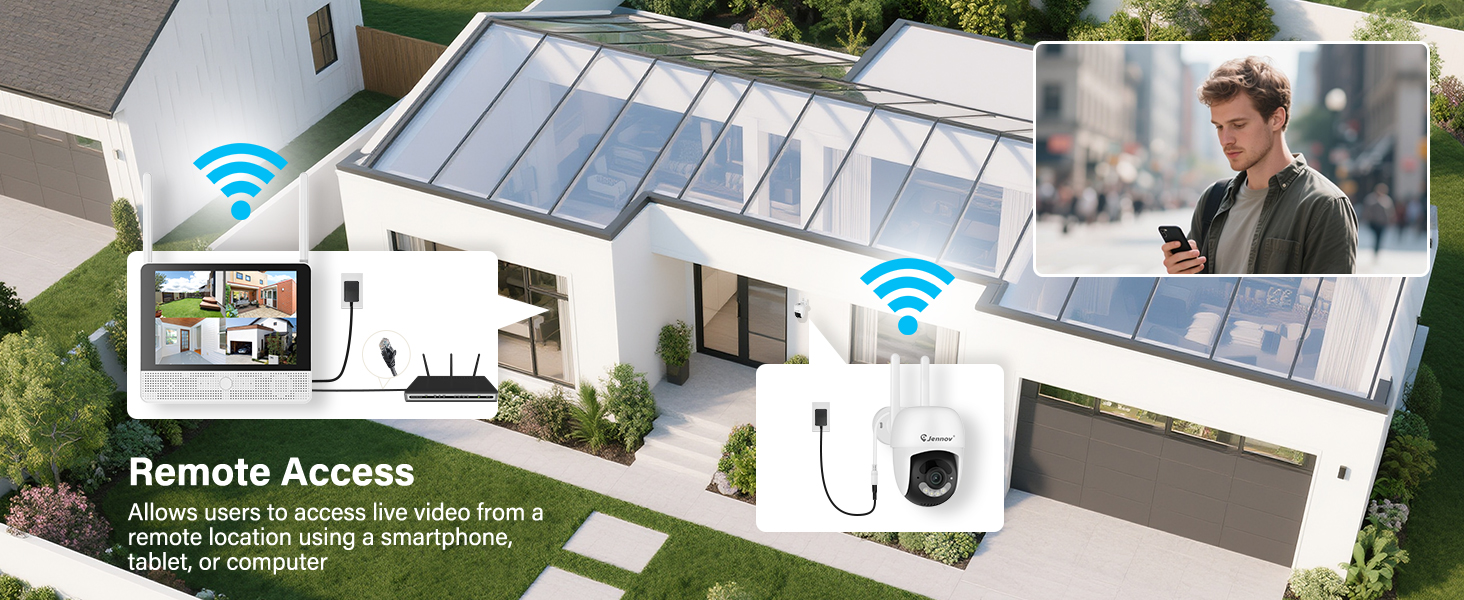
- การเข้าถึงระยะไกล: View live feeds and recordings from anywhere via the Jennov app.
3.1 ส่วนประกอบของระบบ

The system consists of a Network Video Recorder (NVR) with an integrated monitor and four wireless IP cameras. The NVR manages video recording, storage, and provides a local viewing interface. The cameras capture video and transmit it wirelessly to the NVR.
3.2 NVR Ports and Connections
- พอร์ตไฟ: เชื่อมต่ออะแดปเตอร์ไฟ NVR
- พอร์ต USB: For connecting the included mouse or a USB drive for backup.
- พอร์ต HDMI: Connect to an external monitor for larger display (optional).
- พอร์ต LAN: Connect to your router for internet access and remote viewการไอเอ็นจี
- ปุ่มรีเซ็ต: Used to reset the NVR to factory settings.
- ช่องเสียบการ์ด SD: For additional local storage (supports up to 256GB TF card, Class 10).
4. คู่มือการติดตั้ง
4.1 การตั้งค่า NVR เบื้องต้น
- เชื่อมต่อพลังงาน: Connect the NVR power adapter to the Power Port and plug it into an electrical outlet. The NVR will power on automatically.
- เชื่อมต่อเมาส์: Plug the included USB mouse into the USB Port on the NVR.
- การบูตครั้งแรก: The NVR will boot up and display the live view from the pre-paired cameras on its integrated monitor.
- Network Connection (Optional for Remote Access): สำหรับรีโมท viewing via the mobile app, connect the NVR's LAN Port to your internet router using the provided Ethernet cable.
4.2 การติดตั้งกล้อง
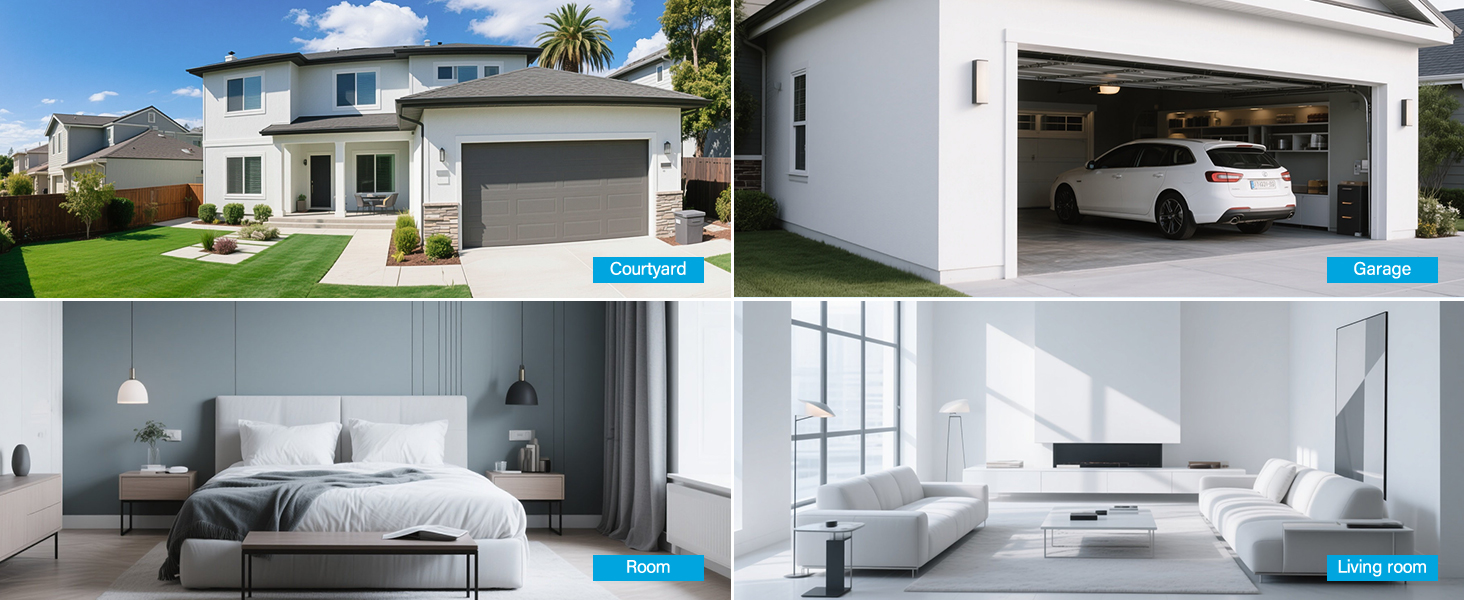
The cameras are designed for both indoor and outdoor use (IP66 rated). Choose mounting locations that provide optimal coverage and are within range of a power outlet.
- เลือกสถานที่: Identify suitable locations for each camera. Consider areas like entryways, driveways, garages, and backyards. Ensure the camera has a clear line of sight to the area you wish to monitor.
- การติดตั้ง:
- Use the included hole stickers to mark drilling points on the wall or ceiling.
- เจาะรูนำร่องและใส่พุกยึดผนังหากจำเป็น
- Secure the camera base using the provided screws.
- Attach the camera to the base and adjust its angle.
- เชื่อมต่อพลังงาน: Connect each camera to its individual power adapter and plug it into an electrical outlet. The cameras will power on and automatically connect to the NVR.
บันทึก: The cameras are pre-paired to the NVR. If a camera does not display a live feed, ensure it is powered on and within wireless range of the NVR. You may need to re-pair it if issues persist (refer to Troubleshooting section).
5. คู่มือการใช้งาน
5.1 สด View และการนำทาง
Once the system is powered on, the NVR's integrated monitor will display the live feeds from all connected cameras. Use the included mouse to navigate the NVR interface.
- เมนูหลัก: คลิกขวาที่ใดก็ได้บนไลฟ์ view screen to access the main menu.
- การสลับช่อง: Click on a specific camera feed to view it in full screen, or use the layout options to change the multi-camera display.
5.2 การบันทึกและการเล่น
The system records continuously to the pre-installed 1TB HDD. Recording settings can be adjusted via the NVR's menu.
- การบันทึกต่อเนื่อง: The system is configured for 24/7 continuous recording by default.
- การบันทึกเมื่อมีการเคลื่อนไหว: You can configure cameras to record only when motion is detected, saving storage space.
- การเล่นซ้ำ: From the main menu, select "Playback" to review บันทึกเสียงฟูtage. You can search by date, time, and event type (e.g., motion detection).
5.3 การตรวจจับการเคลื่อนไหวและการแจ้งเตือน
The cameras feature smart motion detection to alert you to activity.
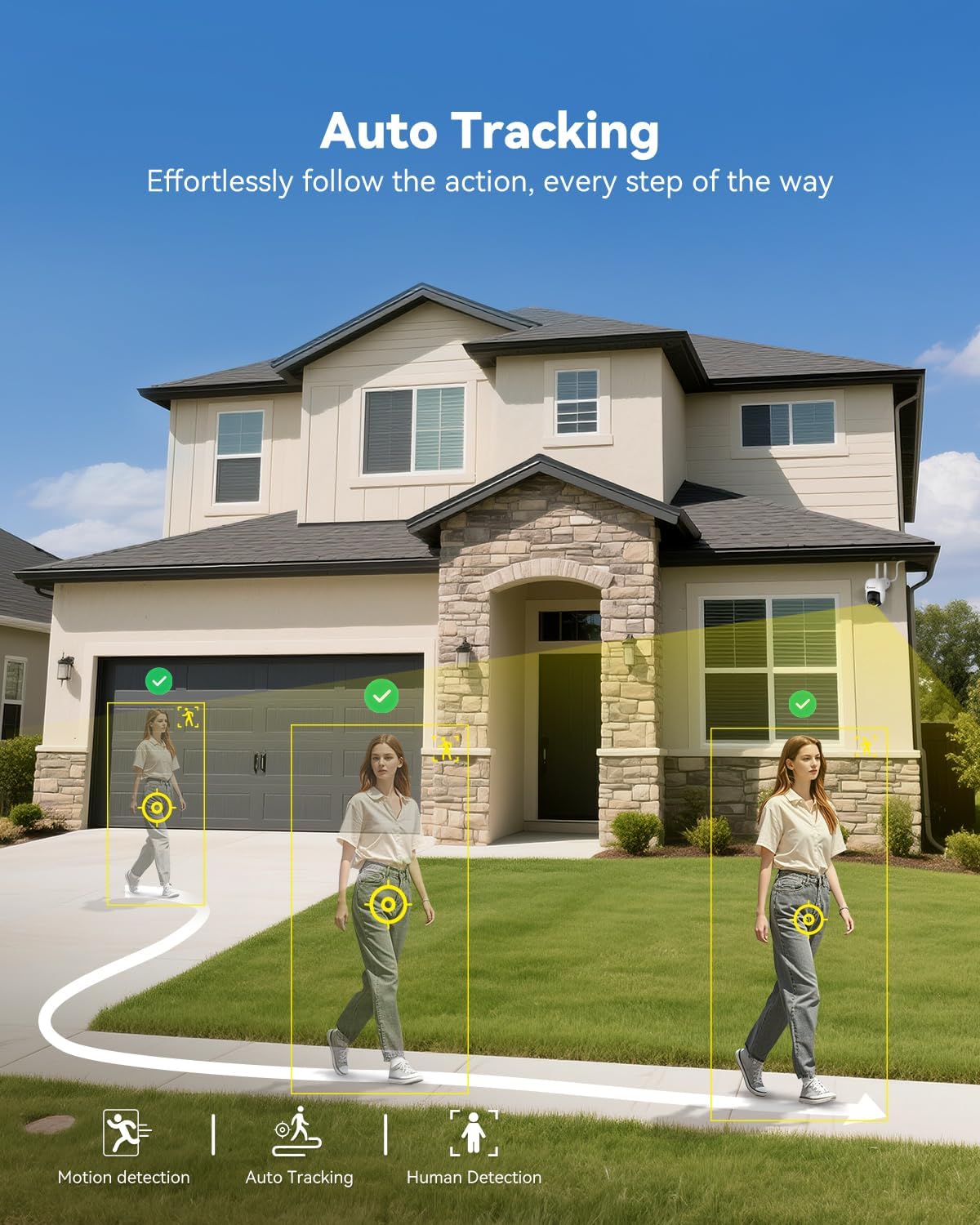
- การกำหนดค่า: Access motion detection settings from the NVR's main menu. You can define detection zones and sensitivity levels for each camera.
- การแจ้งเตือน: When motion is detected, the system can trigger recordings, send push notifications to your mobile app (if configured), and activate audible alarms or spotlights on the camera (if supported and enabled).

5.4 Remote Access (Jennov App)
ถึง view your cameras remotely, download the Jennov app on your smartphone or tablet.
- ดาวน์โหลดแอพ: ค้นหา "Jennov" in your device's app store (iOS or Android).
- ลงทะเบียนบัญชี: Create a new user account within the app.
- เพิ่มอุปกรณ์: Follow the in-app instructions to add your NVR system. This typically involves scanning a QR code displayed on the NVR's monitor or entering the device ID manually.
- สด View & การเล่น: เมื่อเพิ่มแล้วคุณสามารถ view live feeds, play back recordings, and receive alerts directly on your mobile device.
5.5 เสียงสองทาง
Each camera is equipped with a microphone and speaker, enabling two-way communication through the Jennov app.
- เปิดใช้งาน: ในไลฟ์สด view of a specific camera on the app, locate the microphone icon. Tap it to speak, and your voice will be transmitted through the camera's speaker.
- ฟัง: The camera's microphone will pick up audio from its surroundings, which you can hear through the app.
5.6 การมองเห็นตอนกลางคืน
The cameras automatically switch to night vision mode in low-light conditions, providing clear surveillance even in darkness.

- การเปิดใช้งานอัตโนมัติ: Infrared (IR) LEDs enable black-and-white night vision. Some models may also offer color night vision under certain conditions (e.g., with ambient light or activated spotlight).
- พิสัย: Night vision is effective up to 15 meters (50 feet).
6. การบำรุงรักษา
6.1 การจัดการฮาร์ดไดรฟ์
ฮาร์ดดิสก์ 1TB จะเขียนทับข้อมูลที่เก่าที่สุดโดยอัตโนมัติtage when full. No manual intervention is typically required for continuous recording.
- ฟู่สำรองtage: If you need to save specific recordings, use the NVR's backup function (via USB port) or download from the mobile app.
- การตรวจสอบสุขภาพฮาร์ดดิสก์: Periodically check the HDD status in the NVR's system settings to ensure proper functioning.
6.2 การทำความสะอาด
- กล้องถ่ายรูป: เช็ดเลนส์กล้องเบาๆ ด้วยผ้านุ่มๆamp cloth to remove dust or smudges. Do not use harsh chemicals.
- เครื่องบันทึกภาพ: Keep the NVR monitor and unit free from dust. Use a dry, soft cloth for cleaning.
การอัปเดตเฟิร์มแวร์ 6.3 รายการ
Periodically check the Jennov website or contact customer support for available firmware updates. Updates can improve system performance, add new features, or address security vulnerabilities. Follow the provided instructions carefully when performing updates.
7 การแก้ไขปัญหา
| ปัญหา | สาเหตุที่เป็นไปได้ | สารละลาย |
|---|---|---|
| ไม่มีภาพปรากฏบนจอภาพ NVR | NVR not powered on; Power adapter faulty; Monitor cable loose. | Ensure NVR power adapter is securely connected and plugged in. Check power outlet. If using external monitor, ensure HDMI cable is connected properly. |
| Camera not displaying live feed | Camera not powered; Out of wireless range; Not paired with NVR. | Ensure camera power adapter is connected and plugged in. Move camera closer to NVR. If still no feed, re-pair the camera: access NVR menu, go to "Camera Management" and follow instructions to add/re-pair cameras. |
| Cannot access system via mobile app | NVR not connected to internet; Incorrect app settings; Firewall issues. | Ensure NVR is connected to your router via Ethernet cable. Verify your phone has internet access. Double-check device ID/QR code in the app. Ensure router firewall is not blocking NVR access. |
| คุณภาพวิดีโอไม่ดีหรือกระตุก | Weak wireless signal; Obstructions; Interference. | Relocate camera or NVR to improve signal strength. Minimize obstructions (thick walls, metal objects). Avoid placing near other wireless devices that may cause interference. |
| การตรวจจับการเคลื่อนไหวไม่ทำงาน | Settings incorrect; Sensitivity too low; Detection zone not set. | Access NVR menu, go to "Motion Detection" settings. Adjust sensitivity, define detection zones, and ensure motion recording/alerts are enabled. |
8. ข้อมูลจำเพาะ
| คุณสมบัติ | รายละเอียด |
|---|---|
| ยี่ห้อ | เจนนอฟ |
| หมายเลขรุ่น | K4-P48HC55AS-V2108-1F2 (P48 System) |
| เทคโนโลยีการเชื่อมต่อ | ไร้สาย |
| ความละเอียดในการจับภาพวิดีโอ | 5MP (Ultra-HD) |
| จำนวนช่องสัญญาณ | 8 (System includes 4 cameras, expandable) |
| ความจุของหน่วยความจำ | 1 TB HDD (pre-installed), supports up to 256GB TF card |
| แหล่งพลังงาน | Corded Electric (Outlet-Powered Cameras) |
| ขนาดรายการ (ยาว x กว้าง x สูง) | 13.39 x 7.48 x 11.42 นิ้ว |
| การใช้ที่แนะนำ | Indoor, Outdoor Surveillance |
| ช่วงการมองเห็นตอนกลางคืน | 10-15 Meters (approx. 33-50 feet) |
| กันฝน | ระดับการป้องกัน IP66 |
| อุณหภูมิในการทำงาน | -20°C ถึง 60°C (-4°F ถึง 140°F) |
9. การรับประกันและการสนับสนุน
For warranty information, technical support, or any questions regarding your Jennov P48 Wireless Security Camera System, please refer to the warranty card included in your package or visit the official Jennov website. You can also contact Jennov customer service directly for assistance.
Jennov Official Webเว็บไซต์: Visit Jennov Store on Amazon


