การแนะนำ
This manual provides detailed instructions for the installation, operation, and maintenance of your Ctronics 4K Hybrid Zoom WLAN Outdoor Security Camera, Model 930C-4K. Please read this manual thoroughly before using the product to ensure proper functionality and safety.
The Ctronics 4K Hybrid Zoom WLAN Outdoor Security Camera features a dual-lens system, 10x hybrid zoom (6x optical + 4x digital), automatic zoom tracking, human recognition, 4K full-color night vision, two-way audio, and IP66 weather resistance for reliable outdoor surveillance.

Figure 1: Ctronics 4K Hybrid Zoom WLAN Outdoor Security Camera (Model 930C-4K)
เนื้อหาแพ็คเกจ
ตรวจสอบว่ามีรายการทั้งหมดอยู่ในแพ็คเกจ:
- Ctronics 4K Hybrid Zoom WLAN Outdoor Security Camera
- อะแดปเตอร์แปลงไฟ
- สกรูยึดและปลั๊กผนัง
- ชุดกันน้ำสำหรับสายเคเบิลเครือข่าย
- เจาะแม่แบบ
- คู่มือการใช้งาน
ข้อควรระวังเพื่อความปลอดภัย
- Ensure the power supply matches the camera's requirements (12V).
- อย่าให้กล้องอยู่ในที่ที่มีอุณหภูมิหรือความชื้นสูงเกินกว่าช่วงการทำงานที่กำหนด
- Avoid direct exposure to strong light sources, which may affect image quality.
- ควรใช้งานกล้องอย่างระมัดระวังเพื่อป้องกันความเสียหายทางกายภาพ
- Consult a professional for installation if you are unsure about electrical wiring or mounting procedures.
การตั้งค่า
1. การติดตั้งทางกายภาพ
The camera supports both wall and ceiling mounting. Choose a location that provides optimal coverage and a stable Wi-Fi signal.
- เลือกสถานที่ติดตั้ง: Identify a suitable outdoor location, ensuring it is within range of your Wi-Fi network and has access to a power outlet.
- ทำเครื่องหมายรูเจาะ: Use the provided drill template to mark the positions for drilling on the wall or ceiling.
- เจาะรู: Drill holes at the marked positions and insert the wall plugs.
- ขาตั้งกล้อง: Secure the camera bracket to the wall or ceiling using the provided screws.
- เชื่อมต่อพลังงาน: Connect the power adapter to the camera and plug it into a power outlet. Ensure the connection is waterproof using the provided kit if applicable.

Figure 2: Camera mounting options (wall-mounted and ceiling-mounted) demonstrating IP66 weather resistance.
2. การเชื่อมต่อเครือข่าย
The camera supports stable and fast dual-band Wi-Fi (2.4GHz and 5GHz).
- ดาวน์โหลดแอพ: Download the "Ctronics Pro" app from your smartphone's app store (iOS or Android).
- ลงทะเบียนบัญชี: เปิดแอปและลงทะเบียนบัญชีใหม่หรือเข้าสู่ระบบหากคุณมีบัญชีอยู่แล้ว
- เพิ่มกล้อง: ทำตามคำแนะนำในแอปเพื่อเพิ่มกล้องของคุณ ซึ่งโดยทั่วไปจะเกี่ยวข้องกับการสแกนคิวอาร์โค้ดบนกล้องหรือป้อนรหัสประจำตัวด้วยตนเอง
- เชื่อมต่อกับ Wi-Fi: Select your Wi-Fi network (2.4GHz or 5GHz) and enter the password. The camera will connect to your network.
- ตั้งค่าเริ่มต้น: Complete any initial setup steps prompted by the app, such as setting a device password and time zone.

Figure 3: Ctronics Pro app interface for camera management.

Figure 4: Illustration of the camera's stable dual-band Wi-Fi connectivity (2.4GHz and 5GHz).
การใช้งานกล้อง
1. สด View และการควบคุม PTZ
- Open the Ctronics Pro app and select your camera to access the live view.
- Use the on-screen controls to pan (355°) and tilt (90°) the camera to adjust its viewมุมอิง
- Utilize the 10x hybrid zoom feature (6x optical + 4x digital) to get a closer look at specific areas.

Figure 5: The camera's 10x hybrid zoom capability, showing a zoomed-in view of a child in a backyard.

Figure 6: Illustration of the dual-lens system providing both narrow (50° view, 8mm) and wide (90° view, 3.6mm) perspectives.
2. การตรวจจับการเคลื่อนไหวและการติดตามอัตโนมัติ
- Access the camera settings in the app to configure motion detection zones and sensitivity.
- Enable human recognition to filter out false alarms caused by animals or inanimate objects.
- Activate auto-tracking zoom, which allows the camera to automatically follow detected human movement and zoom in for clearer details.
- Set up preset points for quick navigation to frequently monitored areas.
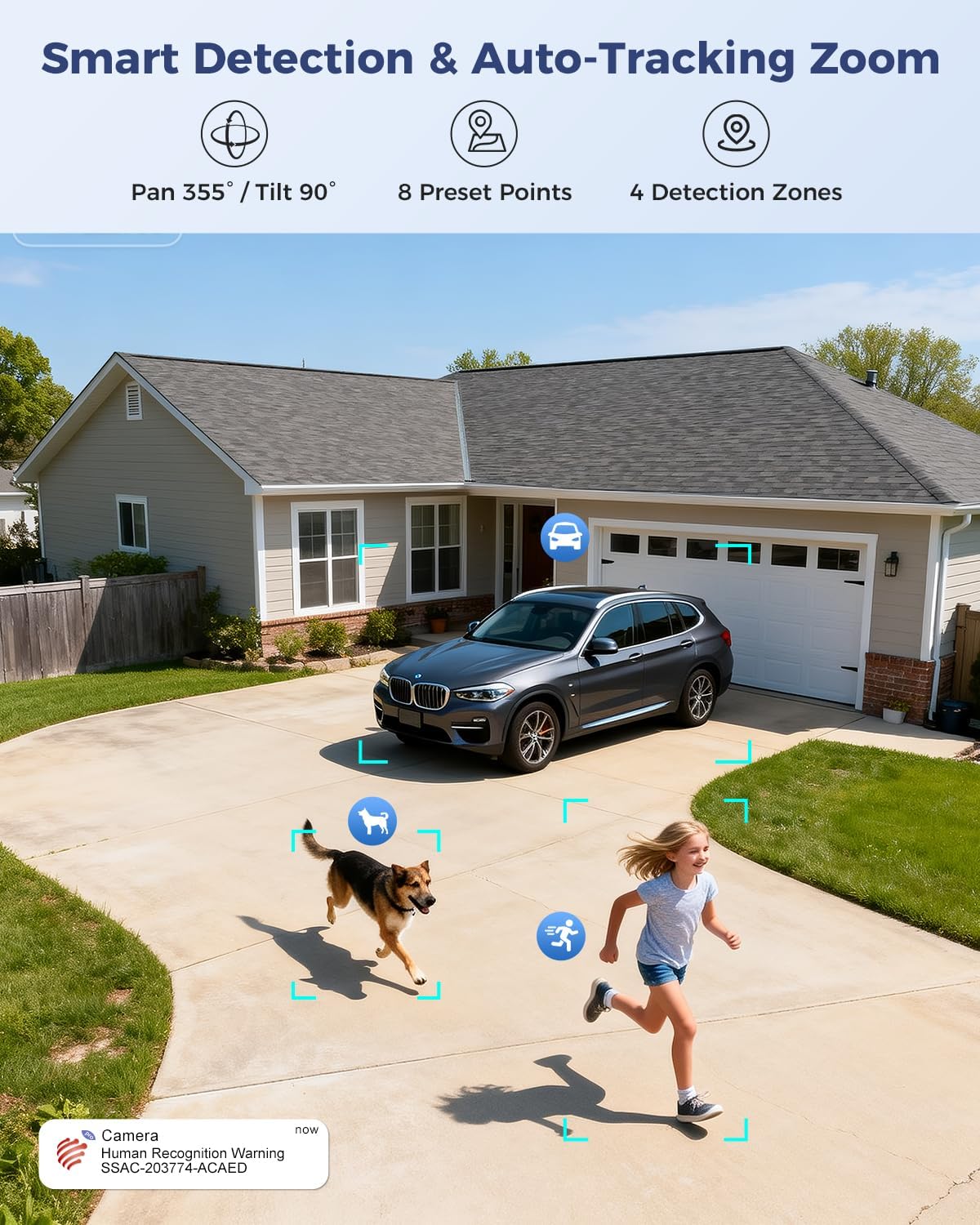
Figure 7: Visual representation of smart detection features including pan/tilt, preset points, detection zones, and human recognition with auto-tracking.
3. การมองเห็นในเวลากลางคืน
The camera features a starlight lens for 4K full-color night vision, providing clear images even in low-light conditions.
- กล้องจะเปลี่ยนเป็นโหมดมองเห็นในเวลากลางคืนโดยอัตโนมัติเมื่อแสงสว่างโดยรอบไม่เพียงพอ
- The starlight lens (F/1.6 aperture) enhances low-light performance, offering a night vision range of up to 30 meters.

Figure 8: Comparison of starlight lens night vision (top) providing full-color clarity versus a normal lens (bottom) in low light conditions.
4. เสียงสองทาง
Use the two-way audio feature to communicate with visitors or deter intruders.
- ในไลฟ์สด viewแตะไอคอนไมโครโฟนเพื่อพูดผ่านลำโพงของกล้อง
- The camera's built-in microphone allows you to hear audio from the camera's vicinity.
5. การบันทึกและจัดเก็บข้อมูล
The camera offers multiple storage options for recorded footage:
- การ์ด MicroSD: รองรับการ์ด microSD สูงสุด 256GB (ไม่รวมอยู่ในชุด) สำหรับจัดเก็บข้อมูลภายในเครื่อง
- การเก็บข้อมูลบนคลาวด์: Optional 30-day cloud storage service (subscription may be required).
- เครื่องบันทึกภาพ: Supports Network Video Recorder (NVR) for 24/7 continuous recording.
- เอฟทีพี: รองรับการใช้งาน FTP สำหรับการอัปโหลดไฟล์บันทึกไปยังเซิร์ฟเวอร์ FTP

รูปที่ 9: เกินview of the camera's four storage options: MicroSD card (up to 256GB), 30-day Cloud, NVR (7/24 Recording), and FTP support.
6. ความเข้ากันได้ของอุปกรณ์
Access and manage your camera from various devices and platforms:
- แอปมือถือ: Ctronics Pro (iOS, Android)
- ไคลเอนต์พีซี: HiP2P Client (Windows, Mac OS)
- Web เบราว์เซอร์: การเข้าถึงผ่านทาง web browser for live view และการตั้งค่า

Figure 10: The camera's broad device compatibility, showing access from smartphones, tablets, laptops, and desktop computers.
การซ่อมบำรุง
- การทำความสะอาด: ควรทำความสะอาดเลนส์กล้องเป็นประจำด้วยผ้าแห้งเนื้อนุ่ม เพื่อให้ได้ภาพที่คมชัด ห้ามใช้สารเคมีรุนแรง
- อัพเดตเฟิร์มแวร์: Check the Ctronics Pro app periodically for available firmware updates. Keeping the firmware updated ensures optimal performance and security.
- แหล่งจ่ายไฟ: ตรวจสอบให้แน่ใจว่าอะแดปเตอร์แปลงไฟและสายไฟอยู่ในสภาพสมบูรณ์
การแก้ไขปัญหา
| ปัญหา | สาเหตุที่เป็นไปได้ | สารละลาย |
|---|---|---|
| กล้องออฟไลน์ | ไม่มีไฟเลี้ยง; สัญญาณ Wi-Fi อ่อนหรือขาดการเชื่อมต่อ; รหัสผ่าน Wi-Fi ไม่ถูกต้อง | ตรวจสอบการเชื่อมต่อไฟ; ย้ายกล้องให้ใกล้เราเตอร์มากขึ้น หรือใช้ตัวขยายสัญญาณ Wi-Fi; ป้อนรหัสผ่าน Wi-Fi อีกครั้งในแอป |
| คุณภาพของภาพไม่ดี | เลนส์สกปรก; แสงสว่างไม่เพียงพอ; ปัญหาเรื่องแบนด์วิดท์เครือข่าย | Clean the lens; ensure adequate lighting for optimal night vision; check network speed. |
| การตรวจจับการเคลื่อนไหวไม่ทำงาน | Detection sensitivity too low; detection zones not configured; human recognition disabled. | Adjust sensitivity in app; configure detection zones; enable human recognition. |
| ปัญหาเสียงสองทาง | Microphone/speaker muted in app; network latency. | Ensure audio is enabled in app; check network connection. |
ข้อมูลจำเพาะ
| คุณสมบัติ | รายละเอียด |
|---|---|
| หมายเลขรุ่น | 930C-4K |
| ความละเอียดวิดีโอ | 4K (3840 pixels) |
| ซูม | 10x Hybrid Zoom (6x Optical + 4x Digital) |
| ช่วงแพน/เอียง | แพน 355° เอียง 90° |
| ประเภทเลนส์ | Dual Lens (Narrow 50°/8mm, Wide 90°/3.6mm) |
| การมองเห็นตอนกลางคืน | 4K Full-Color Starlight Night Vision (F/1.6), up to 30 meters |
| เสียง | ระบบเสียงสองทาง |
| การเชื่อมต่อ | Dual-Band Wi-Fi (2.4GHz, 5GHz), Wired Ethernet |
| ตัวเลือกการจัดเก็บข้อมูล | MicroSD (up to 256GB), Cloud, NVR, FTP |
| ทนทานต่อสภาพอากาศ | IP66 |
| แหล่งจ่ายไฟ | 12 Volt, 12 Watt |
| ขนาด (กว้าง x ยาว x สูง) | 25 x 13 x 20 ซม. |
| วัสดุ | โลหะ |
| ประเภทการติดตั้ง | Wall- and Ceiling-mount |
| อุปกรณ์ที่รองรับ | คอมพิวเตอร์ตั้งโต๊ะ, แล็ปท็อป, สมาร์ทโฟน, แท็บเล็ต |
การรับประกันและการสนับสนุน
ข้อมูลการรับประกัน
This product typically comes with a standard manufacturer's warranty. For specific warranty terms and conditions, please refer to the documentation included with your purchase or contact Ctronics customer support. Amazon's return policy for this product is 30 days for refund/replacement.
การสนับสนุนลูกค้า
If you encounter any issues or have questions regarding your Ctronics camera, please contact Ctronics customer support through their official website or the contact information provided in the product packaging. You can also refer to the FAQ section within the Ctronics Pro app for common solutions.


