การแนะนำ
This manual provides instructions for the setup, operation, maintenance, and troubleshooting of your Amazon Kindle Scribe Colorsoft. The Kindle Scribe Colorsoft is an advanced e-reader and digital notebook featuring an 11-inch paper-like color display and a Premium Pen for a natural writing experience. It is designed for reading, note-taking, and document management.
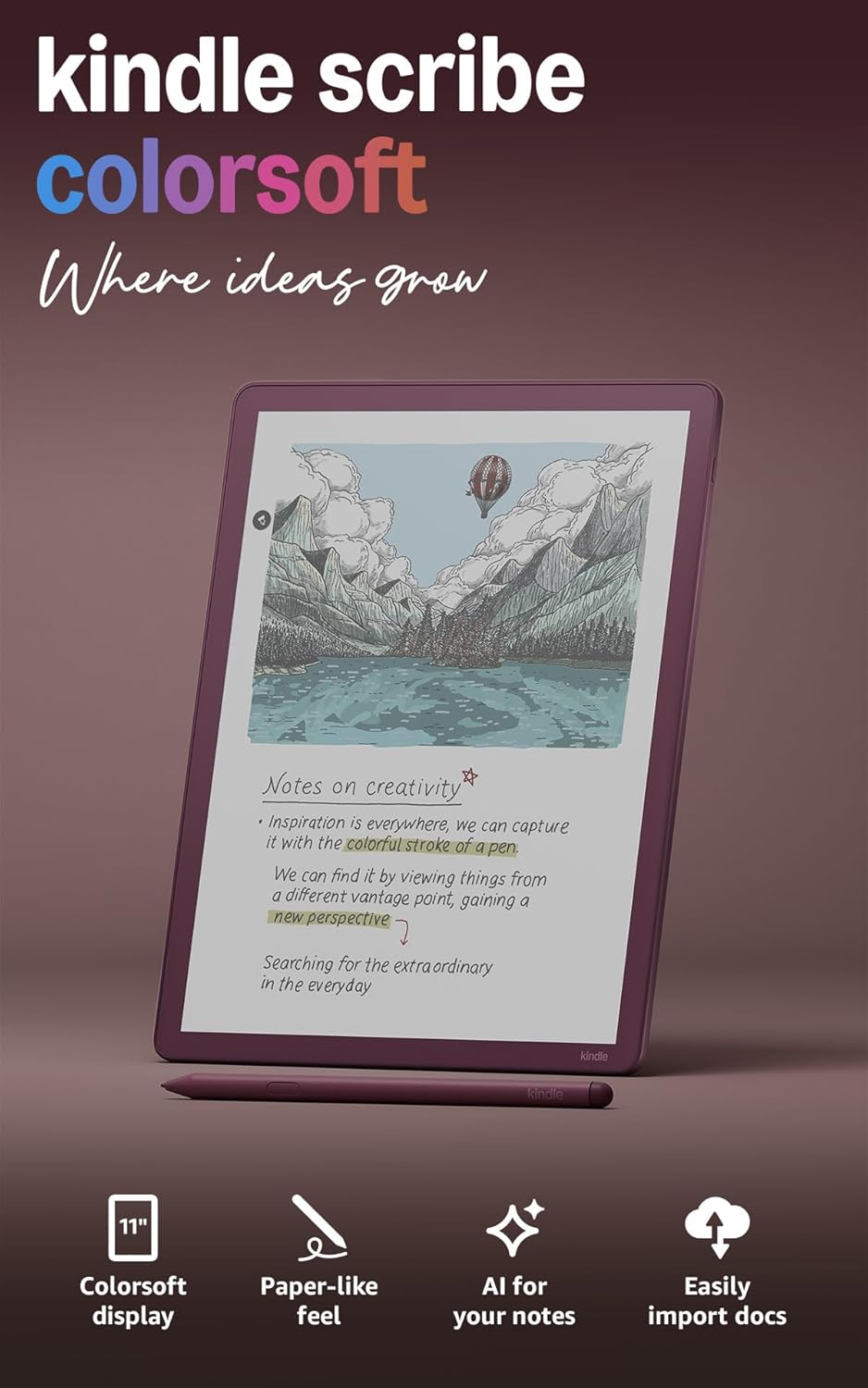
Figure 1: Amazon Kindle Scribe Colorsoft with Premium Pen.
การตั้งค่า
1. ค่าธรรมเนียมเริ่มต้น
Before first use, fully charge your Kindle Scribe Colorsoft. Connect the included USB-C charging cable to the device and a compatible USB-C power adapter (20W adapter recommended for fastest charging). A full charge takes less than 3 hours.
2. เปิดเครื่อง
Press and hold the power button located on the side of the device until the screen illuminates. Follow the on-screen prompts to begin setup.
3. การเชื่อมต่อ Wi-Fi
Select your preferred Wi-Fi network from the list and enter the password if required. The device supports 2.4 GHz and 5.0 GHz networks with WEP, WPA, WPA2, and WPA3 security protocols.
4. การลงทะเบียน
Register your Kindle Scribe Colorsoft to your Amazon account. This links your device to your content library and enables cloud services.
คำแนะนำการใช้งาน
Reading on the Colorsoft Display
The 11-inch Colorsoft display offers a paper-like reading experience with color. Adjust the front light for comfortable viewing in various lighting conditions. The display features 300 ppi for black and white text and 150 ppi for color content.
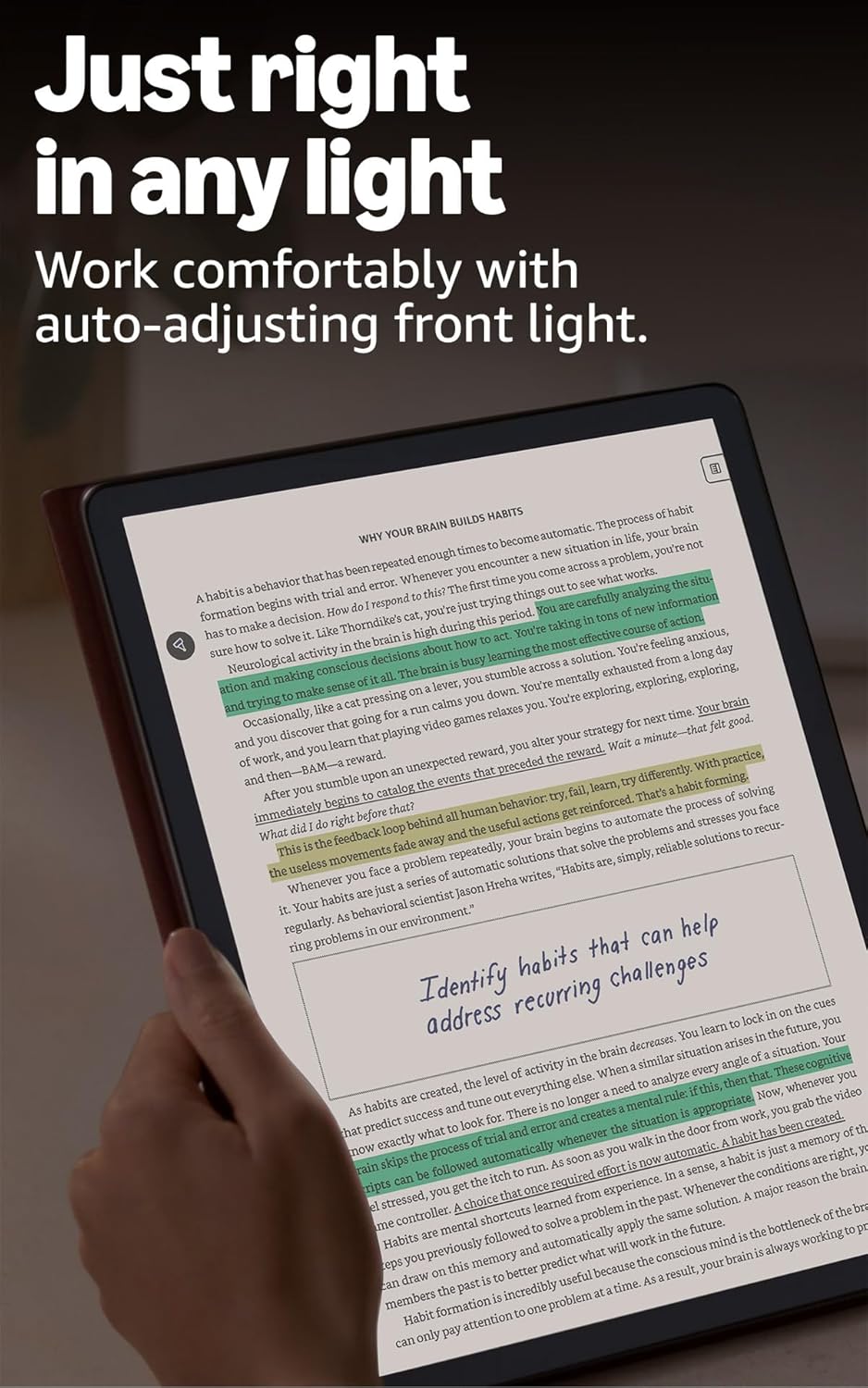
Figure 2: Reading on the Kindle Scribe Colorsoft with adjustable front light.
Writing with the Premium Pen
The included Premium Pen allows for a natural writing experience on the textured display. The pen requires no charging. Use it to create notebooks, annotate documents, or add notes directly to books.
- สมุดบันทึก: Create new notebooks to capture thoughts, ideas, or meeting notes. Utilize AI-powered tools to search, summarize, and refine your handwriting, or convert notes to text.

Figure 3: The Premium Pen provides a fluid writing experience on the textured display.

Figure 4: Utilize AI-powered tools for note summarization and management.
Writing in Documents and Books (Active Canvas)
When writing in documents or books, Active Canvas automatically creates space for your notes. You can expand margins for more writing room or collapse them to view the original text.
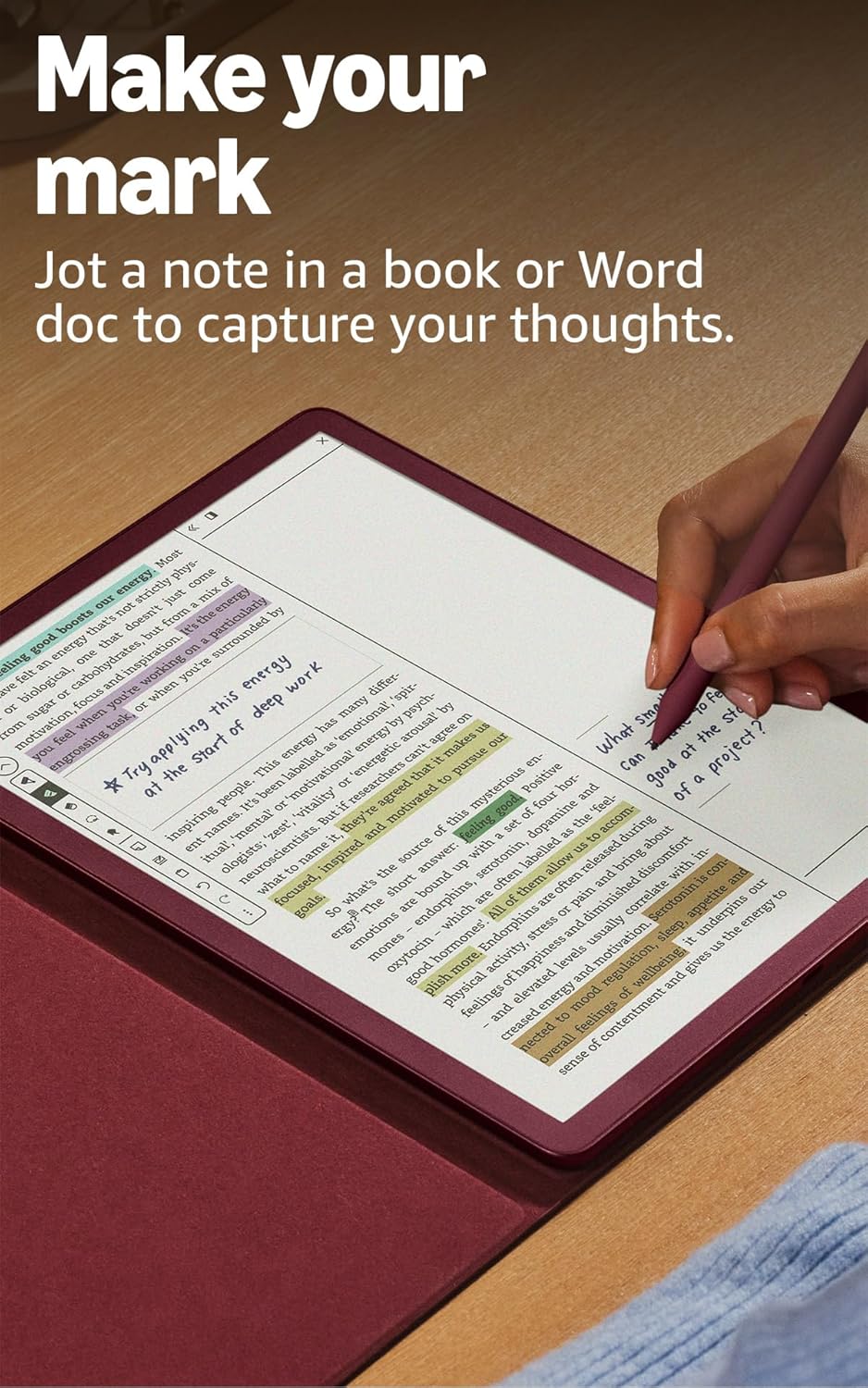
Figure 5: Make your mark directly in books and documents using Active Canvas.
การจัดการเอกสาร
Import documents directly from cloud services like Google Drive and Microsoft OneDrive for markup. You can also export your notebooks to Microsoft OneNote for further integration with your workflow.

Figure 6: Import and mark up documents from popular cloud services.
AI Reading Features
The Kindle Scribe Colorsoft includes advanced AI features to enhance your reading experience:
- Recaps: Get summaries for thousands of bestseller series.
- Story So Far (Coming 2026): Provides spoiler-free catch-ups for books.
- Ask this Book (Coming 2026): Allows you to ask in-text questions about thousands of Kindle books.
การซ่อมบำรุง
ทำความสะอาดอุปกรณ์ของคุณ
Use a soft, lint-free cloth to gently wipe the screen and body of your Kindle Scribe Colorsoft. Avoid abrasive materials or harsh chemicals. Do not submerge the device in water.
การดูแลแบตเตอรี่
To maximize battery life, avoid exposing the device to extreme temperatures. For optimal performance, charge the device regularly, even if not fully depleted. A single charge provides up to 8 weeks of reading or 2 weeks of writing, depending on usage.
การอัพเดตซอฟต์แวร์
Your Kindle Scribe Colorsoft will receive automatic software security updates for at least four years from its last purchase availability. Ensure your device is connected to Wi-Fi to receive these updates.
การแก้ไขปัญหา
อุปกรณ์ไม่ตอบสนอง
If your device is unresponsive, try a hard reset. Press and hold the power button for 40 seconds until the device restarts. If the issue persists, ensure the device is charged.
ปัญหาการเชื่อมต่อ Wi-Fi
Verify your Wi-Fi password and ensure you are within range of your router. Restarting your router and the Kindle Scribe Colorsoft can often resolve connectivity problems. The device does not support ad-hoc Wi-Fi networks.
ปากกาไม่เขียน
The Premium Pen does not require charging. If it's not writing, ensure the pen tip is securely in place. If the tip is worn, replace it with one of the included replacement tips. Gently pull out the old tip and insert a new one.
ข้อมูลจำเพาะ
| แสดง | 11-inch Colorsoft display, 300 ppi B&W, 150 ppi color, built-in front light. |
| Size (Device) | 7.4 "x 9.6" x 0.21 "(X 189 245 x 5.4mm) |
| Size (Premium Pen) | 6.1” x 0.35” (155 x 8.8 มม.) |
| น้ำหนัก (อุปกรณ์) | 14.1 ออนซ์ (400g) |
| Weight (Premium Pen) | 0.6 ออนซ์ (17g) |
| การจัดเก็บข้อมูลบนอุปกรณ์ | 64 GB (50 GB available to user) |
| การเชื่อมต่อ Wi-Fi | 2.4 GHz and 5.0 GHz, WEP, WPA, WPA2, WPA3 support. |
| Content Formats | Kindle (AZW3, AZW), TXT, PDF, MOBI, PRC, DOCX, DOC, HTML, EPUB, RTF, JPEG, GIF, PNG, BMP, Audible (AAX). |
| อายุการใช้งานแบตเตอรี่ | Up to 8 weeks (reading), up to 2 weeks (writing) on a single charge. |
| เวลาในการชาร์จ | Less than 3 hours with 20W USB-C adapter. |
| รวมอยู่ในกล่อง | Kindle Scribe Colorsoft, Premium Pen, USB-C charging cable, replacement tips. |
การรับประกันและการสนับสนุน
ข้อมูลการรับประกัน
Your Kindle Scribe Colorsoft comes with a 1-year limited warranty. For detailed terms and conditions, please refer to the warranty documentation included with your device or visit the official Amazon support webเว็บไซต์.
การสนับสนุนลูกค้า
For additional assistance, troubleshooting, or to learn more about your Kindle Scribe Colorsoft, please visit the Amazon Help & Customer Service page or contact Amazon customer support directly. You can also find more information in the Quick Start Guide and Kindle User Guide documentation.


