คู่มือผู้ใช้ DrayTek VigorAP 905 จุดเชื่อมต่อ WiFi 6 ประสิทธิภาพสูง
Model: VAP905-K
1. สินค้าหมดview
The DrayTek VigorAP 905 is a high-performance WiFi 6 Mesh Wireless Access Point designed for efficient network management in demanding environments. It delivers robust wireless connectivity and flexible wired options.
คุณสมบัติหลัก:
- Fast Wi-Fi 6 Access Point: Experience lightning-fast speeds with a combined speed of up to 3000Mbps, ideal for businesses requiring efficient networks for demanding applications.
- Strong WPA3 Connection Encryption: Ensures robust wireless security with the latest WPA3-Personal or 802.1x Enterprise. Supports mixed WPA3/WPA2 and different SSIDs with varying security levels.
- ตั้งค่าและจัดการได้ง่าย: Effortlessly manage up to 8 compatible mesh VigorAPs and up to 20 APs using the Wireless Virtual Controller module. Features auto-provisioning and AP monitoring.
- Flexible 2.5 Gigabit Ethernet Uplink & 4 x GbE Connectivity: Connects to the network via its 2.5Gb Ethernet interface. Additional Gigabit Ethernet interfaces provide wired connectivity for devices like laptops or printers.
- High Density Performance: Capable of linking up to 256 clients with 802.11ax dual-band antennas and Wi-Fi 6 2x2 Multi-User MIMO technology, suitable for high-density environments.
- Wall/Desk Form Factor Design: A versatile design that complements both business and home interiors. LED indicators can be scheduled or disabled.

รูปที่ 1 : ด้านหน้า view of the DrayTek VigorAP 905 Access Point, showcasinด้วยการออกแบบที่กะทัดรัดและเสาอากาศภายนอกสองเสา
2. การตั้งค่า
2.1 เนื้อหาบรรจุภัณฑ์
ก่อนเริ่มต้น โปรดตรวจสอบให้แน่ใจว่ามีสิ่งของครบถ้วนในกล่อง:
- จุดเชื่อมต่อไร้สาย DrayTek VigorAP 905
2.2 การติดตั้งทางกายภาพ
The VigorAP 905 can be mounted on a wall or placed on a desk.
- เลือกตำแหน่ง: Select a central location for optimal Wi-Fi coverage, away from obstructions and sources of interference.
- การเชื่อมต่อไฟฟ้า: Connect the power adapter to the AP's PWR port and plug it into an electrical outlet. Alternatively, if using Power over Ethernet (PoE), connect an Ethernet cable from a PoE-enabled switch or injector to the 2.5G Ethernet port (P1/PoE).
- การเชื่อมต่อเครือข่าย: Connect an Ethernet cable from your router or network switch to the 2.5G Ethernet port (P1/PoE) on the VigorAP 905.
- Optional Wired Devices: Use the additional Gigabit Ethernet ports (P2, P3, P4, P5) to connect wired devices such as computers or printers.

รูปที่ 2: ด้านข้าง view of the VigorAP 905, illustrating the power input, reset button, WPS button, 2.5G Ethernet port (P1/PoE), and four Gigabit Ethernet ports (P2-P5).
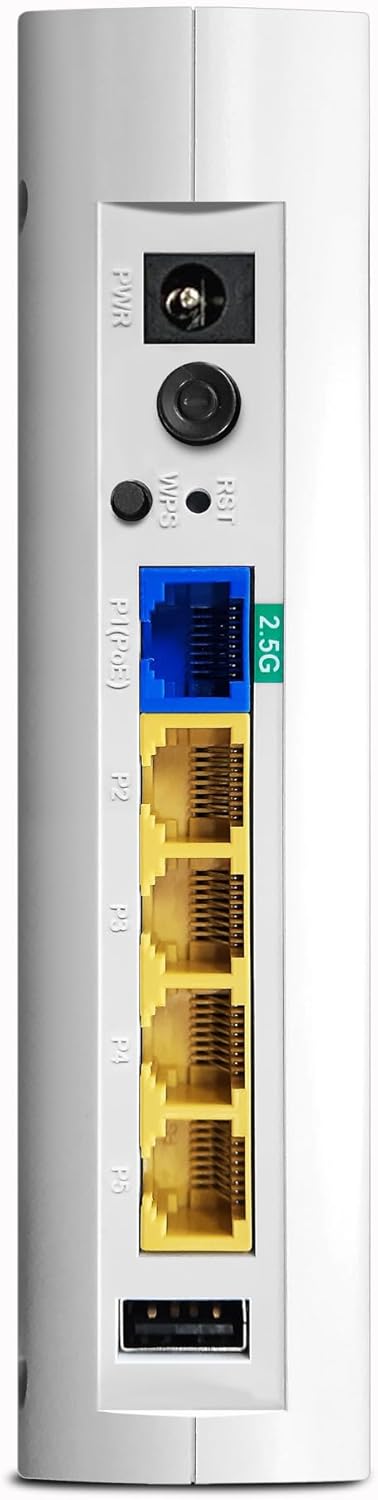
รูปที่ 3: รายละเอียด view of the VigorAP 905's rear panel, highlighting the power port, reset/WPS buttons, 2.5G Ethernet port, and four standard Gigabit Ethernet ports.
2.3 การกำหนดค่าเริ่มต้น
After physical installation, the VigorAP 905 requires initial configuration. Refer to the DrayTek official website or the included quick start guide for detailed instructions on accessing the web interface and setting up your Wi-Fi network (SSID, password, security settings).
- การเข้าถึง Web อินเทอร์เฟซ: Typically, you connect a computer directly to one of the AP's LAN ports or connect wirelessly to its default SSID (usually printed on the device). Then, open a web browser and enter the default IP address (e.g., 192.168.1.1).
- ข้อมูลการเข้าสู่ระบบ: Use the default username and password (also usually printed on the device or in the quick start guide) to log in.
- การตั้งค่าตัวช่วย: Follow the on-screen wizard to configure basic settings such as Wi-Fi name (SSID), password, and security type (WPA3 recommended).
3. Operating the VigorAP 905
3.1 ไฟแสดงสถานะ LED
The VigorAP 905 features LED indicators on its front panel to provide status information:
- กำลังไฟ LED: ระบุสถานะพลังงานของอุปกรณ์
- WLAN LEDs: Indicate Wi-Fi activity for 2.4GHz and 5GHz bands.
- ไฟ LED LAN: แสดงสถานะการทำงานบนพอร์ตอีเธอร์เน็ต
- Refer to the full user manual for a detailed explanation of each LED's behavior (e.g., solid, blinking, color).

รูปที่ 4: มุม view of the VigorAP 905, highlighting the front panel with its array of LED indicators for various statuses.
3.2 การเชื่อมต่อแบบไร้สาย
Once configured, devices can connect to the VigorAP 905 wirelessly using the configured SSIDs and passwords. The device supports Wi-Fi 6 (802.11ax) for enhanced performance and efficiency.
- อุปกรณ์เชื่อมต่อ: On your wireless device (smartphone, laptop, tablet), search for available Wi-Fi networks, select your configured SSID, and enter the password.
- เครือข่ายแบบตาข่าย: If you have multiple compatible VigorAPs, you can set up a mesh network for seamless roaming and extended coverage. Consult the DrayTek documentation for mesh setup procedures.
3.3 การเชื่อมต่อแบบมีสาย
The VigorAP 905 provides five Ethernet ports for wired connections:
- P1 (2.5G Ethernet/PoE): Primary uplink to your network, supporting 2.5 Gigabit speeds and Power over Ethernet.
- P2-P5 (Gigabit Ethernet): Standard Gigabit Ethernet ports for connecting wired devices.
4. การบำรุงรักษา
Regular maintenance ensures optimal performance and longevity of your VigorAP 905.
- อัพเดตเฟิร์มแวร์: ตรวจสอบ DrayTek เป็นระยะ website for new firmware versions. Updating firmware can provide new features, performance improvements, and security patches.
- การทำความสะอาด: Keep the device clean and free from dust. Use a soft, dry cloth. Do not use liquid cleaners.
- การระบายอากาศ : Ensure the device has adequate ventilation to prevent overheating. Do not block ventilation holes.
- การกำหนดค่าการสำรองข้อมูล: Regularly back up your device's configuration settings through the web interface. This allows for quick restoration in case of a reset or replacement.
5 การแก้ไขปัญหา
This section addresses common issues you might encounter with your VigorAP 905.
5.1 No Power / LEDs Off
- ตรวจสอบการเชื่อมต่อพลังงาน: Ensure the power adapter is securely connected to the AP and the electrical outlet.
- ตรวจสอบเอาท์เล็ท: ทดสอบเต้ารับไฟฟ้าด้วยอุปกรณ์อื่นเพื่อยืนยันว่าใช้งานได้
- PoE Check: If using PoE, ensure your PoE switch or injector is powered on and providing power.
5.2 ไม่สามารถเชื่อมต่อกับ Wi-Fi ได้
- Check SSID and Password: Verify that you are selecting the correct Wi-Fi network name (SSID) and entering the correct password. Passwords are case-sensitive.
- AP Status: Check the WLAN LEDs on the AP. If they are off, the Wi-Fi might be disabled or the AP is not functioning correctly.
- Reboot AP: Power cycle the VigorAP 905 by unplugging and re-plugging the power adapter.
- Distance/Interference: Move closer to the AP or check for sources of interference (e.g., microwaves, cordless phones).
5.3 ความเร็ว Wi-Fi ช้า
- การรบกวนช่องสัญญาณ: Use the AP's web interface to perform a site survey and select a less congested Wi-Fi channel.
- ความแรงของสัญญาณ: Ensure your device has a strong Wi-Fi signal. Obstacles like walls can degrade performance.
- จำนวนอุปกรณ์: Too many devices connected to the AP can impact performance.
- เฟิร์มแวร์: Ensure the AP is running the latest firmware.
5.4 ไม่สามารถเข้าถึงได้ Web อินเทอร์เฟซ
- ที่อยู่ IP: Confirm you are using the correct IP address for the AP. If the AP is connected to a router, it might have received a dynamic IP address.
- การเชื่อมต่อเครือข่าย: Ensure your computer is connected to the same network as the AP (either directly via Ethernet or wirelessly).
- ไฟร์วอลล์/โปรแกรมป้องกันไวรัส: ปิดใช้งานไฟร์วอลล์หรือซอฟต์แวร์ป้องกันไวรัสบนคอมพิวเตอร์ของคุณชั่วคราว ซึ่งอาจบล็อกการเข้าถึงอยู่
- รีเซ็ตเป็นค่าเริ่มต้นจากโรงงาน: As a last resort, perform a factory reset by pressing and holding the reset button for several seconds (refer to the full manual for exact duration). Note: This will erase all configurations.
6. ข้อมูลจำเพาะ
| คุณสมบัติ | รายละเอียด |
|---|---|
| ยี่ห้อ | ดรายเท็ก |
| ชื่อรุ่น | วีเอพี905 |
| หมายเลขรุ่นสินค้า | VAP905-K |
| เทคโนโลยีการเชื่อมต่อ | ไวไฟ |
| มาตรฐานการสื่อสารไร้สาย | 802.11ax (ไวไฟ 6) |
| ระดับย่านความถี่ | ดูอัลแบนด์ |
| คุณสมบัติพิเศษ | WPA3 Security, Easy Management, High Density Performance, Versatile Design |
| อุปกรณ์ที่รองรับ | Laptop, Printer, Mobile Devices |
| การใช้ที่แนะนำ | ธุรกิจ |
| น้ำหนักสินค้า | 330 กรัม |
| ขนาดแพ็คเกจ | 15 x 6 x 4 ซม. |
| ประเทศต้นกำเนิด | ไต้หวัน |
7. การรับประกันและการสนับสนุน
7.1 ข้อมูลการรับประกัน
DrayTek products typically come with a manufacturer's warranty. Please refer to the warranty card included with your product or visit the official DrayTek website for specific warranty terms and conditions applicable to the VigorAP 905.
7.2 การสนับสนุนด้านเทคนิค
For technical assistance, product registration, or to download the latest drivers and firmware, please visit the official DrayTek support website. You may also find helpful resources, FAQs, and community forums there.
DrayTek Official Webเว็บไซต์: www.draytek.com


