1. บทนำ
This manual provides essential information for setting up, operating, and maintaining your KOOSMILE Mini Laptop P8. The P8 is an 8-inch 2-in-1 convertible laptop featuring Windows 11 Pro, an Intel N150 processor, 12GB LPDDR5 RAM, and a 512GB SSD. Its compact design and versatile modes make it suitable for various tasks and environments.
2. เนื้อหาบรรจุภัณฑ์
กรุณาตรวจสอบแพ็คเกจสำหรับรายการต่อไปนี้:
- KOOSMILE Mini Laptop P8 x1
- PD Adapter x1
- Active Stylus x1
- สาย HDMI x1
- ฮับ USB x1
- คู่มือการใช้งาน x1
3. สินค้าหมดview
Familiarize yourself with the physical components and ports of your KOOSMILE Mini Laptop P8.
3.1. คุณสมบัติหลัก
ภาพ: เหนือview of the KOOSMILE P8 Mini Laptop highlighting its key features including Intel N150 CPU, 12GB LPDDR5 RAM, SSD storage, 0.78kg weight, 2MP camera, and 8-inch HD IPS screen.
3.2. พอร์ตและปุ่ม
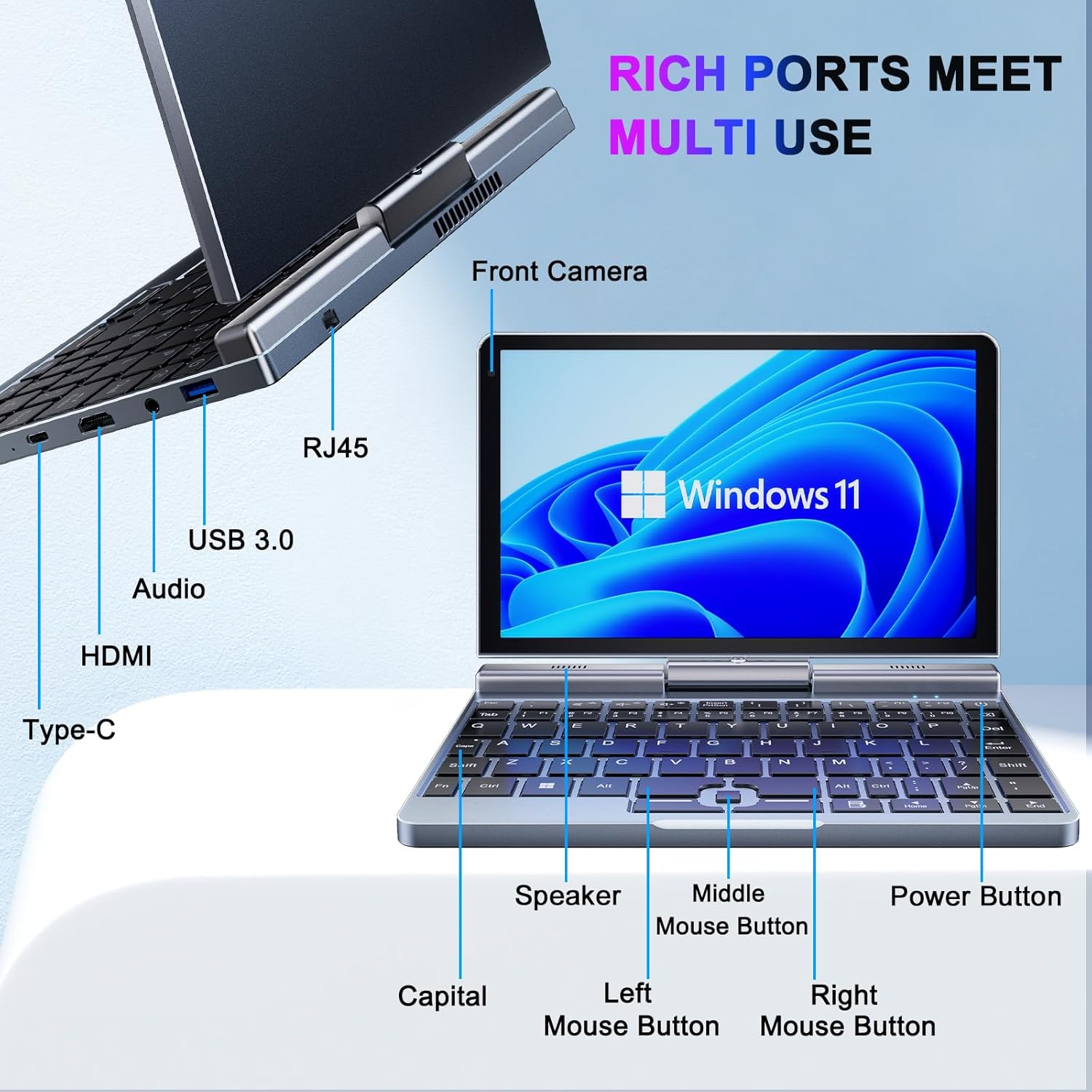
ภาพ: รายละเอียด view of the KOOSMILE P8 Mini Laptop's side ports and keyboard layout, labeling the RJ45 Ethernet port, USB 3.0, Audio jack, HDMI, Type-C port, Front Camera, Speaker, Middle Mouse Button, Left Mouse Button, Right Mouse Button, Power Button, and Capital key.
- พอร์ต USB 3.0: สำหรับเชื่อมต่ออุปกรณ์ USB
- พอร์ต USB Type-C: For data transfer, charging, and DisplayPort (DP) video output.
- พอร์ต HDMI: สำหรับเชื่อมต่อกับจอแสดงผลภายนอก
- แจ็คเสียง: สำหรับหูฟังหรือลำโพงภายนอก
- พอร์ตอีเธอร์เน็ต RJ45: สำหรับการเชื่อมต่อเครือข่ายแบบใช้สาย
- ปุ่มเปิด/ปิด: เพื่อเปิด/ปิดอุปกรณ์หรือทำให้เครื่องเข้าสู่โหมดสลีป
- กล้องหน้า: 2MP camera for video calls and conferencing.
4. การตั้งค่า
Follow these steps for initial setup of your KOOSMILE Mini Laptop P8.
- ชาร์จอุปกรณ์: Connect the PD Adapter to the USB Type-C port on the laptop and plug it into a power outlet. Allow the device to charge fully before first use.
- เปิดเครื่อง: กดปุ่มเปิด/ปิดค้างไว้จนกว่าหน้าจอจะสว่างขึ้น
- การตั้งค่า Windows 11 Pro: Follow the on-screen instructions to complete the initial Windows 11 Pro setup, including language selection, network connection, and user account creation.
- เชื่อมต่ออุปกรณ์ต่อพ่วง: If desired, connect the included USB Hub, external mouse, or other peripherals to the available USB ports.
5. คู่มือการใช้งาน
This section covers basic operation and usage modes of your device.
5.1. การเปิด/ปิดเครื่อง และโหมดพักเครื่อง
- เปิดเครื่อง: กดปุ่มเปิด/ปิด
- โหมดสลีป: Briefly press the Power Button while the device is on. Press again to wake.
- ปิดระบบ: From the Windows desktop, click the Start button, then Power, and select 'Shut down'.
- เริ่มต้นใหม่อีกครั้ง: From the Windows desktop, click the Start button, then Power, and select 'Restart'.
5.2. โหมดแปลงร่าง 2 แบบในหนึ่งเดียว
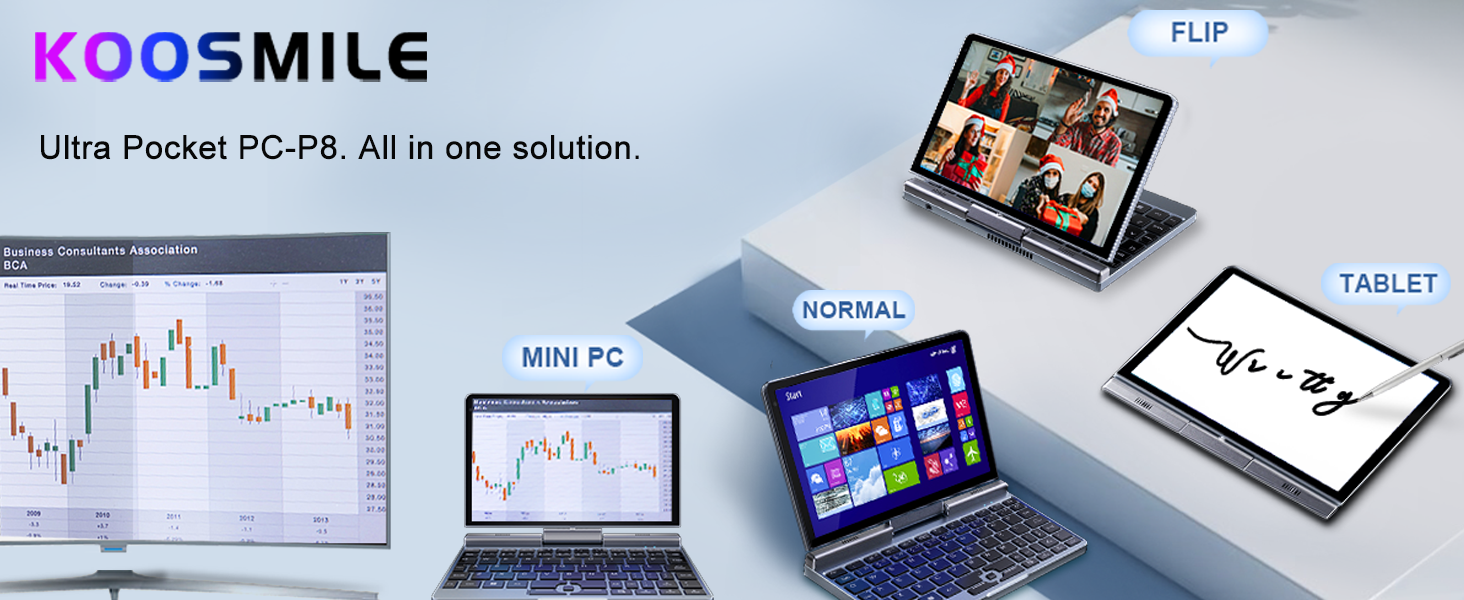
The KOOSMILE P8 features a 180° rotating screen, allowing it to transform into multiple modes:
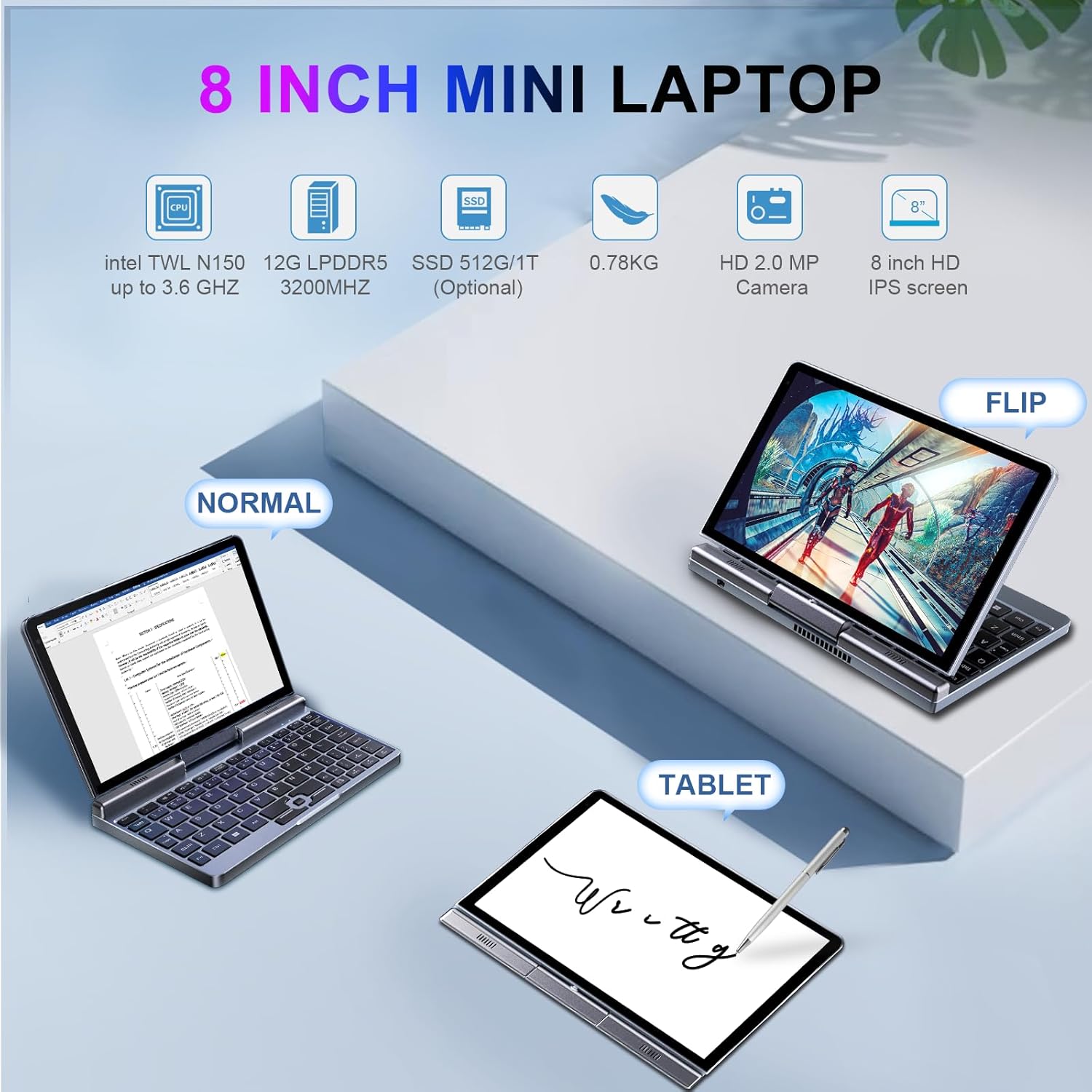
Image: The KOOSMILE P8 Mini Laptop shown in three different modes: Normal (laptop), Flip (tent/stand), and Tablet mode, demonstrating its 180-degree screen rotation capability.
- โหมดแล็ปท็อป: Standard configuration for typing and traditional computing.
- โหมดแท็บเล็ต: Rotate the screen 180° and fold it back against the keyboard for a full touchscreen experience. Windows will automatically switch to tablet interface.
- โหมดเต็นท์/ขาตั้ง: Position the device in an inverted 'V' shape or with the keyboard facing down for media consumption or presentations.
5.3. Touchscreen and Stylus Use
The 8-inch HD touch screen supports multi-touch gestures and input from the included active stylus.
- ท่าทางสัมผัส: Use standard Windows touch gestures for navigation, zooming, and scrolling.
- สไตลัสแบบแอ็คทีฟ: The stylus allows for precise input, drawing, and note-taking. Ensure the stylus is charged if it requires power.
5.4. การเชื่อมต่อจอแสดงผลภายนอก
Connect your laptop to an external monitor or TV using the HDMI or USB Type-C (DisplayPort Alt Mode) ports.

Image: The KOOSMILE P8 Mini Laptop connected to an external monitor via HDMI, illustrating its Type-C DisplayPort (DP) out and HDMI DisplayPort (DP) out capabilities for extended display.
- ช่องต่อ HDMI: Use the included HDMI cable to connect to an HDMI-compatible display.
- USB Type-C: If your external display supports DisplayPort over USB-C, you can use a compatible USB-C to DisplayPort cable.
- การตั้งค่าการแสดงผล: หลังจากเชื่อมต่อแล้ว ให้กด ปุ่ม Windows + P to select your preferred display mode (Duplicate, Extend, Second screen only).
6. การเชื่อมต่อ
The KOOSMILE P8 offers various connectivity options.
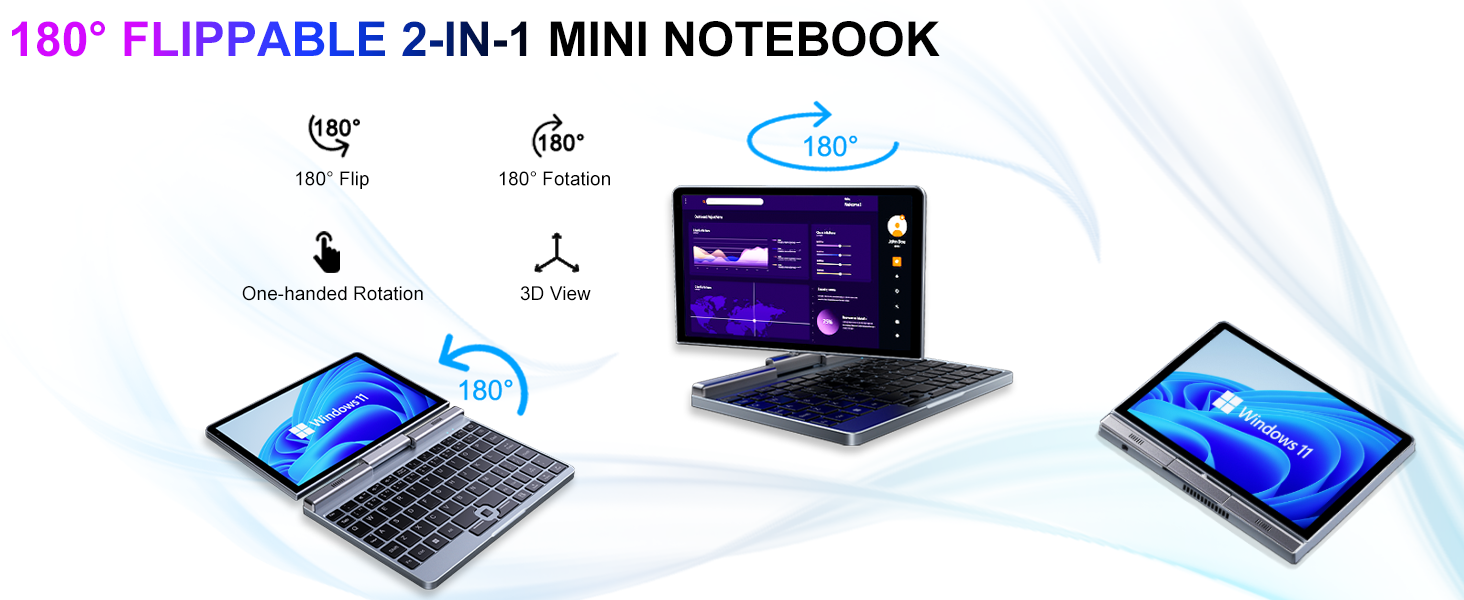
Image: Graphic illustrating the high-speed connectivity of the KOOSMILE P8 Mini Laptop, featuring Wi-Fi 6 and Bluetooth 5.2, with comparison bars showing improved speed, capacity, and reduced delay compared to Wi-Fi 5.
6.1 การเชื่อมต่อ Wi-Fi
- คลิกไอคอน Wi-Fi ในแถบงาน
- เลือกเครือข่ายที่คุณต้องการและป้อนรหัสผ่านหากได้รับแจ้ง
- The device supports Wi-Fi 6 for faster and more stable wireless connections.
6.2. การจับคู่บลูทู ธ
- ไปที่ Settings > Bluetooth & devices > Bluetooth.
- Turn on Bluetooth and select 'Add device'.
- Choose the device you wish to pair and follow the on-screen instructions.
- The device supports Bluetooth 5.2 for efficient wireless accessory connections.
6.3. Wired Ethernet
- Connect an Ethernet cable to the RJ45 port on the laptop for a stable wired network connection.
7. การบำรุงรักษา
Proper care ensures the longevity and performance of your device.
- การทำความสะอาด: ใช้ผ้านุ่มที่ไม่เป็นขุยทำความสะอาดหน้าจอและตัวเครื่อง สำหรับรอยฝังแน่น ให้...ampชุบผ้าเล็กน้อยด้วยน้ำหรือน้ำยาทำความสะอาดหน้าจอ หลีกเลี่ยงสารเคมีรุนแรง
- การระบายอากาศ : ตรวจสอบให้แน่ใจว่าช่องระบายอากาศไม่ได้ถูกปิดกั้นเพื่อป้องกันความร้อนสูงเกินไป
- การดูแลแบตเตอรี่ For optimal battery life, avoid fully discharging the battery frequently. Store the device in a cool, dry place if not used for extended periods.
- การอัปเดตซอฟต์แวร์: ควรทำการอัปเดต Windows และไดรเวอร์อย่างสม่ำเสมอ เพื่อให้มั่นใจได้ถึงเสถียรภาพและความปลอดภัยของระบบ
8 การแก้ไขปัญหา
หัวข้อนี้จะกล่าวถึงปัญหาทั่วไปที่คุณอาจพบเจอ
8.1. Screen Orientation Issues
- การหมุนอัตโนมัติ: When switching between laptop and tablet modes, the screen should automatically adjust its orientation.
- การหมุนด้วยตนเอง: If the screen does not rotate automatically or is stuck in an incorrect orientation, press Windows Key + A to open the Quick Settings panel. Look for the 'Rotation lock' tile and ensure it is off. You can also go to การตั้งค่า > ระบบ > การแสดงผล and manually change the 'Display orientation'.
8.2. อุปกรณ์ไม่เปิดเครื่อง
- ตรวจสอบพลังงาน: Ensure the PD adapter is securely connected to the laptop and a working power outlet.
- ระดับแบตเตอรี่: หากแบตเตอรี่หมดเกลี้ยง อาจต้องใช้เวลาชาร์จสักสองสามนาทีก่อนจะเปิดอุปกรณ์ได้
- ฮาร์ดรีเซ็ต: Disconnect the charger, then press and hold the Power Button for 15-20 seconds. Reconnect the charger and attempt to power on again.
8.3. ปัญหาการเชื่อมต่อ Wi-Fi
- เปิด/ปิด Wi-Fi: Turn Wi-Fi off and on again from the Quick Settings or Windows Settings.
- รีสตาร์ทเราเตอร์: รีสตาร์ทเราเตอร์ Wi-Fi และโมเด็มของคุณ
- ลืมเครือข่าย: In Windows Settings, forget the problematic Wi-Fi network and reconnect.
9. ข้อมูลจำเพาะ
Detailed technical specifications for the KOOSMILE Mini Laptop P8.
| คุณสมบัติ | ข้อมูลจำเพาะ |
|---|---|
| โปรเซสเซอร์ | Intel N150 (4 คอร์/4 เธรด ความเร็วสูงสุด 3.6 GHz) |
| แรม | 12GB LPDDR5 3200 เมกะเฮิรตซ์ |
| พื้นที่จัดเก็บ | 512GB SSD (Expandable up to 2TB) |
| แสดง | 8-inch HD Touch Screen, 1280x800 pixels |
| ระบบปฏิบัติการ | วินโดวส์ 11 โปร |
| กราฟฟิก | กราฟิก Intel UHD (รวม) |
| การเชื่อมต่อแบบไร้สาย | Wi-Fi 6, บลูทูธ 5.2 |
| พอร์ต | 1x USB 3.0, 1x USB Type-C (DP Out), 1x HDMI (DP Out), 1x Headphone Jack, 1x RJ45 Ethernet |
| กล้อง | กล้องหน้า 2MP |
| น้ำหนัก | 0.78 กก. (1.72 ปอนด์) |
| ขนาด (กxยxส) | 7.87 x 5.51 x 0.79 นิ้ว |
| แบตเตอรี่ | 36.5 WH, PD 30W Charging |
9.1. ประสิทธิภาพการทำงานเกินview
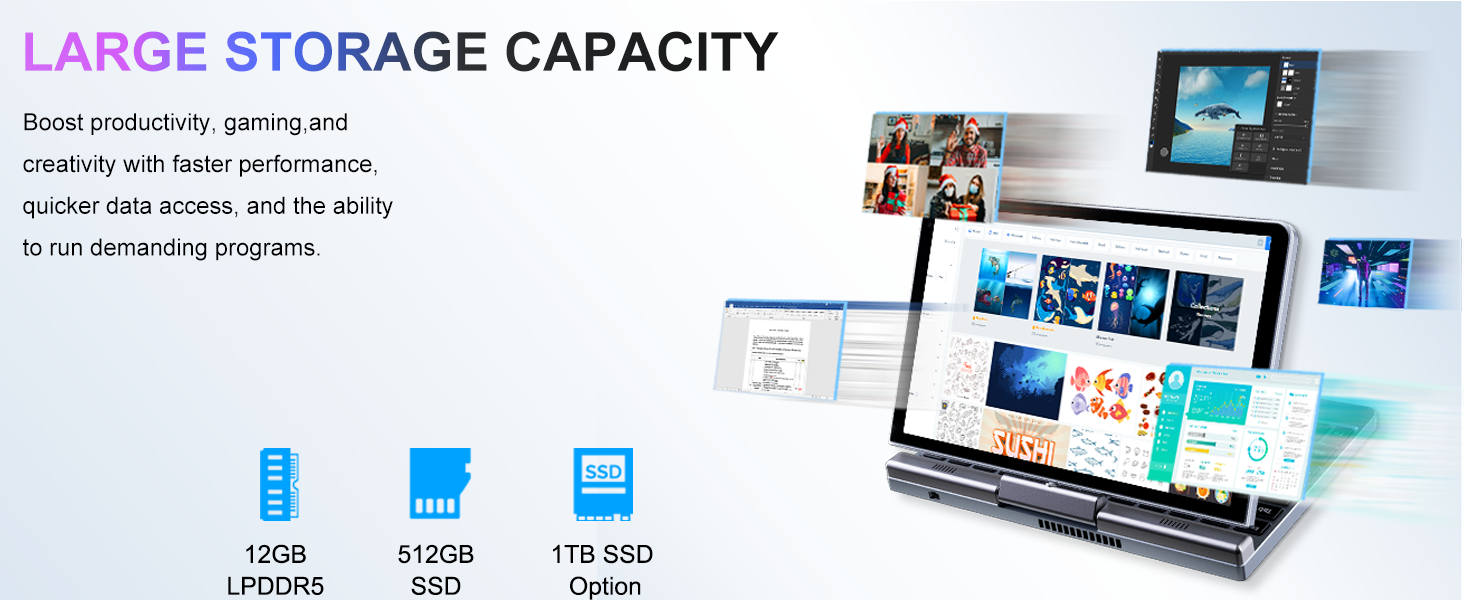
Image: Graphic detailing the performance aspects of the KOOSMILE P8 Mini Laptop, highlighting the Intel TwinLake N150 processor (4 cores, 4 threads, 3.6GHz turbo frequency, 10nm process) and Intel UHD Graphics for smooth content streaming and immersive experiences.
9.2. ความจุในการจัดเก็บข้อมูล
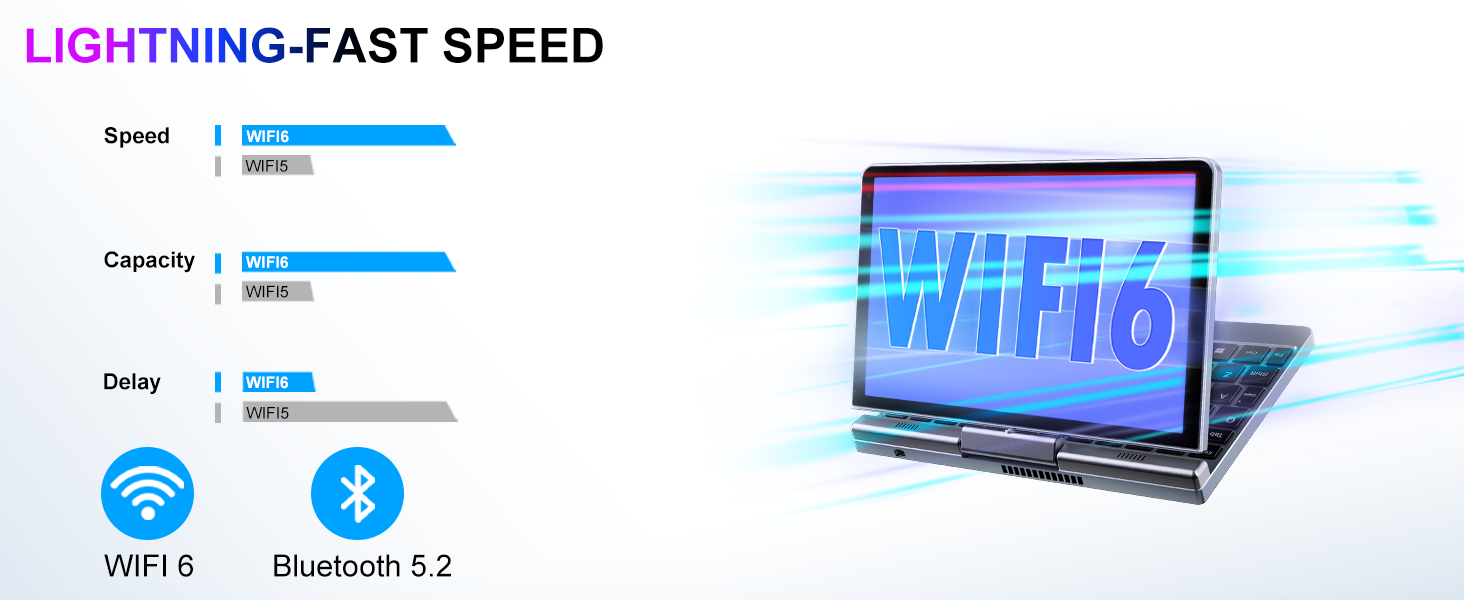
Image: Graphic illustrating the large storage capacity of the KOOSMILE P8 Mini Laptop, featuring 12GB LPDDR5 RAM, 512GB SSD, and an option for 1TB SSD, designed to boost productivity and handle demanding programs.
9.3. Compact Size and Weight
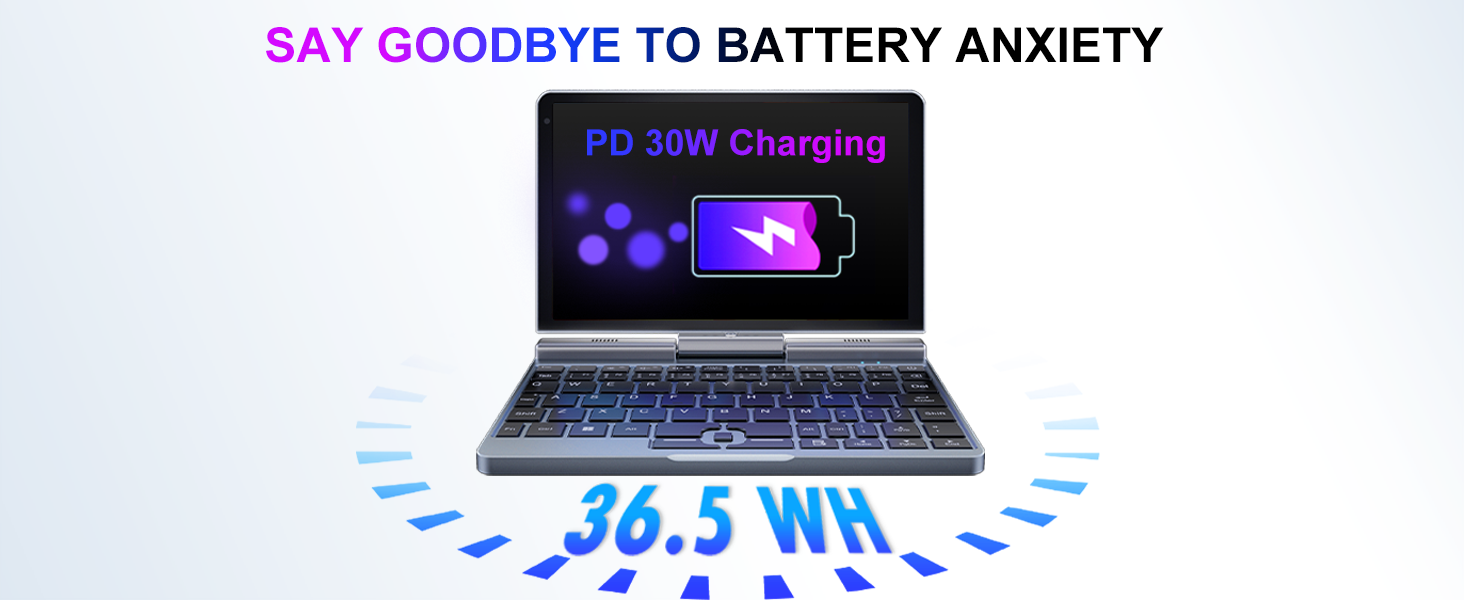
Image: Graphic demonstrating the ultra-compact size and light weight of the KOOSMILE P8 Mini Laptop, showing its 8.0-inch portable screen, 0.78-inch thin profile, and 0.78kg weight, compared to a smartphone for scale.
9.4. ข้อมูลแบตเตอรี่
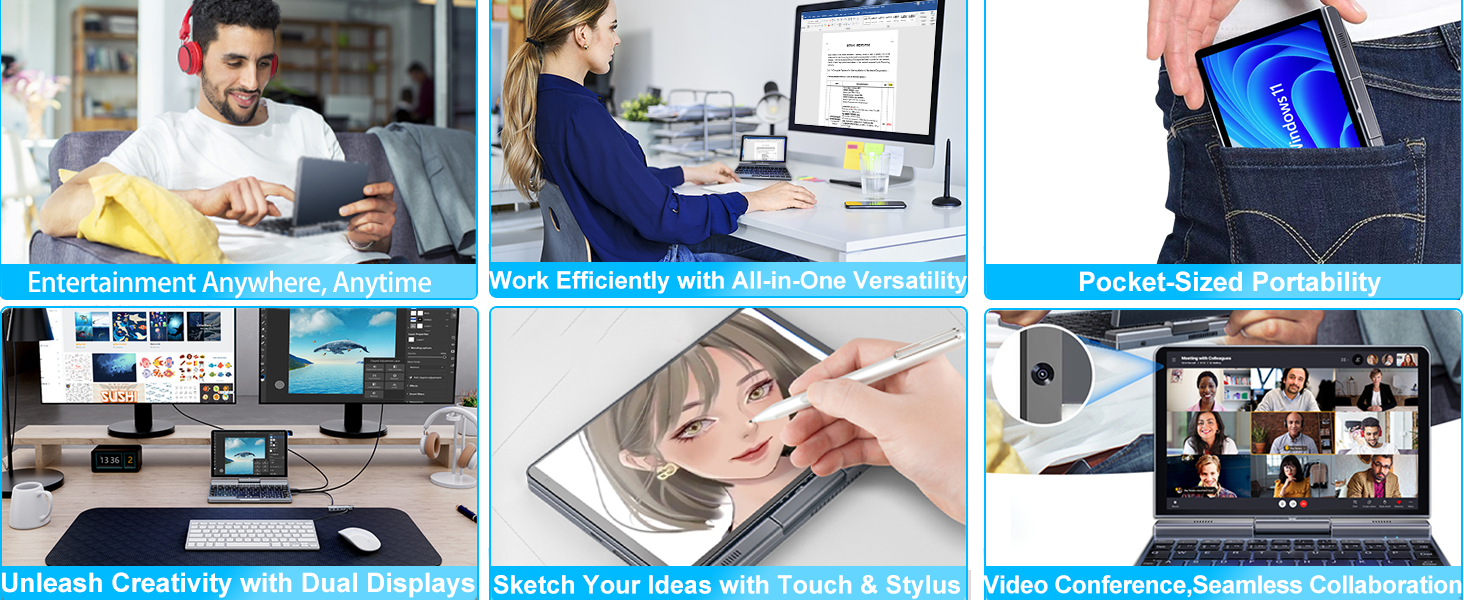
Image: Graphic highlighting the battery features of the KOOSMILE P8 Mini Laptop, indicating 36.5 WH battery capacity and PD 30W charging support to alleviate battery anxiety.
10. การรับประกันและการสนับสนุน
Your KOOSMILE Mini Laptop P8 comes with a 1-year warranty. For technical assistance, troubleshooting, or warranty claims, please contact our customer support team. We provide 24-hour customer support to ensure a worry-free experience.
โปรดดูรายละเอียดข้อกำหนดและเงื่อนไขได้จากบัตรรับประกันที่แนบมาในกล่องสินค้า


