การแนะนำ
This manual provides comprehensive instructions for the setup, operation, and maintenance of your ATTACK SHARK X68 HE Wired Magnetic Keyboard and X3 Wireless Gaming Mouse Combo. Please read this guide thoroughly to ensure optimal performance and longevity of your devices.
การตั้งค่า
Keyboard Connection (X68 HE)
- Locate the USB-C port on the ATTACK SHARK X68 HE keyboard.
- Connect the provided USB-C to USB-A cable to the keyboard and then to an available USB-A port on your computer.
- แป้นพิมพ์จะถูกจดจำโดยระบบปฏิบัติการของคุณโดยอัตโนมัติ
Mouse Connection (X3)
The ATTACK SHARK X3 mouse supports three connectivity modes: USB-C wired, 2.4GHz wireless, and Bluetooth.
- โหมดไร้สาย 2.4GHz:
- Locate the 2.4GHz USB receiver, typically stored in a compartment on the underside of the mouse.
- เสียบตัวรับสัญญาณเข้ากับพอร์ต USB-A ที่ว่างอยู่บนคอมพิวเตอร์ของคุณ
- Switch the mode selector on the mouse to '2.4G'. The mouse will connect automatically.
- โหมดบลูทู ธ :
- Switch the mode selector on the mouse to 'BT'.
- บนคอมพิวเตอร์ของคุณ ไปที่การตั้งค่าบลูทูธ และค้นหาอุปกรณ์ใหม่
- Select 'ATTACK SHARK X3' from the list to pair.
- โหมดสาย USB-C:
- Connect the provided USB-C cable to the mouse and then to an available USB-A port on your computer.
- เมาส์จะทำหน้าที่เป็นอุปกรณ์แบบมีสายและชาร์จพร้อมกันได้
การติดตั้งซอฟต์แวร์ไดรเวอร์
For advanced customization of both the keyboard and mouse, download the dedicated driver software from the official ATTACK SHARK website. This software allows for personalized settings, macros, and lighting effects.
ATTACK SHARK X68 HE Keyboard Features & Operation

Image: The ATTACK SHARK X68 HE keyboard and X3 mouse, showcasing the combo.
สวิตช์แม่เหล็กแบบฮอลล์เอฟเฟกต์
The X68 HE keyboard features Hall Effect magnetic switches, offering adjustable actuation points from 0.1mm to 3.4mm. This allows for precise control over keypress sensitivity. The keyboard boasts an 8000Hz polling rate and an ultra-responsive 0.125ms response time for rapid input registration.
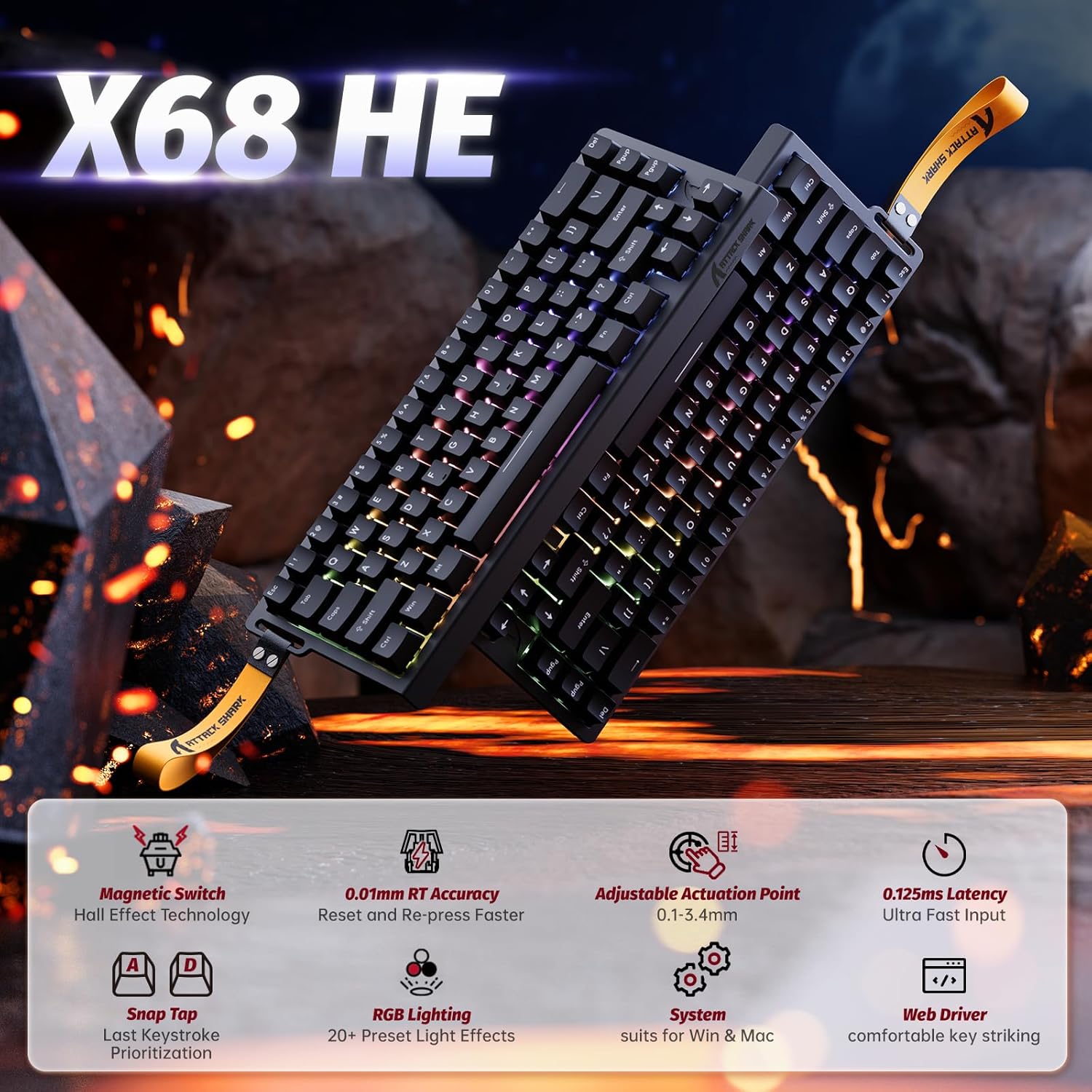
Image: Diagram highlighting key features of the X68 HE keyboard, including magnetic switches, 0.01mm RT accuracy, adjustable actuation, and 0.125ms latency.
Rapid Trigger (RT) & Dynamic Keystroke
With 0.01mm RT sensitivity and zero dead zone, the X68 HE ensures immediate response to key presses. The Snap Tap feature prioritizes the latest input between two keys, beneficial for quick directional changes in games. Dynamic Keystroke allows for up to four actions within a single keypress, enabling complex combos and macros.

Image: Visual representation of 0.01mm RT accuracy and 128KHz scan rate, demonstrating its impact on gaming performance in titles like Valorant, CSGO, APEX, and osu!.
Customization and RGB Lighting
The keyboard's advanced driver software allows for extensive customization. You can adjust the Hall Effect switches' actuation to your preferred sensitivity. The X68 HE features full RGB lighting with over 20 preset light effects. Individual key lighting can also be defined and personalized to match your setup.

Image: The X68 HE keyboard displaying various RGB lighting effects, with controls for brightness, speed, and color shown.
Keyboard Lighting Controls
- Fn + ลูกศรขึ้น/ลง: Adjust Backlit Brightness.
- Fn + ลูกศรซ้าย/ขวา: Adjust Backlit Speed.
- ฟน + \|: Switch Light Mode.
- กดปุ่ม Fn + Enter: Switch Light Color.
- Fn + แบ็คสเปซ: Toggle Light On/Off.
Official Product Videos (Keyboard)
วิดีโอ: จบแล้วview of the ATTACK SHARK X68 HE RT Mechanical Gaming Keyboard, highlighting its design, RGB lighting, and customizable features. Duration: 0:23.
Video: Demonstrates the X68 HE 8000Hz Rapid Trigger Gaming Keyboard's responsiveness and precision in gaming scenarios. Duration: 0:52.
ATTACK SHARK X3 Wireless Gaming Mouse Features & Operation

ภาพ: รายละเอียด view of the X3 wireless mouse, showcasing its lightweight design, PAW3395 sensor, BK3633 chip, Kailh GM8.0 switches, 3-mode connectivity, and 200-hour battery life.
PAW3395 Sensor & High DPI
The X3 wireless mouse is equipped with the high-performance PixArt PAW3395 sensor, offering up to 26,000 DPI. It features a 1000Hz polling rate and 50g acceleration, ensuring ultra-responsive and precise tracking for gaming and detailed tasks.

Image: The X3 mouse highlighting the PAW3395 sensor and its 49g lightweight design, emphasizing its performance capabilities.
Tri-Mode Connectivity & Battery Life
The X3 mouse offers versatile tri-mode connectivity: USB-C wired, 2.4GHz wireless, and Bluetooth. This allows for flexible switching across various devices and usage scenarios. Powered by a 300mAh battery, it provides up to 200 hours of continuous use on a single charge.

Image: Illustrates the three connection modes of the X3 mouse: Bluetooth, 2.4G wireless, and Type-C wired, detailing their benefits.
Lightweight Design & Grip Tape
Weighing just 49g, the X3 mouse is designed for faster and more precise control, facilitating quicker aim, rapid flicks, and smoother tracking. Included grip tape further enhances control and stability during intense gaming sessions.
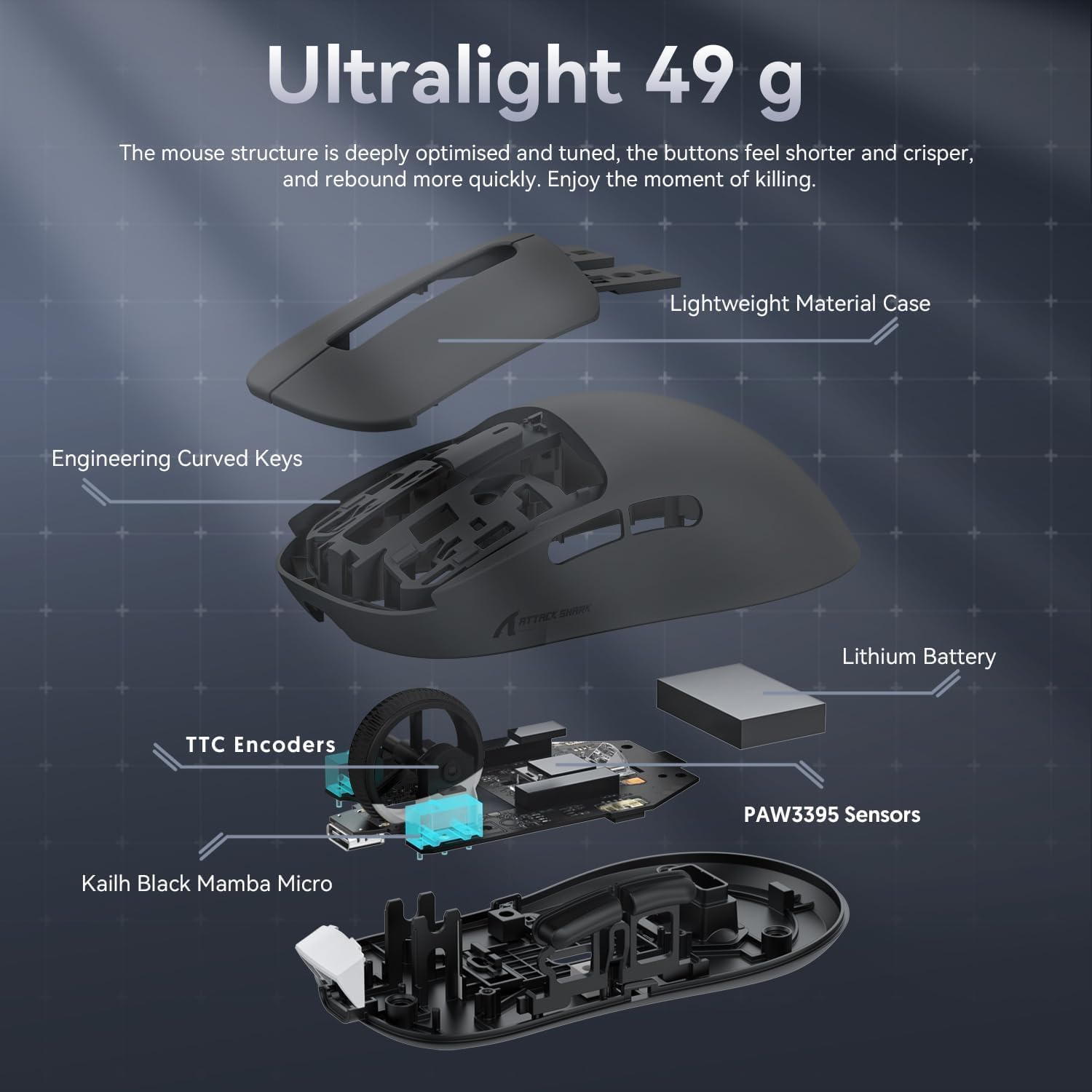
ภาพ: ระเบิด view of the X3 mouse, detailing its internal components and lightweight material case, emphasizing its 49g weight.
Customizable Driver & Macros
Utilize the advanced driver software to customize the X3 mouse. You can program up to 5 mouse buttons, fine-tune DPI settings, adjust the polling rate, and create complex macros for enhanced gameplay and productivity.
ข้อมูลจำเพาะ
| คุณสมบัติ | รายละเอียด |
|---|---|
| ยี่ห้อ | โจมตีฉลาม |
| รุ่นคีย์บอร์ด | X68 เขา |
| แบบจำลองเมาส์ | X3 |
| ขนาดแพ็คเกจ | 14 x 7 x 4 นิ้ว |
| น้ำหนักสินค้า | 2.6 ปอนด์ |
| วันที่พร้อมใช้งานครั้งแรก | 6 พฤษภาคม 2025 |
| สี | สีดำ |
| เทคโนโลยีการเชื่อมต่อ | USB (Keyboard), USB-C, 2.4GHz, Bluetooth (Mouse) |
| คุณสมบัติพิเศษ | Lightweight (Mouse) |
| อุปกรณ์ที่รองรับ | เครื่องคอมพิวเตอร์ส่วนบุคคล |
| สวิตช์คีย์บอร์ด | สวิตช์แม่เหล็กแบบฮอลล์เอฟเฟกต์ |
| อัตราการสำรวจแป้นพิมพ์ | 8000เฮิรตซ์ |
| Keyboard Actuation | Adjustable 0.1mm to 3.4mm |
| เซ็นเซอร์เมาส์ | พิกอาร์ต PAW3395 |
| DPI ของเมาส์ | สูงถึง 26,000 |
| อัตราการสำรวจของเมาส์ | 1000เฮิรตซ์ |
| น้ำหนักเมาส์ | 49กรัม |
| อายุการใช้งานแบตเตอรี่ของเมาส์ | นานถึง 200 ชั่วโมง |
การซ่อมบำรุง
การทำความสะอาดทั่วไป
- แป้นพิมพ์: Use a soft, dry cloth to wipe down the keycaps and chassis. For deeper cleaning, use compressed air to remove dust and debris from between the keys. Avoid using harsh chemicals or abrasive materials.
- หนู: เช็ดพื้นผิวด้วยผ้านุ่มๆ เบาๆamp cloth. Use a cotton swab to clean around the sensor and scroll wheel. Ensure no liquid enters the mouse.
พื้นที่จัดเก็บ
When not in use for extended periods, store the keyboard and mouse in a cool, dry place away from direct sunlight and extreme temperatures. Disconnect all cables and store the USB receiver securely.
การแก้ไขปัญหา
ปัญหาเกี่ยวกับแป้นพิมพ์
- แป้นพิมพ์ไม่ตอบสนอง: Ensure the USB-C cable is securely connected to both the keyboard and the computer. Try a different USB port.
- แสง RGB ไม่ทำงาน: Check the lighting controls (Fn key combinations) or the driver software to ensure lighting is enabled and configured correctly.
- ปุ่มกดไม่ทำงานอย่างถูกต้อง: Ensure the driver software is up-to-date. If issues persist, try resetting the keyboard to factory settings (refer to driver software for instructions).
ปัญหาเกี่ยวกับเมาส์
- เมาส์ไม่ตอบสนอง (แบบไร้สาย): Ensure the mouse is charged. Check that the 2.4GHz receiver is plugged in or Bluetooth is paired. Verify the mode selector switch is in the correct position.
- เมาส์ไม่ตอบสนอง (แบบใช้สาย): ตรวจสอบให้แน่ใจว่าสาย USB-C เชื่อมต่อกับเมาส์และคอมพิวเตอร์อย่างแน่นหนาแล้ว ลองเสียบเข้ากับพอร์ต USB อื่นดู
- การติดตามที่ไม่แม่นยำ: Clean the mouse sensor. Ensure the mouse is used on a suitable surface (e.g., a mouse pad). Adjust DPI settings via the driver software or DPI button.
- อายุการใช้งานแบตเตอรี่ไม่ดี: Ensure the mouse is fully charged before use. Reduce RGB lighting brightness or disable it if possible to conserve battery.
การรับประกันและการสนับสนุน
Your ATTACK SHARK X68 HE Keyboard and X3 Wireless Gaming Mouse Combo is covered by a manufacturer's warranty. For specific warranty details, please refer to the warranty card included with your product or visit the official ATTACK SHARK website. For technical support, troubleshooting assistance, or any product-related inquiries, please contact ATTACK SHARK customer service through their official channels.


